This article follows up on the previous BitLocker - encryption of system disks, where BitLocker and management tools are described. The following chapters are also useful:
- Additional BitLocker settings using policies
- Storing BitLocker keys for recovery in Active Directory
- Configuration using Group Policy
Managing BitLocker To Go
BitLocker To Go is referred to as BitLocker Drive Encryption (it's the same technology) designed for removable media (Removable Data Drives), which are USB flash drives, external hard drives, SD cards, and other disks formatted with NTFS, FAT16, FAT32, or exFAT. We can thus protect the data we carry with us. The encrypted disk can be opened on any computer that supports BitLocker technology. Alternatively, we can use the BitLocker To Go Reader application (for read-only access).
BitLocker To Go does not use a TPM chip, so a lot of the complexity is eliminated (we also don't have to deal with unlocking the disk at computer startup). To unlock the encrypted disk, we can use
- password
- certificate on a smart card
- domain account or group (SID protector)
- automatic unlock (using data stored on a specific computer account)
- recovery key
Configuration using Group Policy
As we described earlier, we can configure many things using group policies. The settings are located in the path Computer Configuration - Administrative Templates - Windows Components - BitLocker Drive Encryption - Removable Data Drives. We can set how recovery information is handled and store it in AD DS again. Or we can define parameters for passwords to unlock the disk (requirement to use, complexity, length).
Unlocking with a smart card
If we want to use a certificate on a smart card, it must meet certain requirements or we must set a policy. If the certificate has the Key Usage attribute, it must have one of the values Data Encipherment, Key Agreement or Key Encipherment. If it has the Enhanced Key Usage (EKU) attribute, it must have the value OID 1.3.6.1.4.1.311.67.1.1 or a policy defined as Validate smart card certificate usage rule compliance in the path Computer Configuration - Administrative Templates - Windows Components - BitLocker Drive Encryption.

Encryption usage from the user's perspective
Encrypting a removable disk
is very simple (some properties are set using policies in the following procedure):
- connect the disk
- launch the graphical tool BitLocker Drive Encryption (you can find it under Control Panel, for example)
- expand the given external disk
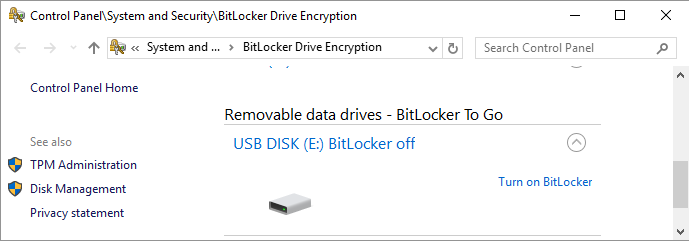
- click on Turn on BitLocker (or we can use File Explorer and the option is in the context menu)
- the wizard starts, where in the first step we choose the method we will use to unlock the disk
Note: It is safer to use a password. The second option is to use a smart card certificate. But we need to consider where we will need to use the external disk.

- the last step is just to confirm the start of encryption

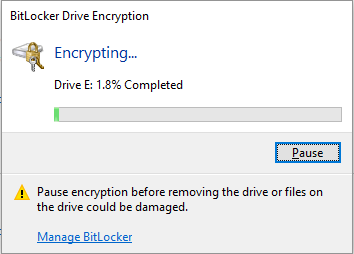
- encryption takes a certain amount of time, and we can see the progress in the window
Unlocking the disk
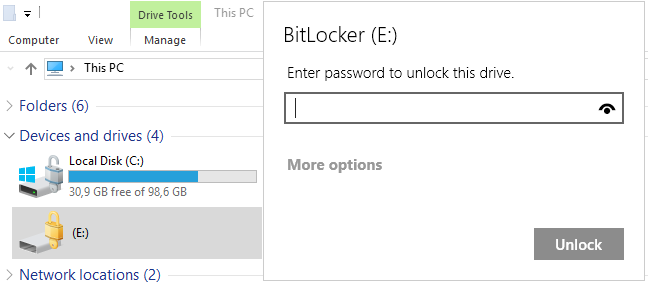
When we subsequently connect the disk to any computer (that supports BitLocker), we see it as locked and must enter the chosen password.
Setting automatic unlock
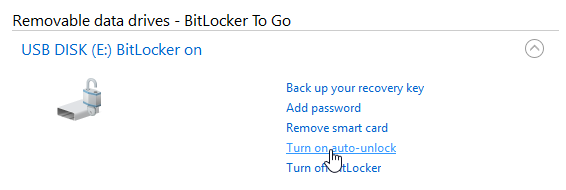
If we connect the encrypted external disk and unlock it, we can set Auto-unlock in the BitLocker management BitLocker Drive Encryption. This will save the disk information to Windows (in the profile of the logged-in user) and it will automatically unlock when connected (on this computer, of course, slightly reducing the security). If we wanted to use this method for fixed disks (Fixed Data Drives), the system disk must be encrypted. For removable media (Removable Data Drives), this condition does not apply.
Setting unlock using a domain account or group
Within a domain, we can set a domain account or group (AD DS Account Key Protector / Security Identifier (SID)-based Identity Protector) to unlock the volume. We can configure this using the PowerShell cmdlet Add-BitLockerKeyProtector or the command-line tool manage-bde -protectors. Then, when the specified account is logged in to the computer, the volume will be automatically unlocked. If we are logged in with a different account, we cannot unlock the volume (unless we have set another unlock method).
Example of setting the account bouska to unlock the E drive (you can use the alias SID instead of the parameter ADAccountOrGroup).
PS C:\> Add-BitLockerKeyProtector -MountPoint E: -ADAccountOrGroupProtector -AdAccountOrGroup firma\bouska
   ComputerName: BITLOCKER-TEST

VolumeType      Mount CapacityGB VolumeStatus           Encryption KeyProtector              AutoUnlock Protection
                Point                                   Percentage                           Enabled    Status
----------      ----- ---------- ------------           ---------- ------------              ---------- ----------
Data            E:          0,94 FullyEncrypted         100        {AdAccountOrGroup}        False      On

C:\> manage-bde -protectors -add E: -ADAccountOrGroup firma\bouska
BitLocker Drive Encryption: Configuration Tool version 10.0.16299
Copyright (C) 2013 Microsoft Corporation. All rights reserved.

Key Protectors Added:

    Identity:
      ID: {43DDD924-E476-4256-933D-75C7781E33CB}
      SID:
        S-1-5-21-2200562112-3866772066-1594429334-1123
      Account Name:
        FIRMA\bouska
Viewing the set methods (protectors). The PowerShell way may have another option, but the command-line tool shows me more in this simple way.
PS C:\> (Get-BitLockerVolume E:).KeyProtector

KeyProtectorId      : {43DDD924-E476-4256-933D-75C7781E33CB}
AutoUnlockProtector :
KeyProtectorType    : AdAccountOrGroup
KeyFileName         :
RecoveryPassword    :
KeyCertificateType  :
Thumbprint          :

C:\> manage-bde -protectors -get E:
BitLocker Drive Encryption: Configuration Tool version 10.0.16299
Copyright (C) 2013 Microsoft Corporation. All rights reserved.

Volume E: []
All Key Protectors

    Identity:
      ID: {43DDD924-E476-4256-933D-75C7781E33CB}
      SID:
        S-1-5-21-2200562112-3866772066-1594429334-1123
      Account Name:
        FIRMA\bouska
If we want to remove the method.
PS C:\> Remove-BitLockerKeyProtector -MountPoint E: -KeyProtectorId "{43DDD924-E476-4256-933D-75C7781E33CB}"
Zdravím.
Je nějaká možnost šifrovat USB disk jak na iOS tak na Windows, tak aby bylo šifrování použitelné a funkční na obou platformách?
Děkuji
Dobrý den, líbí se mi disk Seagate Expansion 3TB odtud https://www.arecenze.cz/externi-disky/#nejlepsich10 jsem naprostý laik, půjde mi zašifrovat podle vašeho návodu?
respond to [2]Asha: půjde