Backing Up in General
Creating backups (backup copies) should protect us from data loss, which can occur for many reasons. This can include:
- a disaster that destroys an entire room, server room, or location
- hardware damage where the data is stored
- data deletion
- data overwriting
- data infection by a virus
In recent years, Ransomware attacks that encrypt all available data have become common. The backup should therefore be stored not only on different hardware or in a different location (so that it is not stored on the same server or disk array and we would lose the live data and the backup in the event of a server failure), but also so that it is not accessible over the network and the attack cannot encrypt the backup.
We can back up, for example, files (data), applications (their data), entire operating systems (using an image), or entire virtual computers. The backup is typically stored in a special file (it can sometimes be just an archive, such as a ZIP file), which can be compressed, deduplicated, encrypted, password-protected, etc. Some backup software can store backups in a special disk area that is not normally accessible. This is supposed to protect the backup from Ransomware or deletion. This is allegedly possible with Paragon Backup & Recovery Free, which is free for home use.
Backups are commonly created in several types, the main ones being:
- Full - a full backup of all data
- Incremental - only the differences from the last backup are backed up each time, for recovery we need the Full Backup + all Incremental
- Differential - each time it backs up the differences from the last full backup, for recovery we need the Full Backup + the last Differential
Normally, we perform a full backup periodically and use differential or incremental backups in between. The 3-2-1 rule is often used for backups. This means keeping at least 3 copies of the data, using 2 independent backup media (copies on different devices), and storing 1 backup off-site.
Another practical aspect is that we keep a series of backups backwards in time. It is most often discovered that we have lost some data shortly after, but we may also find out weeks later. So, for example, 7 daily backups (i.e., one for each day of the past week), 4 weekly (i.e., one per week for the past month), and 3 monthly backups are retained. For important data, 24-hour backups may also be added.
For creating backups, we can use scripts, but we will more likely use a specialized application. For smaller companies, there are many applications that are inexpensive and often have a free version for home use. But of course, their functionality is limited, and large companies use backup software that is very expensive.
File Replication (Synchronization)
This article is about personal file backups (creating a copy of files in another location). I was looking for a simple and functional application that would be free for use in a company as well.
This is not backup as such, but file synchronization to another storage. Here we use an external USB drive (or a flash drive), but it could be a network storage (CIFS, FTP, SFTP, Cloud). Such a solution has both advantages and disadvantages. Synchronization maintains the same data between two folders. It can run continuously and keep the data synchronized, or it can be run manually or on a schedule. The advantage is that only changed data is copied, and we can easily and quickly access the copy of the data (we don't need a special application to restore).
If we have one external drive and synchronize data to it, we only have one backup version with the freshness of the last synchronization. And if it's always connected, it can be attacked by Ransomware. Therefore, it is necessary to use at least 2 drives that are rotated, and run the synchronization on some periodic basis. For example, once a week, then disconnect the drive, the next week connect the other and synchronize. Then we have 2 different offline copies, so we can restore even older data.
Comparison of Tools
There are many tools for backup or file synchronization. Some lists, brief descriptions, and applications:
- Wikipedia - Comparison of file synchronization software
- 14 Free Folder and File Synchronization For External Hard Drive Backup
- How to Automatically Backup to USB Drive When Plugged in
- Sync Folders With Your USB Drive Using Allway Sync
- DirSync Pro
- Free Backup Software from 2BrightSparks
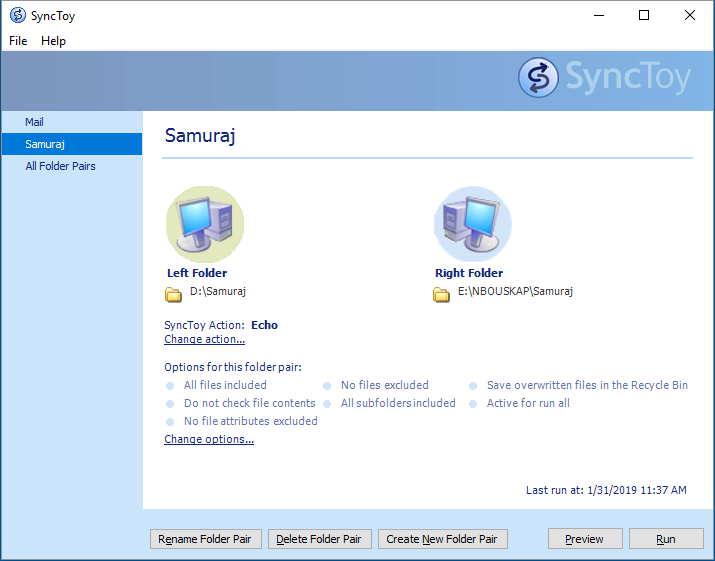
For a while, I tried the SyncToy 2.1 application from Microsoft. It's small and simple, so I expected it to be reliable. But I ran into a major limitation that it can't copy open (locked) files.
In the end, I used FreeFileSync, with which I am fully satisfied. It can use Windows Volume Shadow Copy to copy locked files. It has all the basic features plus many advanced ones, we can specify multiple folder pairs. It can use batches, run from the command line, and schedule tasks using Task Scheduler. We can use macros, filters, versioning (to keep multiple versions of changed files). A list of features Which features make FreeFileSync unique?.
Basic Use of FreeFileSync
More detailed instructions can be found in the official FreeFileSync User Manual.
Synchronizing (copying) data from a hard drive to an external USB medium.
- launch FreeFileSync
- choose the left folder as the source, you can add more folders with the plus button
- choose the right folder as the target, the USB drive may not always get the same drive letter, so we can use the volume name, like
[DiskBackup]\Folderinstead ofE:\Folder

Note: If you need to enter a large number of folder pairs (Folder Pairs), it may be easier to edit the XML configuration file .ffs_gui where the settings are stored.
- click on the gear wheel (Comparison settings) and set the parameters for comparison Comparison Settings, filtering Exclude Items via Filter, and synchronization Synchronization Settings


- the most important settings are on the Synchronization tab
- for copying data to an external drive, the Mirror variant may be the most suitable
- we can use Detect moved files, where a file database is created and if a file is moved to a subfolder, the move is carried out on the external drive (instead of copying and deleting)

- open the main menu Tools - Options, if you want to copy locked files, check Copy locked files, if you want to copy permissions, check Copy DACL, SACL, Owner, Group, in both cases you then need to run the application Run as administrator

- the entire created configuration with folder pairs can be saved to a file (icon in the left part, Save, Save as)
- we can run just the folder comparison Compare
- we start the entire synchronization by clicking the Synchronize button

Automatic or Scheduled Synchronization Execution
Synchronization can be run manually. We launch the FreeFileSync application (often as an administrator) and click the Synchronize button.
Another option is to create a scheduled task. The settings must be saved as a batch file Save as batch job. Instructions Schedule Batch Jobs.
But there is also the option to set up the synchronization so that it runs automatically when a specific USB drive is connected. For this, we use the second application that was installed along with FreeFileSync, and that is RealTimeSync. A brief procedure:
- set the synchronization parameters
- save as a batch file - Schedule Batch Jobs
- copy the file to the root of the external drive
- use the RealTimeSync application, where we open the batch file, the application then runs and detects the availability of the external drive - Example: Automatic synchronization when a USB stick is inserted
- the RealTimeSync application can be started as a service - RealTimeSync: Run as Service (Windows)

Parádní článek jako vždy, díky za rozšíření rozhledu, tuto app jsem neznal. Já na podobné zálohování používám Veeam Free Backup Agenta. Funguje skvěle.
https://www.veeam.com/cz/windows-endpoint-server-backup-free.html
respond to [1]VK: Jasně Veeam Backup je super a je paráda, že je pro stanici zdarma. Ale provádí klasické zálohování (efektivně), což je trochu něco jiného, než jsem chtěl zde.
Díky! Hledal jsem program, který by uměl hlídat mimo také jenom přesunuté nebo přejmenované soubory, aby je nemusel nově znovu kopírovat do cílového umístění. V Total Commanderu, který by mi jinak na synchronizaci stačil, jsem tohle bohužel nenašel. Tady to, zdá se, funguje bezvadně. Ještě jednou díky.
Ahoj, parádní článek. Mám menší dotaz, mám v pc více pevných disků, mám tabulky v excelu a potřeboval bych je zálohovat na jiném disků v pc. Umí tento program zálohovat pokaždé když dám v excelu uložit ? Nebo se to musí dělat ručně ?
Děkuji
Zdravím, dá se prosím nějak v programu nastavit, aby určité zálohy uložil například podle data vytvoření?
Jde mi to že nastavím zálohy a chtěl bych aby mi program při každé záloze vytvořil novou složku s tím, že bych měl zálohy po dnech a mohl bych se poté třeba vrátit k záloze po měsíci.
respond to [5]Lukáš: Snažil jsem se v článku zmínit, že tento nástroj neslouží ke klasickému zálohování, ale vytvoření repliky dat.
Možná by to vytváření různých složek nějak šlo, protože tam lze využít určité proměnné, ale nezkoušel jsem.
VSC využívá i nativní Windows zálohování, ve W8/10 pojmenované Historie souborů.
Funguje to docela slušně.
Sranda je, že W7 tu historii souborů uměly taky, ale v režimu, kdy to VSC dělalo snapshoty disku a nechávalo to ty snapshoty tj. pak pravým tlačítkem na soubor šlo obnovovat staré verze souboru. Od W8 se zrušilo GUI pro ty ntfs snapshoty přes VSC přímo na samotném disku, ale přes příkaz to stále jde vytvářet a nemusí to být někdy špatné mít možnost instantně obnovit soubor přímo ze samotného disku.
Stačí jako admin spustit wmic shadowcopy call create ClientAccessible,"C:\" a snapshot je hotový, tohle se dá do naplánované úlohy jednou za hodinu třeba a všechny soubory budou mít přímo na samotném systémovém ssd snapshoty do minulosti jak je potřeba. Nenahrazuje to zálohování na externí médium, ale v řadě případů tohle stačí. Specifickou podmnožinou těchto snapshotů jsou známé Body obnovení, které ale opět z nepochopitelných důvodů by default W10 vypínají a to i opakovaně při instalaci nového buildu dvakrát do roka.
Je možné, že se ptám na banalitu, ale nedaří se mi ji vyřešit. Nevím, kde mohu nastavit to, aby mi při smazání souboru na jedné straně, smazala synchronizace daný soubor i na druhé straně. Pokud dám synchronizaci, tak mi to vždy ten smazaný soubor přidá zpět (na straně, kde chybí). Když dám v nastavení smazat soubory, které nejsou na druhé straně, smaže to zase odevšad. (Příklad: mám fotky ve složkách a přesunuji je a některé i mažu, smazané bych potřeboval smazat na obou stranách, to se mi nedaří, stále se mi i ty již smazané načítají znovu). Díky předem za případnou reakci. E.
respond to [8]Eda: Omlouvám se, vše běží OK. Tento koment nejde smazat, proto jen takto glosuji.
Stručné, jasné, dík.
Zdravím, asi je to banalita, ale prosím o radu. Nevím, jak nastavit aplikaci tak, aby po synchronizaci složek měly replikované složky stejné datum jako složky výchozí. Datumy zůstanou zachovány u souborů, ale u adresářů nikoliv. Poradí prosím někdo?
Děkuji.
Tak napodobné strandy je vhodný robocopy (je součástí OS)
Tento SW mi vyřešil problém se synchronizací. Přesně, jak tu kdosi píše... Total Commander synchronizaci sice umí, ale je to spíš zrcadlení. Tady se tomu říká synchronizace pomocí "databáze". Takže to funguje jako synchro v cloudu Disk Google. Mimochodem právě nepodpora W7 mě přinutila hledat něco, aby když strčím USB flashku doma a v práci do PC, byly soubory všude stejné (nejnovější). Díky za tento návod.