Common web browsers support the Kerberos protocol and the Negotiate method. For implementation, they use the system interface SSPI in Windows. However, certain configurations are usually required for authentication to proceed correctly. This involves enabling IWA (enabled by default) and allowing the specific DNS address of the server.
Internet Explorer
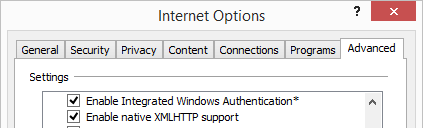
Since version Internet Explorer 3, Integrated Windows Authentication (IWA) has been supported, and this setting is enabled by default. The setting can be changed in Internet Options - Advanced - section Security. Changing the setting requires a restart.
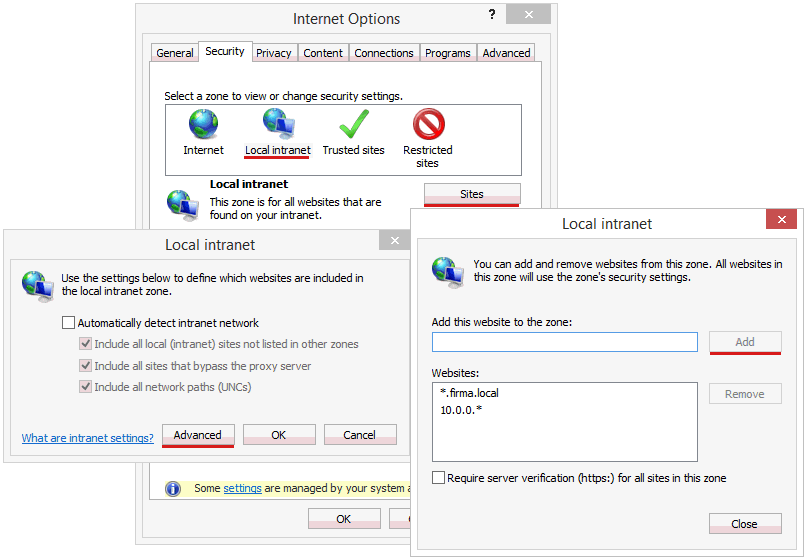
Because IE considers the Kerberos protocol internal, it (by default) allows authentication only to addresses that belong to the Local Intranet zone. Historically, IE considers only NetBIOS names as internal addresses and uses a simple rule: if there is a dot in the address, it is an internet address. Therefore, any common address entered using FQDN (Fully Qualified Domain Name) or IP address is considered internet, even if it is local. Kerberos is based on DNS, so we probably use FQDN for the address. The only option is to manually enter the address or the entire domain into Local Intranet.
Settings are done in Internet Options - Security - Local Intranet - Sites - Advanced. We can enter the entire address including the protocol, just the address (then it works for both http and https), or use the wildcard character asterisk, which is most commonly used for intranet (e.g., *.company.local).
There is one more setting that should not need to be changed, but it is good to know about. In the Internet Options - Security settings, select a specific zone and click on Custom level, at the very bottom is User Authentication - Logon. We can set Automatic logon with current username and password and thus allow Kerberos authentication for zones other than Local Intranet.
Configuration using Group Policy
Internet Explorer has decent support for settings using Group Policy (GP). We typically create a Group Policy Object (GPO) or edit an existing one, set the desired values, and link it to a container (it is recommended to apply it to the user). For some settings, we can use GP Policies and for others GP Preferences. Using Preferences, we can, for example, enable Integrated Windows Authentication.
User Configuration - Preferences - Control Panel Settings - Internet Settings
In the above path, we create settings for a specific version of Internet Explorer and can configure most parameters.
Allowed addresses for Kerberos authentication and the entire Local Intranet settings can be done using Policies. The settings are located in the path.
User Configuration - Policies - Administrative Templates - Windows Components - Internet Explorer - Internet Control Panel - Security Page
We open the item Site To Zone Assignment List, enable this policy, and add the addresses we want to include in the zone. For each address, there is one line, in the value name we enter the address (e.g., *.company.local) and in the value we put the zone number to which we want to assign the address (1 - intranet, 2 - trusted, 3 - internet, 4 - restricted). In the same place, we can also enable policies such as Intranet Sites: Include all sites that bypass the proxy server, Intranet Sites: Include all network paths (UNC), and Intranet Sites: Include all local (intranet) sites not listed in other zones, but the practical effect is not very significant.
From the principle of GP Policies operation, the behavior that may be welcome or not also follows. After setting the policies, users are prohibited from changing the controlled values, i.e., adding (modifying) addresses in the zones. If we only want to add a specific address and leave users the option to maintain their own list, we can set the value using the registry. The path in the registry is
HKEY_CURRENT_USER\Software\Microsoft\Windows\CurrentVersion\Internet Settings\ZoneMap\Domains\
There, a key with the domain name is created, and inside a REG_DWORD value with the name according to the protocol (http, https, * for both) and the value where it should be assigned (1 - intranet, 2 - trusted, 3 - internet, 4 - restricted). The simplest way is to set the desired values in Internet Explorer and look in the registry to see what the configuration looks like. If we want to set an IP address and not a DNS name, the path is
HKEY_CURRENT_USER\Software\Microsoft\Windows\CurrentVersion\Internet Settings\ZoneMap\Ranges\
For setting on a group of stations, we use GP Preferences and add the desired values to the registry.
User Configuration - Preferences - Windows Settings - Registry
Mozilla Firefox
Firefox has long supported Kerberos authentication, on Windows it can use both SSPI (preferred) and GSSAPI. As with IE, support is enabled by default, but addresses for which it can be used must be specified. For configuration, we need to enter in the address bar
about:config
After confirming the warning that configuration changes can be dangerous, we see individual configuration parameters. In the filter, we enter the variable we want to change, which is network.negotiate-auth.trusted-uris, and click on it. Again, we can enter the entire address or just the domain. Multiple addresses can be separated by a comma.
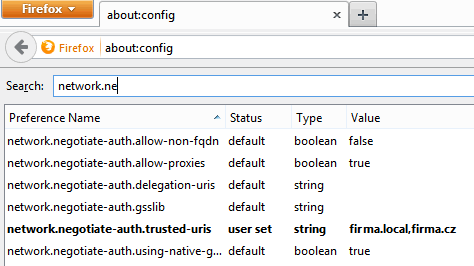
There are other values that we do not need to change by default. With them, we can set the library used for authentication. Whether to use SSPI network.auth.use-sspi (default true), whether to use the default GSSAPI library (if we do not set SSPI) network.negotiate-auth.using-native-gsslib (default true), and possibly the name of another GSSAPI library network.negotiate-auth.gsslib.
Configuration using Group Policy
Firefox does not have direct support for Group Policy. Configuration can be done using JavaScript configuration files. There are many of them, user configuration is located under the user's profile. For example, on Windows 7 it is c:\Users\{profile}\AppData\Roaming\Mozilla\Firefox\Profiles\{firefox-profile}.default\ (as a more universal option, we can use the variable %APPDATA% in the path, which replaces c:\Users\{profile}\AppData\Roaming). Here is the file prefs.js, which is created automatically and should not be modified. We can create a file user.js, where we enter the settings for the user.
user_pref("network.negotiate-auth.trusted-uris", "list of addresses separated by a comma");
The second option is global configuration, which is located in the directory where Firefox is installed. The default path on 64-bit Windows 7 is c:\Program Files (x86)\Mozilla Firefox\defaults\pref\. Here we can create a file all.js or all-{company name}.js and configure the addresses.
pref("network.negotiate-auth.trusted-uris", "list of addresses separated by a comma");
If we want to use mass configuration, we can use Group Policy and either a logon script using GP Policies or file copying using GP Preferences. Global configuration has the disadvantage that the file is deleted with each Firefox upgrade. If we use GP, the file is copied/created again with each policy application, but this still causes some downtime for users. User configuration has the disadvantage that we do not know the profile name (it is generated randomly), so copying is more complicated. On the internet, we can find various complex scripts that are supposed to create the file, such as Configuring user.js From a Login Script.
First, we need to prepare a configuration file, either all.js or user.js, and place it in a shared storage on the network, where the computer/user will have access at startup. A common option is the NETLOGON folder on the domain controller, the file is then available (for example) at \\company.local\NETLOGON\all.js.
For global configuration, we can use GP Preferences and copy the file to the Program Files folder. The settings are located in
User Configuration - Preferences - Windows Settings - Files
Right-click on the desktop and select New - File. Choose the method, probably Create. Enter the source path to the shared file and the target location. We will only consider the default installation location, so for 64-bit Windows 7, it is C:\Program Files (x86)\Mozilla Firefox\defaults\pref\all.js.
If we have 32-bit OS in the network, we need to handle two paths Program Files and Program Files (x86). This can be solved using Item-level targeting. We still have the properties of the created file open, switch to the Common tab. Here is Item-level targeting, check it and click on Targeting. Through New Item, we enter the parameter we want to compare. The Operating System item would be offered, but in practice, it did not work correctly, so we choose File Match and compare if the directory C:\Program Files (x86)\Mozilla Firefox\defaults\pref exists. In that case, the file is created here. Then we add the second file with the path C:\Program Files\Mozilla Firefox\defaults\pref\all.js, where we only change the comparison Item Option from Is to Is Not.
If we want to use user configuration, we simply copy the file to all subfolders of the folder %APPDATA%\Mozilla\Firefox\Profiles\. We can prepare a simple script, for example, firefox.cmd, in which we enter the command (with the modified path to the file).
if exist "%APPDATA%\Mozilla\Firefox" for /D %%F in ("%APPDATA%\Mozilla\Firefox\Profiles\*") do copy /y \\company.local\NETLOGON\user.js %%F
We set this script as a Logon Script using GP Policies in the path
User Configuration - Policies - Windows Settings - Scripts (Logon/Logoff) - Logon
Google Chrome
The Windows version of Google Chrome uses the settings from Internet Explorer, so we follow the settings according to the introduction of the article.
Note: There are also many mentions on the internet that the settings are done in the registry. But in practice, I have verified that changes to Internet Explorer settings are reflected in Chrome.
There are no comments yet.