Note: I wrote this article about two months ago and now I have only changed its title from the original Troubleshooting Kerberos Single Sign-On and included it in the new series on Kerberos SSO.
Note: This article does not cover all possibilities. For example, we do not address the network level at all here - whether the communication over the network can reach the correct server, i.e., whether port 88 for Kerberos is not blocked along the way, etc.
When we want to troubleshoot an area, it is usually necessary to understand how it works and how individual operations take place. We described the area of Kerberos and SSO in previous parts of the series and here we will assume knowledge of terms and the principle itself.
Note: The article describes tests in the order in which authentication takes place. In practice, it is certainly more advantageous to first verify whether the client obtained a Service Ticket for the service. If not, then look for the problem in obtaining the ticket; if so, then on the application server side.
Dividing the SSO Process into Parts
In the case of the Kerberos protocol, SSO is its native feature, so it is always about Kerberos authentication or, in other words, SSO is always used during authentication.
For the purpose of identifying problems, we can divide the SSO process into three parts.
- Negotiating Kerberos Authentication - the network service (server) must negotiate authentication and require Kerberos, the client must support it
- Obtaining a Service Ticket - the client must obtain a Service Ticket for the given service from the KDC (DC)
- Sending and Processing the Ticket - the client must then send the authentication data (including the Service Ticket) to the network service (server) and it must process them = login occurs
Negotiating Kerberos Authentication
It probably sounds obvious that the network service we want to log into must support Kerberos and have it configured. Similarly, the client we are logging in with must have Kerberos usage enabled. Nevertheless, this is often where the problem lies.
The Server Requires Kerberos Authentication
For the server (network service) to use Kerberos, it must either be a member of the AD domain, or a record for this service can be manually created in AD and the key exported (service secret key = keytab file). This key is then set on the application server or application, depending on who performs the Kerberos authentication.
If we connect to a web page that requires Kerberos authentication, this page sends us an authentication request Negotiate (SPNEGO mechanism) in the header to negotiate the authentication protocol. To check that this is the case, we can view the headers in the browser or use the program Wireshark (probably the most well-known network traffic analyzer Wireshark, or use another one) to capture the entire communication.
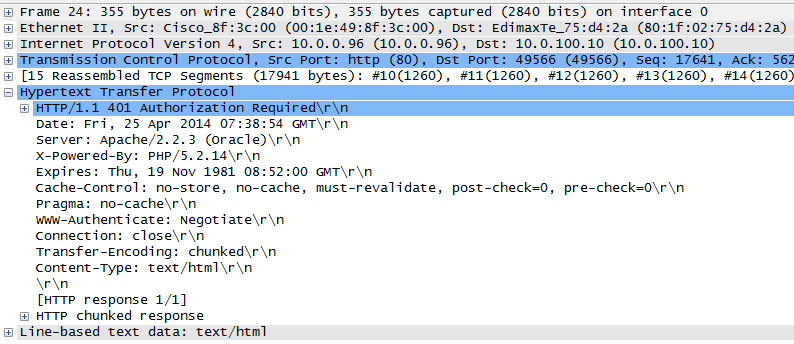
In Wireshark, we can capture communication between the station and the web server (we can capture directly on the station). When the browser requests to display a certain page (i.e., HTTP GET), a response should come that contains HTTP/1.1 401 Authorization Required and WWW-Authenticate: Negotiate in the header.
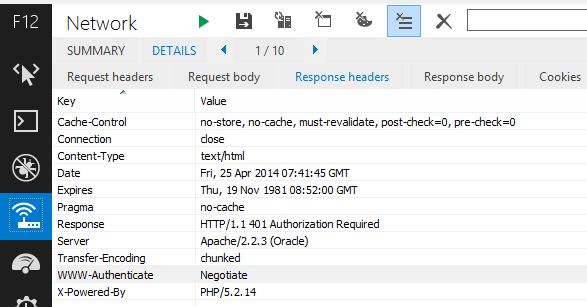
We can get similar data from the web browser. Internet Explorer contains Developer Tools, which we open by pressing F12. We switch to the Network tab, start capturing communication, and access the page; in Details we then have Request/Response headers (now we are interested in the server's response).
In Firefox, we can similarly use the Add-on Live http Headers or the much more extensive Firebug.
If we want to access a network service, within the given protocol (e.g., SMB), a response comes where the GSS-API communication is wrapped and authentication negotiation takes place. The principle is the same as with a web application.
The Client Supports Kerberos Authentication
The client receives an authentication request, in the case of a web application, to negotiate authentication. Several conditions must be met for it to respond correctly. First, let's introduce a bit of theory.
Microsoft uses Integrated Windows Authentication (IWA), also known as HTTP Negotiate Authentication, mainly for web applications. IWA supports the protocols SPNEGO (Simple and Protected GSSAPI Negotiation Mechanism), Kerberos v5, and NTLM (NT LAN Manager). On the web, SPNEGO is used, i.e., Negotiate, where either the preferred Kerberos or NTLM (if Kerberos fails) is negotiated. Windows provides an API for security operations SSPI (Security Support Provider Interface), which is a proprietary variant of the standard GSSAPI (Generic Security Service Application Program Interface). SSPI uses NTLMSSP or Kerberos SSP. User authentication in Windows is provided by the Local Security Authority (LSA), which calls SSPI.
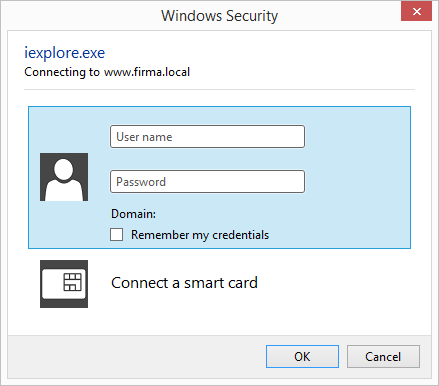
Kerberos v5 requires the client to have a direct connection to Active Directory. During authentication with the service, SSO is always used, and the username and password are never entered. If the DC is not available, the (otherwise not recommended) NTLM protocol is used, which uses usernames and passwords (a hash is sent during authentication). We can recognize that Kerberos authentication did not occur on the client if a modal window appears for entering the username and password (or we can see on the server, if we log the authentication process, that NTLM is being performed instead of Kerberos).
Note: In certain situations, the login dialog may appear even if Kerberos authentication occurred. This happens when the logged-in user does not have permission to access the service (authorization failed), so we have the option to enter another user's credentials. In web applications, this is usually handled differently, so a login form may appear instead of a modal window.
For Kerberos authentication to occur, the client must be logged into the DC and thus have a valid TGT. In the case of a web browser, Kerberos must be enabled for the server address. For Internet Explorer, this means including the address or entire domain in the Local Intranet, for Firefox, setting the variable network.negotiate-auth.trusted-uris. We described this in detail in the article Kerberos SSO - Internet Explorer and Firefox settings. The form of the domain or address entry is also important (if we add an extra / at the end, it will not work).
We can try several tests on the client. For example, verify if the client obtains the domain controller address.
C:>nltest /dsgetdc:company.local
              DC: \\dc.company.local
         Address: \\10.0.0.10
        Dom Guid: a9c7691a-3cf9-41dd-a35d-6bbf0316c84c
        Dom Name: company.local
     Forest Name: company.local
    Dc Site Name: Praha
   Our Site Name: Praha
           Flags: PDC GC DS LDAP KDC TIMESERV WRITABLE DNS_DC DNS_DOMAIN DNS_FOREST CLOSE_SITE FULL_SECRET WS
   The command completed successfully
C:>nltest /dclist:company.local
   Get list of DCs in domain company.local' from '\\dc.company.local'
   DC.company.local [PDC]   [DS] Site: Praha
   DC2.company.local        [DS] Site: Praha
   DC3.company.local        [DS] Site: Plzen
   The command completed successfully
Information about the user's Kerberos Realm and thus the domain login settings (the second example shows a station outside the domain).
C:>ksetup /dumpstate
   default realm = company.local (NT Domain)
   No user mappings defined.
C:>ksetup /dumpstate
   Machine is not configured to log on to an external KDC.  Probably a workgroup member
   Failed to create Kerberos key: 5 (0x5)
Or directly verify that the client obtained the TGT and is thus correctly authenticated with the DC.
C:>klist tgt
Current LogonId is 0:0x4c976

Cached TGT:

ServiceName        : krbtgt
TargetName (SPN)   : krbtgt
ClientName         : bouska
DomainName         : FRIMA.LOCAL
TargetDomainName   : FRIMA.LOCAL
AltTargetDomainName: FRIMA.LOCAL
...
Obtaining a Service Ticket
When the client correctly negotiates that it should use Kerberos authentication, it contacts its KDC (i.e., domain controller) and tries to obtain a Service Ticket for the server's SPN.
Checking Kerberos Tickets
We can perform a simple check to see if the client obtained the required Service Ticket or not. If it has it, the problem will be either in passing it to the server or processing it by the server. If the ticket is not in the cache, we need to examine the obtaining process. The klist command helps us, which lists all the tickets the client has obtained. Each ticket is numbered, and each has an item Server containing the SPN, and Client, where the identity for which the ticket was issued is listed.
C:>klist
Current LogonId is 0:0x4c2b5
Cached Tickets: (10)

#2>  Client: bouska @ COMPANY.LOCAL
     Server: HTTP/www.company.local @ COMPANY.LOCAL
     KrbTicket Encryption Type: RSADSI RC4-HMAC(NT)
     Ticket Flags 0x40a00000 -> forwardable renewable pre_authent
     Start Time: 4/25/2014 12:53:44 (local)
     End Time:   4/25/2014 22:18:52 (local)
     Renew Time: 5/2/2014 12:18:52 (local)
     Session Key Type: RSADSI RC4-HMAC(NT)
     Cache Flags: 0
     Kdc Called: dc.company.local
Or we can clear the ticket cache to see that we really obtained it during our login attempt.
C:>klist purge

Current LogonId is 0:0x4c956
   Deleting all tickets:
   Ticket(s) purged
Comparing Encryption in the Ticket
If we obtained the correct ticket, we can also check its encryption algorithm (e.g., in the example above, it is RC4-HMAC-NT) with the encryption used in the keytab file. If we do not know what encryption was used when creating the keytab file, we can list it (the example again contains RC4-HMAC-NT).
C:>ktpass -in server.keytab
Existing keytab:

Keytab version: 0x502
keysize 75 HTTP/www.company.local@COMPANY.LOCAL ptype 1 (KRB5_NT_PRINCIPAL)
vno 0 etype 0x17 (RC4-HMAC) keylength 16 (0x2ceaf8e1e3e9bd18967c1fb09bb0b8da)

WARNING: No principal name specified.
Checking the SPN Record
If it was not possible to obtain a Service Ticket, we can verify that the required SPN record exists in the domain.
C:\>setspn -Q HTTP/server.company.local
Checking domain DC=company,DC=local
CN=Server SSO,OU=Objects,DC=company,DC=local
   HTTP/server.company.local

Existing SPN found!
Alternatively, we can search using various filters.
setspn -Q HTTP/*
setspn -Q */server.company.local
By default, setspn searches only within the local domain. If we want to search the entire forest, we need to add the -f switch, or -t domain to search within a specific domain.
C:\>setspn -F -Q HTTP/*
Checking forest DC=company,DC=local
...
The setspn command can thus find information about existing SPNs in the domain, but its primary function is to set SPNs on an account in AD. Below is an example of how to set an SPN.
setspn -S HTTP/server.company.local company\account
Note: For web applications not running on IIS, we should not need this command because we use ktpass to create the keytab file, which also sets the SPN.
Obtaining a Ticket from the DC
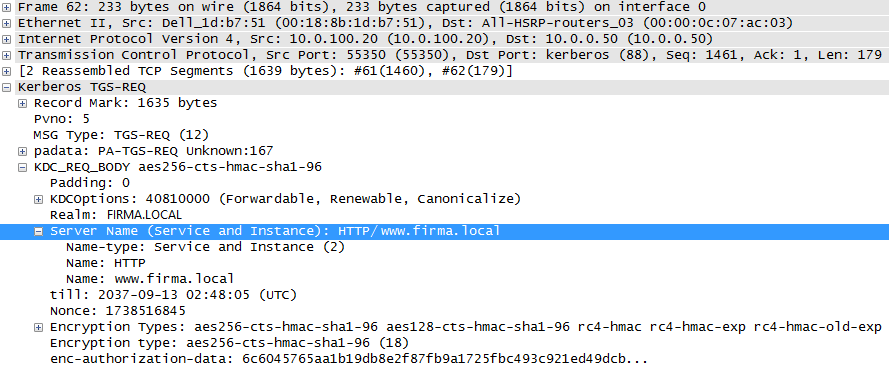
When connecting to a network service and obtaining a Service Ticket, we can capture communication between the station and the DC using Wireshark. We filter by the word kerberos, which filters the communication we are interested in. In the communication, we should see the packet Kerberos TGS-REQ and possibly TGS-REP. When we look at the request, we see for which server Server Name (Service and Instance) and in which Realm the ticket is requested. This must match the SPN we have in AD. In certain uses of DNS aliases, we may see a different address here, and then the SPN is not found.
Sending and Processing the Ticket
We have reached the phase where the client has obtained the correct Service Ticket, but authentication still does not occur. We must then verify that the correct data is sent to the server and that it processes the data correctly.
Sending Authentication to the Server
Just as we captured communication to see if a request for Kerberos authentication is coming, we can verify if a Kerberos AP-REQ packet is leaving the client. For a web application, it is wrapped in HTTP and is part of the header. If we display the headers in the browser, we will only see that the header contains the value Authorization: Negotiate followed by encrypted text. Wireshark can decode and display it in detail.
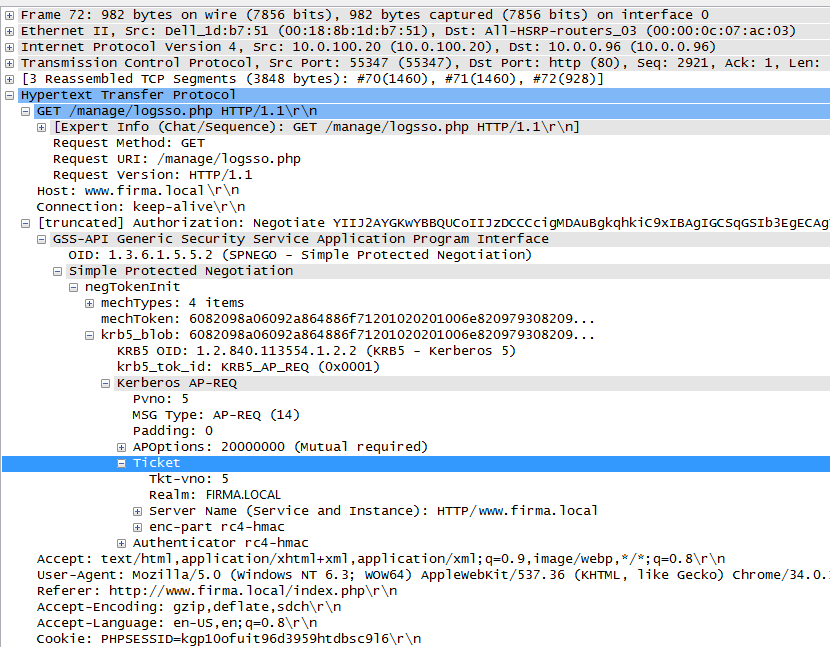
The entire SSO process for a web page can be seen in the captured communication below.
- the client sent a GET request to display the page, and received a response that authentication needs to be negotiated (
HTTP/1.1 401 Authorization Required) - because the ticket cache was cleared, the TGT was first obtained from the DC (request
KRB-AS-REQ, responseKRB-AS-REP) - then the Service Ticket was obtained from the DC (request
KRB-TGS-REQ, responseKRB-TGS-REP) - in the next GET request to the server, the authentication data was sent (the request
KRB-AP-REQwas wrapped) - this resulted in login and the page was displayed (returned)

Testing the Keytab File
If we are dealing with authentication for a web application running on a non-MS web server, we probably use a Keytab file. When the ticket is sent to the server, but it cannot process it, the problem may be in the Keytab file. The server may log an error like GSSException: Defective token detected (Mechanism level: GSSHeader did not find the right tag). In such a situation, we can test the Keytab file and its functionality for the given SPN.
The kinit command, found in Linux or on Windows if we install JRE (part of Java), is used for this. However, we must first prepare the configuration file krb5.ini and upload it to C:\Windows (the simplest way). Its content can vary, but the minimal configuration is as follows.
[libdefaults]
   default_realm = COMPANY.LOCAL
   default_tkt_enctypes = rc4-hmac
   default_tgs_enctypes = rc4-hmac
[realms]
   COMPANY.LOCAL = {
      kdc = dc.company.local:88
   }
   [domain_realm]
   .company.local = COMPANY.LOCAL
   company.local = COMPANY.LOCAL
We can then use the kinit command, where we specify our Keytab file and SPN including Realm (domain). If everything is correct, we get the following response.
C:\>kinit -k -t server.keytab -f "HTTP/www.company.local@COMPANY.LOCAL"
New ticket is stored in cache file C:\Users\bouska\krb5cc_bouska
If not, we get an error.
C:\>kinit -k -t server.keytab -f "HTTP/www.company.local@COMPANY.LOCAL"
Exception: krb_error 0 No supported key found in keytab for principal HTTP/www.company.local@COMPANY.LOCAL No error
KrbException: No supported key found in keytab for principal HTTP/www.company.local@COMPANY.LOCAL
   at sun.security.krb5.internal.tools.Kinit.<init>(Unknown Source)
   at sun.security.krb5.internal.tools.Kinit.main(Unknown Source)
If we do not have the krb5.ini file available, we get an error informing us about it.
Exception: krb_error 0 Could not load configuration file C:\WINDOWS\krb5.ini (The system cannot find the file specified) No error
Checking the Server
If we verify that the entire authentication process works correctly up to sending the data to the server, the only option left is to look for the problem in processing the ticket by the server. If it is a web application, we can check the log of the application server (or set more detailed logging) or the application (if it performs the authentication directly). If it is a Windows service, we can look in the system's Event Log or debug Kerberos.
One of the errors that can occur is also exceeding the size of the authentication ticket. It sends user information, which includes a list of their groups. In a web application, the size of the HTTP header can be exceeded, and in a network service, the size of the buffer for the token. More information is in the article Kerberos authentication and group membership.
Debugging Kerberos
Just as a side note, we will mention the possibility of enabling debugging or more detailed logging of the Kerberos protocol.
Kerberos Event Logging is enabled by creating a LogLevel = 1 value of type REG_DWORD in the registry HKEY_LOCAL_MACHINE\SYSTEM\CurrentControlSet\Control\Lsa\Kerberos\Parameters. The description is in KB How to enable Kerberos event logging. In the same place, we can create two more REG_DWORD values LogToFile = 1 and KerbDebugLevel = c0000043 (or c3). Some information can be found in Users experience authentication issues or an interesting video Kerberos Troubleshooting.
Skvělý článek, díky :-)