Upgrade Documentation
The official upgrade description is Upgrading to Veeam Backup & Replication 12. Additional information can be found in unofficial articles, such as those including videos V12 Upgrade Center or pictorial Upgrade Veeam Backup & Replication to v12. I will not duplicate the guides here, only mention the basic points and notes.
Preparation Before Upgrade
Requirements and Prerequisites
It is definitely good to go through the requirements and prerequisites listed in the documentation. For example, the OS for Veeam Backup Server, the minimum supported version of VMware ESXi and VMware vCenter server, etc.
If we use some special features, we need to check or perform additional steps. This includes Hardened Repository, using the Transform previous backup chains into rollbacks option, or File to Tape jobs. If we run ReFS Backup Repository on Windows Server 2019, it is good to read the provided information.
Product Upgrade Order
If we also use Veeam ONE and/or Veeam Backup Enterprise Manager, the upgrade order is:
- Veeam ONE
- Veeam Backup Enterprise Manager
- Veeam Backup & Replication
- remote components and agents
Preparation Steps
- check that all backups have completed without error and none are currently running
- disable jobs (Disable) that might start during the upgrade
- perform a Configuration Backup or verify that we have a current backup and encryption password available
- (I also performed a Windows Server Backup of the Veeam server)
Upgrade Veeam Backup & Replication
License
Veeam Backup & Replication 12 uses the same license file format since version 10. Therefore, the existing license will be automatically used during the upgrade (or we can use our valid license file).
Server Upgrade
Start the upgrade using setup.exe from the installation ISO (download from Downloads or Backup and Recovery Downloads) directly on the Veeam Backup Server. Go through the wizard, where we set the upgrade parameters.
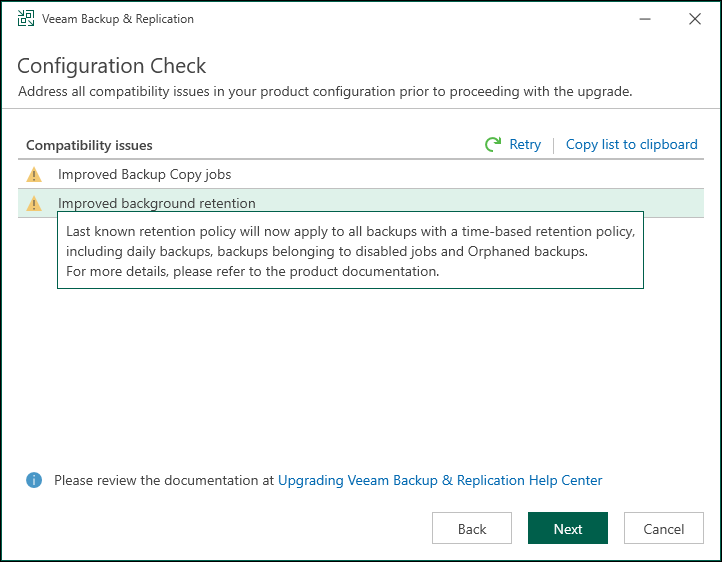
One of the steps in the wizard is Configuration Check, where compatibility issues are checked. I received two pieces of information:
- Improved Backup Copy Jobs - newly created Backup Copy jobs are no longer platform-dependent (there have been other changes as well, I recommend reading before upgrading), jobs created in the older version are marked as Legacy and are fully functional but more limited, we can perform (something like) an upgrade, described in another article Veeam Backup & Replication 12 - Backup Chain and Backup Copy format upgrade
- Improved Background Retention - Background Retention
At the end of the wizard, start the Upgrade, which took 18 minutes for me. Then it is necessary to update other components.
After Server Upgrade
The next step is to launch the Veeam Backup & Replication console on the server and connect to it. It will offer to upgrade the (remote) components.
If we use a remote console for management, we need to update it. If we have version 11a, the upgrade will be offered automatically after connecting to the server (it takes quite a long time, required admin rights, and after the upgrade, a patch was still installed).
Backup Infrastructure Components
The documentation states that if we use a Virtual Lab, we should open the settings of each Lab and click through the wizard to deploy the new application proxy.
If any backup infrastructure component runs on Linux and does not have the role of VMware Backup Proxy, we need to click through the settings to deploy the new Persistent Data Mover.
I preferred to click through all infrastructure components. During this, I encountered an issue with WAN Accelerators, where the settings on the Cache tab were missing.
Agent Upgrade
We can manually start a Rescan on the Protection Group or wait for the scheduled one. If we have enabled automatic agent updates, it will proceed without intervention. Otherwise, we need to trigger it manually. For me, it was an upgrade of Veeam Agent for Microsoft Windows from version 5.0.3.4708 to 6.0.2.1090.
Enterprise Plug-Ins Upgrade
To update the Veeam Plug-in for Oracle RMAN, run the new version installation on the target server. The installation can be found on the installation ISO Veeam Backup & Replication in \Plugins\Oracle RMAN.
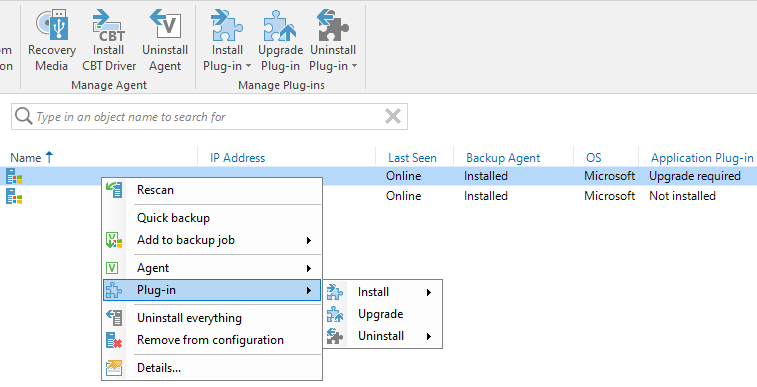
Note: New options for installation, uninstallation, and upgrade for the Plug-in are available in the console if the agent is installed on the server. However, the remote upgrade did not work for me.
Enabling Jobs
Finally, enable all scheduled jobs that we disabled before the upgrade.
Minor Issues
Veeam Installer Service
I noticed that on some Windows servers, which are among the Managed Servers or have Veeam Agent installed, all components were updated except for the Veeam Installer Service. It may not be important, but the upgrade can be done manually.
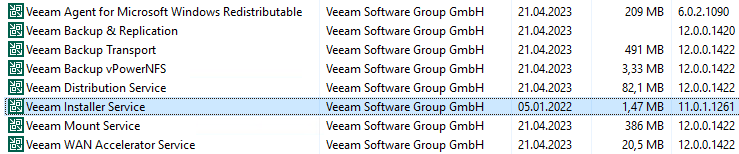
The installer is located on the Veeam Backup Server in %PROGRAMFILES%\Veeam\Backup and Replication\Backup\Packages\VeeamInstallerSvc.msi. On the target server, just run it; the old version will be uninstalled and the new one installed.
SureBackup - Publishing Error
When the first SureBackup Job was supposed to run after the upgrade, all jobs on the VMware Virtual Lab ended with an error (Hyper-V was OK). The error was identified only (for each VM):
Error VM-name - Publishing
Looking at the VMware vCenter in Tasks, a better error message was found, which repeated:
Create NAS datastore - The name 'VeeamBackup_VeeamServer' already exists.
When I traced the very first event, it was different:
Create NAS datastore - A general system error occurred: Timed-out waiting to get datastore information from host
Among the Datastores, I found VeeamBackup_VeeamServer (inaccessible). But even after unmounting it, the job did not proceed and still indicated that the datastore existed. Finally, a Veeam article advised me. It was necessary to connect to the web interface of the specific ESXi server, where the Datastore was displayed, and delete it.
Zatím stručné upozornění, pokud chcete upgradovat na verzi 12 a používáte Backup Copy. To se Veeamu opravdu nepovedlo.
Uvádí, že jsou tam Improved Backup Copy Jobs, ale možnost dát do jedné úlohy zálohy různé platformy pro mne důležitá není. Zato se zásadně změnilo, jaké objekty můžeme do úlohy vložit. Ve staré verzi šlo vybrat určitý VM ze zálohy (From backups) nebo infrastruktury (From Infrastructure). Tyto možnosti v nové verzi nejsou, což je totální degradace (jak si myslí také mnoho lidí na fórech). Můžeme pouze vybrat úlohu (From jobs) nebo úložiště (From repositories) a pak se kopíruje celý obsah (maximálně můžeme použít Exclusions, ale to je velmi nepraktické). V žádných popisech a informacích o novinkách jsem tuto zásadní změnu neviděl.
A pozor. Veeam doporučuje nový Backup Chain Format - Per-machine backup with single metadata file. Staré zálohy můžeme (jednoduše) upgradovat na nový formát. Ale na co neupozorňují ani na stránce v dokumentaci, že pak přestane fungovat Backup Copy Job. Ten musíme také upgradovat, což pro Periodic Copy Mode znamená nově vytvořit a namapovat. Takže narazíme, nemohu do něj vložit VM jako předtím. A když jsem to vyřešil, tak se mi spustil Full Backup, což podle dokumentace nemá nastat.
Problem s unmountem nedostupnych NFS v4.1 je bezne chovani VMware, reseni jak bylo uvedeno je to odmontovat z konzole hosta.
S NFSv3 jsem s tim nikdy problem nemel.