New Features in Active Directory Domain Services on Server 2012
The new Domain Services bring modifications or extensions of existing features and also a few new features. The official description is in the article What's New in Active Directory Domain Services. In my opinion, some points are more marketing-oriented, but some are worth mentioning. This article does not describe the new features in detail, so I will just briefly highlight some selected points.
- virtualization support - a virtualized DC now also supports snapshots, cloning, and similar functions
- promoting a server to a DC - reportedly easier, but a new feature is that we can do it remotely
- GUI for AD Recycle Bin - until now we had to use PowerShell or a third-party tool
- GUI for Fine-grained Password Policy - simplification of configuration
- new PowerShell cmdlets - 59 new commands mainly for Active Directory Sites and Services, Active Directory replication, Dynamic Access Control, and Domain Controller cloning, and 9 for AD DS deployment
- Windows PowerShell History Viewer - display of the history of PowerShell commands used in the Active Directory Administrative Center
- Dynamic Access Control - a new access control method
- Active Directory Activation Services - replacement for the KMS (Key Management Services) server, unfortunately only for Windows 8
- Active Directory Federation Services (AD FS) - are part of the server as a role
- Group Managed Service Accounts (gMSA) - extension of Managed Service Accounts (MSAs)
- Kerberos extensions - Kerberos Constrained Delegation across domains and Flexible Authentication Secure Tunneling (FAST)
Installing Active Directory
In this article, we will use a freshly installed (with only minimal configuration) Windows Server 2012, as we prepared in the Windows Server 2012 RTM - Installation article. And we will create a new test domain company.it in a new forest. The entire process is simple and, in my opinion, was also simple before. So this is more of a reference to the individual steps.
The official description can be found at Microsoft in the article Active Directory Domain Services and there is also a description of installing Active Directory Installing AD DS by using Server Manager.
According to Microsoft, the installation of AD DS is now simpler and faster than ever before. To me, it doesn't seem too different. In any case, we can no longer use dcpromo.exe, it will return an error.
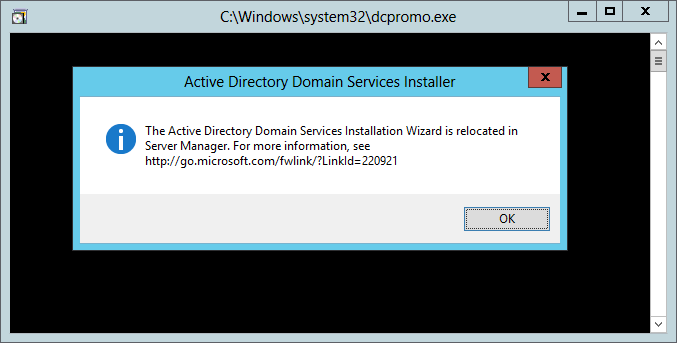
The installation takes place in two steps:
- we add the Active Directory Domain Services role
- we promote the server to a DC Promote this server to a domain controller
We can perform both steps using:
- Windows PowerShell
- Server Manager
and we can perform them remotely or in bulk on multiple servers at once. The screenshots here are from the installation using the GUI, i.e., using Server Manager, directly on the server.
Adding the AD DS Role
- we start the Server Manager
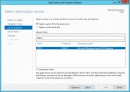
- (for example) in the top right, we click on Manage and Add roles and features
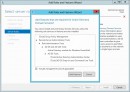
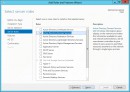
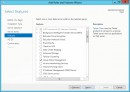
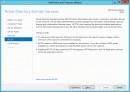
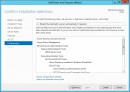
- during the installation, we choose the Active Directory Domain Services role (Features will be offered automatically), we can also immediately add some others, like DNS (we will need that, but the next wizard will install it automatically)
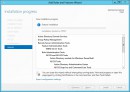
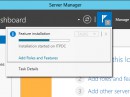
- when the wizard results are displayed, we can close it, the installation is running in the background, and we can view the information by clicking on the flag in the top right corner of the Server Manager
Promoting the Server to a Domain Controller
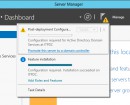
- after completing the role addition, we will see an exclamation mark on the flag in the Server Manager, clicking on the icon will tell us that we need to perform a Post-deployment Configuration
- we click on Promote this server to a domain controller
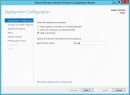
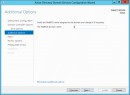
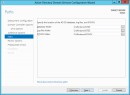
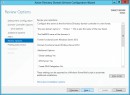
- here we create a new forest, i.e., a new root domain, which we will call
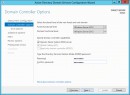
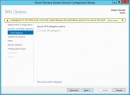
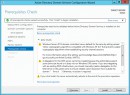
company.it - when the installation is complete, the server will automatically restart
There are no comments yet.