We will not delve too deeply into the actual principles of DAG and CAS Array technologies here, but will only address limitations, problems, and settings for the given topology. More information about these technologies can be found on the internet, for example on Microsoft's High Availability and Site Resilience and Understanding Load Balancing in Exchange 2010.
My opinion is that DAG is something that works well, and except for a few details that aren't well described anywhere, it's understandable and clear. On the other hand, the CAS between Sites solution is very problematic and quite a poorly functioning area. It seems that nobody really understands it well. I've found bits of information from various places that often made sense. But when I did a practical test, it turned out that the whole thing works differently. Moreover, Microsoft changes behavior even between different versions of Service Pack.
By this, I also want to note that I don't guarantee all the information provided here. Several times I thought I understood the functionality of the given technology, but then in a certain practical situation, it turned out that it works differently.
Note: The description below is for Exchange Server 2010 SP2 Enterprise. This affects, for example, the options that can be configured using EMC.
Topology
Various examples of topologies according to Microsoft, for example in the article Database Availability Group Design Examples, are certainly interesting, but who can afford them in our environment? They are characterized by almost always separating individual roles, especially CAS and Mailbox. And then also by using a large number of servers, and even when we have multiple Sites, several servers are placed in each.
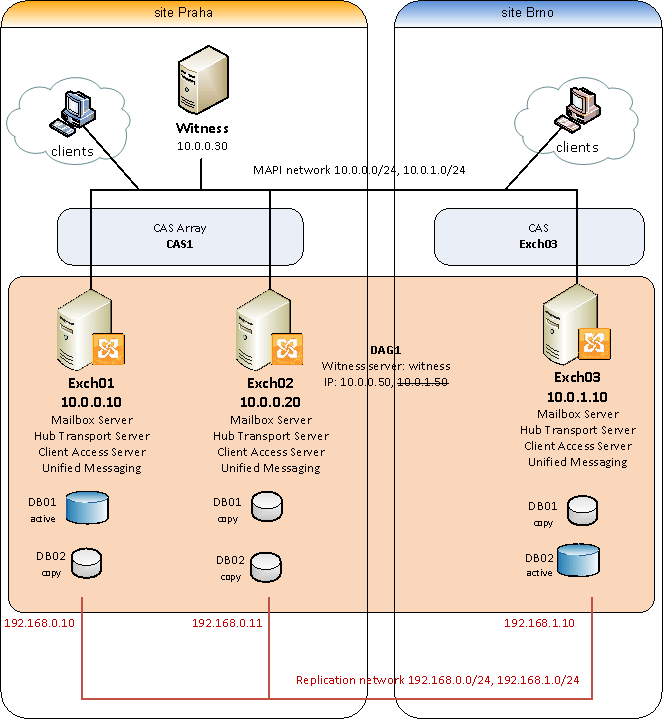
Here we will look at a much more modest topology. All roles are always present on the Exchange server. We have a headquarters in Prague, where there are two Exchange servers (theoretically there could be just one) and then we have a branch in Brno, where there is only one Exchange. And we want to solve high availability both within the primary Site and in case of server failure at the branch. That is, so that all data (mailboxes) are located on all Exchange servers and when the server at the branch is unavailable, clients connect to the headquarters.
Client Access Server (CAS) Array
On Exchange 2010, clients do not connect directly to the mailbox server, but access through the Client Access Server. The user's mailbox is located in a specific database, this information is in AD in the user account. Each database has assigned some recommended CAS server that users normally use for connection. If this server is unavailable, the client loses connection. That's why there's the CAS Array technology, where we combine multiple servers into one array.
Unfortunately, the CAS Array technology is designed so that it can only be used within a Site. So we can only create an array within the headquarters, and in case of server failure at the branch, manual intervention will be necessary.
For Load Balancing (CAS Array) within the array, we can use HW or SW Load Balancer, NLB (Network Load Balancing, which is not compatible with Failover Cluster, so we can't use it if we have CAS and Mailbox roles on the same server and we're using DAG) or DNS Round Robin. Here we'll use the cheapest and still functional method DNS Round Robin. This means that on the internal DNS server we create a new name cas1.firma.local and for it several A records with the IP address of each CAS (here for 10.0.0.10 and 10.0.0.20).
On the Exchange server, we can then create a CAS Array only with a PowerShell command. Where we enter the created DNS name (FQDN) and the name of the Site where our servers are located, optionally also the name of the array.
New-ClientAccessArray -Fqdn cas1.firma.cz -Site "Praha" -Name "cas1.firma.cz"
CAS servers located in the specified Site are automatically included in the array. We can see what the created array looks like with another command.
Get-ClientAccessArray

Name                Site                 Fqdn                           Members
----                ----                 ----                           -------
cas1.firma.local    Praha                cas1.firma.local               {Exch01, Exch02}
If we now create a new database on a server that is a member of the array, the address of the array will be inserted as the CAS address of the server. If we already have a database created, the server address is listed there. We can look at this value with another command.
Get-MailboxDatabase DB01 | FT Name, RpcClientAccessServer

Name                           RpcClientAccessServer
----                           ---------------------
DB01                           cas1.firma.local
Of course, we can manually change this value. We need to do this on an existing database, otherwise CAS Load Balancing won't work for mailboxes in this database. And if our only Exchange at the branch fails, we need to make this change on the DB that was active at the branch so that clients can find a new server to connect to at headquarters.
Set-MailboxDatabase DB01 -RpcClientAccessServer CAS1.firma.local
Outlook Connection to CAS - Different Sites
CAS Array, along with the DAG described below, works flawlessly within a single Site. But a much more complex situation is one that corresponds to our topology. It's about how Outlook gets configuration in the internal network. The Autodiscover technology is used, which is a service on the CAS server that returns information for configuration. But first, the client must find out which CAS to use to connect to Autodiscover. In the internal network, the first step is a look into Active Directory, where each CAS server has stored an SCP record with the path. But this is also combined with the Site Affinity property, where if there is any CAS in the same Site as the client, only this one is used (or randomly one of them, if there are more).
If we get XML configuration from Autodiscover, then among various addresses there is also a Server entry, which corresponds to the RpcClientAccessServer value described above. Outlook tries to connect to this server via RPC, but again it doesn't have to use only this one. If we look at where our Outlook is connected (by clicking on the Outlook icon on the taskbar next to the clock Ctrl + right click, and selecting Connection Status), there are two types of connections Directory and Mail. And both connections don't have to point to the same server.
According to the above, for our topology it's quite important which Autodiscover servers Outlook can connect to. If our only server at the branch becomes unavailable, the local client is out of luck. Therefore, it's necessary to look at the AutoDiscoverSiteScope settings for individual servers.
Get-ClientAccessServer | FT Name, AutoDiscoverSiteScope

Name                         AutoDiscoverSiteScope
----                         ---------------------
Exch01                       {Praha}
Exch02                       {Praha}
Exch03                       {Brno}
And adjust it so that in case of failure, the client has another server available.
Set-ClientAccessServer Exch01 -AutoDiscoverSiteScope Praha, Brno
Unfortunately, in our topology, server failure at the branch means an outage for users for at least several tens of minutes. The database switches fine thanks to DAG, but the problem is with CAS. First, we need to change the RpcClientAccessServer value setting on the database so that the client gets the address of the server at headquarters from Autodiscover. But when we try to download a new configuration in Outlook (Test E-mail AutoConfiguration), it still offers the old server. This is because the xml file is cached and a new one is downloaded only after some time. But even after new data is downloaded from Autodiscover (for example after deleting the cached file in the user's profile), Outlook doesn't switch immediately, but it can take about 20 minutes. Meanwhile, if we create a new profile in Outlook, it correctly identifies the server and we immediately have the mailbox available.
Database Availability Group (DAG)
With CAS Array, we solved client access. Database Availability Group (DAG) solves data/database availability for us. Simply put, it works so that the database is active on one Exchange server and on others that are members of the DAG and have a copy set up here, copying is performed to an inactive DB (we can set this with some delay). If a server fails, one of the copies becomes active, which is determined by a special algorithm. Switching is handled by a component called Active Manager. Otherwise, DAG runs on the Mailbox server and is based on Windows Failover Cluster. It's advisable to have more mailbox databases and divide which one is active on which server, thus solving load distribution.
Note: DAG database switching only occurs during a crash, not when the system thinks we did it intentionally. For example, when we perform an update that stops services, the database doesn't switch. We have to do it ourselves in advance.
Unlike CAS Array, DAG is already officially supported between servers in different Sites. So we can create one DAG for our topology and then include all DBs in it. However, it's necessary to understand the principle of failover cluster, which solves, for example, a situation where the network between headquarters and branch is disconnected, so that systems don't run independently on both sides and then inconsistency doesn't occur. So in that case, only one side works and the other turns off. The so-called Quorum is used for this, according to which it's decided who will run. Simply put, it's about the majority. In our case, we have 3 servers, so 2 are needed for victory and only one can be unavailable (with an even number, Fileshare Witness is involved). If both servers at headquarters fail, the database doesn't switch to the server at the branch, but that one stops working as well.
Because we have all roles on one server (otherwise some Hub Transport server could be automatically used), we need to specify a Witness server to create the DAG. It's actually a shared directory on any server (DC is not recommended due to permissions) that should be in the primary network. On the Witness server, we must include the domain group Exchange Trusted Subsystem in the local administrators group. Although when we have 3 Mailbox servers, the Witness shouldn't be used, we still need to set it up.
As with other clusters, it's recommended to have two networks on the servers, one for traffic, we'll label it MAPI, and another for replication (cluster function), we'll label it Replication. There isn't much description of these networks anywhere, for example, the question of which network the Witness server should be on, but logically, the correct location is probably in the MAPI network. Similarly, I rather deduce that the Replication network should be closed and non-routed (so it can even be without a gateway) with others, it doesn't even have any DNS record (or DNS server).
We'll also need a virtual IP address for the DAG. This is another area about which almost no information can be found. Probably the address is obtained automatically from DHCP by default, but we often don't use this for servers, so we can define it manually as well. If we have servers in one subnet, there's no problem with setting addresses or networks, but because we're using 2 subnets here (or 4), I've encountered a number of errors and possible solutions (either using multiple addresses or adjusting networks, see further description).
Creating the DAG
We can configure the DAG using PowerShell or Exchange Management Console (EMC), but we can't set all values completely there. Procedure in EMC:
- EMC – Organization Configuration – Mailbox – Database Availability Groups – New Database Availability Group…
- name: DAG1, Witness Server: Witness.firma.local, Witness Directory: c:\DAG1 (folder will be created automatically)
This creates an empty DAG for us. Now we need to set its virtual IP address. We open the created DAG and switch to the IP Addresses tab and add the virtual address 10.0.0.50. We can set all this in PowerShell with one command:
New-DatabaseAvailabilityGroup -Name DAG1 -WitnessServer Witness -WitnessDirectory C:\DAG1 -DatabaseAvailabilityGroupIPAddresses 10.0.0.50
During the first attempts, one of the subsequent steps failed and displayed an error that it didn't know how to communicate with the server at the branch. Some materials mention that if servers are in different subnets, then a virtual IP must be entered in the DAG for each of them. This would mean adding, for example, 10.0.1.50 (and I absolutely couldn't find anywhere if the subnets from the Replication network should be considered here as well). But then I managed to perform the entire setup even without this address (which wasn't used anywhere anyway). However, it was necessary to make an adjustment to the networks, which I'll mention later.
The next step is including Exchange servers in the DAG. In EMC, we select DAG1 and click on Manage Database Availability Group Membership. Or we use PowerShell. First, we'll add two servers at headquarters.
Add-DatabaseAvailabilityGroupServer -Identity DAG1 -MailboxServer Exch01
Add-DatabaseAvailabilityGroupServer -Identity DAG1 -MailboxServer Exch02
As soon as we included the first server, several operations were performed. In Active Directory, a object of type Computer was created with the name of the DAG. On the DNS server, the name of the DAG was registered with its virtual IP (this address also responds to ping). Also, Database Availability Group Network networks were created in the DAG with names DAGNetwork01 and DAGNetwork02. One network is for MAPI and the other for Replication, subnets are set automatically. We can look at them in EMC by clicking on DAG and in the lower window Networks or with PowerShell.
Get-DatabaseAvailabilityGroupNetwork
Identity                       ReplicationEnabled                Subnets
--------                       ------------------                -------
DAG1\DAGNetwork01              True                              {{10.0.0.0/24,Up}}
DAG1\DAGNetwork02              True                              {{192.168.0.0/24,Up}}
If we ever wanted to regenerate the networks automatically, we can use the command.
Set-DatabaseAvailabilityGroup -DiscoverNetworks
Now it's good (I'd say necessary) to adjust the automatic networks. We'll name the network where the subnet is 10.0.0.0/24 as MAPI and turn off replications on it. Similarly, if the Replication network isn't available, MAPI will automatically be used for replications. Replication of transaction logs works on a different principle than in Exchange 2007, now communication is through one TCP port 64327. Then we'll add subnet 10.0.1.0/24 to the MAPI network. We wouldn't have to do this step now, but we'll avoid some errors and problems. If we don't do this, then after adding the server from the branch, another network will be created and we'll have to cancel it anyway (first move the subnet to the MAPI network) - this is referred to in some materials as Collapsing DAG Networks.
We'll name the network with subnet 192.168.0.0/24 as Replication and otherwise we don't need to change it. It's also recommended to set the MAPI network as the first in the list of networks in Windows (Network Connections - Advanced settings).
Then we'll add the last Exchange server, again either in EMC or PowerShell.
Add-DatabaseAvailabilityGroupServer -Identity DAG1 -MailboxServer Exch03
So we've finished the DAG itself. We can view it in EMC, but PowerShell will tell us much more information. Here it's important, if we want to get all information such as OperationalServers, PrimaryActiveManager, NetworkNames and others, in many situations we must use the Status switch. Here's a simplified example, for full output we'll of course add | FL *.
Get-DatabaseAvailabilityGroup

Name        Member Servers                     Operational Servers
----        --------------                     -------------------
DAG1        {Exch01, Exch02, Exch03}

Get-DatabaseAvailabilityGroup -Status

Name        Member Servers                     Operational Servers
----        --------------                     -------------------
DAG1        {Exch01, Exch02, Exch03}           {Exch01, Exch02, Exch03}
Creating Database Copies
Now we either create a new database or we already have it ready on some server. So we'll create a copy of it on one or all members of the DAG. In EMC - Organization Configuration – Mailbox – Database Management – right-click on DB and select Add Mailbox Database Copy. A relatively important value is also the option to specify Activation Preference (something like priority, but it's not the most important value when selecting where the DB will switch).
Add-MailboxDatabaseCopy -Identity DB01 -MailboxServer Exch03 -ActivationPreference 3
DAG Failback
The database is always active on one server. At the beginning, it's the one where we created it. When the server fails, it switches to another. Unfortunately, there's no Failback property here, meaning that the database would become active on the primary server if it's available again. This is a problem especially when, during a short connection outage with the branch, the branch DB switches to headquarters. We have to solve the situation with some script that we'll run at some interval or react to an event. Directly on the Exchange server, a script is available that activates databases according to some parameters, mainly probably Activation Preference.
[PS] C:\Program Files\Microsoft\Exchange Server\V14\Scripts>.\RedistributeActiveDatabases.ps1 -DagName DAG1
-BalanceDbsByActivationPreference -ShowFinalDatabaseDistribution -Confirm:$false
Of course, we can activate the database on another server manually. In EMC on the Database Management tab, we select the database and in the Database Copies window, we right-click on the copy we want to activate and select Activate Database Copy. Then we can also change the settings under what conditions the copy can be activated (how much data can be lost).
Move-ActiveMailboxDatabase DB01 -ActivateOnServer Exch02 -MountDialOverride:BestAvailability
Datacenter Activation Coordination Mode
Just as a brief mention, we'll note the option to switch the DAG to Datacenter Activation Coordination Mode (DAC). This relates to the fact that we have a DAG across two Sites. As we mentioned above, if both servers at headquarters stop working, the database at the branch will also disconnect. If a crisis situation occurred where we needed to get the server at the branch up and running, we can do it manually. But if the server at headquarters was restored, it would think it should be active (it has Quorum). This would put us in a state where the database would be active on two servers, this is referred to as Split brain syndrome. The solution is to turn on DAC on the DAG.
Set-DatabaseAvailabilityGroup DAG1 –DatacenterActivationMode DagOnly
And a final note at this point. Microsoft planned to bring a new parameter AllowCrossSiteRpcClientAccess for DAG with SP1. We really see this attribute for DAG, we can even set it, but nothing happens. MS labels it (still, when we already have SP2) as ready for future use. The question is what it should cause. Because in practical attempts to connect Outlook to CAS, when the DB was located in different Sites, Outlook connects really differently.
Verifying Replications
When we have everything set up, we can check which network is used for replications.
Get-MailboxDatabaseCopyStatus -ConnectionStatus | FL Name, Status, OutgoingConnections, IncomingLogCopyingNetwork
Name                      : DB01\Exch01
Status                    : Mounted
OutgoingConnections       : {{Exch03,Replication}, {Exch02,Replication}}
IncomingLogCopyingNetwork :
We can also look directly at network connections.
netstat -an | findstr 64327
Errors When Creating DAG
In practice, many operations ended with an error for me, which was more informative, because everything went fine. For example, during some DAG setup operations, this is displayed:
The Exchange Trusted Subsystem is not a member of the local Administrators group on specified witness server
witness.firma.local.
Even though the permissions are set correctly. When adding a server to the DAG, these errors were displayed:
No static address matched networks 'Cluster Network 3'. Specified static addresses: '10.0.0.50'
Network name 'DAG1' is not online. Please check that the IP address configuration for the database availability
group is correct.
Or also when creating a database or its copy.
Couldn't communicate with the Microsoft Exchange Replication service on server "Exch4.firma.local" to pick up new
configuration changes for database "DB01". Make sure that the service is running and that the server has network
connectivity. Error: A server-side administrative operation has failed. The database operation failed.
Error: Could not find a valid configuration for database
Finding Mailbox Information
Just a simple recap, if we need to find the server used for a certain user (first we find the DB where they have their mailbox, then where this DB is active and what CAS it has assigned).
Get-Mailbox username | FL Database
Database : DB01
Get-MailboxDatabase DB01 | FT Name, Server, RpcClientAccessServer
Name         Server          RpcClientAccessServer
----         ------          ---------------------
DB01         Exch01          cas1.firma.local
There are no comments yet.