Creating a Distribution Group from an Existing One - Mail-Enabling
When we create a user object in ADUC (Active Directory Users and Computers), we can then use the EAC (Exchange Admin Center) to add a mailbox, i.e., create a User Mailbox from an existing user (of course, we can also create a new user). If we want to assign an email to an existing group (Distribution or Security Group), this is not possible in the EAC. There we can only create a new group with an email. So we have to use EMS (Exchange Management Shell).
The group must be of Universal scope. Creating an email address for an existing group (mail-enabling):
Enable-DistributionGroup -Identity "DG group" -Alias group -DisplayName "Our group"
By default, it is not allowed to send to the group from the internet (unauthenticated), to allow it:
Set-DistributionGroup -Identity "DG group" -RequireSenderAuthenticationEnabled $false
Get-MailboxStatistics and StorageLimitStatus
When we used the Get-MailboxStatistics cmdlet on Exchange 2010, we could use the StorageLimitStatus attribute, which showed the mailbox status relative to the set limit. From Exchange 2013 onwards, this attribute is no longer used. We can either list mailboxes smaller than a certain value.
Get-MailboxDatabase | Get-MailboxStatistics | where { $_.TotalItemSize -gt 2000000000 } | FT DisplayName, TotalItemSize, ItemCount
Or try a script like Get-MyMailboxStatistics.
Room (Conference Room) Mailbox
Create and manage room mailboxes
On the Exchange server, we can create resource (Resource) type room (Room) and equipment (Equipment). It's a regular user object to which a mailbox is created and the type is set. This way, we can create conference rooms with a shared calendar and automatic approval can also work. Users can then reserve rooms or other resources. Most of the configuration can be done through the EAC, but some things require the EMS. Entire configuration through EMS:
Creating the mailbox for an existing account (must be disabled).
Enable-Mailbox -Identity room1 -Room -Alias room1 -DisplayName "Room 1" -Database DB1
Or creating the account and mailbox completely.
New-Mailbox -Room -Name 'Room 1' -Alias room1 -UserPrincipalName room1@company.local `
 -SamAccountName room1 -OrganizationalUnit company.local/Rooms -Password $pass -Database DB1
Setting the calendar sharing for reading for a given group.
Add-MailboxFolderPermission -Identity room1@company.local:\Calendar -User all-employees -AccessRights Reviewer
Setting the automatic processing (approval) of meeting requests.
Set-CalendarProcessing -Identity room1 -AutomateProcessing AutoAccept -BookingWindowInDays 360 `
 -MaximumDurationInMinutes 1440 -AddOrganizerToSubject $false -DeleteSubject $false -AllowRecurringMeetings $true
- AutomateProcessing - AutoAccept automatically, AutoUpdate delegate, None none, only the account itself
- BookingWindowInDays - maximum time in advance to book, i.e. how far in advance
- MaximumDurationInMinutes - maximum event duration (24 hours = 1440 minutes)
- AddOrganizerToSubject - false doesn't add the organizer's name to the subject
- DeleteSubject - false preserves the original request subject
- AllowRecurringMeetings - allows scheduling recurring events
- ResourceDelegates - delegates
- DeleteComments - false preserves the text in the body of the message
- RemovePrivateProperty - false preserves the Private Flag as set
- AddAdditionalResponse - true adds a defined text to the response to the meeting request
- AdditionalResponse - set the text for the response
Note: I discovered an unpleasant thing, if we want to set a delegate (Delegate Access). When we set it using EAC or EMS, the forwarding of meeting requests to the delegate doesn't work. The Set-CalendarProcessing cmdlet should handle this with the ForwardRequestsToDelegates parameter, but it's defaulted to true and nothing gets forwarded. The only functional configuration is through Outlook and setting the delegate - Delegate receives copies of meeting-related messages sent to me.
Viewing information
Get-MailboxFolderPermission -Identity room1@company.local:\Calendar
Get-CalendarProcessing roo* | FT Identity, AutomateProcessing, BookingWindowInDays, MaximumDurationInMinutes,
 AllowRecurringMeetings, DeleteSubject, AddOrganizerToSubject, ResourceDelegates
Problem with Setting as a Delegate for a Distribution Group
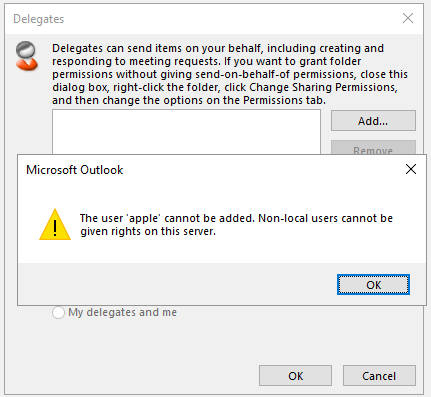
I ran into a problem when I wanted to set several delegates through a group who would approve reservations in the calendar. In Outlook, we can only set delegates that have a mailbox and are in the GAL. So I created a distribution group. When setting it, an error is returned.
The user cannot be added. Non-local users cannot be given rights on this server.
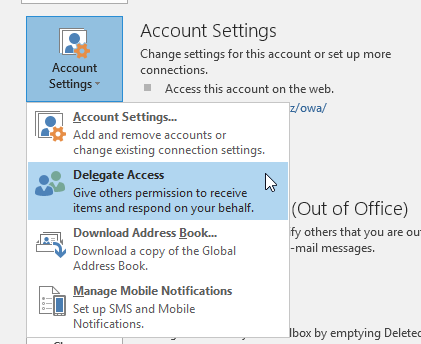
Setting delegates in Outlook 2016 (of course, we set it for the account we are logged in to) is in the menu File - Account Settings - Delegate Access. We can add a user as a delegate, but a group also works (then we can easily edit the members).
When adding some groups, we see a rejection icon, which indicates that we will get an error when adding.

It occurred to me that the problem might be that the group is Universal, but even after changing it, it couldn't be added. In my search, I came across an old article Outlook 2010 cannot add group for permissions - One or more users cannot be added to the folder access list. Non-local users cannot be given rights on this server, whose advice surprisingly works.
The result is that we need to create the group as a Security Group and not a Distribution Group. When we create a Distribution Group - Universal, the msExchRecipientDisplayType attribute is set to 1. I found the description of the attribute in Recipient Type Values. The value is obviously set by the Exchange server, so when we change the group type to Security in AD DS, the attribute doesn't change and the delegation still doesn't work.
The solution is to clear the value of the msExchRecipientDisplayType attribute for the given distribution group. I don't know if this somehow affects the display of that group on the Exchange server (I didn't run into anything). But then it's the same as for a security group with email, where this attribute is not set. We can perform the configuration using the Active Directory Users and Computers (ADUC) snap-in and the Attribute Editor on the object.
Exchange 2016 Back Pressure
The Back Pressure feature monitors the system resources (memory and disk space) on the Exchange server (transport service) and monitors the load. If the resources are overloaded, it restricts traffic to prevent a complete crash. Most often, it's about the disk space where the queues are. It's been around for a very long time, I described it in Exchange 2007 - problem of messages getting stuck in Drafts.
In practice, this manifests as some emails arriving with a delay. The server rejects the receipt of messages. In the Protocol Log Receive Connector we find an error (which is returned to the sending server) and the server terminates the connection.
>,452 4.3.1 Insufficient system resources (SystemMemory)
We can also look in the event log (Event Log) in the application log, where events are logged:
- Event ID 15004. Increase in the utilization level for any resource (eg from Normal to Medium)
- Event ID 15005. Decrease in the utilization level for any resource (eg from High to Medium)
- Event ID 15006. High utilization for disk space (ie critically low free disk space)
- Event ID 15007. High utilization for memory (ie critically low available memory)
For example, we can find event 15006, which tells us that the resource C:\Program Files\Microsoft\Exchange Server\V15\TransportRoles\data\Queue has little free disk space, so messages are being rejected.
Shared Mailboxes
Similarly to the special mailbox types Room and Equipment for rooms or equipment, there is a special type Shared for shared mailboxes. These are intended for access by multiple users who can read and send messages. The official description Shared mailboxes, which I once described in Shared mailboxes on an Exchange server.
The user account for a shared mailbox should not be used for logging in and should be disabled (it doesn't even need to have a password set). Exchange Server 2013 brought better support for shared mailboxes, we can use EAC - Recipients - Shared.
On the shared mailbox, we set permissions for the users who are to use it
- Full Access - full access to the mailbox, the mailbox is automatically connected in Outlook, the user can read and create items, but cannot send on behalf of the mailbox
- Send As - allows sending emails from the given address
- Send on Behalf - alternative, allows sending an email on behalf of another address, it shows that the user is sending the mail on behalf of someone else
We can create a shared mailbox using the EAC and also set the Full Access and Send As permissions here. Creating it using the EMS.
New-Mailbox -Shared -Name "Business" -DisplayName "Business" -Alias Business
Add-MailboxPermission -Identity Business -User bouska -AccessRights FullAccess -InheritanceType All
Add-ADPermission -Identity Business -User bouska -AccessRights ExtendedRight -Extendedrights "Send As"
Using the EMS we can change the type of an existing mailbox.
Set-Mailbox business -Type Shared
Listing all shared mailboxes.
Get-Mailbox -RecipientTypeDetails SharedMailbox
Note: For the Send As to work, the address must not be hidden from the directory (Hide from address lists), it needs to be downloaded in the GAL. Otherwise, Send As will not be used, but Send on Behalf. I haven't read anywhere why this is the case, nor how the send type could be controlled.
Saving Sent Items
When using shared mailboxes and sending a message on behalf of a given address, the message is saved to our Sent Items. From Exchange 2013 CU9 onwards, there is a setting that allows copying the message also to the Sent Items of the shared mailbox.
The setting must be done using the EMS.
Set-Mailbox business -MessageCopyForSentAsEnabled $true
Alternatively, if we were using Send on Behalf
Set-Mailbox business -MessageCopyForSendOnBehalfEnabled $True
Listing the mailbox settings.
Get-Mailbox business | FL Name,Alias,RecipientType*,*copy*
Setting multiple mailboxes at once.
Get-Mailbox out* | Set-Mailbox -MessageCopyForSentAsEnabled $true
There are no comments yet.