Note: I've tested everything practically on an On-Premises Exchange server, but it should work very similarly for Exchange Online.
Resource Mailboxes
Resource mailboxes are special mailboxes that users can include in meeting requests to easily reserve rooms or equipment. It's a regular user object that has a mailbox created for it and its type set. By default, the account is disabled and has no password set. It's commonly used for meeting rooms, cars, projectors, and other equipment.
There are two types of resource mailboxes available:
- Room mailbox - a resource assigned to a physical location
- Equipment mailbox - a resource that isn't tied to a specific location
Note: The Resource Account can also be used for Microsoft Teams Rooms. In that case, it needs to be enabled and have a password set. More information in Microsoft Teams Rooms and Logitech Rally Bar.
Configuration Options
Configuration and management of resource mailboxes (or their creation) can be done using various tools.
- Exchange Admin Center (EAC) - creation and settings (only part of the options)
- Exchange Management Shell (EMS) - creation and settings (problem with delegates)
- Outlook on the web (formerly Outlook Web App - OWA) - settings
- Outlook - delegate settings
Note: After so many years, I was surprised that many settings can be made using Outlook on the web. For example, changing names (language) of default folders in the mailbox (Settings - Options - General - Region and time zone).
Booking Options
In this article, we don't focus on creating mailboxes (which is simple). But we'll look at some setting options for how to respond to meeting requests (bookings). In other words, calendar processing options for resource mailboxes.
We can use one of the following options (or various combinations):
- delegate approval (Booking Delegates / Calendar Attendant) - one of the assigned users accepts or declines meeting requests sent to the resource mailbox
- automatic approval (Resource Booking Assistant / Attendant) - automatic acceptance or rejection of booking requests, requests are declined in case of conflict with an existing reservation or violation of the set policy (for example, a meeting that's too long)
Documentation
- Create and manage room mailboxes in Exchange Server
- Set-CalendarProcessing
- Exchange 2016 groups, rooms, Back Pressure, shared mailboxes
Delegate Settings
Delegate approval represents a simple setting. However, there's a problem that I discovered many years ago and it still persists (I haven't found any information or solution for it). If we set delegates using the Exchange Admin Center or Exchange Management Shell, they won't receive meeting requests (forwarding won't occur).
If we set delegates using EAC or EMS, they'll get Editor permissions to the calendar. For a user to receive a copy of all meeting requests sent to the resource mailbox, the calendar must be shared with Delegate permission. This happens when setting up using Outlook on the web or Outlook. I haven't figured out how to set this permission using EMS.
Outlook on the web (OWA)
To be able to use OWA, we need to temporarily set Full Access permissions on the mailbox. Microsoft doesn't recommend using these rights for calendar management; for that, we share the calendar. And it's not good to have full access to many mailboxes, so we add permissions only for the duration of configuration.
Adding delegates
- in the upper right corner, click on your account - Open another mailbox
- enter the name, Search directory and Open
- in the resource mailbox, click on the menu in the upper left corner and switch to Calendar
- click on Share
- find the user and switch permissions to Delegate
- the Send button sends information to the user and sets the permissions
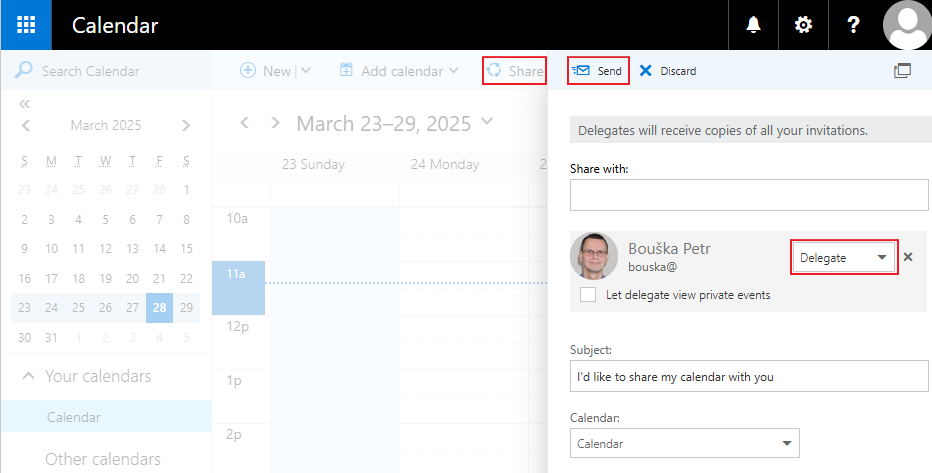
Editing or removing permissions
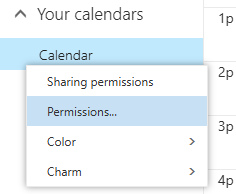
- right-click on the calendar and select Permissions
Setting up delegate processing
In my environment, it's enough to create a new mailbox for a room (resource) and assign delegates. After creation, the mailbox is set up so that automatic approval doesn't take place, but a delegate is used. We'll discuss this in more detail later in the article.
For verification or configuration, we can use EMS. One option for setting up delegate approval:
Set-CalendarProcessing -Identity meetingroom -AutomateProcessing AutoUpdate
Outlook
For information only, setting delegates in the Outlook application within a given account.
- menu File - Account Settings - Delegate Access
- Add - find the user, give Editor permission to the calendar and check Delegate receives copies of meeting-related messages sent to me
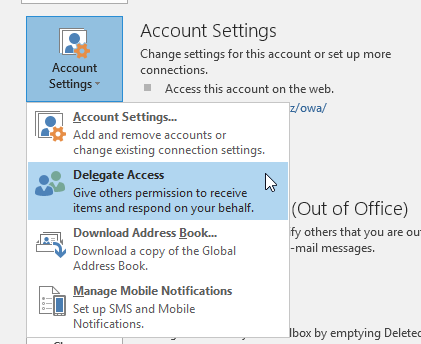
Note: Here we see that Editor permission is assigned (which is also set by EAC or EMS) and with it a special parameter for forwarding invitations. Only OWA displays/sets the Delegate permission.
Assigning delegates using a group
It should work (and under certain conditions it really does work) to use a group with a list of users who are delegates for the given resource.
I once found out that the group must be a Security Group and not a Distribution Group to be usable. I described this in the article Exchange 2016 groups, rooms, Back Pressure, shared mailboxes.
A few years ago, I encountered another problem in the case of Exchange Hybrid. Resource mailbox OnPrem, some users on the OnPrem server, some in EXO. Users in EXO had to be assigned directly, they didn't work through the group.
Setting up automatic approval
Automatic approval allows setting many parameters. Depending on the tool where we perform the configuration, different designations are used for the same parameter.
Exchange Admin Center (EAC)
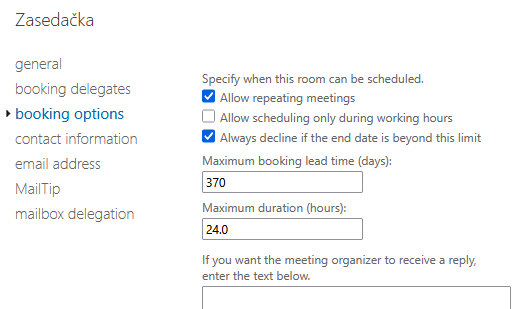
EAC allows configuring only basic parameters (options).
- Recipients - Resources - resource editing
- settings are under booking delegates and booking options
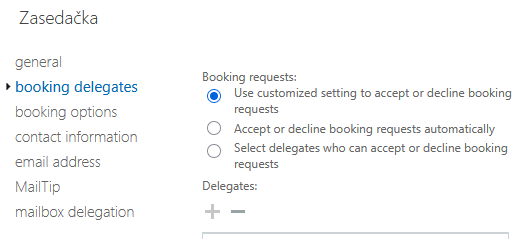
If the option Use customized setting to accept or decline booking requests is displayed, it means that it's a configuration that EAC cannot set (it's done in EMS). I practically found that this is the case when the parameter AutomateProcessing has the value AutoUpdate.
Outlook on the web (OWA)
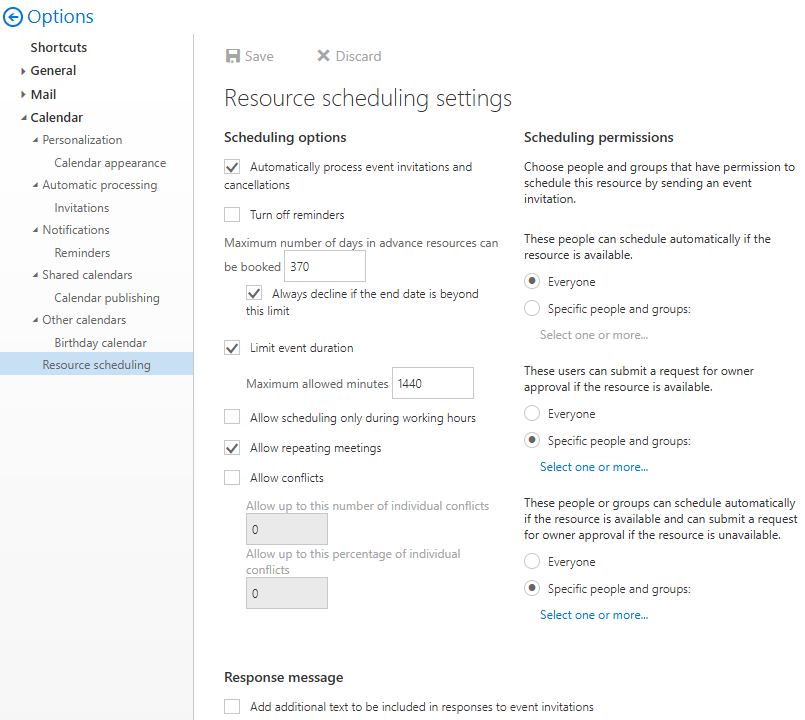
- in the upper right corner, click on your account - Open another mailbox
- enter the name, Search directory and Open
- in the resource mailbox, click on Settings in the upper right corner
- select Options - Calendar - Resource scheduling
Exchange Management Shell (EMS)
The certainty for setting is to use EMS and the cmdlet Set-CalendarProcessing. It allows configuring all options, except for the problem with adding delegates.
The main parameter of the cmdlet is AutomateProcessing, which has values:
None- calendar processing is turned offAutoUpdate- requests are approved by a delegate, until they're approved, they appear in the calendar as tentative, the organizer receives the decision from the delegateAutoAccept- automatic approval and delegate are enabled, authorized requests (according to other mailbox settings) are decided without human intervention
Example of setting automatic approval for all requests
Set-CalendarProcessing -Identity meetingroom -AutomateProcessing AutoAccept -BookingWindowInDays 360 -MaximumDurationInMinutes 1440
 -AllowRecurringMeetings $true -AddOrganizerToSubject $false -DeleteAttachments $true -DeleteSubject $false `
 -DeleteComments $false -RemovePrivateProperty $true
Brief meaning of parameters
BookingWindowInDays- maximum number of days for which we can book, i.e., how far in advance (0 to 1080)MaximumDurationInMinutes- maximum event duration (default 24 hours = 1440 minutes)AllowRecurringMeetings- true allows recurring meetings (default)AddOrganizerToSubject- false doesn't add the organizer's name to the subjectDeleteAttachments- true removes all attachments in incoming messagesDeleteSubject- false preserves the original subject of meeting requestsDeleteComments- false preserves all text in the body of incoming requestsRemovePrivateProperty- true the private flag for incoming meeting requests is removed (default)
Additional parameters
AddAdditionalResponse- true adds defined text to the response to a meeting requestAdditionalResponse- text for the responseResourceDelegates- delegates for the mailbox (separated by comma)ForwardRequestsToDelegates- true enabled by default and is supposed to handle forwarding meeting requests to delegates, but it still doesn't work for delegates added via theResourceDelegatesparameter
Restricting users who can book the resource
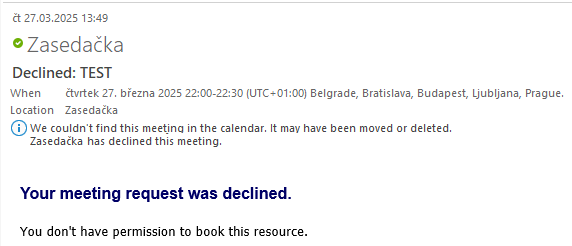
By default, all users can send a meeting request that is automatically processed. We can limit this option to selected users only. Others will automatically receive a response that the request was rejected because they don't have permission to book this resource.
Set-CalendarProcessing -Identity meetingroom -AllBookInPolicy $false -BookInPolicy user1@company.com,group@company.com
We can specify users or groups. However, they must exist in our organization. If we want to add an external address, we can create a Mail contact for it.
Additional mailbox settings
Allowing requests from external users
By default, automatic approval only processes invitations from Exchange organization users (internal) and rejects others. If we want to allow bookings from external addresses, we need to enable it.
Set-CalendarProcessing -Identity meetingroom -ProcessExternalMeetingMessages $true
I couldn't find any information about this (not even in descriptions of processing external requests). All of my older room mailboxes have blocked receiving external messages (newly created ones don't). So, it may be necessary to enable receiving unauthenticated messages on the mailbox, i.e., from external senders.
Set-Mailbox meetingroom -RequireSenderAuthenticationEnabled $false
Sharing the resource calendar with users
When we've created a mailbox (for example) for meeting rooms so that users can book it, we usually want to allow them to view its calendar.
Add-MailboxFolderPermission -Identity meetingroom@company.com:\Calendar -User all-users-group -AccessRights Reviewer
Special approval options
So far, we've discussed examples that represent common usage for me. However, we can configure many other variants. Let's briefly look at options that we can set using EMS or OWA. It uses something that I'll inaccurately refer to as policies (AllBookInPolicy, AllRequestInPolicy, AllRequestOutOfPolicy).
Booking policies
On the mailbox, we set options for scheduling meetings (Scheduling Options). For example, how far in advance we can plan it, how long it can maximally be, that it can only be during working hours, or even allowing certain conflicts.
When a request arrives, it's evaluated according to the set scheduling options. The result can be:
- In Policy - doesn't violate any of the configured resource scheduling options
- Out of Policy - violates one or more resource scheduling options
We can set 3 parameters that allow certain behavior (processing) for all users when they have the value true.
AllBookInPolicy- requests from all users that meet the conditions (In Policy) are automatically approvedAllRequestInPolicy- requests from all users that meet the conditions (In Policy) must be approved by a delegate,AllBookInPolicymust befalse, otherwise it's ignoredAllRequestOutOfPolicy- requests from all users that don't meet the conditions (Out of Policy) must be approved by a delegate
If the value of the previous parameter is false, we can use the related parameter and specify specific users.
BookInPolicy- users or groups who can send requests (In Policy) that are automatically approvedRequestInPolicy- users who can send requests (In Policy) that must be approved by a delegateRequestOutOfPolicy- users who can send requests (Out of Policy) that must be approved by a delegate
We can thus combine settings in various ways. For example, most users need delegate approval, but a selected group is approved automatically.
Outlook on the web (OWA)
The designations in the previous chapter are used when configuring in EMS. We can also make settings in OWA, where it's described as:
- These people can schedule automatically if the resource is available.
- These users can submit a request for owner approval if the resource is available.
- These people or groups can schedule automatically if the resource is available and can submit a request for owner approval if the resource is unavailable.
Exchange Management Shell and practical policy settings
I'm not clear about the relationship between the AutomateProcessing parameter and policies. But it's probably quite significant.
Delegate approval
I want to set up delegate approval. According to the meaning of policies, and examples in Microsoft documentation correspond to this, I should set:
AllBookInPolicy       : False
AllRequestInPolicy    : True
AllRequestOutOfPolicy : False
What's not so clear to me, but Microsoft uses it in examples, is:
AutomateProcessing : AutoAccept
I've never changed policy settings and the following works for me for delegate approval.
AutomateProcessing    : AutoUpdate
AllBookInPolicy       : True
AllRequestInPolicy    : False
AllRequestOutOfPolicy : False
ResourceDelegates     : {user}
Automatic approval
Setting for automatic approval from all users is without problems.
AutomateProcessing    : AutoAccept
AllBookInPolicy       : True
AllRequestInPolicy    : False
AllRequestOutOfPolicy : False
New mailbox and AutomateProcessing parameter
When I create a new resource mailbox using EAC, it sets AutoUpdate. Meanwhile, Microsoft states (AutomateProcessing) that on On-Premises Exchange, AutoAccept is set via EAC (and AutoUpdate via EMS). On Exchange Online, AutoAccept should always be set.
Configuration via EAC and AutomateProcessing parameter
If I make settings using EAC, it doesn't matter whether I choose automatic approval or delegates, it always sets AutoAccept. AllBookInPolicy and AllRequestInPolicy are set differently.
If AutoUpdate is set, EAC displays Use customized setting to accept or decline booking requests.
"If we set delegates using EAC or EMS, they'll get Editor permissions to the calendar. For a user to receive a copy of all meeting requests sent to the resource mailbox, the calendar must be shared with Delegate permission. This happens when setting up using Outlook on the web or Outlook. I haven't figured out how to set this permission using EMS.
Outlook on the web (OWA)
To be able to use OWA, we need to temporarily set Full Access permissions on the mailbox. Microsoft doesn't recommend using these rights for calendar management; for that, we share the calendar. And it's not good to have full access to many mailboxes, so we add permissions only for the duration of configuration."
I'm so glad that someone else has noticed this how this functions very differently between setting it up in OWA and in Powershell/Exchange
In fact if you setup in OWA the delegates get a much different looking email (more like a normal calendar invite that show a little calendar prview and they can right click and accept") than the Bold Blue Text that you get through BookInPolicy/RequestInPolicy
The other very annoying thing from this is its very difficult to remove the Delegate forward settings in Powershell as well! Normally show up as a hidden rule!