Note: The information described was tested on Exchange Server 2010 SP3 and Outlook 2010.
The mailbox on the Exchange server must have an SMTP email address set up. We can set multiple of these addresses (they are stored in the proxyAddresses attribute), then mail to all assigned addresses is delivered to this mailbox. However, outgoing communication always uses the primary SMTP email address (referred to as the Reply Address). If we try to send a message through a different address, we will get an error message that we don't have permission to send on behalf of that address.

So How Do We Send Mail Through a Second Address?
There are several options, although none of them seem ideal to me. A fake POP3 account or a special application don't seem like a suitable solution to me, and I haven't tested them either (I mention them here for reference only). The remaining options, a distribution group, a separate mailbox, or a public folder, are essentially the same and have been used for this situation since the beginning of Exchange server.
Fake POP3 Account
If POP3 connection is allowed, it should work to create an account where we enter our second address as the email and log in with our credentials. We disable mail retrieval through this account and choose to send through this account when sending. In the end, it's not really POP3, but SMTP. In this case, we have multiple email addresses assigned to a single user.
Special Application on Server and Client
There is a paid application ChooseFrom for Exchange 2007/2010 utility along with SmartReply 2010 for Microsoft Outlook 2010. It must be installed on the server and then on the clients, and it should handle sending through multiple accounts assigned to a single user.
Distribution Group (Distribution Group)
The most commonly mentioned and recommended option for many years is the use of a distribution group and setting permissions on this group.
The principle is simple. On the Exchange server, we create a distribution group with the email address we want to provide to the user as a second address. We add our user to the group, so incoming mail will be delivered to them. Then we set the AD permission Send as for our user on this group.
The Send As permission is a standard Active Directory (AD permission), so we can set it using the Active Directory Users and Computers (ADUC). In the properties (Properties) of the distribution group on the Security tab, we add the user and allow (Allow) Send as. Or we can use the Powershell cmdlet.
Add-ADPermissions -Identity group@company.com -User company\user -ExtendedRigths Send-As
Similarly, we can list who has the Send as permission set on the group.
Get-ADPermission group@company.com | Where-Object { $_.ExtendedRights -like "Send-As" } | FT User, ExtendedRights -AutoSize
Important information: When we set the permission, it will not take effect immediately, because the Exchange Information Store caches the information from AD and updates it by default every two hours. Restarting the Information Store service will cause the information to be loaded immediately.
Just for completeness, we'll also mention the option to set the Send on Behalf permission, which is done using the Exchange Management Shell (EMS). This is for sending a message on behalf of someone else, in which case the message will show that a certain user sent it on behalf of another.
Set-DistributionGroup -Identity group@company.com -GrantSendOnBehalfTo company\user
Note: Never configure both Send As and Send on Behalf on the same user, as it will only cause problems.
When a user wants to send an email on behalf of a distribution group, they expand the From field in a new message in Outlook (if we don't see it, we turn it on in Options - (Show Fields) From). Here they see the email addresses of the accounts set up in Outlook. Below are the manually entered addresses, and the option to add a new address Other E-mail Address.

Here we select the address from the list or enter it manually and confirm.
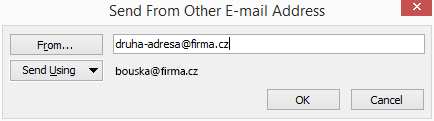
Unfortunately, with this method (and with no other), the Reply function on incoming messages is not preserved correctly. Our address is always automatically used there, and we can only change it manually.
Separate User (Mailbox)
The second, often used option is to use a separate mailbox for the secondary address. And again, set the Send As permission. Personally, the distribution group option seems better to me.
We can set the Send As permission the same way as for the distribution group. But we also have another option using the Exchange Management Console (EMC), where in Recipient Configuration - Mailbox we find the new mailbox and (for example through the right-click menu) choose Manage Send As Permission.
If we need to set the Send on Behalf permission, we can do it using the Exchange Management Shell (EMS).
Set-Mailbox user2@company.com -GrantSendOnBehalfTo user@company.com
Or we can use the EMC, where in the mailbox properties on the Mail Flow Settings - Delivery Options tab there is Send on behalf. The last option, if we are logged in to the account with Outlook, is to directly give someone the right to send on behalf of our address (File - Info - Account Settings - Delegate Access).
The second thing we need to resolve so that our user can conveniently read messages sent to the second address. We can set up forwarding of incoming messages to their email. For example, in the EMC in the mailbox properties, the Mail Flow Settings tab, the Delivary Options item, the Forward to setting.

Another option is to set the Full Access permission on the mailbox for our user. Then they will see the second mailbox in Outlook as well. We can set this again using the EMC by right-clicking on the mailbox and selecting the Manage Full Access Permission item. Or using the EMS.
Add-MailboxPermission -Identity company\user2 -User company\user -AccessRights FullAccess
Sending messages under the second address is done the same way as in the case of the distribution group.
Public Folder (Public Folder)
Finally, I came up with another option that is the least suitable for this purpose, but may be suitable for other scenarios. It's about creating a public folder with an alternative address and again setting the Send As permission. We can give our user access permission to the public folder or set up email forwarding.
Setting the Send as permission is done the same way as for the distribution group. Additionally, there is the option to use the GUI, where we use the EMC - Toolbox - Public Folder Management Console. We navigate to the newly created folder in such a way that we see it in the right window (I consider it a bug that the context menu in the left window doesn't work), and via the right mouse button we choose Manage Send As Permission.
Problematic Situation
The methods described above are generally known and widely used. I have used a distribution group for this purpose many times myself. And so I was surprised when I needed to create an alternative address for a user again after some time and also allow them to send through it. I set everything up, but sending didn't work (an error was returned that the user didn't have the rights). I tried all day and nothing worked. The next day I tried creating a mailbox instead of a distribution group, but again without success.
After a long time of thinking and trying, it was found that the problem was in a minor detail. My user was supposed to have two similar addresses, but only his main address was supposed to be displayed in the corporate directory (Global Address List - GAL). So I set Hide from Exchange address lists on the distribution group and mailbox.
And it turned out that if the address through which I want to send the email is not in the directory, the send will fail. As soon as I allowed the display, everything worked fine.
I'm convinced that at least on Exchange Server 2007, I didn't have a problem with hidden addresses. I don't know if it's a bug in SP3 on Exchange 2010 or the entire Exchange 2010, or if it's a special intention of Microsoft. In any case, I couldn't find anything about this issue on the Internet.
Added on 15.8.2014 I came across a MS article stating that this is planned behavior Manage Send As Permissions for a Mailbox.
Ahoj,
já jen poznámku k tomu, když má schránka nastaveno "Hide from..". Já to zrovna řešil a stačilo povolit zobrazení v GAL, jednou odeslat Outlookem za druhou adresu a opět v GAL schovat. Při příštím odeslání se v Outlooku vybere už jednou ověřená adresa. Takhle mi to fungovalo na Exchange 2007 SP3 + Outlook 2010, minimálně do té doby, než se smaže profil v Outlooku.
Pavel
respond to [1]Pavel: Nechtěl jsem to zas tak rozepisovat. Narazil jsem na podobnou věc, ale fungovala vždy jen jednou.
Poslal jsem si mail z té nezobrazované adresy, aby se mi v Outlooku uložila do keše. Pak jsem ve From dal Other E-mail Address začal psát a vybral tu nabízenou a zpráva odešla. Ale při dalším pokusu, když jsem ve From již jen zvolil uloženou adresu, tak to zase nechodilo. Muselo znovu dát Other E-mail Address a začít psát a vybrat nabídnutou ... Takže dost nepohodlné.
Ahoj, můžu potvrdit že chyba odesílání z čehokoliv co není GAL neprojde už v základním EX 2010, není to tedy jen u SP3..
Zdravim
Pouzil jsem ted mozna elegantnejsi metodu - misto distribucnich skupin jsem pouzil pouze Kontakt. Pres powershell nastavit prava a funguje to. Potom se samozrejme uz da na kontakt atribut hidden aby zbytecne nevadil v adresari.
respond to [4]Ari37: Kontakt jsem také zkoušel, ale narazil jsem na problém. Jako External SMPT address jsem chtěl zadat adresu uživatele, který má mít tento kontakt jako druhou adresu, ale při tom jsem dostal chybu, že tuto adresu nelze použít.
Jak jsi to vyřešil?
Tuší někdo, jaké problémy? U nás ve firmě to takto nastaveno je na několika mailboxech.
Pozn.: Nikdy nekonfigurujeme dohromady na jednoho uživatele Send As
i Send on Behalf, vzniknou tím pouze problémy.
respond to [6]Tjurajda: Ahoj, jaké problémy vzniknou? Díky