This article is part of a series drawn from my notes during the migration of an Exchange organization from version 2010 to 2016. It is not a complete procedure, but a description of the main points and areas. The examples relate to a specific design, but can generally be generalized. Also, although it is a description of a migration, the information is also suitable for a new installation or management.
Official documentation Exchange Server 2016, Mail flow and the transport pipeline, Configure mail flow and client access on Exchange servers.
Basic Configuration
To enable sending and receiving mail from the internet, we need to create the appropriate DNS MX records and on the Firewall route SMTP communication to and from the Exchange server. On the server, we need to perform three configuration steps:
- Accepted Domains (EAC - Mail Flow - Accepted Domains) - we define the domains for which we accept and send mail
- Email Address Policies (EAC - Mail Flow - Email Address Policies) - policy for generating email addresses for users
- Send Connector (EAC - Mail Flow - Send Connectors) - handles sending mail to the internet
In a new installation, the default accepted domain and policy are set, but they may need to be modified. The Send Connector does not exist, so we cannot send email outside the organization until we create it correctly.
If we are doing a migration from an older version of Exchange, everything is already set up - it is a common configuration for the entire Exchange organization. We only need to add the new server as a source for sending (Source Server) to our Send Connector.
Transport Pipeline / Service
Each incoming and outgoing message is processed and categorized by the Transport Service (part of the Transport Pipeline) on the Mailbox server. It is then placed in the delivery queue (Queue) for delivery to the target mailbox DB, DAG, AD Site, or outside the organization. Exchange uses connectors (Connectors) to enable receiving and sending mail on Exchange servers and between services on the local server.
Note: The Transport Pipeline works significantly differently than in Exchange 2010, and this has a crucial practical impact. We'll describe the differences step by step.
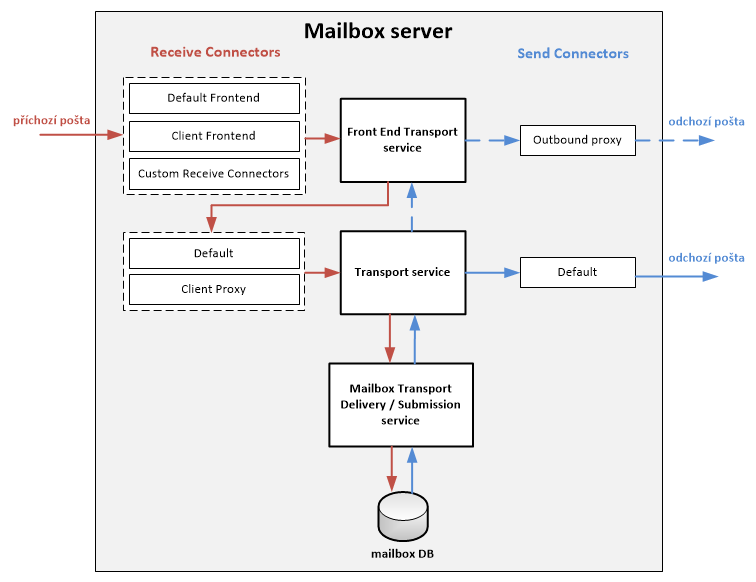
On the Mailbox server, we have three transport services through which incoming and outgoing messages pass. The services communicate not only within a single server, but also with services on other Exchange servers.
- Front End Transport service - processes (stateless) incoming (and possibly outgoing) external SMTP traffic for the Exchange organization, does not check content, does not insert messages into the queue
- Transport service - similar to the Hub Transport role in Exchange 2010, processes all SMTP mail flow for the organization, performs message categorization, content inspection, does not communicate directly with mailbox databases (as in Exchange 2010)
- Mailbox Transport service - consists of two services, accesses the mailbox directly and retrieves or inserts messages
- Transport Submission service - accesses (via RPC) the local mailbox database, retrieves messages and passes them via SMTP to the Transport service on the same or a different Mailbox server
- Transport Delivery service - receives SMTP messages from the Transport service on the same or a different Mailbox server and stores them in the local mailbox database
According to Microsoft documentation (where we can examine everything in more detail Mail flow and the transport pipeline), I have drawn a summary diagram that shows the standard receiving and sending of a message. In addition to the transport services, it also shows the receiving and sending connectors. We'll describe these in more detail later, but it's important to understand that an incoming message does not go through just one connector, but two (on different services). For outgoing messages, we have two options: if we create a standard Send Connector, the messages are sent from the Transport service. Alternatively, we can set up a Proxy through the Front End Transport service.
Receive Connectors
Documentation Receive connectors.
Configuration using the Exchange Management Shell Get-ReceiveConnector, Set-ReceiveConnector or the EAC.
- EAC - Exchange Admin Center
- Mail Flow - Receive Connectors
Receive Connectors were described for Exchange 2010 in the article Exchange - receiving and sending mail using Receive Connectors, and most of the information is still valid.
Receive Connectors handle incoming SMTP traffic, listening for incoming connections on a defined port with specified parameters. This is how messages come in
- from external servers outside our Exchange organization
- from services in the Transport Pipeline on our Exchange servers
- from mail clients that do not use MAPI, but SMTP to send messages
- (which Microsoft does not mention in their descriptions, but which I think is very important) if we have any application servers that send mail (whether to internal or external addresses), this communication also goes through SMTP Receive Connectors
From this perspective, the configuration of Receive Connectors affects the receipt of mail from the internet, but also the sending of mail (not just to the internet) from our internal servers.
After installation, five default Receive Connectors are automatically created. Three connectors are on the Front End Transport service (Client Frontend, Default Frontend, Outbound Proxy Frontend), which serve for anonymous and authenticated SMTP connections. The TransportRole attribute has the value FrontendTransport. And two on the Transport service (Client Proxy, Default), which serve for authenticated and encrypted SMTP connections from other transport services of the Mailbox server in the organization (clients do not connect directly). The TransportRole attribute has the value HubTransport.
Default Receive Connectors
List of automatically created connectors and their basic properties. The data is based on Microsoft documentation and supplemented with a few others that I consider important.
Default Frontend <ServerName> - [FrontendTransport]
- main receipt of mail from the internet and other servers via SMTP
- accepts anonymous and authenticated connections
- listens on TCP 25
- equivalent to Default <ServerName> on Exchange 2010
- MessageRateLimit - Unlimited
- Protocol logging - Verbose
- Authentication mechanisms - TLS, BasicAuth, BasicAuthRequireTLS, ExchangeServer, Integrated
- Permission groups - AnonymousUsers, ExchangeLegacyServers, ExchangeServers
User                              ExtendedRights
----                              --------------
NT AUTHORITY\ANONYMOUS LOGON      {ms-Exch-SMTP-Accept-Authoritative-Domain-Sender}
NT AUTHORITY\ANONYMOUS LOGON      {ms-Exch-SMTP-Accept-Any-Sender}
NT AUTHORITY\ANONYMOUS LOGON      {ms-Exch-SMTP-Submit}
NT AUTHORITY\ANONYMOUS LOGON      {ms-Exch-Accept-Headers-Routing}
Client Frontend <ServerName> - [FrontendTransport]
- authenticated SMTP clients
- listens on TCP 587
- equivalent to Client <ServerName> on Exchange 2010
- MessageRateLimit - 5
- Protocol logging - None
- Authentication mechanisms - TLS, BasicAuth, BasicAuthRequireTLS, Integrated
- Permission groups - ExchangeUsers
User                              ExtendedRights
----                              --------------
NT AUTHORITY\Authenticated Users  {ms-Exch-SMTP-Accept-Any-Recipient}
NT AUTHORITY\Authenticated Users  {ms-Exch-Accept-Headers-Routing}
NT AUTHORITY\Authenticated Users  {ms-Exch-Bypass-Anti-Spam}
NT AUTHORITY\Authenticated Users  {ms-Exch-SMTP-Submit}
Default <ServerName> - [HubTransport]
- authenticated receipt of mail from the Front End Transport service or Mailbox Transport Submission service, internally transfers messages using SMTP
- listens on TCP 2525
- MessageRateLimit - Unlimited
- Protocol logging - None
- Authentication mechanisms - TLS, BasicAuth, ExchangeServer, Integrated
- Permission groups - ExchangeLegacyServers, ExchangeServers, ExchangeUsers
User                              ExtendedRights
----                              --------------
NT AUTHORITY\Authenticated Users  {ms-Exch-SMTP-Submit}
NT AUTHORITY\Authenticated Users  {ms-Exch-Bypass-Anti-Spam}
NT AUTHORITY\Authenticated Users  {ms-Exch-Accept-Headers-Routing}
NT AUTHORITY\Authenticated Users  {ms-Exch-SMTP-Accept-Any-Recipient}
Client Proxy <ServerName> - [HubTransport]
- authenticated client connections that are proxied from the Front End Transport
- listens on TCP 465
- MessageRateLimit - 5
- Protocol logging - None
- Authentication mechanisms - TLS, BasicAuth, BasicAuthRequireTLS, ExchangeServer, Integrated
- Permission groups - ExchangeServers, ExchangeUsers
User                              ExtendedRights
----                              --------------
NT AUTHORITY\Authenticated Users  {ms-Exch-SMTP-Submit}
NT AUTHORITY\Authenticated Users  {ms-Exch-Bypass-Anti-Spam}
NT AUTHORITY\Authenticated Users  {ms-Exch-Accept-Headers-Routing}
NT AUTHORITY\Authenticated Users  {ms-Exch-SMTP-Accept-Any-Recipient}
Outbound Proxy Frontend <ServerName> - [FrontendTransport]
- if we set Proxy through CAS on the Send connector, the authenticated and encrypted connection is sent to this connector
- listens on TCP 717
- MessageRateLimit - Unlimited
- Protocol logging - None
- Authentication mechanisms - TLS, BasicAuth, BasicAuthRequireTLS, ExchangeServer, Integrated
- Permission groups - ExchangeServers
Creating and Configuring Connectors
For regular mail sending, we can get by with the default connectors in the default configuration. But especially in a situation where we are using some application servers that need to send mail messages, we need to create new special connectors or adjust some settings. Practical situations are when the application server only supports a certain form of authentication (such as Basic without TLS) or doesn't support authentication at all. Or it needs to send emails from a variety of email addresses.
On the connectors, logging, size of received messages, and other parameters are also set. If we are doing a migration, we may already have some connectors created on the original servers. And generally, we want to set the configuration similarly. For setting permissions, we can get by with Permission Groups or we need to directly configure Permissions.
We can look at the settings in the Exchange Admin Center or list them in more detail using the Exchange Management Shell, where we can display all connectors, connectors on a specific server, or the details of a specific connector.
Get-ReceiveConnector
Get-ReceiveConnector -Server MAILOLD
Get-ReceiveConnector -Identity "MAILOLD\Default MAILOLD" | FL *
We can also list the detailed permissions (the most interesting ones):
PS C:\>Get-ReceiveConnector -Identity "MAIL1\Default Frontend MAIL1" | Get-ADPermission |
 Where-Object {$_.IsInherited -eq $false -and $_.User -ilike "NT*"} | Sort-Object User |
 FT User, ExtendedRights

User                              ExtendedRights
----                              --------------
NT AUTHORITY\ANONYMOUS LOGON      {ms-Exch-SMTP-Accept-Authoritative-Domain-Sender}
NT AUTHORITY\ANONYMOUS LOGON      {ms-Exch-SMTP-Accept-Any-Sender}
NT AUTHORITY\ANONYMOUS LOGON      {ms-Exch-SMTP-Submit}
NT AUTHORITY\ANONYMOUS LOGON      {ms-Exch-Accept-Headers-Routing}
NT AUTHORITY\Authenticated Users  {ms-Exch-Bypass-Anti-Spam}
NT AUTHORITY\Authenticated Users  {ms-Exch-Accept-Headers-Routing}
NT AUTHORITY\Authenticated Users  {ms-Exch-SMTP-Submit}
NT AUTHORITY\Authenticated Users  {ms-Exch-SMTP-Accept-Any-Recipient}
New special connectors can be created manually or we can try a script for copying, which we can find many of on the internet. An example is Copy a receive connector from one Exchange Server to multiple Exchange Servers, if we want to transfer permissions, we must use the CopyPermissions parameter. We can also prepare a script that copies permissions from one connector to another connector or server. Example of copying permissions:
$sourcePermissions = Get-ReceiveConnector -Identity "MAIL1\Connector pro AS MAIL1" | Get-ADPermission |
 Where-Object {$_.IsInherited -eq $false -and $_.User -ilike "NT*"}
$sourcePermissions | ForEach-Object {
  Get-ReceiveConnector "MAIL2\Connector pro AS MAIL2" |
    Add-ADPermission -User $_.User -Deny:$_.Deny -AccessRights $_.AccessRights -ExtendedRights $_.ExtendedRights
}
Note: If we have multiple servers that we want to be proxy (and may be accessible under the same DNS name), we must not forget to perform the same connector configuration on all of them.
Connectors and Emails from Application Servers
If we want to send emails from an application, we typically use the email server address and port 25. This connects to the Default Frontend <ServerName> connector, which by default allows anonymous connections (which we need for receiving mail from the internet) and accepts emails with any sender address that are intended for recipients in the organization (Authoritative Domain).
We often need to send emails outside the organization as well. Then we can create a new connector, but it must listen on a different port or accept connections only from certain IP addresses. Or we can modify the default connector and add the Permission group Exchange Users with standard rights, where an authenticated user can send from their address to any recipients.
Another practical situation is that we have poor applications that only support Basic authentication, where the login credentials are sent in plain text. Or even worse, they don't support authentication at all. In this case, the solution is to create a new connector that we limit to receiving mail only from the IP address of the given server, and set the authentication and permissions in a special way.
This worked simply, clearly and (in my opinion) securely on Exchange Server 2010. When we set up Exchange Server 2016 this way, everything seems fine, but we start running into various problems described in the next chapter. The reason is that the message is received by the Receive Connector on the Frontend Transport, which we have created and configured in some way. If the message meets the parameters, it will pass through, but it is then forwarded to another connector on the Hub Transport. And that already has a different configuration, which for example limits the number of messages per minute or does not allow sending as another sender.
Client Proxy
If we send a message through the Default Frontend connector (or any other) and the client authenticates (`AUTH LOGIN`), the session is proxied to the Client Proxy connector. And it is this connector that processes the sender (`MAIL FROM`) and recipient (`RCPT TO`) information. Its settings only allow authenticated users to send to any recipients. If we create a special connector for a server where we allow authenticated users to send from any address, the communication will still reach the Client Proxy connector and an error will be returned here that sending as another sender is not allowed. If we modify the settings of the Client Proxy connector, it will affect all authenticated connections (even though the communication must first pass through the Frontend Transport connector).
Default
It's interesting that if we create a connector where we allow anonymous users (i.e. without authentication) and set the permission to send from any address, this connector directly processes the sender and recipient information. So the sender verification passes, even though the connection is further proxied to the Default connector.
Problems with Sending Mail Using Receive Connectors
If we set up the Receive Connectors as in Exchange 2010 and start sending mail from some application servers, we'll soon notice that a number of messages didn't get delivered. It doesn't matter whether the default Default Frontend SERVERNAME or a newly created one is used. The problems only occur with authenticated SMTP connections, anonymous works fine. Although this situation is discussed on many forums, I couldn't find a solution anywhere. And when I figured out what the reason was (we mentioned it in the previous chapter), Microsoft doesn't even mention how this situation should be properly resolved.
If the application server has an SMTP communication log, we'll find one of the two errors there. We'll also find them in the Exchange protocol log.
421 4.4.2 Message submission rate for this client has exceeded the configured limit

550 5.7.60 SMTP; Client does not have permissions to send as this sender
The first thing is of course to check the input connector to make sure it has an unlimited number of messages per minute and allows sending as the sender. The next step is to look in the Front End Transport service log (`C:\Program Files\Microsoft\Exchange Server\V15\TransportRoles\Logs\FrontEnd\ProtocolLog\SmtpReceive`). Here you'll find a difference from Exchange 2010, because for authenticated connections, the SMTP communication flow, information such as MAIL FROM, RCPT TO, and the error the server returns are not found. But the last lines of the connection may give a clue
Setting up client proxy session to destination(s):
Proxy session was successfully set up. Session for user will now be proxied
As described in the Transport pipeline, messages received on the Front End Transport service are forwarded to the Transport service (HubTransport), which is the Client Proxy SERVERNAME connector. So we need to look in the Transport service log (`C:\Program Files\Microsoft\Exchange Server\V15\TransportRoles\Logs\Hub\ProtocolLog\SmtpReceive`). Here we can see the rest of the SMTP communication and the errors we're looking for.
Problem with the Message Rate Limit
Documentation Message rate limits and throttling, Set-ThrottlingPolicy.
One of the errors the server returns when attempting to send is the information that the limit on sending messages per minute from a single source has been exceeded.
421 4.4.2 Message submission rate for this client has exceeded the configured limit
To check, we can list the set limits on the connectors.
[PS] C:\>Get-ReceiveConnector -Server MAIL1 | FT Name, MessageRateLimit

Name                               MessageRateLimit
----                               ----------------
Default MAIL1                      Unlimited
Client Proxy MAIL1                 5
Default Frontend MAIL1             Unlimited
Outbound Proxy Frontend MAIL1      Unlimited
Client Frontend MAIL1              5
We can see that most connectors are unlimited. Only those intended for client sending have a limit of 5 messages per minute. This is quite a low value, but for clients (who don't use MAPI) it should be sufficient and is designed to protect the server's resources from being overwhelmed. However, for sending from an application server, this is very little. And as we described, when authentication occurs, the message is forwarded to the Client Proxy, where this limit is in place.
We can change this setting to a larger value or unlimited. It's worth considering why Microsoft set it this way by default. But since anonymous messages from the internet come through connectors that have no limit, it's probably not a mistake to set the client connector to unlimited either.
Set-ReceiveConnector "MAIL1\Client Proxy MAIL1" -Messageratelimit unlimited
The Right to Send from Any Address
The second error we're dealing with, and which we've more or less described, informs us that we don't have the right to send from the specified address.
550 5.7.60 SMTP; Client does not have permissions to send as this sender
An authenticated user can normally only send emails from their own email address. An anonymous user can send from any address, but only to recipients within the organization. Sometimes we may need an application to send emails from various addresses. On Exchange 2010, we created a special connector that was limited to the server address and had permission to send from any sender to any recipients. We could allow this anonymously, but using authentication of some account looks more secure.
But on Exchange 2016, the communication passes through the Front End Transport service where we set the permission, and it reaches the Client Proxy SERVERNAME connector. The permission to send is not set there, and setting it generally would bypass the restriction on the server's source IP address.
We can list the permissions (we described them earlier) or set them using the Exchange Management Shell.
Get-ReceiveConnector "MAIL1\Connector pro AS MAIL1" |
 Add-ADPermission -User "NT AUTHORITY\Authenticated Users" -ExtendedRights ms-Exch-SMTP-Accept-Any-Sender
The main permission (ExtendedRights) are:
- ms-Exch-SMTP-Accept-Any-Sender - allows sending emails from an address that doesn't belong to the organization
- ms-Exch-SMTP-Accept-Authoritative-Domain-Sender - allows sending emails from any address with an authoritative domain
- ms-Exch-SMTP-Accept-Any-Recipient - allows sending messages to addresses outside the Exchange organization (relaying)
The situation where we need an application to send emails from several addresses should probably be properly addressed by creating a special account to authenticate with, and granting it Send As rights on additional accounts with other addresses (it could also be a Distribution Group or Public Folder). But this is not always practical to implement in practice.
Another option is to set the rights to send from any address on the Client Proxy connector, not for Authenticated Users (as is commonly done), but for a specific user or group.
According to tests, there is also a last option to create a special Receive Connector with a restriction on the server's IP address and not perform authentication (ANONYMOUS LOGON).
Send Connectors
Documentation Send connectors.
Configuration using the Exchange Management Shell Get-SendConnector, Set-SendConnector or the EAC.
- EAC - Exchange Admin Center
- Mail Flow - Send Connectors
Send Connectors handle outgoing SMTP traffic, send messages outside our Exchange organization, and create connections to target mail servers. No default connectors are created, but there are invisible Send Connectors that route messages between internal Exchange servers. To be able to send mail outside the company, we need to create a Send Connector (or connect to an Edge Transport server).
Send Connectors are stored in AD DS and are common to the entire Exchange organization (they are not defined per server like Receive Connectors). If we are doing a migration, the Send Connectors already exist, and we only need to add the new servers as Source Servers for sending, and possibly remove the old ones so that outgoing mail goes through the new servers.
- EAC - Exchange Admin Center
- Mail Flow - Send Connectors
- Edit - Scoping - Source server
For Send Connectors, we can configure several important parameters. We often only need one common connector, but we can create multiple. We can now enable Proxy through client access server on the connector - Configure Send connectors to proxy outbound mail. Here we set the maximum size of outgoing messages (due to Base64 encoding, the actual data is about 1/3 smaller). We determine the mail routing, either using DNS (and MX records) or forwarding to a Smart Host. We can specify the Address Space, i.e. the target domains for which this connector will be used.
Protocol Logging - Logging SMTP Conversations
Documentation Protocol logging.
Probably everyone who manages a mail system deals (more or less often) with situations where a message was not delivered correctly and it is necessary to find out why. Sometimes we can use Message Tracking, but often we need to look in the SMTP logs (ProtocolLog).
Some default connectors have logging enabled automatically, but most do not (e.g. the Receive Connector Client Proxy does not log, even though it is important). When creating new connectors, we need to enable logging. I think it's a good idea to enable logging on all connectors. We can easily enable logging in the connector settings in the Exchange Admin Center, where we switch the Protocol logging level from None to Verbose.
By default, log rotation is performed (circular logging), so old logs are deleted. The default values are 30 days, folder size 250 MB (which is quite little in practice), file size 10 MB. The log files are located in the path according to the service and connector type. Typically it's %ExchangeInstallPath% = C:\Program Files\Microsoft\Exchange Server\V15\.
- Front End Transport service
- Receive connectors:
%ExchangeInstallPath%TransportRoles\Logs\FrontEnd\ProtocolLog\SmtpReceive - Send connectors:
%ExchangeInstallPath%TransportRoles\Logs\FrontEnd\ProtocolLog\SmtpSend
- Receive connectors:
- Transport service
- Receive connectors:
%ExchangeInstallPath%TransportRoles\Logs\Hub\ProtocolLog\SmtpReceive - Send connectors:
%ExchangeInstallPath%TransportRoles\Logs\Hub\ProtocolLog\SmtpSend
- Receive connectors:
- Mailbox Transport Delivery service
- Receive connectors:
%ExchangeInstallPath%TransportRoles\Logs\Mailbox\ProtocolLog\SmtpReceive\Delivery
- Receive connectors:
- Mailbox Transport Submission service
- Send connectors:
%ExchangeInstallPath%TransportRoles\Logs\Mailbox\ProtocolLog\SmtpSend\Submission
- Send connectors:
On Exchange Server 2010 the paths are:
- Send connectors:
C:\Program Files\Microsoft\Exchange Server\V14\TransportRoles\Logs\ProtocolLog\SmtpSend - Receive connectors:
C:\Program Files\Microsoft\Exchange Server\V14\TransportRoles\Logs\ProtocolLog\SmtpReceive
Get-TransportService | FL Name, *ProtocolLog*
Get-FrontEndTransportService | FL Name, *ProtocolLog*

Get-TransportService | Set-TransportService -ReceiveProtocolLogMaxDirectorySize 600MB -SendProtocolLogMaxDirectorySize 600MB
Get-FrontEndTransportService | Set-FrontEndTransportService -ReceiveProtocolLogMaxDirectorySize 600MB `
 -SendProtocolLogMaxDirectorySize 600MB
Message Tracking
The Message Tracking function is just as important, which is enabled by default and stores logs in `%ExchangeInstallPath%TransportRoles\Logs\MessageTracking`. Users now also have the ability to use the Delivery reports tab in Outlook on the web. By default, 30 days are stored, with a maximum size of 1 GB.
Get-TransportService | FL Name, MessageTracking*
Get-TransportService | Set-TransportService -MessageTrackingLogMaxDirectorySize 2GB
Testing SMTP
For simple SMTP (and connector) testing, the simple application SMTP Diag Tool can be helpful, unfortunately it doesn't support Basic over TLS authentication.
Ahoj, nejake rady, preco Client Fronend na porte 587 nevie authentifikovat usera, ale Client Proxy na porte 465 to vie?
V Outlooku -> Port 587 -> Encryption TLS -> Your email server rejected your login.
Ked zmenim na port 465, AUTH funguje.