Note: The described information was tested on Exchange Server 2010 SP3.
I wrote this article for Exchange 2010, a lot of things were based on practical tests. With the advent of Exchange 2016, the outlined script stopped working because some events and even the way of logging addresses changed. I studied the information for the new version and especially performed an analysis of many different data samples for the main situations (I couldn't find documentation on what events are logged for certain situations). I didn't want to rewrite the entire article, so in the second half of the article I added my notes related to Exchange 2016, but also a new perspective on the logs (so some things are different than described in the old article).
The current description of using Get-MessageTrackingLog is in the article Exchange Server 2016 DSN, Message Tracking and Messaging Analytics.
What are Message Tracking Logs
The only thing we have available on the Exchange server are Message Tracking Logs. The Hub Transport, Edge Transport and Mailbox server roles log all message transfer activities into these logs. The logs are text files stored on the server. By default, they are kept for 30 days and are located in the path C:\Program Files\Microsoft\Exchange Server\V14\TransportRoles\Logs\MessageTracking. We can view the current settings using the Exchange Management Shell (EMS, i.e. PowerShell).
Get-MailboxServer SERVER | FL Message*
Get-TransportServer SERVER | FL Message*
If we want to change any value, we can again use PowerShell. Detailed description is available from Microsoft at Configure Message Tracking.
How to work with the logs
We can work with the logs in several ways. In the Exchange Management Console (EMC) under the Toolbox there is the Tracking Log Explorer. We can also use another Microsoft tool, which is the Log Parser Studio. Or we can use EMS, where we have the cmdlet Get-MessageTrackingLog available.
Examples of tracking log browsing
The following examples serve only to outline the syntax of the Get-MessageTrackingLog cmdlet. At the beginning, we define a one-day time interval.
$Start = (Get-Date).AddDays(-1)
$End = (Get-Date)
Find all messages (and events) sent from the address jmeno@firma.cz and display the listed information for them.
Get-MessageTrackingLog -Start $Start -End $End -ResultSize Unlimited | Where-Object { $_.Sender -eq "jmeno@firma.cz" } | FT Timestamp,EventId,Source,ClientHostname,ServerHostname,Sender,Recipients,TotalBytes,RecipientCount,MessageId -AutoSize
Find all events for a message with a specific MessageId.
Get-MessageTrackingLog -Start $Start -End $End -ResultSize Unlimited | Where-Object { $_.MessageId -eq "<928D4983D1BD6A4790DB8323A23E8A8B4AB386AF@server.firma.local>" }| FT EventId,Sender,Recipients,MessageSubject -AutoSize
Display all events of the types RECEIVE, SEND, DELIVER.
Get-MessageTrackingLog -Start $Start -End $End -ResultSize Unlimited | Where-Object { $_.EventId -eq "RECEIVE" -or $_.EventId -eq "SEND" -or $_.EventId -eq "DELIVER" } | FT EventId,Sender,Recipients -AutoSize
Another way to search for events of one type RECEIVE (we can do the same for searching by Sender, etc.).
Get-MessageTrackingLog -Start $Start -End $End -EventID "RECEIVE" -ResultSize Unlimited | FT Sender, Recipients, TotalBytes -AutoSize
Information in the log
A large number of events of various types (EventID) are stored in the logs. The main events that we will probably be interested in are RECEIVE, SUBMIT, SEND and DELIVER. The related information is the source of the event (Source), where the main ones are SMTP and STOREDRIVER.
A certain description of the events and other values can be found in the article Understanding Message Tracking, Message Tracking (Exchange Server 2013) and Search Message Tracking Logs. Unfortunately, there is nowhere a graph or description of the sequence of individual events for a certain action (e.g. sending an email outside the company). The article Exchange 2013 Mail Flow (Part 3) describes something, but it is not everything that needs to be known, and I couldn't find more information.
Another important value in the log is MessageId, which is a unique identifier that identifies a single message circulating in our organization. We can then filter out all unique messages (always just one event) for a certain time period (here we save them to a variable).
$log = Get-MessageTrackingLog -Start $Start -End $End -ResultSize Unlimited | Where-Object { $_.EventId -eq "RECEIVE" -or $_.EventId -eq "SEND" -or $_.EventId -eq "DELIVER" } | Sort-Object MessageID -Unique | Select-Object Sender,Recipients
Then we can print them out (here we return only the sender and recipients) or count their number.
$log | FT * -AutoSize
$log | Measure-Object
All properties that the cmdlet returns are Timestamp, ClientIp, ClientHostname, ServerIp, ServerHostname, SourceContext, ConnectorId, Source, EventId, InternalMessageId, MessageId, Recipients, RecipientStatus, TotalBytes, RecipientCount, RelatedRecipientAddress, Reference, MessageSubject, Sender, ReturnPath, MessageInfo, MessageLatency, MessageLatencyType, EventData.
Variations of message sending
In practice, there are many situations that we want to record and that generate various messages in the log. We have Inbound (incoming), Outbound (outgoing), Local (local), Remote (remote) messages. In addition, multiple Exchange server roles are involved in the process, passing the message on and also generating events. The roles can be installed on a single server, but also each separately, which will cause different behavior. We can also have multiple servers with the same role (for redundancy and load balancing, using DAG, CAS Array, etc.), perhaps even in different Sites.
It then depends on which Client Access Server (CAS) the user is connected to and where their mailbox database is located. In common cases in practice, the situation is that even if we have multiple Exchange servers in the network, almost every message is passed between two of them. In the image below, we can find all possible variations when two users send a message to each other.
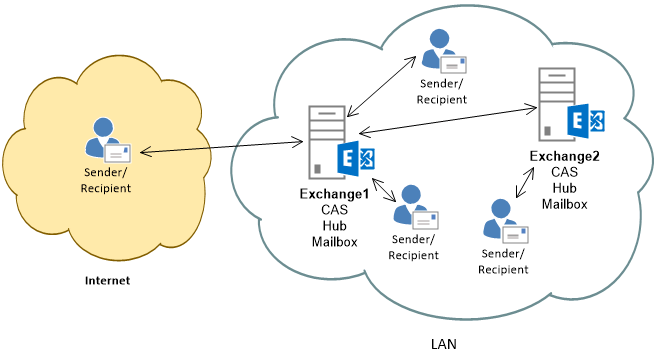
Many tutorials on the Internet use the Get-MessageTrackingLog command and simply filter the SEND events for sent messages and RECEIVE for received messages. But in my opinion, this is wrong. When we list the events for a single message, we find that the RECEIVE event is logged several times (because the servers pass the message between themselves).
Counting messages
Another important thing to consider is which messages we want to count as outgoing and which as incoming. I count a message as sent if the sender is in my Exchange organization. Similarly, I count it as received if the recipient is in my organization. If two users in the organization send a message to each other, it will be counted as both sent and received. The question is how to count a message that is sent to multiple recipients (I'm not dealing with this right now).
To summarize the information above, a single message (no matter how it is sent) always generates more than one event in the log. In many cases, the RECEIVE event is generated multiple times (because the message is sent between internal servers) and sometimes even SEND. On the other hand, there are also situations where the SEND event is not generated at all when sending a message.
We can list a portion of the log sorted by time, including milliseconds for accuracy, and analyze which events are used in which circumstances.
Get-MessageTrackingLog -Start $Start -End $End -ResultSize Unlimited | Sort-Object Timestamp | FT @{label='Timestamp [ms]';Expression={"{0:dd.MM.yyyy HH:mm:ss.fff}" -f $_.Timestamp}}, EventId, Source, ClientHostname, ServerHostname, Sender, Recipients, MessageId
I wanted to put together a table of all situations of sending and receiving a message, what events are generated in them and in what order. After analyzing a larger number of practical situations, I found that the order in the log probably does not correspond to reality. Several times I have the receipt (receive) of a message from the internet logged earlier on the second mail server than on the one that receives messages from the internet. Because we are working with milliseconds, the slight difference in time between the servers probably plays a role.
So at least the events that are most commonly logged for the main situations. Abbreviations: I - internet, E1 - first Exchange server receiving from the internet, E2 - second Exchange server.
| communication | counted situation | events in the log |
|---|---|---|
| I - E1 - E2 | 1x receive | RECEIVE - RECEIVE - DELIVER - SEND |
| E2 - E1 - I | 1x send | SUBMIT - RECEIVE - SEND |
| E1 - E2 | 1x receive, 1x send | RECEIVE - SUBMIT - SEND (not always) - RECEIVE - DELIVER |
As you can see, we can't simply count the RECEIVE and SEND events. In the first case, where only the receipt of the message should be counted once, it would be counted twice for receipt and once for sending. So to determine the sent and received messages, we need to use something else.
Listing events by operation
One thing that can help us is that we can filter messages sent or received from company addresses (domains), or sent between company addresses. Here we first prepare the variables we will use also later. We define a 10-minute time interval. We create a list of servers that generate logs, and store all events from these servers for the time interval in the $log variable.
$Start = (Get-Date).AddMinutes(-10)
$End = (Get-Date)
$hubs = Get-ExchangeServer | where {$_.isHubTransportServer -eq $true -or $_.isMailboxServer -eq $true}
$log = $hubs | Get-MessageTrackingLog -Start $Start -End $End -ResultSize Unlimited | Select-Object Timestamp,EventId,Source,ClientHostname,ServerHostname,Sender,Recipients,TotalBytes,RecipientCount,MessageId
We will further filter the data in the $log variable. We will display the records where the sender's or recipient's address ends with the name of our domain.
$log | Where-Object { $_.Sender -like "*firma.cz" } | FT Timestamp,EventId,Source,ClientHostname,ServerHostname,Sender,Recipients,MessageId
$log | Where-Object { $_.Recipients -like "*firma.cz*" } | FT Timestamp,EventId,Source,ClientHostname,ServerHostname,Sender,Recipients,MessageId
$log | Where-Object { $_.Sender -like "*firma.cz" -and $_.Recipients -like "*firma.cz*" } | FT Timestamp,EventId,Source,ClientHostname,ServerHostname,Sender,Recipients,MessageId
Another option that is more favorable for our situation is to use communicating servers. Incoming messages to the company should have only one RECEIVE event, where the ClientHostname address is different from the company's mail servers. They can also include company application servers (which we can also filter out, usually by domain). If we have a pre-positioned server (such as an Antispam GW) through which all incoming mail passes, we can use its address.
$log | Where-Object { $_.EventId -eq "RECEIVE" -and $_.ClientHostname -notlike "mailfirma*" } | Sort-Object Timestamp | FT Timestamp,EventId,Source,ClientHostname,ServerHostname,Sender,Recipients,MessageId
Similarly, outgoing messages to the internet should have only one SEND event, where the ServerHostname is the address of a server on the internet (not our mail server).
$log | Where-Object { $_.EventId -eq "SEND" -and $_.ServerHostname -notlike "mailfirma*" } | Sort-Object Timestamp | FT Timestamp,EventId,Source,ClientHostname,ServerHostname,Sender,Recipients,MessageId
Using the considerations described above, we can calculate various statistical data. From all the messages, we can get information about the size of the largest email, the average size, and the total volume of messages.
$mail_all_stats = $log | Sort-Object MessageID -Unique | Measure-Object -Property TotalBytes -Sum -Maximum -Average
We will calculate the number of received messages from the internet, from application servers, and sent messages to the internet. When we subtract these values from the total number of messages, the result should be the number of messages sent locally (which means that we count them as both sent and received). The error will be introduced to us by messages sent to multiple recipients, and especially if some of the recipients are internal and some are outside the company. These messages are usually counted as one (either internal or external).
Most frequent recipients and senders
Another interesting piece of information may be which sender sent the most messages and which recipient received the most. Someone may be interested in this only from the point of view of messages sent from the company, but I am interested in the data from all messages. For a list of the twenty most frequent senders, we will filter the events where the sender is filled in, get the unique events (i.e. individual messages) according to MessageID, group them by sender, which will also give us the counts (Count). Then we just sort by descending order and print the required number of values.
$log | Where-Object { $_.Sender } | Sort-Object MessageID -Unique | Group-Object Sender | Sort-Object Count -Descending | Select -First 20 | FT Count, Name -AutoSize
We will get the list of most frequent recipients similarly.
$log | Where-Object { $_.Recipients } | Sort-Object MessageID -Unique | Group-Object Recipients | Sort-Object Count -Descending | Select -First 20 | FT Count, Values -AutoSize
Long-term data
What we have described in the previous chapters can be used, for example, in a script that we run every night and have the result emailed to us. We can run the script for a longer period (maximum as long as the logs are stored), but this may not be practical. Another option is, when regularly running the daily script, to save the daily statistics to a CSV text file. Then we can, for example, in Excel, obtain long-term statistics and graphs.
Complex script
I have described my considerations that led to the following script, which, when run daily, provides certain statistical data on email communication. The values are not 100% accurate, and part of the script is based on practical observation of the behavior of a particular environment, so in a different configuration it may be slightly different. Definitely, it is necessary to adjust the conditions in the lines where the values $mail_receive_inet, $mail_receive_app, $mail_send_inet are calculated, as described above.
When the script runs on the mail server, it creates a text file c:\Skripty\Mail-statistics.txt, which it then sends as an email (here are other values that need to be adjusted to your environment). Then it's a good idea to prepare the file c:\Skripty\mail-statistics.csv, into which a single header row will be inserted:
date;total;processed;size[MB];receive;receive-inet;receive-app;receive-local;send;send-inet;send-local
Daily statistical data will be added to this file.
Add-PSSnapin Microsoft.Exchange.Management.PowerShell.E2010

$Start = (Get-Date -Hour 00 -Minute 00 -Second 00).AddDays(-1)
$End = (Get-Date -Hour 23 -Minute 9 -Second 59).AddDays(-1)

$hubs = Get-ExchangeServer | where {$_.isHubTransportServer -eq $true -or $_.isMailboxServer -eq $true}

$log = $hubs | Get-MessageTrackingLog -Start $Start -End $End -ResultSize Unlimited | Where-Object { $_.EventId -ne "NOTIFYMAPI" -and $_.EventId -ne "HAREDIRECT" } | Select-Object EventId,ClientHostname,ServerHostname,Sender,Recipients,TotalBytes,MessageId

$mail_all_stats = $log | Sort-Object MessageID -Unique | Measure-Object -Property TotalBytes -Sum -Maximum -Average
$mail_all_unique = $mail_all_stats.Count
$mail_receive_inet = ($log | Where-Object { $_.EventId -eq "RECEIVE" -and $_.ClientHostname -notlike "mailserver1" -and $_.ClientHostname -notlike "mailserver2" -and $_.ClientHostname -notlike "*firma.local" } | Measure-Object).Count
$mail_receive_app = ($log | Where-Object { $_.EventId -eq "RECEIVE" -and $_.ClientHostname -notlike " mailserver1" -and $_.ClientHostname -notlike " mailserver2" -and $_.ClientHostname -like "*firma.local" } | Measure-Object).Count
$mail_send_inet = ($log | Where-Object { $_.EventId -eq "SEND" -and $_.ServerHostname -notlike " mailserver1" -and $_.ServerHostname -notlike " mailserver2" } | Measure-Object).Count
$mail_local = $mail_all_unique - $mail_receive_inet - $mail_receive_app - $mail_send_inet
$mail_send = $mail_send_inet + $mail_local
$mail_receive = $mail_receive_inet + $mail_receive_app + $mail_local
$mail_all = $mail_send + $mail_receive

$str = "Mail servers statistics for date " + $Start.ToShortDateString() +"`r`n`r`n"
$str += "Servers:`r`n" + $hubs
$str += "`r`n`r`nTotal emails:`r`n"
$str += " count: " + "{0:N0}" -f $mail_all + "`r`n"
$str += " processed messages: " + "{0:N0}" -f $mail_all_unique + "`r`n"
$str += " size: " + "{0:N2}" -f ($mail_all_stats.Sum / (1024 * 1024)) + " MB `r`n"
$str += " biggest mail: " + "{0:N2}" -f ($mail_all_stats.Maximum / (1024 * 1024)) + " MB `r`n"
$str += " average size: " + "{0:N2}" -f ($mail_all_stats.Average / 1024) + " kB `r`n"
$str += "`r`n`r`nReceive emails:`r`n"
$str += " count: " + "{0:N0}" -f $mail_receive + "`r`n"
$str += " from internet: " + "{0:N0}" -f $mail_receive_inet + "`r`n"
$str += " from application servers: " + "{0:N0}" -f $mail_receive_app + "`r`n"
$str += " local: " + "{0:N0}" -f $mail_local + "`r`n"
$str += "`r`n`r`nSend emails:`r`n"
$str += " count: " + "{0:N0}" -f $mail_send + "`r`n"
$str += " to internet: " + "{0:N0}" -f $mail_send_inet + "`r`n"
$str += " local: " + "{0:N0}" -f $mail_local + "`r`n"
$str += "`r`n`r`nTop senders:"
$str += $log | Where-Object { $_.Sender } | Sort-Object MessageID -Unique | Group-Object Sender | Sort-Object Count -Descending | Select -First 20 | FT Count, Name -AutoSize | Out-String
$str += "Top recipients:"
$str += $log | Where-Object { $_.Recipients } | Sort-Object MessageID -Unique | Group-Object Recipients | Sort-Object Count -Descending | Select -First 20 | FT Count, Values -AutoSize | Out-String
$str | Out-File -FilePath "c:\Skripty\Mail-statistics.txt" -Width 300

Send-MailMessage -From "admin@firma.cz" -To "recipient@firma.cz" -Subject "Mail server statistics" -SmtpServer "mailserver1.firma.local" -Attachments "c:\Skripty\Mail-statistics.txt" -Encoding ([System.Text.Encoding]::Unicode) -Body "Hello,`n`nStatistics on mail sent yesterday.`n`nYour administrator ;-)`n`nPS: Everything is in the attachment`n"

#date;total;processed;size[MB];receive;receive-inet;receive-app;receive-local;send;send-inet;send-local
$out = $Start.ToShortDateString() + ";" + $mail_all + ";" + $mail_all_unique + ";" + ($mail_all_stats.Sum / (1024 * 1024)) + ";" + $mail_receive + ";" + $mail_receive_inet + ";" + $mail_receive_app + ";" + $mail_local + ";" + $mail_send + ";" + $mail_send_inet + ";" + $mail_local
$out | Out-File c:\Skripty\mail-statistics.csv -Append -Encoding default
Exchange 2016 and sent message statistics
The description below are my thoughts, which are based on observation and testing. So they may not be correct or precise. Likewise, the calculations of different types of messages are approximate values, because some special situations require additional conditions and different counting towards the total. But I would say that the resulting inaccuracy is a few percent.
Connecting to the server
If we are working on an Exchange server (in PowerShell and not in Exchange Management Shell), we need to add the Exchange SnapIn.
Add-PSSnapin Microsoft.Exchange.Management.PowerShell.SnapIn
Another option is to connect remotely.
$ExchSession = New-PSSession -ConfigurationName Microsoft.Exchange -ConnectionURI https://SERVER/PowerShell/?SerializationLevel=Full -Authentication Kerberos
Import-PSSession -Session $ExchSession
To speed things up, we can load only selected commands.
Import-PSSession -Session $ExchSession -CommandName Get-Mailbox, New-Mailbox, Enable-Mailbox, Set-Mailbox,
 Add-MailboxFolderPermission, Set-CASMailbox -FormatTypeName *
At the end, it is necessary to disconnect.
Remove-PsSession $ExchSession
Selecting data from logs
First, we will save the data from the Exchange servers for a certain period into a variable. When analyzing the events (EventId), we will find that we are interested in only some of them. We also do not need all the attributes (items, because we are calculating statistical data) in the result.
Get-MessageTrackingLog -Start $Start -End $End -ResultSize Unlimited | Where-Object {
 $_.EventId -eq "RECEIVE" -or $_.EventId -eq "SEND" -or $_.EventId -eq "DELIVER" -or $_.EventId -eq "SENDEXTERNAL" `
 -or $_.EventId -eq "FAIL" } | Select-Object Timestamp, EventId, Source, Sender, Recipients, ClientIp, OriginalClientIp,
 ServerIp, TotalBytes, MessageId, Directionality, RecipientCount
Message processing
Email (message) is sent by one sender to one or more addresses, i.e. received by one or more recipients (it can also be sent to a DG, then the Distribution Group will be expanded and delivered to individual members). Events for one message are identified by the same MessageId. So we can filter for one event per MessageId (we get unique processed messages).
$log | Sort-Object MessageID -Unique
In this way, some event is selected that we cannot determine, and certain attributes change for different events (for example, the message size increases during processing, the list of recipients may be different, because there can be multiple delivery events for one message), so we do not get completely accurate values. But we can get the number of processed messages and maybe the approximate total size (the command at the end of the script is modified to return the event with the largest size for the message).
$log | Sort-Object MessageID -Unique | Measure-Object -Property TotalBytes -Sum -Maximum -Average
If we wanted to count the message sent to multiple recipients multiple times (as separate sender and each recipient messages), we would have to use the RecipientCount attribute.
Some messages automatically generate additional messages, for example DSN, Inbox Rules, Out Of Office. They have a new MessageId and the Reference attribute usually contains a reference to the message from which they originated.
Normally, each message is sent (once) and received (even multiple times - multiple recipients). When we look at it from the mail server perspective, when sending a message, the server first receives the message and then sends it or delivers it locally. Internally, there are often multiple SMTP sends and deliveries if we have multiple servers and the message is sent between them.
In the script (at the end of the article) we count:
- $mail_all_stats.Count - the number of unique MessageId, i.e. processed messages, each should have a receive and a send
- $mail_receive_inet - the number of events for receiving messages from the internet
- $mail_receive_local - the number of events for receiving messages from the local mailbox
- $mail_receive_app_anon - the number of events for receiving messages from the application server anonymously
- $mail_receive_app_auth - the number of events for receiving messages from the application server authenticated
- $mail_send_inet - the number of events for sending messages to the internet (one message can have multiple events)
- $mail_send_local - the number of events for delivering to the local mailbox (one message can have multiple events)
- $mail_fail - all error events (failed to deliver)
- $mail_send - the total number of sends
- $mail_receive - the total number of receives
- $mail_receive_app - the total number of receives from application servers
Received messages - Receive
These are the messages received
- from the local mailbox (for local or external delivery) - picked up from the mailbox
- from senders outside the organization (from the internet, for local delivery) - through the SMTP Receive connector
- from the company's application servers (for local or external delivery) - through the SMTP Receive connector
Some events do not have a standard receive, for example an automatic reply has the Source MAILBOXRULE. We process the logs for a certain period of time, so it may happen that some messages are missing events from the beginning or end. Therefore, in practice the total number of messages is greater than the number of receive events.
$mail_all_stats.Count >= $mail_receive_inet + $mail_receive_local + $mail_receive_app_anon + $mail_receive_app_auth
Receive from local mailbox
- each message has one
STOREDRIVEReventRECEIVE, in OriginalClientIp is usually the sender's address
$log | Where-Object { $_.EventId -eq "RECEIVE" -and $_.Source -eq "STOREDRIVER" }
Identification of other received messages is more complicated, because SMTP events RECEIVE also exist when forwarding messages between internal servers.
Receive from outside the organization
- this is an anonymous (unauthenticated) receive through the SMTP Receive connector
SMTPeventRECEIVE- OriginalClientIp is the sender's address
- for anonymous receive, Exchange sets the Directionality attribute to
Incoming - we can also send emails from application servers this way, which we don't want to count as receive from the internet, so we'll also exclude internal sender addresses (the addresses shown are just examples)
$log | Where-Object { $_.EventId -eq "RECEIVE" -and $_.Source -eq "SMTP" -and $_.Directionality -eq "Incoming" `
 -and $_.OriginalClientIp -notlike "10.0.*" -and $_.OriginalClientIp -notlike "192.168.*" }
Receive from application servers
- anonymous - similar to receiving from outside the organization, but instead we specify the addresses of the application servers from which the messages are received
$log | Where-Object { $_.EventId -eq "RECEIVE" -and $_.Source -eq "SMTP" -and $_.Directionality -eq "Incoming" `
 -and ($_.OriginalClientIp -like "10.0.*" -or $_.OriginalClientIp -like "192.168.*") }
- authenticated - the most complex situation
-
SMTPeventsRECEIVE - Directionality is
Originating - this is also how messages between mail servers are identified
- in OriginalClientIp it can be the IP of our servers or the client (Outlook, can also connect from the internet), so we need to determine the possible addresses of application servers outside the mail servers
$log | Where-Object { $_.EventId -eq "RECEIVE" -and $_.Source -eq "SMTP" -and $_.Directionality -eq "Originating" `
 -and $_.OriginalClientIp -notlike "10.0.0.100" -and $_.OriginalClientIp -notlike "10.0.0.110" `
 -and ($_.OriginalClientIp -like "10.0.0.*" -or $_.OriginalClientIp -like "192.168.*") }
Sent (delivered) messages - Send
These are the messages sent
- for delivery to the local mailbox - placed in the mailbox
- to recipients outside the organization (internet) - using the SMTP Send connector
If a message is sent to multiple recipients, then for one MessageId there is one receive event (the sender is always one), but there may be multiple send events. The message is delivered to each mailbox database where one of the recipients is located (there is always one event for all recipients in one DB), or it is sent outside the organization (one event for each target server). So there are usually more sent messages than the total number of messages.
$mail_all_stats.Count <= $mail_send_inet + $mail_send_local
Send to outside the organization
- each message has one
SMTPeventSENDEXTERNAL - in ServerIp is the address of the recipient's server
$log | Where-Object { $_.EventId -eq "SENDEXTERNAL" -and $_.Source -eq "SMTP" }
Delivery to local mailbox
- for each group of recipients who are in the same database, there is one
STOREDRIVEReventDELIVER - in OriginalClientIp is usually the sender's address
$log | Where-Object { $_.EventId -eq "DELIVER" -and $_.Source -eq "STOREDRIVER" }
Most frequent senders
Sender of the message is always one, so we can take the unique messages and group them by sender. This will give us the number of messages from each sender.
$log | Where-Object { $_.Sender } | Sort-Object MessageID -Unique | Group-Object Sender | Sort-Object Count -Descending |
 Select-Object -First 20 | FT Count, Name -AutoSize | Out-String
Most frequent recipients
The situation with recipients is more complicated, as there can be more of them (and whether we want to track the email of the distribution group or its individual members). They are stored as an array and cannot be grouped by it. But we can use the ExpandProperty parameter, then each array item is placed on a separate line. We lose the other attributes, but we don't need them in this case. Grouping will give us the number of emails for individual recipients (the total sum may then be greater than the number of unique messages).
$log | Where-Object { $_.Recipients } | Sort-Object MessageID -Unique | Select-Object -ExpandProperty Recipients |
 Group-Object | Sort-Object Count -Descending | Select -First 20 | FT Count, Values -AutoSize | Out-String
The result may not be accurate. We must be aware that a message for multiple recipients has all recipients in some of the logged events, but in most of them, there are fewer. For example, the delivery event is one for each mailbox DB and contains the recipients in that DB. Therefore, for each MessageId, we need to select a specific event where all recipients are present. I came up with the method below, where we group by MessageId and process the individual items (for each MessageId), always selecting the one with the largest number of recipients. From it, we take the recipients, expand them, and group them.
$log | Where-Object { $_.Recipients } | Group-Object MessageID | ForEach-Object { $_.Group |
 Sort-Object RecipientCount -Descending | Select-Object -First 1 | Select-Object -ExpandProperty Recipients } |
 Group-Object | Sort-Object Count -Descending | Select-Object -First 20 | FT Count, Values -AutoSize | Out-String
Outline of a complex script for Exchange 2016
Add-PSSnapin Microsoft.Exchange.Management.PowerShell.SnapIn

$Start = (Get-Date -Hour 00 -Minute 00 -Second 00).AddDays(-1)
$End = (Get-Date -Hour 23 -Minute 59 -Second 59).AddDays(-1)

$servers = Get-TransportService

$log = $servers | Get-MessageTrackingLog -Start $Start -End $End -ResultSize Unlimited | Where-Object { $_.EventId -eq "RECEIVE" -or $_.EventId -eq "SEND" -or $_.EventId -eq "DELIVER" -or $_.EventId -eq "SENDEXTERNAL" -or $_.EventId -eq "FAIL" } | Select-Object Timestamp, EventId, Source, Sender, Recipients, ClientIp, OriginalClientIp, ServerIp, TotalBytes, MessageId, Directionality, RecipientCount

$mail_all_stats = $log | Group-Object MessageID | ForEach-Object { $_.Group | Sort-Object TotalBytes -Descending | Select-Object -First 1 } | Measure-Object -Property TotalBytes -Sum -Maximum -Average

$mail_send_inet = ($log | Where-Object { $_.EventId -eq "SENDEXTERNAL" -and $_.Source -eq "SMTP" }).Count
$mail_send_local = ($log | Where-Object { $_.EventId -eq "DELIVER" -and $_.Source -eq "STOREDRIVER" }).Count
$mail_receive_local = ($log | Where-Object { $_.EventId -eq "RECEIVE" -and $_.Source -eq "STOREDRIVER" }).Count
$mail_receive_inet = ($log | Where-Object { $_.EventId -eq "RECEIVE" -and $_.Source -eq "SMTP" -and $_.Directionality -eq "Incoming" -and $_.OriginalClientIp -notlike "10.0.*" -and $_.OriginalClientIp -notlike "192.168.*" }).Count
$mail_receive_app_anon = ($log | Where-Object { $_.EventId -eq "RECEIVE" -and $_.Source -eq "SMTP" -and $_.Directionality -eq "Incoming" -and ($_.OriginalClientIp -like "10.0.*" -or $_.OriginalClientIp -like "192.168.*") }).Count
$mail_receive_app_auth = ($log | Where-Object { $_.EventId -eq "RECEIVE" -and $_.Source -eq "SMTP" -and $_.Directionality -eq "Originating" -and $_.OriginalClientIp -notlike "10.0.0.100" -and $_.OriginalClientIp -notlike "10.0.0.110" -and ($_.OriginalClientIp -like "10.0.0.*" -or $_.OriginalClientIp -like "192.168.*") }).Count
$mail_fail = ($log | Where-Object { $_.EventId -eq "FAIL" }).Count

$mail_send = $mail_send_inet + $mail_send_local
$mail_receive = $mail_receive_inet + $mail_receive_local + $mail_receive_app_anon + $mail_receive_app_auth
$mail_receive_app = $mail_receive_app_anon + $mail_receive_app_auth

$top_senders = $log | Where-Object { $_.Sender } | Sort-Object MessageID -Unique | Group-Object Sender | Sort-Object Count -Descending | Select-Object -First 20 | FT Count, Name -AutoSize | Out-String
$all_recipients = $log | Where-Object { $_.Recipients } | Group-Object MessageID | ForEach-Object { $_.Group | Sort-Object RecipientCount -Descending | Select-Object -First 1 | Select-Object -ExpandProperty Recipients }
$top_recipients = $all_recipients | Group-Object | Sort-Object Count -Descending | Select-Object -First 20 | FT Count, Values -AutoSize | Out-String
$top_FAIL_recipients = $log | Where-Object { $_.EventId -eq "FAIL" -and $_.Recipients } | Sort-Object MessageID -Unique | Select-Object -ExpandProperty Recipients | Group-Object | Sort-Object Count -Descending | Select -First 20 | FT Count, Values -AutoSize | Out-String
$top_FAIL_senders = $log | Where-Object { $_.EventId -eq "FAIL" -and $_.Sender } | Sort-Object MessageID -Unique | Group-Object Sender | Sort-Object Count -Descending | Select -First 20 | FT Count, Values -AutoSize | Out-String

$str = "Mail servers statistics for date " + $Start.ToShortDateString() +"`r`n`r`n"
$str += "Servers:`r`n" + $servers
$str += "`r`n`r`nTotal emails:`r`n"
$str += "  count: " + "{0:N0}" -f $mail_all_stats.Count + "`r`n"
$str += "  size: " + "{0:N2}" -f ($mail_all_stats.Sum / (1024 * 1024)) + " MB `r`n"
$str += "  biggest mail: " + "{0:N2}" -f ($mail_all_stats.Maximum / (1024 * 1024)) + " MB `r`n"
$str += "  average size: " + "{0:N2}" -f ($mail_all_stats.Average / 1024) + " kB `r`n"
$str += "`r`nReceive emails:`r`n"
$str += "  count: " + "{0:N0}" -f $mail_receive + "`r`n"
$str += "  from local mailbox: " + "{0:N0}" -f $mail_receive_local + "`r`n"
$str += "  from internet sender: " + "{0:N0}" -f $mail_receive_inet + "`r`n"
$str += "  from application servers: " + "{0:N0}" -f $mail_receive_app + "`r`n"
$str += "`r`nSent emails:`r`n"
$str += "  count: " + "{0:N0}" -f $mail_send + "`r`n"
$str += "  to local mailbox: " + "{0:N0}" -f $mail_send_local + "`r`n"
$str += "  to internet recipient: " + "{0:N0}" -f $mail_send_inet + "`r`n"
$str += "  recipients count: " + "{0:N0}" -f $all_recipients.Count + "`r`n"
$str += "`r`nFAIL emails: " + "{0:N0}" -f $mail_fail + "`r`n"
$str += "`r`nTop senders:"
$str += $top_senders
$str += "Top recipients:"
$str += $top_recipients
$str += "Top FAIL recipients:"
$str += $top_FAIL_recipients
$str += "Top FAIL senders:"
$str += $top_FAIL_senders
$str | Out-File -FilePath "c:\Scripts\Mail-statistics.txt" -Width 400

Send-MailMessage -From "admin@firma.cz" -To "recipient@firma.cz" -Subject "Mail server statistics" -SmtpServer "10.0.0.100" -Attachments "c:\Scripts\Mail-statistics.txt" -Encoding ([System.Text.Encoding]::Unicode) -Body "Hello,`n`nMail statistics for yesterday.`n`nYour administrator ;-)`n`nPS: All details are in the attachment`n"

#date;total;size[MB];receive;receive-inet;receive-app;receive-local;sent;sent-inet;sent-local
$out = $Start.ToShortDateString() + ";" + $mail_all_stats.Count + ";" + ($mail_all_stats.Sum / (1024 * 1024)) + ";" + $mail_receive + ";" + $mail_receive_inet + ";" + $mail_receive_app + ";" + $mail_receive_local + ";" + $mail_send + ";" + $mail_send_inet + ";" + $mail_send_local
$out | Out-File c:\Scripts\mail-statistics.csv -Append -Encoding default
Example script output
Mail servers statistics for date 24.04.2019

Servers:
MAIL1 MAIL2

Total emails:
  count: 13 763
  size: 750.04 MB
  biggest mail: 18.32 MB
  average size: 55.80 kB

Receive emails:
  count: 13 627
  from local mailbox: 2 586
  from internet sender: 3 343
  from application servers: 7 698

Sent emails:
  count: 16 229
  to local mailbox: 13 910
  to internet recipient: 2 319
  recipients count: 22 235

FAIL emails: 101

Top senders:
Count Name
----- ----
 3927 xxxxx@firma.cz
 1259 xxxxx@firma.cz
  565 xxxxx@firma.cz
  467 xxxxx@firma.cz

Top recipients:
Count Values
----- ------
  804 {xxxxx@firma.cz}
  777 {xxxxx@firma.cz}
  758 {xxxxx@firma.cz}
  748 {xxxxx@firma.cz}

Top FAIL recipients:
Count Values
----- ------
   26 {xxxxx@firma.cz}
   10 {xxxxx@gmail.com}
    7 {xxxxx@seznam.cz}

Top FAIL senders:
Count Values
----- ------
   16 {xxxxx@firma.cz}
   16 {xxxxx@firma.cz}
   12 {xxxxx@firma.cz}
Ahoj, velice povedený článek :)
Nicméně měl bych dotaz, řešil jsi někdy nastavení správného času v logu? Ukazuje se mi tam o 2 hodiny méně, zřejmě je log nastaven dle GMT. Dá se to nějak změnit?
respond to [1]Jan: Neřešil, časy mám OK. Čekal bych, že záleží na nastavení serveru.
Zdravím, chci složit poklonu za vynikající článek. A rád bych položil jeden dotaz. Lze v rámci logování získávat informaci o IP adrese, na které se uživatel přihlásil do svého OWA účtu?
Děkuji
respond to [3]Martin: Díky :-). To je trochu jiná oblast, než řešil tento článek. Nevím, jestli je na to nějaká jednoduchá možnost, ale připojení na OWA je klasicky služba IIS. To se loguje do W3SVC1 logů a z nich by to mohlo jít vytáhnout, i když je potřeba vymyslet nějaké inteligentní filtrování (je tam i ActiveSync a vůbec spousta informací).
respond to [3]Martin:
Ahoj,
musíš použít audit pro daný účet. Než můžeš hledat v audit logu, musíš jej povolit a potom si nastavit práva, aby jsi v něm mohl hledat.