I wrote certain additional information, though not about Hybrid Azure AD Join itself, in a new article Windows, macOS and Android Azure AD enrollment and device authentication.
Introduction to Active Directory
Two versions of Active Directory (AD):
- On-Premises AD - internal/local directory services, Active Directory Domain Services (AD DS), uses Forest and Domain, devices are Domain Joined, in the article usually referred to as AD DS
- Azure AD - cloud directory services, uses Tenant, devices are Azure AD Joined, in the article referred to as Azure AD
Device Identity in Azure AD
To secure and administer assets, we must manage device identities. Thanks to Device Identity Management, we can use device-based Conditional Access and control access only from managed devices.
To get devices into Azure AD, we have three options:
- Azure AD Joined - the device is joined only to Azure AD (cloud-only), we log in with a company Azure AD account
- Hybrid Azure AD Joined - the device is joined to both AD DS and Azure AD, we can use the advantages of both environments, we log in with a company AD DS account replicated to Azure AD
- Azure AD Registered - can be a private device or company-owned (optionally joined to AD DS), we work on it with a local or domain (AD DS) account, but we have a connected company Azure AD account, supported for Windows 10, iOS, Android and MacOS, also referred to as Workplace Joined
Note: Hybrid Azure AD Joined devices do not have an assigned owner in Azure AD and do not appear among the user's devices.
Managed Devices
Managed Devices are those that have an object in the Azure AD Tenant. This means they are registered or joined to Azure AD. The hybrid state is valid if a valid Azure AD user is logged in. This gives users the ability to use Azure AD Single Sign-On (SSO) to cloud resources. Windows 10 devices receive Primary Refresh Tokens (PRT), which allow SSO between applications. Older OS use Seamless SSO.
Some information mentions that registered devices must also be marked as Compliant (by MDM, such as Intune) to be considered managed.
Azure AD Registration
We'll briefly describe how to register or unregister a device (primarily Windows 10) from Azure AD.
Note: A device cannot be both joined and registered to Azure AD at the same time (in some cases it's possible, but it can cause problems).
Registration during sign-in
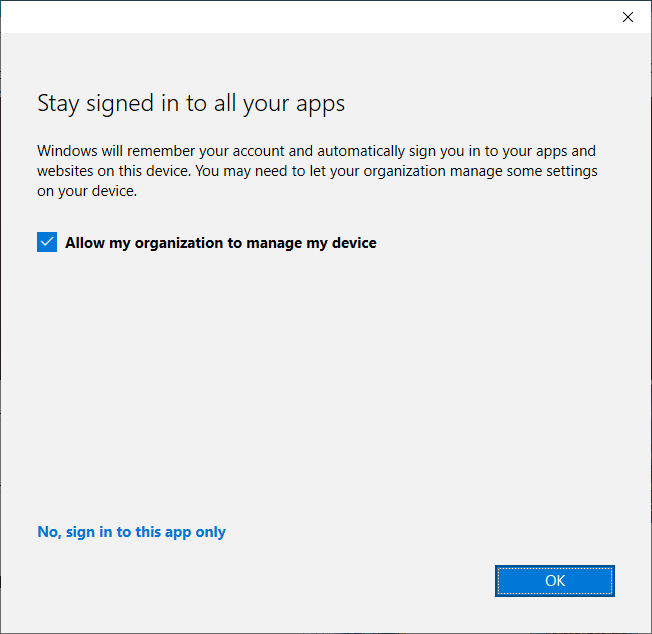
When we sign in with an Azure AD account somewhere, a dialog may appear asking if we allow the organization to manage our device (Allow my organization to manage my device). If we agree, the Azure AD account we're signing in with will be connected to our account that we're logged into the computer with. Our device will also be registered in Azure AD.
Manual registration in Windows 10
We can manually connect an account
- in Settings - Accounts - Access work or school
- choose Connect
- sign in with an Azure AD account
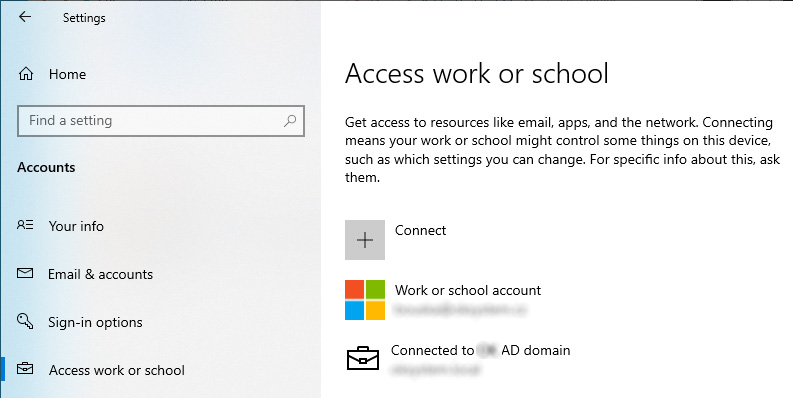
In both cases, the computer will be registered in Azure AD. We'll see them in the device list with Join Type Azure AD Registered.
- Azure Active Directory admin center - Devices

Unregistration and account removal
In Windows 10, we can disconnect the Azure AD account (Work or school account) and thus unregister the device from Azure AD (the computer will be removed from Azure AD).
- in Settings - Accounts - Access work or school
- select the account
- click on Disconnect and confirm
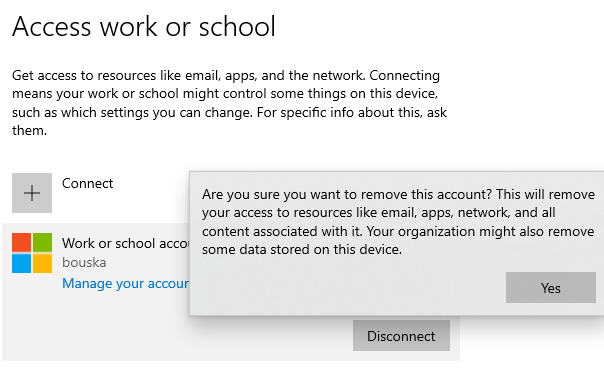
If we only delete the computer object in Azure AD, it remains in the computer settings (OS). Although it doesn't have permissions to Azure AD, it thinks it's registered. The correct way is to remove it on the client. I haven't found a way to do this in an operating system that doesn't have the Access work or school option (such as Windows Server 2016 / 2019).
Hybrid Azure AD Join
The descriptions mention Managed Domains. But apparently this doesn't mean we have to create Azure AD Domain Services, as described in the documentation What is Azure Active Directory Domain Services? Rather, it's about the authentication method (Managed vs. Federated). A managed environment is one where authentication is managed by Azure AD using Password Hash Synchronization or Pass-through Authentication.
PS C:\> Get-MsolDomain

Name                       Status   Authentication
----                       ------   --------------
company.onmicrosoft.com    Verified Managed
company.com                Verified Managed
How Hybrid Azure AD Join works
The general steps (here we only deal with Windows 10 devices) of setup and connection process are
- configuring Hybrid Azure AD Join using Azure AD Connect - this involves creating an SCP record in the internal domain (which clients repeatedly query for Tenant information)
- computers (Windows 10 joined to the domain) generate a SelfSigned certificate and store the public part in the
userCertificateattribute of their account in AD DS - Azure AD Connect synchronizes computer accounts (they must have a certificate and synchronization enabled)
- the computer performs device registration (Enroll Device) to the Tenant - joins Azure AD as Hybrid Azure AD Join, this includes sending a certificate request
- Azure AD issues and sends a device certificate, which the computer associates with the request and stores in the Certificate Store
It takes some time for the computer to reach the final Hybrid Azure AD Join state and may require several restarts (or restarts may speed up the process). After creating the SCP, the client must load it, generate a certificate and store it in AD DS. Then account synchronization to Azure AD must occur. Subsequently, the computer must register with Azure AD, which may happen at startup or user login. Until then, the synchronized account in Azure AD is in a Pending state. If the computer was previously Azure AD Registered, then this registration must be cancelled. Only then is everything correct.
Note: The scheduled task Task Scheduler Library > Microsoft > Windows > Workplace Join - Automatic-Device-Join is apparently responsible for registration to Azure AD. It runs when a user logs in and at a certain event.
Azure AD Connect synchronization of computer accounts
Microsoft states in all guides that as a first step, we should check that computer objects are synchronizing to Azure AD (which are to be hybrid Azure AD Joined). What the guides don't mention is that until we set the conditions for Hybrid Azure AD Join, our computers won't synchronize. It appears to be a feature of Azure AD Connect from version 1.4.0.0 (that's quite a long time ago, they could have managed to update the guides), see Understanding Azure AD Connect 1.4.xx.x and device disappearance.
According to the article, only Windows 10 devices configured for Hybrid Azure AD Join with a specific value of the userCertificate attribute (on the computer object in AD DS) are synchronized to the cloud using Azure AD Connect. The subject of the certificate is CN={ObjectGUID}.
This certificate is issued by the Windows Hybrid Azure AD Join property. But only when SCP with Azure AD Tenant information for device registration is available. This means that until we create SCP using Azure AD Connect (we can also create it manually) or create the appropriate registry entry on some clients, the computer doesn't have a certificate and doesn't synchronize to Azure AD.
Certificates for Azure AD
I tried to find out more about these certificates. I didn't find any official documentation (something is described in the article Deep-dive to Azure AD device join). Below are my observations, which may not be accurate.
At the moment when we register a computer to Azure AD (Azure AD Registered), a certificate is created in the user's certificate store (certmgr.msc). The subject of the certificate is a GUID, but it's different from the value of the objectGUID attribute of the computer account in AD DS. It corresponds to the Device ID item of this registered computer in Azure AD. The certificate states that it was issued by MS-Organization-Access. Purpose client authentication, validity 10 years.
If the computer finds Azure AD Tenant information (SCP), it generates a SelfSigned certificate (so the issuer and subject are the same and correspond to the computer's objectGUID in AD DS) and stores its public part in the computer account's userCertificate attribute. This certificate is probably not stored in the computer's certificate store. Azure AD Connect synchronizes the computer account to Azure AD (so the public key of the certificate is transferred there as well). Its Device ID in Azure AD corresponds to the computer's objectGUID in AD DS. The certificate is generated by the scheduled task Automatic-Device-Join and thus the dsregcmd command, but it may be generated at other times as well. I couldn't determine when and under what conditions it's issued; for some people, it was issued within an hour after the SCP was published.
When a computer registers with Azure AD (as Hybrid Azure AD Join), it receives a new certificate based on a request (CSR). This certificate is created in the certificate store of that computer (certlm.msc). The certificate's subject is the computer's objectGUID in AD DS, it's issued by MS-Organization-Access, and everything else is the same as during registration.
At the same time, a second certificate is created with the same subject and issuer MS-Organization-P2P-Access [2021]. The purpose is server authentication. There's a brief mention of this certificate, which is meant to serve for trust between devices in the Tenant for RDP, in What are the MS-Organization-P2P-Access certificates present on our Windows 10 devices?
Finally, when the original registration of the computer in Azure AD is removed, the certificate is also removed from the user store.
Using PowerShell, we can view (and download) the certificate that is stored in the AD DS computer account. This way, we can verify that it's a different certificate than the one stored in the computer after registration with Azure AD. We can display the basic information (subject and issuer) with
(Get-ADComputer COMPUTER-NAME -Properties Certificates).Certificates
To view the entire certificate, we can save it to a file
Export-Certificate -Cert (New-Object System.Security.Cryptography.X509Certificates.X509Certificate2 (Get-ADComputer COMPUTER-NAME -Properties Certificates).Certificates[0]) -FilePath c:\COMPUTER-NAME.cer
Synchronization record when a computer doesn't synchronize
When we enable synchronization for a specific computer account, we can find a record (for example) Delta Synchronization in Synchronization Service for our internal domain connector. Where Connectors with Flow Updates has a non-zero value, after opening we see a row for our computer. We click on it and switch to the Lineage tab, where we click on Metaverse Object Properties. If we see the attribute cloudFiltered = true, the record is not being synchronized. If the userCertificate attribute is not present here, that could be the reason.
If on the Lineage tab we see the rule In from AD - Computer Filtering (besides In from AD - Computer Join), it might be because the record is filtered (maybe we have synchronization enabled only for group members). If we're synchronizing only certain OUs and the computer is in a different one, it won't appear in any record. These are just examples.
Computer names with a dollar sign in Azure AD
When synchronizing computers to Azure AD, we might encounter an odd thing. After synchronization, some computers may appear with a name that has a $ (dollar) sign at the end. During synchronization, the displayName attribute is used as the name, and if it's empty, then cn is used. Typically, after joining a computer to the domain, displayName is empty and cn contains the name. If we rename the computer, displayName is filled with the name with a dollar sign at the end (sAMAccountName). So that's how it gets into Azure AD, but there it changes back to the standard name during certain actions (performing Hybrid Azure AD Join).
This is discussed in more detail in The Mysterious Case of the $ (a.k.a. Dollar Sign) Character in Hybrid Azure AD Joined Devices.
Setting up Hybrid Azure AD Join
Azure AD Connect includes a wizard for configuring Hybrid Azure AD Join. It essentially creates a Service Connection Point (SCP) with information about the company's Azure AD Tenant for device registration. Clients regularly look for this SCP to register with Azure AD. We can also create the SCP manually. If we want to register only a few clients, we can set the values on them using registry.
For a device to register correctly, it must have access to certain Microsoft addresses. If SSL inspection is used, which interrupts communication, an exception must be set for the address https://device.login.microsoftonline.com. Microsoft has a PowerShell script for testing communication Test Device Registration Connectivity.
Configuration process (the simplest option using Azure AD Connect)
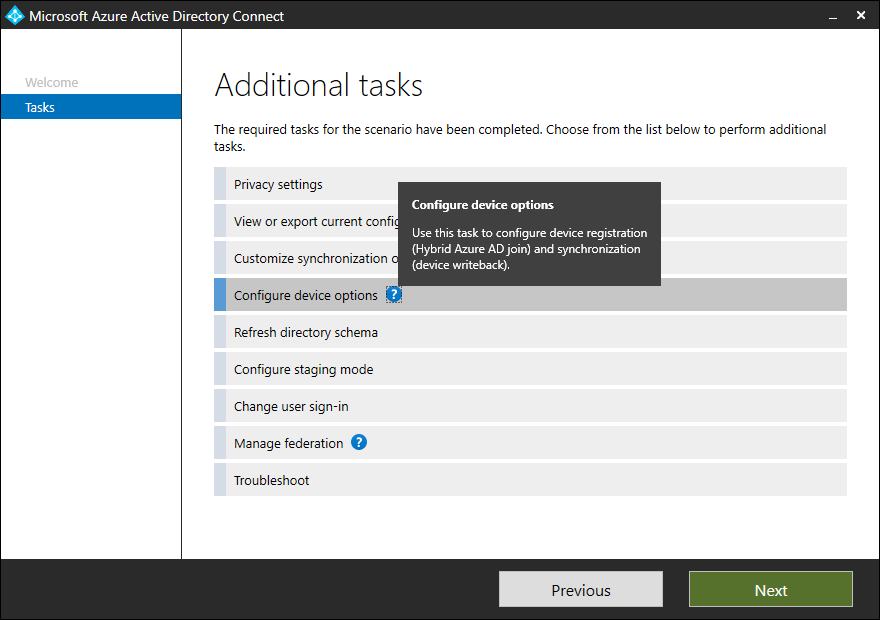
- launch Azure AD Connect
- click on Configure and Configure device options
- in the wizard, log in and under Device options select Configure Hybrid Azure AD Join
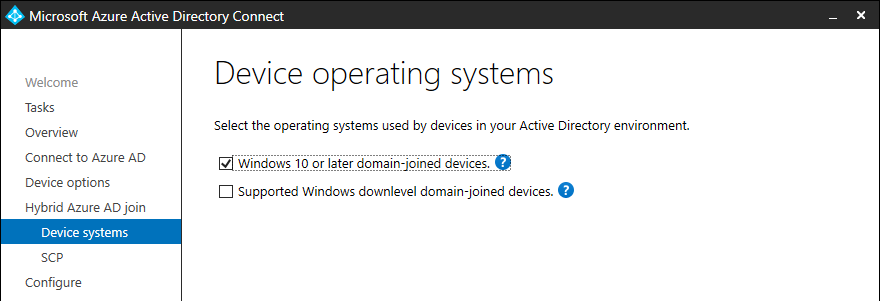
- choose whether we want to deal with only Windows 10 and newer or also older (Windows down-level) supported systems (we need to install Microsoft Workplace Join on them)
- configure SCP, for each Forest we log in with an Enterprise Admin account
- start the configuration
We can check that the SCP was created and contains correct values. For example, using ADSI Edit, we connect to the Configuration Naming Context (CN=Configuration,DC=company,DC=local). We open CN=Services, CN=Device Registration Configuration (it probably didn't exist originally) and here we find the SCP CN=62a0ff2e-97b9-4513-943f-0d221bd30080. We choose its properties and open the keywords attribute. There are two values here: azureADid and azureADName.

Connecting only selected devices
We might not want Hybrid Azure AD Join to occur on all computers in the domain. For example, during initial testing or even in regular operation. We can control which computer accounts are synchronized to Azure AD. One option is through object filtering for synchronization in the Azure AD Connect configuration or by modifying synchronization rules Azure AD Connect sync: Configure filtering. Another option is not to publish the SCP (available to all), but to provide these values to selected clients using a registry entry.
Windows 10 automatically tries to connect to Azure AD. If we define a Service Connection Point (SCP), they use the information from it for connection. A synchronized computer object must exist in Azure AD. If we want to connect only selected computers, we don't have to create an SCP, but using registry (even through Group Policy) we create client SCP settings.
In the registry at path HKEY_LOCAL_MACHINE\SOFTWARE\Microsoft\Windows\CurrentVersion\CDJ\AAD, if some keys don't exist (like CDJ and AAD), we create them, and add two new values of type String. These are TenantId and TenantName, we can find the information in Azure AD. The name is our verified domain or registered domain on onmicrosoft.com.
Azure AD Registered and then Hybrid Azure AD Joined
- Handling devices with Azure AD registered state
- I disabled or deleted my device in the Azure portal or by using Windows PowerShell. But the local state on the device says it's still registered. What should I do?
If a Windows 10 device was registered with an Azure AD tenant and then Hybrid Azure AD join was performed, a dual state may occur. Windows 10 version 1803 and newer handle this situation and automatically cancel the original registration after performing Hybrid Azure AD join. For older versions, the Azure AD registered state should be manually removed first, and only then should Hybrid Azure AD join be enabled.
Audit logs and Troubleshooting
In Azure AD, we can find logs about device registration in
- Azure Active Directory admin center - Devices - Audit logs
In Windows 10, registration logs are in
- Applications and Services Log > Microsoft > Windows > User Device Registration
- Applications and Services Log > Microsoft > Windows > AAD
On the client, the first log is important, where we can find a lot of information and errors about the registration process. For example
- Event ID 304 Automatic registration failed. Failed to lookup the registration service information from Active Directory.
For retrieving information on the client, the command line tool dsregcmd is very useful. Example of the beginning of the output:
C:\\>dsregcmd /status
+----------------------------------------------------------------------+
| Device State                                                         |
+----------------------------------------------------------------------+

     AzureAdJoined : YES
  EnterpriseJoined : NO
      DomainJoined : YES
        DomainName : COMPANY
There are many important details here, including error messages. The most basic information includes whether the device is joined to Azure AD (AzureAdJoined), joined to AD DS (DomainJoined), or registered to Azure AD (WorkplaceJoined). In a functional state, it should not be both Azure AD Registered and Azure AD Joined at the same time.
Hybrid Azure AD Join Fix
A problem with computer registration in Azure AD occurs, for example, when we remove the computer from synchronization to Azure AD. This deletes the account in Azure AD and blocks login from this computer. When we re-add it to synchronization, it appears in Azure AD but is in a Pending state. The output on the client shows that it is AzureAdJoined, but the authentication status is failed. However, login already works.
Part of the output:
C:\\>dsregcmd /status
+----------------------------------------------------------------------+
| Device State                                                         |
+----------------------------------------------------------------------+

             AzureAdJoined : YES
          EnterpriseJoined : NO
              DomainJoined : YES
                DomainName : COMPANY
               Device Name : POCITAC.company.local

+----------------------------------------------------------------------+
| Device Details                                                       |
+----------------------------------------------------------------------+

                  DeviceId : XXX
                Thumbprint : XXX
 DeviceCertificateValidity : [ 2021-07-26 07:24:46.000 UTC -- 2031-07-26 07:54:46.000 UTC ]
            KeyContainerId : XXX
               KeyProvider : Microsoft Software Key Storage Provider
              TpmProtected : NO
          DeviceAuthStatus : FAILED. Device is either disabled or deleted

...
+----------------------------------------------------------------------+
| Ngc Prerequisite Check                                               |
+----------------------------------------------------------------------+

            IsDeviceJoined : YES
             IsUserAzureAD : YES
             PolicyEnabled : NO
          PostLogonEnabled : YES
            DeviceEligible : YES
        SessionIsNotRemote : YES
            CertEnrollment : none
              PreReqResult : WillNotProvision
The solution is suggested by the MS FAQ I disabled or deleted my device in the Azure portal or by using Windows PowerShell. But the local state on the device says it's still registered. What should I do?.
We need to re-register the device. Run the command as an administrator on the station.
C:\\>dsregcmd.exe /debug /leave
DsrCLI: logging initialized.
DsrCmdJoinHelper::Leave: ClientRequestId: xxxUnjoin request ID: xxx
Unjoin response time: Thu, 09 Sep 2021 08:08:04 GMT
Unjoin HTTP status: 200
Only the NGC for the current user is being removed. To remove all rerun as SYSTEM.
DSREGCMD_END_STATUS
             AzureAdJoined : NO
          EnterpriseJoined : NO
This removes the AzureAdJoined state on the station and also deletes the account in Azure AD.
C:\\>dsregcmd /status
+----------------------------------------------------------------------+
| Device State                                                         |
+----------------------------------------------------------------------+

             AzureAdJoined : NO
          EnterpriseJoined : NO
              DomainJoined : YES
                DomainName : COMPANY
               Device Name : POCITAC.company.local
Then a synchronization must occur using Azure AD Connect to recreate the device account in Azure AD. Restart the computer, and a scheduled task will automatically register the device in Azure AD. In Azure AD, we now see the device registered, and the authentication status is correct.
DeviceAuthStatus : SUCCESS
Dobrý den, mám začátečnické dotazy - jestli dobře rozumím, tak Azure AD Joined se dá použít k připojení Windows stanic do domény, aniž bych měl vlastní server s rolí řadiče AD? Jak moc se to liší oproti sítě s řadičem AD?
Funguje pak přihlašování do stanice doménovým jménem libovolného uživatele, skupinové politiky atd.?
Uživatelskými účty pak jsou vlastně Microsoft účty? Jak se v tom případě řeší mapování uživatelských účtů na sdílené složky v síti, které to nepodporují (např. NAS, kde mám pouze běžné jméno a heslo)?
Je výhodné to v malé síti dělat (okolo 15- ti počítačů)?
Jakou verzi Azure AD potřebuji - stačí verze zdarma?
Moc děkuji za info...
respond to [1]Sváťa: Já jsem čistý Azure-AD join nepotřeboval, takže ani nestudoval. Ale určitě to není stejné jako Active Directory doména. Nejsou tam Group Policy, pro správu člověk musí používat Intune, apod.
Dobrý den, setkal jste se s možností, kdy máte synchronizovaný počítač do AzureAD typu Hybrid Azure AD Join a daný PC chcete přejmenovat? Jak nejlépe postupovat je nutné zařízení odebrat z Azure AD a poté přejmenovat případně v Azure vyberu skupinu adminu, kteří mohou v PC přejmenovat a dojde k "přeregistraci" na nový název? Mnohokrát děkuji za odpověď.
respond to [3]Ondřej B.: Přejmenování musí určitě fungovat naprosto bez problémů. Přejmenuje se (lokálně na PC, tedy v AD DS) a změna se projeví v Azure AD.