Note: This article (and probably some subsequent ones) contains only my brief notes from this area. The official documentation is quite extensive, and there are many other descriptions available on the internet. Just like other Microsoft cloud services, this entire area is evolving and changing dynamically. Later, I found that the documentation is not that clear either. And some things work well on test devices, but on production systems, various problems are encountered. So I've expanded on some parts.
Introduction to Intune
Intune vs. MDM for Office 365
For device management in Microsoft 365, we can use two solutions:
- Basic Mobility and Security - in some places it's referred to as Mobile Device Management for Office 365 (MDM for Office 365)
- Microsoft Intune
The differences are described in Choose between Basic Mobility and Security or Intune
What is Microsoft Intune
Official documentation Microsoft Intune fundamentals, Microsoft Intune user help, Mobile Device Management.
Microsoft Intune is a cloud-based solution for endpoint management. We can manage users and devices, which can be mobile devices, desktops, and virtual machines. Devices can be organization-owned or personally-owned (BYOD). It supports Android, Android Open Source Project (AOSP), iOS/iPadOS, macOS, and Windows. We can protect data on managed (Enrolled in Intune) and unmanaged (not enrolled in Intune) devices. Intune can isolate organization data from personal data.
Intune is used for managing (accessing) users, devices, and applications (User, Device and Application Management). It allows devices to be registered and managed in two different ways. We can use MDM, MAM, or both.
- MDM - Mobile Device Management (device management)
- focused on the device
- device features are configured based on who needs them (the user)
- the device must be registered (Enrolled) in Intune
- the device is managed by the organization, including the user identities that sign in, installed applications, and the data accessed
- MAM - Mobile Application Management (application management)
- focused on the user
- application data is protected regardless of the device used to access that data
- we focus on applications, including secure access to applications and protection of data in applications
- we can publish, configure, and update applications
Key features of Intune
- User and device management
- App management
- Configuration policy management
- Self-service features with Company Portal
- Web-based admin center
Integration with other Microsoft services and applications
- Configuration Manager (MECM, formerly SCCM)
- Windows Autopilot
- Endpoint Analytics
- Microsoft 365
- Microsoft Defender for Endpoint
- Windows Autopatch
Integration with partner devices and third-party applications
- Managed Google Play
- Apple tokens and certificates
- TeamViewer
Administrative portals and websites
- Microsoft Endpoint Manager admin center - https://endpoint.microsoft.com
- Company Portal - https://portal.manage.microsoft.com
- Basic Mobility and Security (administration within Purview) - https://compliance.microsoft.com/basicmobilityandsecurity
Licensing for Intune
Each user to whom we assign an Intune license can access and use online services and related software (including System Center software) for managing applications and up to 15 MDM devices. The Intune PC agent allows 5 physical and 1 virtual computer per user license.
The standard are user licenses (Intune license), which every user assigned to a device (user affinity) must have. Devices without an assigned user require a device license.
Intune service licenses are found in various license plans. An incomplete list, including the current Microsoft-listed prices (per month for annual payment):
- Microsoft 365 Business Premium - 18.6 EUR
- Microsoft 365 E3 - 35.4 EUR
- Microsoft 365 E5 - 53.7 EUR
- Microsoft Enterprise Mobility + Security E3 - 9 EUR
- Microsoft Enterprise Mobility + Security E5 - 13.9 EUR
- Microsoft Intune - 6.7 EUR
- Microsoft 365 F1 - 1.90 EUR
- Microsoft 365 F3 - 6.70 EUR
Working with licenses in PowerShell
If we want to use PowerShell for configuring licenses and services, the service name used in the PowerShell cmdlets is important.
- INTUNE_A - Microsoft Intune
- INTUNE_O365 - Mobile Device Management for Office 365 (Basic Mobility and Security)
We can list the available license plans where the Intune service is located
PS C:\> foreach ($sku in (Get-MsolAccountSku) ) {
  foreach ($sp in $sku.ServiceStatus | where {$_.ServicePlan.ServiceName -like "INTUNE_A"}) {
    New-Object -TypeName PSObject -Property @{"AccountSkuId"=$sku.AccountSkuId;"ServicePlan"=$sp.ServicePlan.ServiceName}
  }
}

ServicePlan AccountSkuId
----------- ------------
INTUNE_A    firma:MEETING_ROOM
INTUNE_A    firma:SPE_E5
INTUNE_A    firma:SPE_E3
To prevent unintended device registration in Intune (during initial setup), we can remove the Intune service license from certain users. The description is in the article PowerShell for Azure AD, Exchange Online, working with licenses.
Basic setup and configuration of Intune
Mobile device management authority
We can use several variants of (cloud-based) device management. It's important how the MDM authority is set up.
- Intune Standalone - MDM authority = Microsoft Intune
- Intune co-management - Intune + Configuration Manager (MECM), MDM authority = Microsoft Intune
- Basic Mobility and Security for Microsoft 365 - MDM authority = Microsoft Office 365
- Basic Mobility and Security for Microsoft 365 coexistence - depending on the license, users will use either Intune or MDM for M365, when assigning a license it will switch
Setting the MDM authority to Intune
Note: New tenants from the 1911 service release are automatically set to Intune.
Checking the current MDM authority setting
- Microsoft Endpoint Manager admin center - Tenant administration - Tenant status - MDM authority
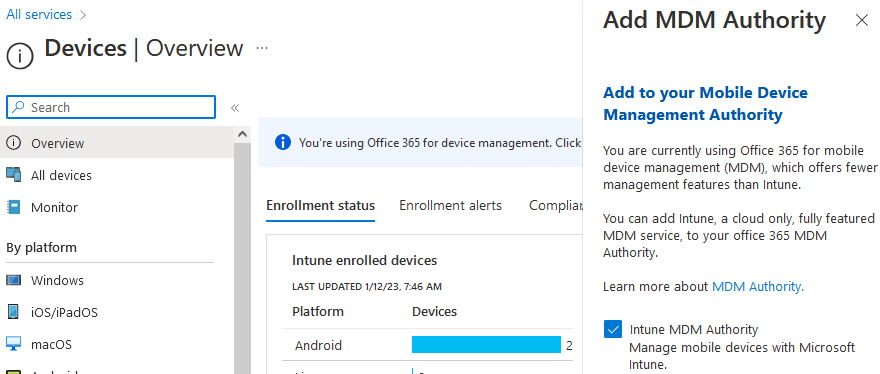
To be able to use Intune for device management, the authority must be set to Microsoft Intune. The change in setting depends on the current value. If we have Office 365, it should be possible to switch (add) to Intune:
- Microsoft Endpoint Manager admin center - Devices - Overview
- at the top there is an information line You're using Office 365 for device management. Click here to add Intune.
- click on the line and in the settings check the Intune MDM authority and click the Add button
Device Registration Restrictions - restricting device registration in Azure AD
Within Azure AD, we can control the registration and joining of devices to Azure AD. We can also set (recommended) requiring MFA when registering or joining a device to Azure AD.
- Azure Active Directory admin center - Devices - Device settings
Device Enrollment Restrictions - restricting device enrollment in Intune
To be able to use MDM device management, these devices must be registered in Intune (Enrolled). We can enable or disable the registration of certain operating systems to Intune, and we can separately handle personally-owned devices. There is a default policy, and we can create additional ones.
Note: Until the MDM authority is set to Intune, the Edit button is missing.
- Microsoft Endpoint Manager admin center - Devices - Enroll devices - Enrollment device platform restrictions
- click All Users - Properties
- next to Platform settings click the Edit button

Using Conditional Access Policies, we can also require MFA when enrolling in Intune, more details in Require multifactor authentication for Intune device enrollments.
Customizing the Company Portal
- How to configure the Intune Company Portal apps, Company Portal website, and Intune app
- Microsoft Endpoint Manager admin center - Tenant administration - Customization
We can customize the appearance of the company portal, which is used for device registration in Intune and installation of applications. We can edit the default policy or create new ones. If we want to make edits, it is mandatory to fill in the organization name and the URL for the privacy statement.
Device clean-up rules - automatic device deletion
- Automatically delete devices with cleanup rules
- Microsoft Endpoint Manager admin center - Devices - Device clean-up rules
We can enable automatic deletion of devices that are inactive, outdated, or unresponsive from Intune management. We specify the number of days (30 to 270), and if the device does not connect during this period, it is deleted.
Windows Device Enrollment - registering Windows devices in Intune
- What is device enrollment in Intune?
- Set up enrollment for Windows devices
- Intune enrollment methods for Windows devices
- Deployment guide: Enroll Windows devices in Microsoft Intune
There are many methods for registering devices in Intune. It can happen automatically or be manually triggered. Some methods are performed by the administrator, without the need for any user cooperation, as registration is enforced through policies. Using other methods, the user can register the device.
We can register organization-owned devices, but also personal devices (Bring-your-own-device, BYOD). Certain devices are automatically marked as corporate-owned (for example, those that are (Hybrid) Azure AD Joined, or manually marked as corporate using IMEI, serial number, or in the device properties). Others as personally-owned (such as those that are Azure AD Registered). Identify devices as corporate-owned
Microsoft describes these methods in several places, and the description doesn't seem entirely consistent to me (for example, a method is referred to as Hybrid Azure AD Join in one place, but Automatic enrollment via Group Policy in another). Orientation is quite complicated, and in practice, I've encountered various problems.
Enrollment methods for Intune
Methods that the user can trigger (if allowed):
- Azure AD Join - Automatic enrollment via MDM - the device is automatically registered in Intune when it is joined to Azure AD (we perform Azure AD Join), Auto enrollment
- Windows Autopilot - automates the setup and pre-configuration of new corporate devices, including Azure AD Join and registration in Intune, performs a device reset (wipes data)
- Bring-your-own-device (BYOD) - the user can use the Company Portal website or app, if we have Auto enrollment set up, we can add a Work or School Account in the Windows settings, which will result in registration in Azure AD and automatically also in Intune
- MDM only enrollment - registration only in Intune, but not in Azure AD, offers limited options (can also be used for devices that are already Azure AD Joined)
Methods used by the administrator:
- Hybrid Azure AD Join - Automatic enrollment via Group Policy - devices that are Hybrid Azure AD Joined can be registered in Intune using Group Policy, requires Auto enrollment
- Co-management with Microsoft Intune and Configuration Manager - if we use Configuration Manager and set up Co-management, we can enable automatic registration (of managed) devices in Intune, requires Auto enrollment
- Bulk enrollment - Provisioning package - allows the administrator to bulk register corporate devices, we create a provisioning package using the Windows Configuration Designer (WCD) and install it on the devices (we can also use it during initial setup - OOBE), this method does not assign the device to a user, requires Auto enrollment
- Device Enrollment Manager (DEM) - a special account that has the permission to register and manage multiple (1000) corporate devices, this method does not assign the device to a user, requires Auto enrollment, Add device enrollment managers
- Enrolling Windows IoT Core devices - uses the Windows IoT Core Dashboard and a provisioning package that we use during initial startup, this method does not assign the device to a user
Certificate from Microsoft Intune MDM Device CA
When a computer registers in Intune, it is issued a certificate, similar to when registering in Azure AD. The name of the certificate is Intune Device ID (which is different from the Azure AD Device ID) and is issued by the authority Microsoft Intune MDM Device CA, the root authority is Microsoft Intune Root Certification Authority. The validity is (approximately) 1 year.
Automatic Enrollment
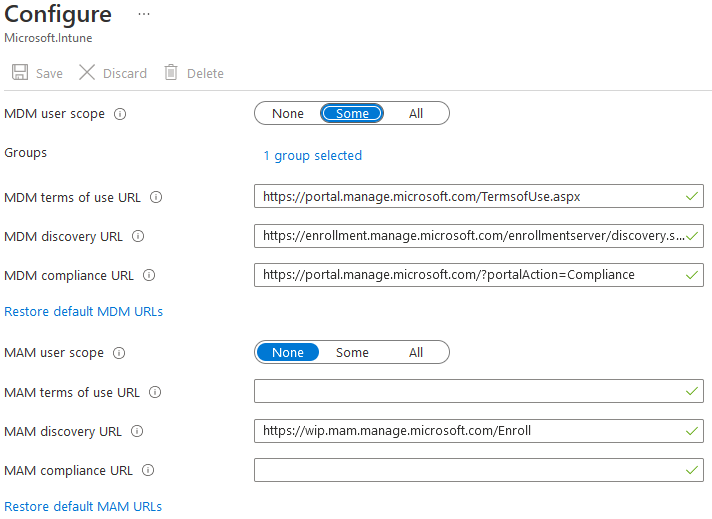
To use a number of registration methods, the Auto enrollment must be enabled. This primarily allows Windows devices to automatically register in Intune. This happens automatically when the device joins (Join) or registers (Register) in Azure AD. The process can be triggered by the user when they add a work account (Work Account) on their personal device or join a corporate device to Azure AD. This feature requires an Azure AD Premium license.
The configuration can be done from two different admin centers.
- Microsoft Endpoint Manager admin center - Devices - Windows - Windows enrollment - Automatic Enrollment
- Azure Active Directory admin center - Mobility (MDM and MAM) - Microsoft Intune
We set MDM and MAM separately. We determine whether automatic registration is disabled, enabled for all, or only for users from certain groups. If MDM and MAM are allowed for the user, then corporate devices will be registered in MDM. Windows BYOD devices will be registered in MAM.
Verifying that Windows is connected to Intune
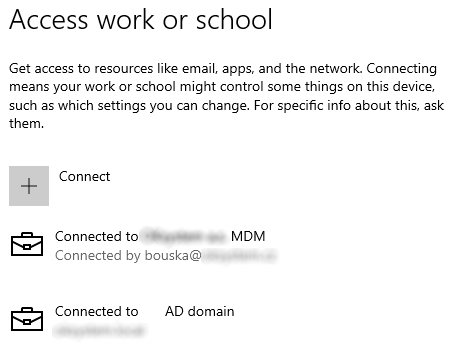
In the Windows settings, we can check that the device is registered in Intune. For example, that automatic registration in MDM has occurred.
- open the Settings - Accounts - Access work or school settings
- select the connected account, we may have a connection to the AD domain (Hybrid Azure AD Join), Azure AD (Azure AD Join), or a standalone connection to MDM
- if the device is registered in Intune, there will be an Info button that will show us the connection details

DNS alias for enrollment (CNAME)
If we don't have an Azure AD Premium license, which allows us to use Auto enrollment, Microsoft recommends creating a DNS alias (CNAME record) on our domain. Otherwise, users must manually enter the MDM server address, which is enrollment.manage.microsoft.com.
On the domain we use as the UPN suffix, we create CNAME records:
EnterpriseEnrollment.company.compointing toEnterpriseEnrollment-s.manage.microsoft.comEnterpriseRegistration.company.compointing toEnterpriseRegistration.windows.net
In the Microsoft Endpoint Manager admin center - Devices - Windows - Windows enrollment - CNAME Validation, we can verify the record.
Automatic enrollment using Group Policy - Automatic Enrollment
The automatic registration mentioned in the previous chapter occurs when the device is connected (registered) to Azure AD. If we have existing devices that are already connected, we need to use a different method. The primary (and almost the only) method we can use if we have a hybrid environment and use Hybrid Azure AD Join is this one.
Using Group Policy, we can trigger the automatic registration of devices in Intune. The devices must be Windows 10 (or 11), at least version 1709, which areHybrid Azure AD Join. We create a GPO that we apply to the computers we want to register in Intune. The configuration is located at the path
Computer Configuration/Policies/Administrative Templates/Windows Components/MDM
We enable the policy Enable Automatic MDM enrollment using default Azure AD credentials and set the Selected Credential Type to use to User Credential.
If the device is registered in Intune and we then run the command gpupdate /force, a warning will be displayed
Windows failed to apply the MDM Policy settings. MDM Policy settings might have its own log file.
Microsoft has an article on this Windows failed to apply the MDM Policy settings on hybrid Azure AD-joined devices. This is expected behavior because the computer is already registered.
Automatic enrollment using Group Policy - registration process
When this policy is applied to the client, it creates a scheduled task that runs every 5 minutes for one day. This performs the entire registration process. MFA may be required, in which case the user is prompted to complete the process (authentication). In the best case, registration takes a few minutes. The device is visible in Azure AD in MDM as managed by Intune. It will appear in Intune administration a bit later, where it can take 15 minutes for the data to update.
We can view the task in Task Scheduler Library - Microsoft - Windows - EnterpriseMgmt, the task name is
Schedule created by enrollment client for automatically enrolling in MDM from Azure Active Directory
In the result of the last task run, we can see the error code if the registration fails. We can find more details in the logs.
Automatic enrollment using Group Policy - troubleshooting
If the registration fails, the best thing to do is to look at the logs. Using the Event Viewer, we open
Applications and Services Logs - Microsoft - Windows - DeviceManagement-Enterprise-Diagnostic-Provider - Admin
In practice, for example, the registration did not work, and for several hours it returned the error 0x8018002B, then it changed to the error 0x82aa0008, and after a certain time the registration suddenly went through.
Event ID 75 contains information about successful registration, Event ID 76 indicates registration failure. Related information is in other events, such as Event ID 81, Event ID 90. You can search for information in Troubleshooting Windows device enrollment problems in Microsoft Intune.
In registration problems, some discussions suggest clearing all keys in the registry \HKEY_LOCAL_MACHINE\SOFTWARE\Microsoft\Enrollments for outdated registrations (with ID in the name), which can (a series can't be deleted). Microsoft has a similar recommendation in the official documentation. It suggests going through the keys and deleting the key that contains the most items (the others have only two or three items).
Registering a device that was managed by Configuration Manager
If we register a device, for example using the automatic registration mentioned above, and the computer has a Configuration Manager client (SCCM Client Agent), the device will appear in Intune as managed by Co-management (and not Intune). The Configuration Manager client in the properties on the General tab also shows Co-management as enabled. This happens even if we haven't set up Co-management at all in Configuration Manager.
If we want to manage the device only using Intune, we need to uninstall the Configuration Manager client.
C:\Windows\ccmsetup> ccmsetup.exe /uninstall
But that's not enough, we also need to delete two keys in the registry that remained after the client.
\HKEY_LOCAL_MACHINE\SOFTWARE\Microsoft\DeviceManageabilityCSP
\HKEY_LOCAL_MACHINE\SOFTWARE\Microsoft\CCMSetup
Then we need to wait for a while, after which I saw the computer in Intune twice (each under different management). After some more time, the bad record disappeared. Alternatively, you can try the script for complete client removal Remove-MCMClient.ps1.
MDM only enrollment - enrollment only in Intune
In the list of Intune enrollment methods, Microsoft also mentions this, but there is no link to the documentation, and I couldn't find an official description. But from the hints, it's probably done by:
- Windows Settings - Accounts - Access work or school
- using the choice Enroll only in device management
- entering our email address and the device will be registered
This way, we can register a device that is not connected or registered in Azure AD, and no record in Azure AD will be created. The device is registered as personal (so we must have personal Windows device registration enabled), we can later change it to corporate in Intune. If we register a device that is Hybrid Azure AD Joined, two connections will appear in Access work or school, the original to the AD domain and a new one to MDM.
Company Portal - company portal
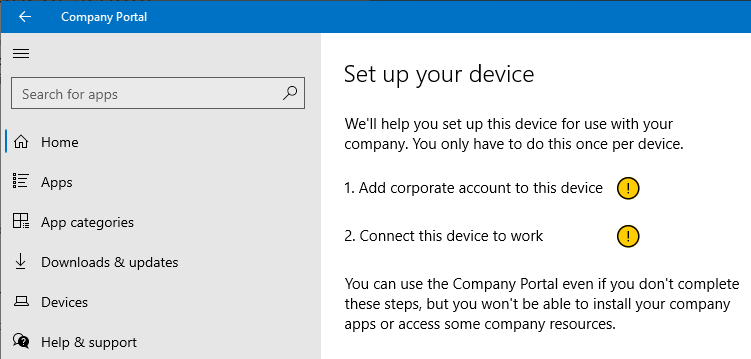
We can install the Company Portal app in Windows from the Microsoft Store Company Portal. The web version https://portal.manage.microsoft.com can also be used partially.
If the computer is Hybrid Azure AD Joined and is not registered in Intune, the app will tell us that this device is not set up for business use. We can use the wizard, which has two steps. The first is to add an account. When we try to do this, we get an error that the device is already connected to our organization.
For registration in Intune, we can only use the company portal if the device is not registered or connected to Azure AD. The device is registered as personal.
Co-management
Using the concurrent management and benefits of Intune and Configuration Manager (MECM, formerly SCCM) is a separate extensive area. Here is just a basic mention.
We need to enable and set up co-management in the Configuration Manager configuration. Here (the Enablement tab) we can also turn on automatic registration (of managed) devices in Intune.
- Administration - Cloud Services - Cloud Attach
For certain situations, we can define co-management policies in Intune.
- Microsoft Endpoint Manager admin center - Devices - Enroll devices - Windows enrollment - Co-management Settings
Unenrollment (removal) from Intune - Unenroll Windows device
Administrator
If we want to unenroll a specific device from Intune, we can use the Retire action.
- Microsoft Endpoint Manager admin center - Devices - All devices - selected device - choice Retire
When the device connects to Intune, it receives a remote command to perform the Retire action. The device will display information that the workplace account has been removed and the related information has been deleted. What exactly is deleted, on which OS, is described by Microsoft in the documentation. A Hybrid Azure AD Joined computer will remain connected to both ADs, but will be removed from Intune.

User
Microsoft also has user documentation describing that the device owner can unenroll it from Intune. The procedure is that in the Settings - Accounts - Access work or school settings, we click on the connection of our account (AD domain or Azure AD) and choose Disconnect. We will receive several warnings. If the computer was Hybrid Azure AD Joined, it will be removed from the AD domain. But the computer record will still remain in Intune and Azure AD.
However, if the device was registered separately in Intune (MDM only enrollment method), we can only disconnect this MDM connection. The computer will remain joined to the domain and Azure AD. Its account will be removed from Intune.
Changing the primary user
Only for Windows devices that are Azure AD Joined or Hybrid Azure AD Joined, we can change the primary user. The primary user is usually set to the person who performs the device registration. The user must have an Intune license. On other devices, a new registration must be performed.
- Microsoft Endpoint Manager admin center - Devices - All devices
- select a Windows device - Properties
- button Change primary user
Nevím proč, ale přepnutí MDM Autority na Intune nám z nějakého důvodu nešlo z webGUI, ale pomocí příkazů Connect-MgGraph, Get-MgOrganization a Set-MgOrganizationMobileDeviceManagementAuthority. Je potřeba vytvořit v Entře podnikovou aplikaci, a přiřadit ji práva, aby to prošlo. Pěknej oser.