Test of the current encryption state
Online service
To test whether encryption for receiving and sending mail is working for us, we can use the website https://www.checktls.com/.
On the page https://www.checktls.com/TestReceiver we can test mail reception. Just enter our domain or email address and a log of establishing SMTP over TLS with comments will be displayed. No mail is sent because the connection is terminated after verifying the sender's address.
On the page https://www.checktls.com/TestSender we can test mail sending. It's good to select items in Select Extra Items to Show to get more information. Then we start the listener and we'll see an address to which we'll send an email, a code for the subject, and possibly parameters for the email body. Following these instructions, we send an email and within a moment we'll receive a response with information about whether the encrypted mail sending was successful.
OpenSSL application
To test TLS on an SMTP server, we can also use the OpenSSL tool.
openssl s_client -connect mail.company.com:25 -starttls smtp
Email client
In the MS Outlook email client, we can open a received message and look at the headers (Internet Headers). Here we can see how the message was received by individual mail servers (Mail Transport Agent - MTA) and if the transfer was encrypted, we also see information about the cipher used.
Received: from mail.company.com (mail.company.com [1.1.1.1])
        (using TLSv1.2 with cipher ECDHE-RSA-AES256-GCM-SHA384 (256/256 bits))
        (No client certificate requested)
        by mail.company2.com (Postfix) with ESMTPS id 47M1Zz28nDz8saa
        for <someone@mail2.com>; Mon, 25 Nov 2019 10:15:07 +0100 (CET)
Principle of SMTP over TLS
To enable encryption of SMTP communication, the original SMTP protocol was supplemented with the STARTTLS extension (Secure SMTP over TLS according to RFC 3207).
After connecting to the server via SMTP, we can enter the greeting command EHLO (instead of the older HELO), to which the server responds with supported features. If it supports encryption, it returns the STARTTLS feature.
S: 220 mail.company.com ESMTP
C: EHLO test.com
S: 250-mail.company.com
S: 250-SIZE 51380224
S: 250-8BITMIME
S: 250-STARTTLS
The client can then use the STARTTLS command, followed by the exchange of certificates and TLS negotiation (agreeing on SSL/TLS version and cipher).
C: STARTTLS
S: 220 Go ahead with TLS
  " CN=mail.company.com, OU=IT ...
  " CN=mx1.seznam.cz CN=Let's Encrypt Authority ...
"TLS protocol SP_PROT_TLS1_2_CLIENT negotiation succeeded using bulk encryption algorithm CALG_AES_256 with strength 256 bits
 MAC hash algorithm CALG_SHA_384 with strength 0 bits and key exchange algorithm CALG_ECDH_EPHEM with strength 256 bits"
C: EHLO test.com
S: 250-mail.company.com
S: 250-SIZE 51380224
S: 250-8BITMIME
From an encryption perspective, three different variants are used:
- without encryption - encryption is not allowed on incoming connections (server does not offer STARTTLS)
- encryption preferred - encryption is allowed and offered, the connecting party may or may not use it, generally referred to as Opportunistic TLS
- required - encryption is mandatory, it's offered and if the other party doesn't use STARTTLS, other commands are rejected (according to RFC 3207)
Note: It's not clear to me in which cases a server certificate is sufficient and when a client certificate (i.e., the certificate of the connecting server) is also used, which would lead to its verification.
If the most common method is used, where encryption is preferred, and an attacker gets into the communication (Man in the Middle), they can remove the STARTTLS command from the traffic and both parties communicate unencrypted. There are more attacks because certificate validity is often not checked. In common deployment, SMTP over TLS is therefore an improvement in security, but it cannot be relied upon. One of the methods to improve security is DNS-based Authentication of Named Entities (DANE), which uses Domain Name System Security Extensions (DNSSEC).
Cisco Email Security
ESA standardly filters incoming mail for us, and we can also use it for processing and checking outgoing mail. Here we'll look at the TLS encryption settings for receiving mail. Everything is well described in the official documentation Encrypting Communication with Other MTAs.
Certificate for encryption
- Network - Certificates
To use TLS, we need an X.509 certificate. A test certificate Cisco ESA Certificate is uploaded on ESA, but it's not recommended for use in live operation. Ideally, a certificate from a trusted authority, although many mail servers are set to accept any certificate (for example, from an internal company authority).
Ideally, we upload a signed certificate in PKCS#12 format (often with .pfx extension, i.e., a combination of certificate and private key).
Setting the certificate on Listener
- Network - Listeners
On the Listener to the internet (Public), and possibly also to the internal network (Private), we must assign the certificate to be used. This is the Certificate item, where we select from the list of available certificates.
Setting TLS on Mail Flow Policy (Listeners HAT) - receiving mail
- Mail Policies - Mail Flow Policies
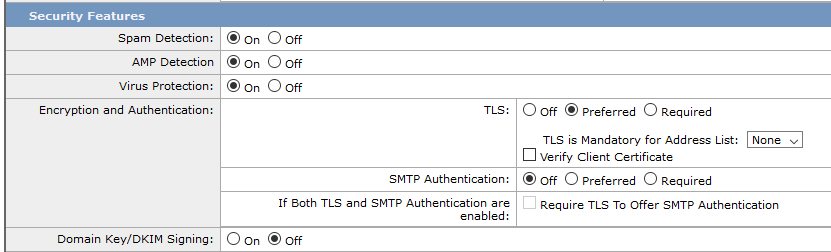
By default, TLS is disabled. It's set using Mail Flow Policy, which are assigned to the Host Access Table (HAT) for a specific Listener. This allows us to create an HAT with specific source IP addresses and control different TLS settings for different senders. If we want to enable it for all received messages, we either edit all Mail Flow Policies or set it in Default Policy Parameters.
In the Security Features section, we set Encryption and Authentication, the TLS item. The options are Off, Preferred or Required. If we choose Preferred TLS, we can also set a list of domains and email addresses for which TLS is mandatory (TLS is Mandatory for Address List). By default, the certificate of the other party is not checked, if any is available and a cipher is agreed upon, the communication is encrypted. We can choose Verify Client Certificate, then the certificate is standardly checked (issuing authority, name, validity). If we have the Preferred TLS variant and the other party doesn't offer a certificate, the message is delivered unencrypted, but if validation fails, the connection is rejected.
Setting TLS in Destination Controls - sending (delivering) mail
- Mail Policies - Destination Controls
Just like for receiving mail, TLS is also disabled by default for sending. Sending applies not only to outgoing mail from the company but also to delivery to internal mail servers. The certificate used is selected in Edit Global Settings.
Enabling TLS is done in the profile by domain (destination), we can use Default for all. In the TLS Support item, we choose similar options as in HAT. For individual variants, there's an option with Verify, where the domain certificate is verified.
Monitoring SMTP over TLS
- Monitor - TLS Connections
In the Monitor section, there's a nice report where we can see how many connections went through TLS and how many unencrypted, also if TLS negotiation failed. Practice shows that more than half of the connections are encrypted. For some domains, I see that TLS failed, but then the same number of messages are sent unencrypted, so apparently the server always tries to send the message again.

- Monitor - Message Tracking
We can also find a specific message in the message tracking log and in the details, we see at the beginning if the connection is encrypted and what cipher was agreed upon.
Incoming connection (ICID 724949) successfully accepted TLS protocol TLSv1.2 cipher ECDHE-RSA-AES128-GCM-SHA256.
Microsoft Exchange Server 2016
For Exchange, we'll look at encryption when sending mail, i.e., using Send Connector. The situation is similar for receiving mail, Receive Connectors. For some time, I tried to find information on how to set the option for Exchange to use TLS when sending mail if it's supported by the other party. I couldn't find anything in the official documentation or elsewhere (maybe I missed something basic). By examining logs and practical tests, I found out that it's actually the default behavior.
Note: Articles on the internet deal with only one thing, and that's to always send messages using TLS for some domains, i.e., create a new Send Connector (it's good not to forget to set logging) and set Require TLS on it.
In the description of Send connectors, we don't find much. The configuration of TLS properties can't really be set in EAC (Exchange Admin Center), but must be done in the EMS (Exchange Management Shell) command line. Only when creating a Send Connector can we select the type (Custom, Internal, Internet, Partner). Each type determines various parameters that are set on the connector.
In EMS, we have the cmdlet Set-SendConnector. The description of parameters around TLS doesn't seem entirely clear to me, so below is my guess.
- IgnoreSTARTTLS - if set to
true, encryption will not be used for this connector - RequireTLS - setting to
truerequires the use of encryption for sending all messages through this connector - TlsAuthLevel - we can set
EncryptionOnly- then only encryption is performedCertificateValidation- certificate validation is also performed (issuing chain and revoked certificates)DomainValidation- additionally, the FQDN is checked in the certificate to see if it matches theTlsDomainparameter or the recipient's domain
- TlsCertificateName - if we want to use a certificate other than the Default, we specify it here with a special notation
<I>X.500Issuer<S>X.500Subject - TlsDomain - we specify the domain to be checked during
DomainValidation, for the Smart Host Send Connector
Default values (for Custom type) are as follows
[PS] C:\\>Get-SendConnector -Identity Internet | FL *tls*
TlsDomain           :
TlsAuthLevel        :
IgnoreSTARTTLS      : False
TlsCertificateName  :
RequireTLS          : False
The combination of IgnoreSTARTTLS and RequireTLS set to false likely indicates that Opportunistic TLS is used. I assume that it is also necessary to have a certificate set on Exchange and enabled for the SMTP service. The first certificate assigned to the SMTP service becomes the Default certificate. If we assign a new certificate, we can set it as default (but it is not necessary).
Monitoring SMTP over TLS
Exchange Server does not have any reports or statistics on encryption usage. We can only look into the protocol log (Protocol Log). For incoming messages, we use the Front End Transport service SmtpReceive log. For outgoing messages, most often the Transport service (Hub) SmtpSend log. Here we will see if the STARTTLS command was used and how the cipher was negotiated, or if there was an error.
Setting the certificate on the Send Connector and the UnknownCredentials error
I understood that if I internally use certificates from an internal authority on Exchange servers, I could use another certificate from a trusted authority and set it on the Send Connector for sending to the internet.
Import PKCS#12 certificate
- EAC - Exchange Admin Center
- Servers - Certificates
- Import Exchange certificate
- enter the network path (the certificate must be uploaded somewhere to a shared folder) and the password for the private key
- specify which servers to import it to
Then I need to assign the certificate to the SMTP service
- EAC - Exchange Admin Center
- Servers - Certificates
- Edit the uploaded certificate
- Services - select SMTP and Save
- when asked if we want to overwrite the Default SMTP certificate (i.e., set this as the default), choose No
Next, we need to continue in EMS.
Display the list of certificates and note the Thumbprint of the newly imported one.
[PS] C:\\>Get-ExchangeCertificate
Thumbprint                                    Services  Subject
----------                                    --------  -------
AC445208321CCE5AA22588700D1264F0E8BCC052  .......   CN=mail.company.com ...
From this certificate, we obtain the Issuer and Subject values and save them in the required format.
$TLSCert = Get-ExchangeCertificate -Thumbprint AC445208321CCE5AA22588700D1264F0E8BCC052
$TLSCertName = "<I>$($TLSCert.Issuer)<S>$($TLSCert.Subject)"
And then we set it on the chosen Send Connector.
Set-SendConnector -Identity Internet -TlsCertificateName $TLSCertName
If we need to remove the setting.
Set-SendConnector -Identity Internet -TlsCertificateName $none
But it turned out that some emails subsequently stopped being sent (they remained in the queue). After reviewing the Protocol Log of the Send Connector, it is clear that the new certificate is used, but the error TLS negotiation failed with error UnknownCredentials is returned.
>,STARTTLS,
<,220 2.0.0 Ready to start TLS,
*, "CN=mail.company.com ...", Sending certificate Subject Issuer name Serial number Thumbprint Not before Not after Subject alter
*,,TLS negotiation failed with error UnknownCredentials
-,,Local
I found a few articles with this error, but primarily it is mentioned that it is a bug when setting the certificate on the Send Connector for sending to Office 365. Additionally, it is already fixed in the installed CU. "TLS negotiation failed with error UnknownCredentials" error after you update TLSCertificateName on Office 365 send connector in Exchange Server hybrid environment. Another article talked about permissions to the certificate.
I tried everything possible, but the error could not be resolved. Then I deleted the certificate on the Exchange server and re-uploaded it. Suddenly everything worked. I tried various modifications, but encryption with this certificate still works.
Ahoj, mám Exchange 2019 a stalo se mi, že mi server komunikoval se všemi jinými SMTP servery, kromě dvou firem, kde emaily prostě nedošly.
Z logů a dumpu TCP provozu jsem zjistil, že ve výchozím nastavení jsou použity pouze tyto šifry založené na eliptických křivkách:
Cipher Suite: TLS_ECDHE_ECDSA_WITH_AES_256_GCM_SHA384 (0xc02c)
Cipher Suite: TLS_ECDHE_ECDSA_WITH_AES_128_GCM_SHA256 (0xc02b)
Cipher Suite: TLS_ECDHE_RSA_WITH_AES_256_GCM_SHA384 (0xc030)
Cipher Suite: TLS_ECDHE_RSA_WITH_AES_128_GCM_SHA256 (0xc02f)
Cipher Suite: TLS_ECDHE_ECDSA_WITH_AES_256_CBC_SHA384 (0xc024)
Cipher Suite: TLS_ECDHE_ECDSA_WITH_AES_128_CBC_SHA256 (0xc023)
Cipher Suite: TLS_ECDHE_RSA_WITH_AES_256_CBC_SHA384 (0xc028)
Cipher Suite: TLS_ECDHE_RSA_WITH_AES_128_CBC_SHA256 (0xc027)
Ty dva protější servery uměly ale jen starší šifry a tak spojení skončilo chybou "4.7.0 TLS handshake failed".
Poté co jsem povolil i některé další šifry:
Cipher Suite: TLS_DHE_RSA_WITH_AES_128_GCM_SHA256 (0x009e)
Cipher Suite: TLS_DHE_RSA_WITH_AES_256_GCM_SHA384 (0x009f)
Již handshake prošel bez problémů.
Na kontrolu, které šifry se používají (nastavení šifer pro schannel v GPO či registech), jsem použil free nástroj IISCrypto, ve kterém lze šifry také nastavit.
Pro to aby vše začalo fungovat je nutno mailový server restartovat.
Doufám, že to někomu pomůže. Já to řešil skoro dva dny, přitom je to na chvilku.