Managing Group Members in Outlook
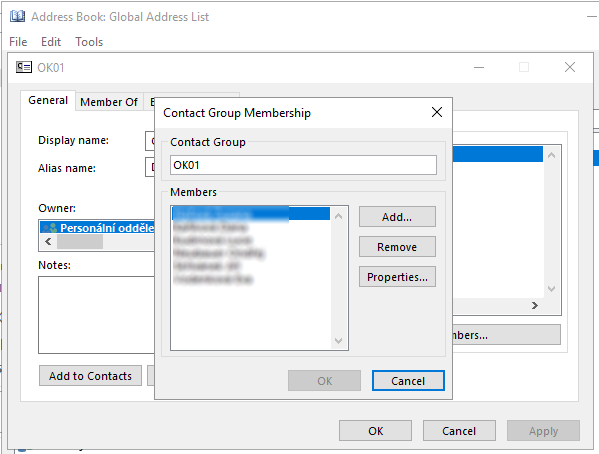
We can grant a user the permissions to manage a distribution group, and then they can add and remove its members in the Outlook application. We open the desired group, for example:
- Home - Address Book
- expand the group
- click the Modify members button
- we can use Add (contacts from the directory are offered) or Remove
Setting the Owner on the Exchange Server
The setting on the Exchange server is simple. Using the Exchange Admin Center, we can assign a user or a group of users as the owner (Owner) of a given distribution group (Distribution Group).
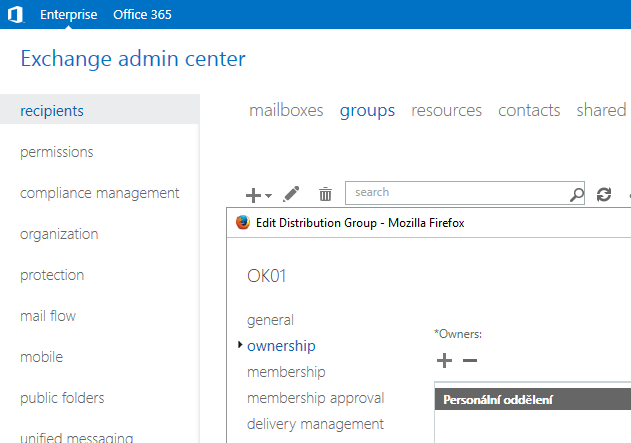
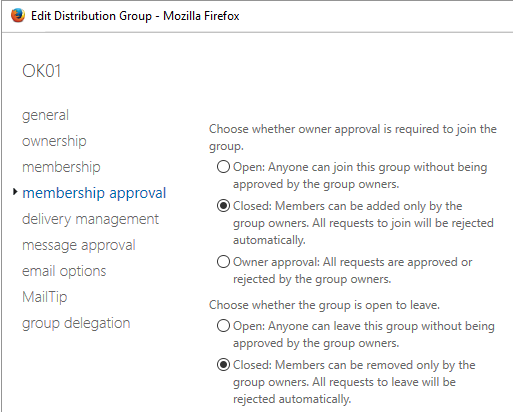
The group can be set to closed.
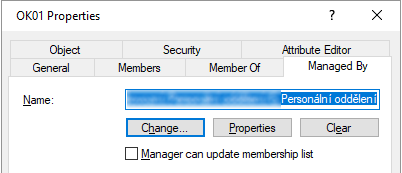
The owner (Owner) setting is also related to the Managed By setting in ADUC (Active Directory Users and Computers).
If Group Management Doesn't Work and We Get a Permissions Error
When we try to modify the members of a group in Outlook, we may get the following error:
Changes to the distribution list membership cannot be saved. You do not have sufficient permission to perform this
 operation on this object.
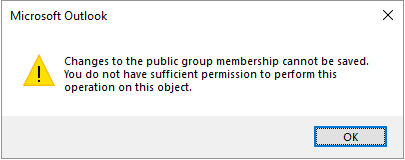
If this error occurs even though we are set as the group owner, it may mean that we don't have the permission to edit groups in the permissions policy set on the user. From Exchange 2010 onwards, Role Based Access Control (RBAC) is used.
- EAC - Exchange Admin Center
- Permissions - User Roles
- edit the policy, we usually only have the Default Role Assignment Policy
- check the MyDistributionGroupMemberships item under Distribution group memberships
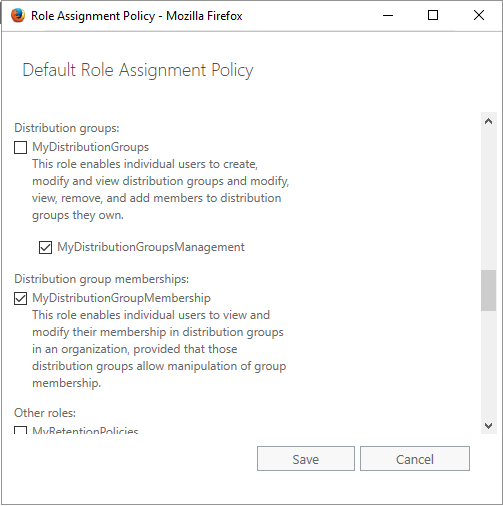
Note: The description for Distribution groups versus Distribution group memberships is quite misleading, and I'm still not sure if both are required, see the further description.
Additional solution is described by Microsoft in the article Can't manage distribution group from Outlook with Exchange Server mailbox.
In Resolution 1 How to manage groups that I already own in Exchange 2010, the information is that allowing the management of distribution groups would also give users the right to create and delete groups. Therefore, it is better to create a new role and configure it in detail. We can do this using the Exchange Management Shell. The article also includes a script that creates a new role (MyDistributionGroupsManagmenet) and sets permissions without creating and deleting groups. Calling the script:
.\Manage-GroupManagementRole.ps1 -CreateGroup -RemoveGroup
Various checks can be performed with commands such as:
Get-ManagementRole MyDistributionGroupMembership
(Get-ManagementRole MyDistributionGroups).RoleEntries
(Get-ManagementRole MyDistributionGroupsManagement).RoleEntries
Get-ManagementRoleAssignment -RoleAssignee "Default Role Assignment Policy"
There are no comments yet.