
Note: The description in this article is based on Exchange Server SE RTM December 2025 Security Update (SU).
Introduction
This is the first part, where we focus on enabling and allowing HMA for Outlook and ActiveSync. In Outlook, it works quite well and automatically. However, connection from mobile devices (ActiveSync) is quite problematic. Primarily, Outlook for iOS and Android is functional.
The next step is setting up HMA for OWA and disabling Legacy Authentication. That should be covered in part two.

What is Hybrid Modern Authentication
Hybrid Modern Authentication (HMA) allows user authentication in Microsoft Entra ID when accessing client services (their mailbox) on On-Premises Exchange Server. This enables the use of modern authentication methods including Multi-Factor Authentication (MFA) and Conditional Access.

Legacy vs. Modern Authentication
For modern authentication, OAuth 2.0 and authorization token (access and refresh OAuth token) obtained from the cloud are used. On-Premises Exchange accepts this token and allows access to the mailbox. The prerequisite for use is that we have a functional Exchange Hybrid and the user's identity must exist in Entra ID.
Legacy Authentication refers to current authentication options on Exchange Server, namely Basic Authentication and Windows Authentication (which includes NTLM and Kerberos). Modern Authentication includes OAuth 2.0.
Exchange Services and Virtual Directories
HMA is supported for connections from Outlook (MAPI over HTTP), via web (Outlook on the Web - OWA, Exchange Web Services - EWS, Exchange Admin Center - ECP), or from mobile devices (Exchange ActiveSync). Also for related Autodiscover and Offline Address Book (OAB).
It is not supported on legacy protocols Outlook Anywhere (RPC over HTTP), IMAP4, or POP3. It concerns client access to mailboxes, so not sending mail via SMTP.
These are services that use IIS Virtual Directories, meaning communication over HTTP protocol. I wrote some information about virtual directories in the article Exchange Server 2016 to Subscription Edition (SE) Migration Part 2 Client Access.
Brief Connection Process to Mailbox
- the client (such as Outlook) obtains information from AutoDiscover based on the email address
- connects to the required service on On-Premises Exchange
- is redirected to Entra ID for authentication (according to evoSTS URL)
- if successfully authenticated, receives an OAuth 2.0 Access Token
- client accesses On-Premises Exchange and passes the Access Token in the HTTP header
- Exchange server verifies the OAuth token (signature, whether it's intended for it, validity)
- maps the identity from the token to a local AD account
The Entra ID Access Token conforms to the OAuth 2.0 bearer token standard (RFC6750) and is structured as a JSON Web Token (JWT). It contains user identity, Audience (target application), Tenant ID, permissions, validity, authentication method information, etc.
It is inserted into the HTTP header as
Authorization: Bearer <token>
Prerequisites for Enabling HMA
To enable HMA, we must meet various prerequisites. If we consider only currently supported versions of Exchange Server and Outlook, they support HMA. If we last used the Hybrid Configuration Wizard years ago, it's advisable to use (upgrade to) the current version.
Prerequisites
- Exchange Server Subscription Edition with the latest Cumulative Update
- Exchange Hybrid created using the Hybrid Configuration Wizard (HCW) with Classic Hybrid Deployment topology (Modern Hybrid does not support HMA)

- servers must have internet communication enabled
- we must not use SSL Offloading (SSL termination on a device (LB/FW) before Exchange and subsequent use of unencrypted connection), we can use SSL Bridging (device before Exchange decrypts SSL traffic and then re-encrypts it)
- Hybrid Modern Authentication must be configured on all servers in the organization (main configuration applies to the entire organization)
- current version of Microsoft Outlook
- Modern authentication enabled in Entra ID (Settings - Org settings - Services - Modern authentication), which we most likely already have enabled
Configuration Verification and Preparation
These steps are described in detail in the official documentation, so they are only briefly mentioned here. It's useful to save the outputs of the following cmdlets.
On-Premises URLs Set as Entra SPN
The URLs we use for Exchange web services (virtual directories) must be added to Entra ID as Service Principal Names (SPN). In many cases, we only use two addresses: mail.firma.cz and autodiscover.firma.cz.
Using Exchange Management Shell (EMS), we verify the values for individual virtual directories
Get-MapiVirtualDirectory -ADPropertiesOnly | fl server,*url*
Get-WebServicesVirtualDirectory -ADPropertiesOnly | fl server,*url*
Get-ClientAccessService | fl Name, AutodiscoverServiceInternalUri
Get-OABVirtualDirectory -ADPropertiesOnly | fl server,*url*
Get-AutodiscoverVirtualDirectory -ADPropertiesOnly | fl server,*url*
Get-ActiveSyncVirtualDirectory -ADPropertiesOnly | fl server,*url*
Using Microsoft Graph PowerShell, we verify current values (URLs) in Entra ID
Connect-MgGraph -Scopes "Application.Read.All", "Application.ReadWrite.All"
Get-MgServicePrincipal -Filter "AppId eq '00000002-0000-0ff1-ce00-000000000000'" | select -ExpandProperty ServicePrincipalNames
If any of our URLs (starting with https://) are missing, we need to add them. In my case, the autodiscover value was missing.
$x = Get-MgServicePrincipal -Filter "AppId eq '00000002-0000-0ff1-ce00-000000000000'"
$x.ServicePrincipalNames += https://autodiscover.oksystem.cz/
Update-MgServicePrincipal -ServicePrincipalId $x.Id -ServicePrincipalNames $x.ServicePrincipalNames
OAuth Enabled on Virtual Directories
We verify that OAuth is enabled on all virtual directories. We can also control where we don't want HMA to be used.
Get-MapiVirtualDirectory | fl server,*url*,*auth*
Get-WebServicesVirtualDirectory | fl server,*url*,*oauth*
Get-OABVirtualDirectory | fl server,*url*,*oauth*
Get-AutoDiscoverVirtualDirectory | fl server,*oauth*
Get-ActiveSyncVirtualDirectory | fl server,*url*,*auth*
Note: ActiveSyncVirtualDirectory is specific; using the ExternalAuthenticationMethods and InternalAuthenticationMethods parameters, we can restrict allowed methods. An empty value allows everything. We still enable Basic and Windows Auth with a special parameter.
Existence of EvoSTS Auth Server
We verify that the EvoSTS Auth Server object exists.
Get-AuthServer | where {$_.Name -like "EvoSts*"} | FT name,enabled
If we have deployed the Dedicated Exchange hybrid application for rich hybrid coexistence, which we should now have, it also uses EvoSTS. During deployment, the ApplicationIdentifier and DomainName parameters were configured. At the end of the article Deploy dedicated Exchange hybrid app in the FAQ, it states that they don't interfere with each other.
I recommend saving the current settings.
Get-AuthServer | where {$_.Name -like "EvoSts*"} | FL *
Valid Exchange Server OAuth Certificate
The foundation of secure communication is the OAuth authentication certificate, which is generated on Exchange Server and uploaded to Entra ID. The Microsoft Exchange Server Auth Certificate is valid for 5 years; it's important to check its validity. We can use the MonitorExchangeAuthCertificate script. It's also used for the Dedicated Exchange hybrid application.
Controlling Authentication Methods for Users Using Authentication Policy
- New-AuthenticationPolicy , Get-AuthenticationPolicy , Set-AuthenticationPolicy
- Disable Basic authentication in Exchange Online
On Exchange IIS virtual directories, we enable which authentication methods are allowed for a given service. We can also use Authentication Policies, where we can block Legacy or Modern authentication for individual services. The default policy is assigned to the organization configuration. We can assign a specific policy directly to a user, which then overrides the default settings.
Note: Policies are also available for Exchange Online, where cmdlets have Allow parameters available, unlike Block for On-Prem.
Viewing Existing Policies
Authentication policies are configured only using Exchange Management Shell (EMS).
Get-AuthenticationPolicy
Get-AuthenticationPolicy | FT Name

[PS] C:\>Get-AuthenticationPolicy OrgWideDefault | FL Block*

BlockLegacyAuthActiveSync         : False
BlockLegacyAuthAutodiscover       : False
BlockLegacyAuthImap               : False
BlockLegacyAuthMapi               : False
BlockLegacyAuthOfflineAddressBook : False
BlockLegacyAuthPop                : False
BlockLegacyAuthRpc                : False
BlockLegacyAuthWebServices        : False
BlockModernAuthActiveSync         : False
BlockModernAuthAutodiscover       : False
BlockModernAuthImap               : False
BlockModernAuthMapi               : False
BlockModernAuthOfflineAddressBook : False
BlockModernAuthPop                : False
BlockModernAuthRpc                : False
BlockModernAuthWebServices        : False
Note: Interestingly, IMAP and POP protocols are listed here, which HMA does not support. Exchange Web Services (EWS) is included here, but not Outlook on the web (OWA) and Exchange Admin Center (ECP).
Default Policy
Viewing the default policy set in the organization configuration.
[PS] C:\>Get-OrganizationConfig | FL DefaultAuthenticationPolicy

DefaultAuthenticationPolicy : OrgWideDefault
Modifying the Default Policy
If we want to test HMA first on a limited group of users, we can modify the default policy (or create a new one and assign it) to block modern authentication. Then create a new policy that allows modern authentication and assign it to selected users.
Set-AuthenticationPolicy -Identity OrgWideDefault -BlockModernAuthActiveSync -BlockModernAuthAutodiscover -BlockModernAuthImap `
 -BlockModernAuthMapi -BlockModernAuthOfflineAddressBook -BlockModernAuthPop -BlockModernAuthRpc -BlockModernAuthWebServices
Creating a New Policy
We can create a new policy that has all methods enabled (blocks nothing).
New-AuthenticationPolicy -Name "Allow All Authentications"
Another that allows Legacy authentication and blocks modern.
New-AuthenticationPolicy -Name "Allow Legacy Authentication" -BlockModernAuthActiveSync -BlockModernAuthAutodiscover `
 -BlockModernAuthImap -BlockModernAuthMapi -BlockModernAuthOfflineAddressBook -BlockModernAuthPop -BlockModernAuthRpc `
 -BlockModernAuthWebServices
And the last one that allows modern authentication and blocks Legacy.
New-AuthenticationPolicy -Name "Allow Modern Authentication" -BlockLegacyAuthActiveSync -BlockLegacyAuthAutodiscover `
 -BlockLegacyAuthImap -BlockLegacyAuthMapi -BlockLegacyAuthOfflineAddressBook -BlockLegacyAuthPop -BlockLegacyAuthRpc `
 -BlockLegacyAuthWebServices
Removing Blocking on an Existing Policy
If we wanted to remove blocking on an existing policy, we must use notation with $false. Removing Legacy auth blocking.
Set-AuthenticationPolicy -Identity OrgWideDefault -BlockLegacyAuthActiveSync:$false -BlockLegacyAuthAutodiscover:$false `
 -BlockLegacyAuthImap:$false -BlockLegacyAuthMapi:$false -BlockLegacyAuthOfflineAddressBook:$false -BlockLegacyAuthPop:$false `
 -BlockLegacyAuthRpc:$false -BlockLegacyAuthWebServices:$false
Removing modern authentication blocking.
Set-AuthenticationPolicy -Identity OrgWideDefault -BlockModernAuthActiveSync:$false -BlockModernAuthAutodiscover:$false `
 -BlockModernAuthImap:$false -BlockModernAuthMapi:$false -BlockModernAuthOfflineAddressBook:$false -BlockModernAuthPop:$false `
 -BlockModernAuthRpc:$false -BlockModernAuthWebServices:$false
Setting Policy on a User
Assigning a policy to a specific user
Set-User -Identity bouska -AuthenticationPolicy "Allow Modern Authentication"
Removing a policy (default will be used)
Set-User -Identity bouska -AuthenticationPolicy $null
Setting for all members of a specific group
Get-ADGroupMember -Identity "G Správa" | Foreach-Object {
 Set-User -Identity $_.SamAccountName -AuthenticationPolicy "Allow Modern Authentication" }
Information About Policies on Users
Listing the policy set on a user
Get-User -Identity bouska | FL AuthenticationPolicy
Listing users who have a policy set (other than default)
Get-User -Filter 'AuthenticationPolicy -like "*"' | FT Name, AuthenticationPolicy, RecipientType
Listing users who have a specific policy set
Get-User -ResultSize Unlimited | Where-Object { $_.AuthenticationPolicy -eq 'Allow Modern Authentication' } |
 FT Name, AuthenticationPolicy, RecipientType
Deleting a Policy
Remove-AuthenticationPolicy -Identity "Allow Modern Authentication"
Enabling Hybrid Modern Authentication
Status Verification
Checking that HMA (OAuth2) is still disabled.
[PS] C:\>Get-OrganizationConfig | FL OAuth*

OAuth2ClientProfileEnabled : False
Setting up EvoSTS Auth Server
If we have everything prepared, enabling HMA is simple. We modify the EvoSts AuthServer settings according to the official documentation:
Set-AuthServer -Identity "EvoSTS - <GUID>" -DomainName "Tenant Domain" -IsDefaultAuthorizationEndpoint $true
If we have deployed the Dedicated Exchange hybrid application, we have SMTP domains (Remote Routing) configured in the DomainName parameter. I haven't found any official information anywhere, but it's probably not a good idea to overwrite this information, and we should only add to it.
We can display the current values and use them for configuration.
Get-AuthServer | where {$_.Name -like "EvoSts*"} | FT name,enabled,IsDefaultAuthorizationEndpoint,DomainName
The configuration might look like the following, for example.
Set-AuthServer -Identity "EvoSts - 76c64dd0-fb97-4500-ad00-b85ff2920000" -DomainName oksystem.cz, oksystem.mail.onmicrosoft.com,
 oksystem.onmicrosoft.com -IsDefaultAuthorizationEndpoint $true
Organization Configuration
The second step is enabling OAuth2 within the Exchange organization.
Set-OrganizationConfig -OAuth2ClientProfileEnabled $true
Verification and Testing
We can naturally verify functionality using a client, which we cover in the next chapter. Microsoft provides us with some tools and cmdlets that test partial functionality.
Checking OAuth Authentication Between Exchange and Exchange Online (EXO)
Using Exchange Management Shell on On-Premises Exchange, we can verify the connection to EXO. We enter the URI for EXO and a mailbox in On-Premises.
Test-OAuthConnectivity -Service EWS -TargetUri https://outlook.office365.com/ews/exchange.asmx -Mailbox test.onprem@oksystem.cz `
 -Verbose | FL
Using Exchange Online PowerShell on Exchange Online, we can verify the connection to On-Premises Exchange. We enter the URI for On-Premises and a mailbox in EXO.
Test-OAuthConnectivity -Service EWS -TargetUri https://mail.oksystem.cz/metadata/json/1 -Mailbox test.o365@oksystem.cz `
 -Verbose | FL
The test shows in detail the obtaining and use of the OAuth Token. The result is important, which must be Success.
ResultType  : Success
Identity    : Microsoft.Exchange.Security.OAuth.ValidationResultNodeId
IsValid     : True
ObjectState : New
Microsoft Remote Connectivity Analyzer
For various tests, we can use the online tool Microsoft Remote Connectivity Analyzer.
For example, there's a test Outlook Mobile Hybrid Modern Authentication Test that tests Hybrid Modern Authentication (HMA) for Outlook for iOS and Android. Among the tests for Exchange Server, there are numerous tests for various functions. In some cases, such as Exchange ActiveSync and Synchronization, Notification, Availability, and Automatic Replies, it's possible to choose between Basic and Modern Authentication.
Sign-in Logs in Entra ID
Repeated user sign-in in Outlook, when using HMA, can be monitored in Entra ID among Non-interactive Sign-in logs, Microsoft Office application. For Outlook for iOS and Android, the application is Outlook Mobile.
Using HMA from the Outlook Client Perspective
Once we enable HMA (for all or selected users), the new authentication will be used at the next sign-in in Outlook. The user doesn't need to change or configure anything. However, if a session exists for the user, reauthentication won't occur immediately and it may take some time before the new settings take effect.
During testing, advice is given on how to speed up the process by performing a restart of Internet Information Services (IIS) on Exchange Servers.
iisreset
Verifying the Protocol Used in Outlook
In a running Outlook, we can find out which protocol was used for sign-in.
- launch Outlook
- click using Ctrl + right mouse button on the Outlook icon in the notification area (next to the clock)
- click on Connection Status
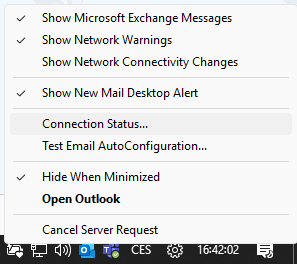
In the AuthN column is the authentication method
BEARER- OAuth bearer token (Modern authentication)NEGO,NTLM,KERBEROS- Negotiate, NTLM, Kerberos (Windows authentication)CLEAR- Basic authentication

Outlook Registry AlwaysUseMSOAuthForAutodiscover
In various places on the internet, it's stated that a key needs to be added to the registry on clients, which forces Outlook to try OAuth. This is a DWORD value AlwaysUseMSOAuthForAutoDiscover, which we set to 1. It's created in the path HKEY_CURRENT_USER\Software\Microsoft\Exchange\.
According to my testing, this setting is unnecessary. At least in the case of Outlook from the Microsoft 365 Apps for Enterprise suite. Perhaps it's meant to resolve a situation where both Legacy and Modern Auth are enabled, to prioritize HMA. But even in this case, users from Outlook connected to MAPI over HTTP using OAuth 2.0 (within several hours of enabling).
Adding a New Account to Outlook
If we have (for example) a newly installed Outlook and are adding an account (with HMA enabled), everything works simply.
- we enter the email address
- we select the Exchange type
- redirection to Entra ID occurs and a sign-in dialog appears (with MFA)
- after verification, the account is added to Outlook

Notes from Testing
For testing, I enabled Modern Authentication using Authentication Policy only for a small group of users. All methods were enabled for the first tests. Right after enabling HMA, I tried adding a test account to Outlook. I entered the email address, Exchange type, and immediately after that, the Entra ID sign-in dialog with MFA appeared. Adding the account went smoothly, connection authentication showed BEARER.
The second attempt was with an existing account in Outlook. The connection showed NEGO. I tried restarting Outlook, restarting IIS on Exchange, it still showed NEGO (I was probably too hasty). I entered AlwaysUseMSOAuthForAutoDiscover in the registry and after launching Outlook it showed BEARER (SSO must have occurred because no dialog popped up). Subsequently, I configured it for the test group. Most people tried it the next day and the connection immediately showed BEARER. Nobody entered the registry key.
I performed several attempts with modifying the Authentication Policy. I set blocking of Modern Auth and after restarting Outlook it showed NEGO. When I enabled everything again, nothing happened immediately; after restarting IIS on Exchange, it showed BEARER.
Problems in Outlook
I only encountered a few problems. In two locations, there was an old (forgotten) Outlook from Office 2021 Standard and sign-in was problematic. After upgrading to the new Microsoft 365 Apps, everything was OK.
If we use some shared or service accounts that users add to Outlook, it's necessary to use permission settings through Full Mailbox Access (Delegation, where the mailbox automatically connects because the user has permission to it). If users manually add a mailbox as another account, authentication in Entra ID (and probably MFA) will be required.
Using HMA from the Mobile Device Perspective
When we enable HMA for Exchange ActiveSync, and Basic Authentication remains enabled, most (perhaps all) clients will still use basic authentication. We need to add the account anew or modify the authentication settings.
Note: Outlook for iOS and Android when accessing Exchange Online doesn't use Exchange ActiveSync, but Microsoft Graph API.
Adding a New Account to Outlook for Android
On a mobile device, we can use the Outlook for Android application, which Microsoft recommends. Adding an account (Add account) that has HMA enabled automatically performs authentication in Entra ID and uses the AutoDetect service.
- we enter the email address
- redirection to Entra ID occurs and a sign-in dialog appears (with MFA)
- settings synchronization is performed and the account is added

Problems on Mobile Devices (ActiveSync)
I encountered the most problems when using ActiveSync from mobile devices. Primarily, Outlook for iOS and Android is functional, but initially even that didn't work for me. When I made further attempts, I suddenly managed to connect a test account. But my production account showed an error. After a few days, I made another attempt and the account suddenly connected. Since then, it worked on all accounts I tried.
I use the purchased application Nine. After enabling modern authentication, everything still ran through Basic Authentication. After blocking Legacy Auth, some time passed and connection problems began. I couldn't get authentication against Entra ID to work, even though Nine officially supports HMA. When adding an account, authentication in Entra ID occurred, but subsequently an error appeared saying it couldn't connect to the server.
My sincere congratulations on the article — it is very detailed and clears up many doubts before taking the (delicate) step toward HMA. Thank you very much!
Dear Petr,
thank You for Your great web and sharing Your experiences! :-)
Please, when we would need on some service account/s use IMAPS running against only Exchange on prem. not using HMA, which is not supported, I understand, we can use for some accounts some policy with -BlockModernAuthImap.
But when we will enable HMA globaly, will some service's account using IMAPS with applied our custom policy still work, will not go for MFA to cloud (after enabling HMA), but will continue to work directly to IMAPS service running on Exchange on prem.?
Do You use some IMAPS connection to Exchange on prem. with custom policy and is it working while other accounts use HMA to cloud?
Eventually thank you.