Changing the Password of a Domain Account
When we need to change the password of a domain account, we can do so after logging in to a Windows workstation in the domain. With certain limitations, it can also be done when logging in remotely using RDP.
If the account has a mailbox on an Exchange server, we can change the password from anywhere using the web-based email interface.
- log in to the Outlook Web App
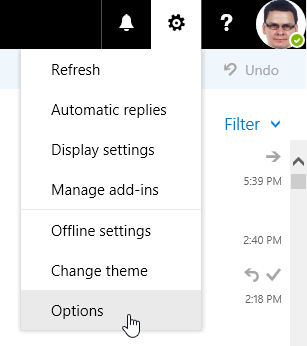
- click on the gear icon in the top right and choose Options
- in the left menu, choose General - My account
- on the right side there is a link for Change your password

- enter the old and new password and confirm with Save
Viewing Public Folders
Viewing public folders is not very intuitive or convenient. It is done by adding them to the Favorites (we can also do this using the Outlook application).
- in the web interface we have the mail - Mail displayed
- right-click on Favorites
- choose Add public folder to Favorites

- select the folder and click Add to Favorites at the top

Managing ActiveSync Mobile Devices
When we add our email account to a mobile device (most often Google Android or Apple iOS) using the Exchange ActiveSync protocol, we can set data synchronization rules. At the same time, we allow the device to be managed by the Microsoft Exchange mail server. The server can enforce various security policies on the device and allow the account owner to remotely wipe the data.
The Remote Wipe function remotely erases the data from the device and permanently blocks the device on the server so that it can no longer synchronize data with the mail server. This function is for situations where we lose the mobile device, or it is stolen. After invoking this function, the device data will be erased and the device will be turned off on the first synchronization attempt. Therefore, it is necessary to use this function as soon as possible after the theft, so that the attacker does not have time to turn off the synchronization. At the moment the data is erased, the user receives an email notification. Not only the data synchronized from the mail server is deleted, but the complete deletion of data, applications, photos, personal data (i.e. a Factory Reset) occurs.
List of ActiveSync Devices
All devices (more precisely, the individual applications on the device) where we set up an ActiveSync account are assigned to our account (mobile phone partnership) and synchronization and control are enabled. Even if we no longer have the device, it remains assigned to us. It can also happen that we want to add a new device and it doesn't work because the maximum number of ActiveSync devices has been reached (which is probably 10).
It's a good idea to occasionally check the list of devices and remove the ones we're not using. This is done using the web interface of the Exchange server.
- connect to the Outlook on the web web interface
- choose Settings (gear icon in the top right) - Options - General - Mobile devices
- here is the list of paired devices and we can see the date of the last synchronization in the column (which can give us a clue)
We select the device and can perform the following using the icons in the top row:
- Details (pencil icon) - displays a variety of information about the device
- Remove (minus icon) - removes the device

Remote Wipe
Each user can erase the devices connected to their account. Using the web interface, we get to the list of our devices (see previous section). We select the desired device and use the icon in the top row.
- Wipe all data (device and eraser icon) - performs a Factory reset of the device
In the Status column for the device, the status will change to Wipe Pending and after successful completion to Wipe Successful.
Disabling Conversation View of Messages
Viewing public folders is done by adding them to Favorites.
- in the web interface we have the mail - Mail displayed
- click on Filter - Show as and choose Messages

Super článek. U Exchange 2007 bylo možné přes GUI zakazovat na mobilních zařízeních aplikace, foťák, prohlížeč apod - vyzkoušeno na iOS. Tady to asi lze nastavit pouze přes PowerShell. Líbilo by se mi, kdyby se dala omezit možnost použití klientů jen pro IOS a jakmile Exchange zjistí os android, tak připojení nepovolit. Máte někdo takové nastavení?