This article is part of a series based on my notes during the migration of an Exchange organization from version 2010 to 2016. This is not a complete procedure, but a description of the main points and areas. The examples relate to a specific design, but can usually be generalized. Similarly, although this is a description of a migration, the information is also suitable for a new installation or administration.
Official documentation Exchange Server 2016, Public folders.
Public Folders (PF) - Public Folders
Documentation Modern public folder deployment best practices, Modern Public Folders.
The original public folders that still existed on Exchange 2010 are referred to as Legacy Public Folders. Their content was stored in a special type of database called the Public Folder Database. We could replicate them on other servers and use and manage them in a certain way. Everything worked differently than the mailbox database. Microsoft has been talking for years about removing public folders. In the end, they reworked them instead, and they are now referred to as Modern Public Folders. Their content is stored in a special type of mailbox within the standard Mailbox Database.
There were a number of problems with legacy public folders and they had many shortcomings. Unfortunately, I think their overhaul was not done very well. One of the major drawbacks was rules, which are significantly behind the rules (Rules & Alerts) that we can configure on the mailbox. Unfortunately, the rule settings are still the same.
On the other hand, replication worked, and users could connect to the replica closest to them, even though there was a delay in displaying messages. Now we only have replicas for failover or switchover (DAG) and all users connect to the same server. The recommendation is to divide public folders by access within sites and place them in different mailboxes, but in practice, users at different sites access the same folders and not different ones.
Since public folders are now located in the mailbox, we have to deal with the size of this mailbox, limits, possible division into additional mailboxes, and a number of unnecessary problems.
Interesting article on log analysis Modern public folders logging and when to use it.
Public Folder Architecture
Modern public folders use the mailbox infrastructure and can therefore take advantage of existing technologies for high availability and mailbox database storage. The Public Folder architecture uses specially designed mailboxes where the hierarchy and content of the public folders are stored. The special Public Folder Database no longer exists, but the standard Mailbox Database is used. This allows us to use the Database Availability Group (DAG).
In practice, we can create a dedicated mailbox DB (one or more) for public folders, or use an existing one, and create one or more Public Folder mailboxes in it. Within each mailbox, we can create a number of public folders. From the user's perspective, nothing changes on the PF and it all looks the same as on Exchange 2010.
Public folders are stored in Public Folder Mailboxes, which are of two types:
- Primary hierarchy mailbox - the only writable version of the public folder hierarchy, its copy is in each PF mailbox, but only for reading, or the content of the public folders
- Secondary hierarchy mailboxes - contain a copy of the PF hierarchy for reading and the content of the public folders
The public folder hierarchy contains folder properties, permissions, and the position of the folder in the tree structure. The hierarchy does not contain information about the email address for mail-enabled PF. The addresses are stored in the object in AD DS.
Microsoft previously recommended that the Primary hierarchy should only contain the hierarchy and handle only its changes and replications, and that no public folders should be located there. Now this recommendation is written for the case when we have more than 50 PF mailboxes. In any case, during migration from Exchange 2010, we cannot determine where individual public folders will be placed, and a number of them are automatically stored in the Primary hierarchy mailbox. Another recommendation is to set IsExcludedFromServingHierachy to $True on the primary mailbox.
Each mailbox therefore contains the complete hierarchy plus a certain amount of data (public folders). Single-master replication of the folder hierarchy takes place using Incremental Change Synchronization (ICS). We can use DAG for data replication. Legacy PF and Modern PF cannot function simultaneously. Public folder mailboxes (PF mailbox) can be in different databases. Individual public folders are created in some PF mailbox. When creating, we cannot specify the mailbox where it should be created, the system manages that automatically. A PF mailbox can have a maximum size of 100 GB and 2000 connections, see Limits for public folders. If we need to increase the space for public folders, we add a new PF mailbox. We can use the Split-PublicFolderMailbox.ps1 script.
Management is done using the Exchange Admin Center or Exchange Management Shell.
- EAC - Public folders - Public folder mailboxes
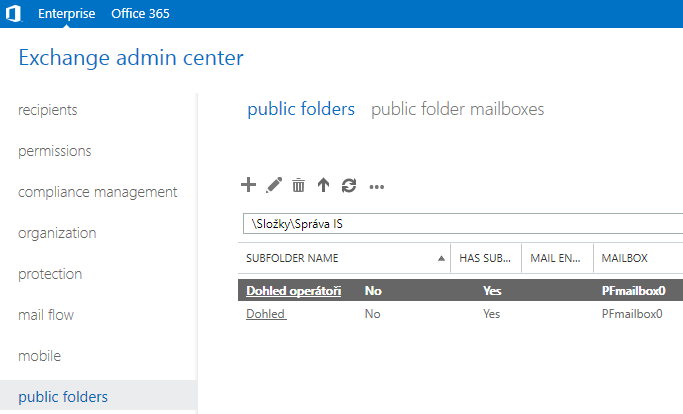
Public Folder Hierarchy
The structure (hierarchy) of PF looks similar to Exchange 2010.
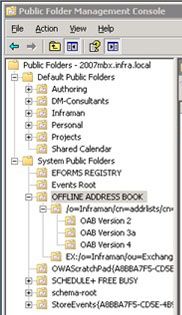
\- rootIPM_SUBTREE- contains the actual folders, the path is no longer used and is taken as the rootNON_IPM_SUBTREE- System Public Folders, in modern folders it contains only one subfolder DUMPSTER_ROOT, where for each folder its Dumpster is located, if an item in the content is deleted, it is moved to the Dumpster and remains there for a certain time before it is completely removed
If we want to list the NON_IPM_SUBTREE, we must call:
Get-PublicFolder -Identity \NON_IPM_SUBTREE -Recurse
Public Folder Quotas
Document Understanding modern public folder quotas.
Since PF mailboxes are located in the mailbox DB, the standard mailbox size limits (IssueWarningQuota, ProhibitSendQuota, ProhibitSendReceiveQuota) applied to the database are also applied to the mailbox. The default limit is about 2 GB, while in the mailbox there are usually a number of public folders that are larger in practice. Microsoft recommends setting the limit to 25 GB, up to a maximum of 100 GB.
By default, the UseDatabaseQuotaDefaults attribute on the mailbox is set to True and the quota set on the Mailbox DB is used. So we can change the setting on the database or set the limit directly on the PF mailbox. However, this is a limit on the size of the mailbox content and thus on all the public folders that are placed in it.
We can find information (including setting limits) using the Exchange Admin Center or Exchange Management Shell cmdlets Get-Mailbox | FT Name, UseDatabaseQuotaDefaults, Get-MailboxDatabase | FT Name, *Quota.
If we want to set the limit on individual public folders, we can do so globally in the organization settings (the default is unlimited).
[PS] C:\>Get-OrganizationConfig | FL DefaultPublic*

DefaultPublicFolderAgeLimit             :
DefaultPublicFolderIssueWarningQuota    : Unlimited
DefaultPublicFolderProhibitPostQuota    : Unlimited
DefaultPublicFolderMaxItemSize          : Unlimited
DefaultPublicFolderDeletedItemRetention : 30.00:00:00
DefaultPublicFolderMovedItemRetention   : 7.00:00:00
Or on individual public folders. If we create a subfolder, it inherits the parent's settings, but if we change the settings on the folder, it won't be overwritten on the subfolders. The size limit applies only to the given folder and not to the subfolders.
[PS] C:\>Get-PublicFolder \Folder | FL *Quota, MaxItemSize

ProhibitPostQuota : Unlimited
IssueWarningQuota : Unlimited
MaxItemSize       : Unlimited
The size of the public folder mailbox needs to be monitored to ensure it doesn't stop accepting mail. If it gets too full, some PF need to be moved to a new mailbox. This is mentioned in Public folder moves and then described for Exchange 2013 Move a public folder to a different public folder mailbox. The cmdlets New-PublicFolderMoveRequest and Move-PublicFolderBranch.ps1 or the prepared script Split-PublicFolderMailbox.ps1 are used. When creating a public folder, we cannot specify in which mailbox it should be created. So we can only subsequently move it.
On Exchange Online, automatic moving of PF and creation of new mailboxes occurs (from time to time) if they become too full. Info Modern public folders.
Send As Rights for Public Folder
An interesting feature is the limitation on configuration in the Exchange Admin Center, where we can set the Send As permissions.
- EAC - Exchange Admin Center
- Public Folders - Public Folders
- navigate to the required folder and select it
- click the pencil - Edit
- under Delivery Options Send As is set
Here, only accounts with email mailboxes are offered for addition.
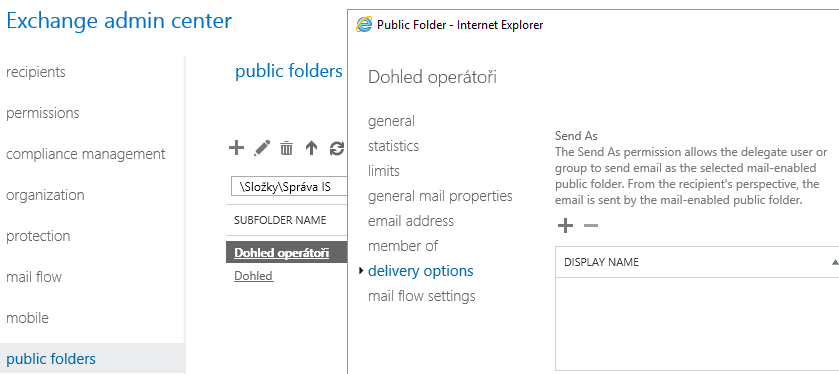
Using PowerShell, we can also add an account without an email. After adding, we will see the account in the EAC as well.
Add-ADPermission "Operations Managers" -User no.email -ExtendedRights "Send As"
Disappearing Addresses in PF Rules
On the public folder, we create a rule using the Folder assistant (e.g., forwarding messages from a certain recipient), where we use the From or Sent To field. There we manually enter (not by selecting from the list) an address. We save the rule and can test that it works. When we return to the Folder assistant or open the rule, the From field is empty.

The solution is to click the Check Names button after entering the address, and the address will be underlined and won't disappear anymore.
Viewing Public Folders in OWA
The web interface for accessing email was previously called Outlook Web App (OWA). On Exchange Server 2016, it was renamed to Outlook on the web. Access to Public Folders is now more complicated.
Public folders are displayed by adding them to the favorites.
- in the web interface, we have the mail displayed - Mail
- right-click on Favorites
- choose Add public folder to Favorites

- select the folder and click Add to Favorites at the top

Public Folder Migration
The migration of public folders is quite well described directly by Microsoft (although there are visible errors, such as copying texts between versions or migration types). The main article is Use batch migration to migrate Exchange 2010 public folders to Exchange 2016, but for some information, it's also good to look into
- Configure legacy public folders where user mailboxes are on Exchange 2013 servers
- Configure legacy on-premises public folders for a hybrid deployment
- Use batch migration to migrate Exchange Server public folders to Exchange Online
Additional migration descriptions on the internet:
- Exchange Server 2010 to 2013 Migration - Moving Public Folders
- STEP BY STEP MIGRATE EXCHANGE 2010 SERVICES TO 2016
- Migration to Modern Public Folders - Notes from the Field
- Legacy Public Folder Migration - Notes from the Field
During the migration from Exchange 2010 to Exchange 2016, we have a functioning organization with Exchange Server 2010, to which we have added new Exchange Server 2016 servers. For the transfer of public folders, it is important how user access works.
On Exchange 2010, we can only operate Legacy Public Folders, and on Exchange 2016 only Modern Public Folders. In the Exchange organization, only one type of public folders can be active, so we cannot use the new and old PF together. The migration must be done in one step (we can create only one Migration Batch) for all folders, and the switchover will occur instantly.
A user who has a mailbox on Exchange 2010 can only connect to Legacy Public Folders, not the new ones. If we set up coexistence (Exchange Server 2016 Public Folders coexistence), the user with a mailbox on Exchange 2016 is redirected to Exchange 2010 and can access the Legacy Public Folders (this only works from the Outlook application, not from OWA). After the switchover, they can access the Modern Public Folders. Therefore, we need to migrate mailboxes to Exchange 2016 first, and then public folders.
Rules on public folders (Public Folder Rules) are migrated along with the data and remain the same (they don't get the properties of mailbox rules). Permissions are also migrated. Before we start migrating PF, the Arbitration Mailbox must be moved to the new Exchange.
Public Folder Migration Procedure
The procedure is based on the article Use batch migration to migrate Exchange 2010 public folders to Exchange 2016. Only notes from the process are provided further.
- Download the migration script - Public Folders Migration Scripts
- Prepare for migration - create a current list of PF, check names, check that we haven't already performed migration and that there are no PF Mailboxes
- Generate CSV files
- Create Public Folder Mailboxes
- Create the migration batch and start the migration to the Synced state
- Lock PF on Exchange 2010 - until the migration is complete, PF are inaccessible
- Finalize the migration - final synchronization to the Completed state, PF are unlocked on Exchange 2016, can take several hours
- Test and unlock PF for user access
- the final step is removing PF databases from Exchange 2010 - Remove Public Folder Databases
Checking PF Replicas on Exchange 2010
If we have multiple (replicated) PF DBs, we should check that the DB from which we will migrate contains complete data. We can use the script Exchange 2010 Public Folder Replication Report V2 (updated).
.\Get-PublicFolderReplicationReportV2.ps1 -Filename PFreport.html
Removing PF Replicas and DBs
Optionally, we can now remove public folder replicas (databases). To be able to delete the public folder database, it must not contain any replicas. So we have to remove the replicas first. Remove Public Folder Databases
On Exchange 2010, we can list the replicas.
Get-PublicFolder -Recurse | FT Name, Replicas -AutoSize
Next, we'll use a script to move the replicas to another server where we already have a PF DB.
cd "C:\Program Files\Microsoft\Exchange Server\V14\Scripts"
.\MoveAllReplicas.ps1 -Server MailOld2 -NewServer MailOld1
Then we can delete the database.
- EMC - Exchange Management Console
- Organization Configuration - Mailbox - Database Management
- select the public folder database and click Remove
- confirm Yes
System Public Folders - \NON_IPM_SUBTREE
As we mentioned, only the Dumpster folder is used in Modern PF. When we list the current state, we may have a number of folders there. During migration, they are apparently not transferred at all, even though they appear in the migration list. I've thoroughly gone through them beforehand (see below) and deleted them.
Get-PublicFolder -Identity \NON_IPM_SUBTREE -Recurse
If we had previously migrated to Exchange 2010 from an older version, system folders that were no longer needed on 2010 may have been transferred. Exchange 2010 Understanding Public Folders
If we set up the use of the web version of OAB, it hasn't been used since Outlook 2007:
- OAB and Free/Busy information
They are no longer used on Exchange 2010 and we can delete:
- OWAScratchPad*
- StoreEvents*
- schema-root + subfolders
What we don't need, but deleting returns an error:
- Events Root
- OFFLINE ADDRESS BOOK
- SCHEDULE+ FREE BUSY
Apparently, the only folder that remains is:
- EFORMS REGISTRY
Checks on Exchange 2010
We'll save various information about the current state of PF.
Get-PublicFolder -Recurse | Export-CliXML Legacy_PFStructure.xml
Get-PublicFolderStatistics -ResultSize unlimited | Export-CliXML Legacy_PFStatistics.xml
Get-PublicFolder -Recurse | Get-PublicFolderClientPermission | Select-Object Identity,User -ExpandProperty AccessRights |
 Export-CliXML Legacy_PFPerms.xml
Get-PublicFolder -Recurse | FT -AutoSize > Legacy_PFlist.txt
Get-PublicFolder -Identity \NON_IPM_SUBTREE -Recurse | FT -AutoSize > Legacy_PFlist2.txt
If we have a slash in the name of a folder, we need to rename it (NON_IPM_SUBTREE shouldn't need to be handled).
[PS] C:\>Get-PublicFolderStatistics -ResultSize Unlimited | Where {($_.Name -like "*\*") -or ($_.Name -like "*/*") } |
 Format-List Name, Identity

Name     : EX:/o=Firma/ou=Exchange Administrative Group (FYDIBOHF23SPDLT)
Identity : 000000001A447390AA6611CD9BC800AA002FC45A0300DD113CE465279C4DB0B0DB8659D2AAA20000000000070000

[PS] C:\>Get-PublicFolder -Identity 000000001A447390AA6611CD9BC800AA002FC45A0300DD113CE465279C4DB0B0DB8659D2AAA20000000000070000

Name                                                      Parent Path
----                                                      -----------
EX:/o=Firma/ou=Exchange Administrative Group (FYDIBOH...  \NON_IPM_SUBTREE\SCHEDULE+ FREE BUSY
Check that migration hasn't already occurred.
[PS] C:\>Get-OrganizationConfig | FL PublicFoldersLockedforMigration, PublicFolderMigrationComplete

PublicFoldersLockedForMigration : False
PublicFolderMigrationComplete   : False
Checks on Exchange 2016
Get-PublicFolderMigrationRequest | Get-PublicFolderMigrationRequestStatistics -IncludeReport | Format-List
Get-MigrationBatch | ?{$_.MigrationType.ToString() -eq "PublicFolder"}
Get-Mailbox -PublicFolder
Generating CSV Files on Exchange 2010
The first script creates a list of public folders and their sizes.
.\Export-PublicFolderStatistics.ps1 FolderSize.csv mailold.firma.local
The second script takes the result of the first one, and based on the specified maximum size, divides the folders into mailboxes. The file always contains only the first folder that should go into the next mailbox (it seems strange). We can edit the result and adjust it according to our requirements.
.\PublicFolderToMailboxMapGenerator.ps1 15000000000 FolderSize.csv PFMailboxes.csv
Creating Public Folder Mailboxes on Exchange 2016
We can use the prepared script Create-PublicFolderMailboxesForMigration.ps1, which will automatically create mailboxes for PF. But if we want to divide the mailboxes more and maybe place them in multiple databases, I think it's better to create them manually. The first mailbox for public folders must have the HoldForMigration mode set.
New-Mailbox -Name PFmailbox1 -PublicFolder -Database DB-PF1 -HoldForMigration -IsExcludedFromServingHierarchy:$True
New-Mailbox -Name PFmailbox2 -PublicFolder -Database DB-PF2 -IsExcludedFromServingHierarchy:$True
If necessary, we can manually trigger the replication of the public folder hierarchy on all mailboxes.
Get-Mailbox -PublicFolder | Update-PublicFolderMailbox -InvokeSynchronizer
Check the state of the public folders.
[PS] C:\>Get-Mailbox -PublicFolder | fl name, *hierarchy*

Name                           : PFmailbox0
IsExcludedFromServingHierarchy : True
IsHierarchyReady               : True
IsHierarchySyncEnabled         : True

Name                           : PFmailbox1
IsExcludedFromServingHierarchy : True
IsHierarchyReady               : False
IsHierarchySyncEnabled         : True
The fact that only the first mailbox (primary) shows the IsHierarchyReady attribute as True is correct. The others will display this way when the new public folders are activated (the switchover occurs).
Creating the Migration Batch and Starting Migration on Exchange 2016
[PS] C:\>New-MigrationBatch -Name PFMigration -SourcePublicFolderDatabase (Get-PublicFolderDatabase -Server mailold.firma.local) `
 -CSVData (Get-Content PFMailboxes.csv -Encoding Byte) -NotificationEmails postmaster@firma.cz

Identity    Status  Type         TotalCount
--------    ------  ----         ----------
PFMigration Stopped PublicFolder 5

[PS] C:\>Start-MigrationBatch PFMigration
Note: If we now view the state of the public folder mailboxes, IsHierarchyReady should be True everywhere.
Locking PF on Exchange 2010 - Downtime Begins
We continue with this step only when all migration jobs are in the Synced state. We can verify this on Exchange 2016 in one of the following ways:
Get-MigrationUser -BatchID PFMigration | Get-MigrationUserStatistics
Get-PublicFolderMailboxMigrationRequest
Get-MigrationBatch PFMigration
Then we connect to Exchange 2010. We can verify the settings:
[PS] C:\>Get-OrganizationConfig | FL *public*

DefaultPublicFolderDatabase            :
PublicFolderContentReplicationDisabled : False
PublicFoldersLockedForMigration        : False
PublicFolderMigrationComplete          : False
PublicFolderDatabaseRetention          : 30.00:00:00
ForeignForestPublicFolderAdminUSGSid   :
We set the locking of public folders in the organization configuration, which will prevent access to Legacy PF.
Set-OrganizationConfig -PublicFoldersLockedForMigration:$true
I came across one piece of advice to speed up the start of the migration. Perform an IIS restart on Exchange 2010 to clear the cache.
iisreset /noforce
If the services only stop and don't start, then we run
NET START IISADMIN
NET START W3svc
Completing Migration on Exchange 2016
First, we set the PF type to Remote (which we have likely already done when setting up coexistence).
Set-OrganizationConfig -PublicFoldersEnabled Remote
Then we can let the public folder migration complete (final synchronization).
Complete-MigrationBatch PFMigration
The migration job status changes from Synced to Completing (which can take a long time) and to Completed upon successful completion. After the migration is complete, we can see the PF in the EAC - Public Folders.
Final Test of Public Folders on Exchange 2016
To test, we assign a user a public folder mailbox permanently and test if the usual operations on PF work.
Set-Mailbox -Identity bouska -DefaultPublicFolderMailbox PFMailbox0
In practice, it takes some time for the user in Outlook to see the migrated public folders. At first, the folders completely disappeared, then Outlook couldn't connect to them (it reported an error), and only after some time did everything work. They also need to download a new Autodiscover to be able to connect to the new folders. To speed this up, we can clear the cache in Outlook and restart the Autodiscover pool on the Exchange 2016 servers.
Restart-WebAppPool MSExchangeAutodiscoverAppPool
Before the migration, we saved various lists and information about the public folders. Now we can do the same on the migrated ones and compare.
Get-PublicFolder -Recurse | Export-CliXML New_PFStructure.xml
Get-PublicFolderStatistics -ResultSize unlimited | Export-CliXML New_PFStatistics.xml
Get-PublicFolder -Recurse | Get-PublicFolderClientPermission | Select-Object Identity, User -ExpandProperty AccessRights |
 Export-CliXML New_PFPerms.xml
Get-PublicFolder -Recurse | FT -AutoSize > PFlist.txt
Get-PublicFolder -Identity \NON_IPM_SUBTREE  -Recurse | FT -AutoSize > PFlist2.txt
Unlocking Public Folders
On Exchange 2016, we enable serving clients on the PF mailboxes.
Get-Mailbox -PublicFolder | Set-Mailbox -PublicFolder -IsExcludedFromServingHierarchy $false
On Exchange 2010, we set the flag that the migration is complete. This will allow mail delivery to Modern PF.
Set-OrganizationConfig -PublicFolderMigrationComplete:$true
On Exchange 2016, we set the PF type to Local.
Set-OrganizationConfig -PublicFoldersEnabled Local
For the user where we tested the migrated PF, we can restore the default setting.
[PS] C:\>Set-Mailbox -Identity bouska -DefaultPublicFolderMailbox $None
[PS] C:\>Get-Mailbox bouska | FL *public*

IsRootPublicFolderMailbox    : False
DefaultPublicFolderMailbox   :
EffectivePublicFolderMailbox : firma.local/Users/PFmailbox0
Removing the Old PF DB on Exchange 2010
The official documentation Use batch migration to migrate Exchange 2010 public folders to Exchange 2016 says to use the standard method Remove Public Folder Databases. But now we can no longer work with the original PF, so we can't move the replicas either. The individual databases can be deleted directly. When we delete the last PF DB, we'll get a warning that we confirm.
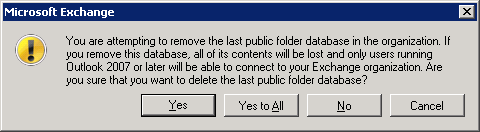
On the individual mailbox databases, we had the PF database assigned in the PublicFolderDatabase attribute. It is used only for Exchange 2010 and is zeroed out after removing the PF DB on Exchange 2010.
[PS] C:\>Get-MailboxDatabase | FT ID, Server, PublicFolderDatabase

Id        Server     PublicFolderDatabase
--        ------     --------------------
DB1       MAIL1      DBPF

[PS] C:\>Get-MailboxDatabase | FT ID, Server, PublicFolderDatabase

Id        Server     PublicFolderDatabase
--        ------     --------------------
DB1       MAIL1
It's not mentioned anywhere, but we can also remove the settings we made for PF coexistence. Remove the Proxy mailbox and database, and remove the settings.
Set-OrganizationConfig -RemotePublicFolderMailboxes $none
Manual Resubmission of Messages from the Queue
During the time when public folders were not available, messages were not delivered to them, but remained in the queue. According to the set parameters, they will be delivered after some time, but we can manually trigger the delivery.
[PS] C:\>Get-Queue

Identity           DeliveryType          Status MessageCount Velocity RiskLevel OutboundIPPool NextHopDomain
--------           ------------          ------ ------------ -------- --------- -------------- -------------
mail1\Shadow\11355 ShadowRedundancy      Ready  24           0        Normal    0              mail1.firma.local

[PS] C:\>Retry-Queue mail1\Shadow\11355 -Resubmit $true
There are no comments yet.