Note: The description in the article is based on FortiGate FG-300E with FortiOS version 6.2.9. It is configured as an FGCP cluster and uses VDOM.
I tried in vain to get user authentication for SSL VPN against Azure AD using SAML SSO working. Although I found videos where it works on FortiOS 6.2.x, communication with MS never started for me (it started working after upgrading to FortiOS 6.4.6). For testing, I tried using SAML for administrator login to FortiGate web management. This proved to be relatively simple and functional. However, documentation is quite difficult to find.
SAML and FortiOS
SAML stands for Security Assertion Markup Language. It's an open standard, based on XML, for exchanging authentication and authorization information between parties. These are generally referred to as Identity Provider (provides authentication - identity, here it's Azure AD) and Service Provider (provides the service we're logging into, here it's FortiGate). There's also a User Agent (typically a web browser) used by the user. SAML is often used for Web Browser SSO (Single Sign On).
According to information, SAML support was added to FortiOS from version 6.2.0. And it probably changed between versions 6.2.x, mainly the configuration options in the GUI. So the User & Device > SAML SSO item mentioned in many guides is not present for me. Similarly, I can't configure FortiGate Telemetry in Security Fabric > Settings, where SAML should be enabled, because I use VDOM. It probably standardized from FortiOS 6.4.0, but I don't have that available now. Fortunately, the setting in CLI is functional.
Added for FortiOS 6.4.6
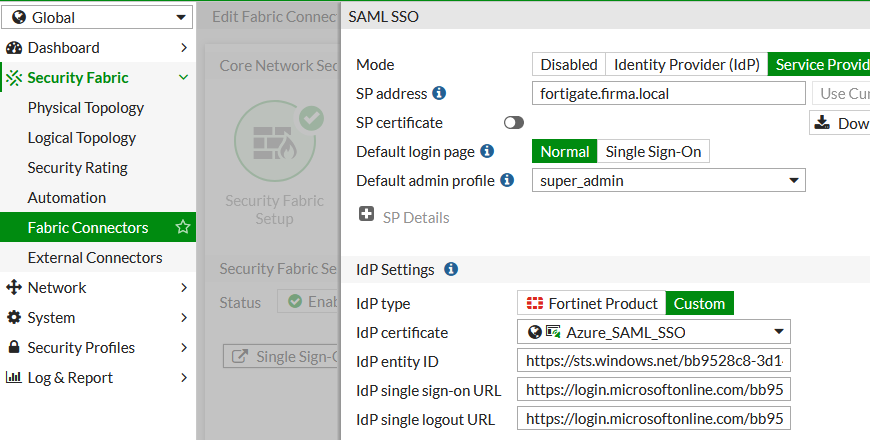
In the end, I upgraded to FortiOS 6.4.6, but I still don't have the GUI settings available. It should be located in Security Fabric > Fabric Connectors > Security Fabric Setup, but I don't have this item there. Probably because for Security Fabric (Security Fabric Prerequisites), either VDOM must be disabled or Split-Task VDOM mode must be used (I use Multi VDOM).
But I stumbled upon an interesting thing. When we click on the first image (Security Fabric Connection) on the Dashboard widget Security Fabric, there's a link to the settings. And this link works, and clicking on Single Sign-On Settings reveals the values set in the CLI.
Documentation
- FortiOS 6.2.0 Cookbook - SAML
- Technical Tip: Configuring SAML SSO login for FortiGate administrators with Azure AD acting as SAML IdP
- Technical Tip: Configuring SAML SSO login for FortiGate administrators with Okta acting as SAML IdP
- Configuring single-sign-on in the Security Fabric
- YouTube SAML SSO for Fortigate Administrators using Azure
Azure AD Configuration
General documentation can be found in Application management documentation. Some practical information can be used from the guide Tutorial: Azure Active Directory single sign-on (SSO) integration with FortiGate SSL VPN.
Creating a Non-gallery Enterprise application
- Azure Active Directory admin center - Enterprise applications
- New application - create a new application
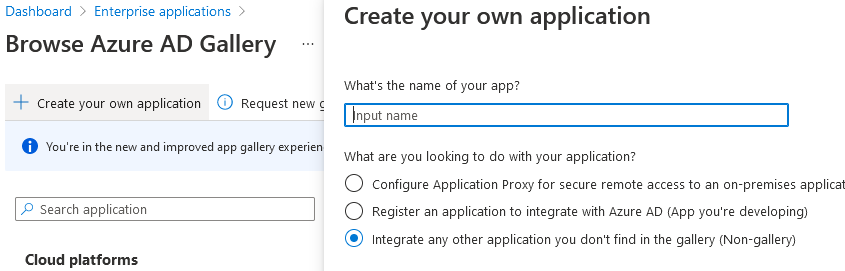
- Create your own application - we don't select an application from the gallery, but create our own
- choose Integrate any other application you don't find in the gallery (Non-gallery)
- enter a name (e.g. FortiGate Admin SAML) and Create
Assigning Users
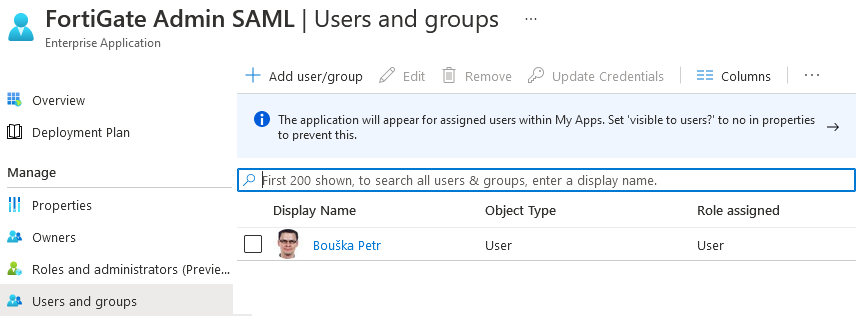
- under Manage click on Users and groups
- add Azure AD users or groups who will have admin rights on FortiGate
Setting up SAML SSO
- under Manage click on Single sign-on
- select SAML as the SSO method
We set up individual parts of the configuration by clicking on Edit.
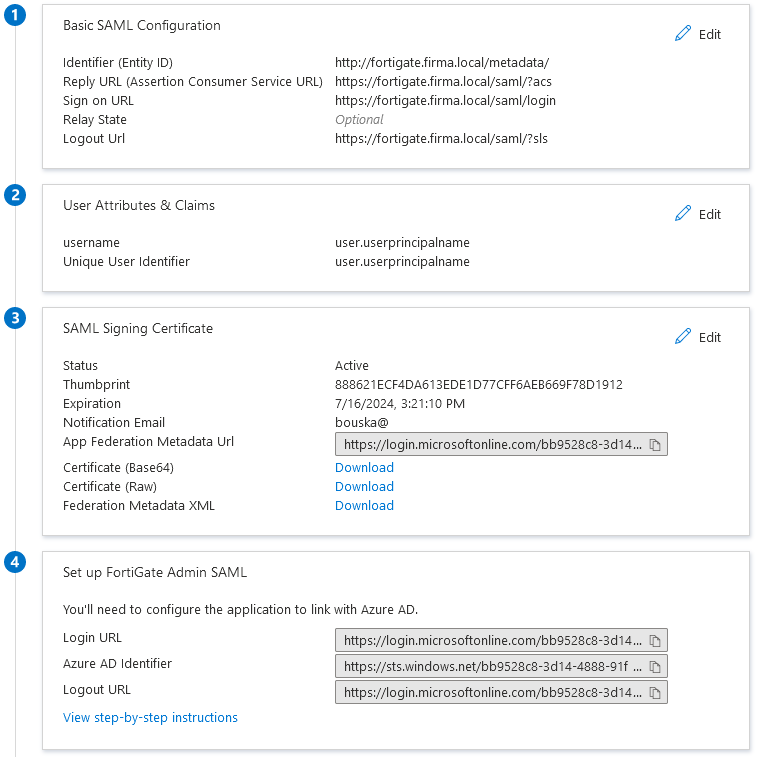
1 Basic SAML Configuration
We enter addresses pointing to the FortiGate administration interface. We can use IP addresses, but FQDN is better. It can be an internal (non-public) name and address. Where possible, Default must be checked. Below is an example of the fields to fill in (paths remain the same, we only change the hostname).
- Identifier (Entity ID):
https://fortigate.company.local/metadata/ - Reply URL (Assertion Consumer Service URL):
https://fortigate.company.local/saml/?acs - Sign on URL:
https://fortigate.company.local/saml/login - Logout Url:
https://fortigate.company.local/saml/?sls
2 User Attributes & Claims
- it may not be necessary, but it works when we leave only Unique User Identifier (Name ID) here and delete the rest
- then we add a new Add new claim, name
usernameand select the valueuser.userprincipalname
3 SAML Signing Certificate
- download and save the Certificate (Base64)
4 Set up FortiGate Admin SAML (the application name is used here)
- we'll need the values from here for setting up FortiGate
- these are Azure AD SAML addresses
FortiGate Configuration
Uploading the Certificate
- (Global/VDOM) > System > Certificates - Import - Remote Certificate
We upload the certificate that we downloaded from Azure AD. It gets an automatic name, which we can optionally change in the CLI.
FW (global) # config certificate remote
FW (remote) # show
config certificate remote
    edit "REMOTE_Cert_1"
    next
end
FW (remote) # rename REMOTE_Cert_1 to Azure_SAML_SSO
Configuring SAML Service Provider
In some FortiOS versions, we could use the GUI, but using CLI is a sure bet. We need various data from the previous steps, which we'll use in individual parameters.
config system saml
    set status enable
    set default-profile "super_admin"
    set idp-entity-id "https://sts.windows.net/bb9528c8-3d14-4888-91fd-baeeb2XXXXXX/"
    set idp-single-sign-on-url "https://login.microsoftonline.com/bb9528c8-3d14-4888-91fd-baeeb2XXXXXX/saml2"
    set idp-single-logout-url "https://login.microsoftonline.com/bb9528c8-3d14-4888-91fd-baeeb2XXXXXX/saml2"
    set idp-cert "Azure_SAML_SSO"
    set server-address "fortigate.company.local"
end
Some guides mention setting a certificate that FortiGate will use for communication. We don't have to set this (Azure AD reportedly doesn't check it). Otherwise, we can set any (although it would probably be better to use a trusted one).
set cert "Fortinet_Factory"
Brief meaning of individual commands:
status enable- enable SAMLrole service-provider- we use the default Service Provider roledefault-login-page normal- default setting where we can log in with username and password and there's a link for SAML SSO, if we setsso, everything redirects to SAMLdefault-profile- which admin profile a newly created user gets, by defaultadmin_no_accessis used (no access to GUI, we can manually set a profile for the user later)idp-entity-id- copied data from Azure AD step 4 Azure AD Identifieridp-single-sign-on-url- copied data from Azure AD step 4 Login URLidp-single-logout-url- copied data from Azure AD step 4 Logout URLidp-cert- name of the certificate we uploaded to FortiGate in the previous stepserver-address- FQDN (or IP) of FortiGate, must match the hostname we entered in Azure AD Basic SAML Configuration
Users (Administrators)
- (Global) > System > Administrators
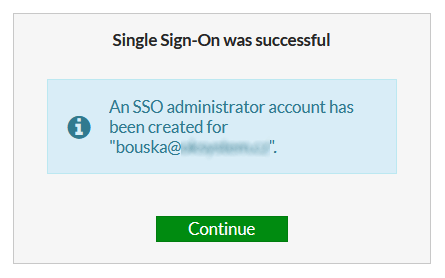
If an administrator with the given name doesn't exist, their SSO Admin account is automatically created at their first login. Alternatively, we can create it manually in the GUI Create New - SSO Admin or in the CLI.
HA Cluster Synchronization Problem
In practice, I encountered a problem. After a user logged in and their account was automatically created, the HA cluster reported out of sync and didn't synchronize even after some time. I found that the newly created user wasn't synchronizing to the secondary unit. When I logged into it and created the user manually, the status changed to synchronized.
config system sso-admin
    edit "bouska@company.com"
        set accprofile "super_admin"
        set vdom "root"
    next
end
Debug SAML
For troubleshooting, it's best to enable debug mode in the CLI for a specific area. The basic one is debugging the SAML protocol itself.
diagnose debug application samld -1
We can add debugging of the general Admin GUI to this. Optionally, we can enable time display for individual records. And we turn on debug overall.
diagnose debug application httpsd -1
diagnose debug console timestamp enable
diagnose debug enable
To turn off debug mode, we can use
diagnose debug disable
diagnose debug reset
Logging into FortiGate using SAML SSO
Once we enable SAML, the web login screen changes slightly. Next to the Login button, a link or via Single Sign-On is added.
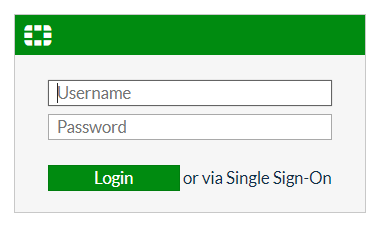
Clicking redirects to Azure AD authentication. We log in to Microsoft in the standard way. We enter, select, or the user (name) is automatically used, and we use the set verification method.

When authentication occurs, we are redirected back to FortiGate. If it was successful and there is no user with the given name, a new account is created with the set profile.
Azure AD Conditional Access
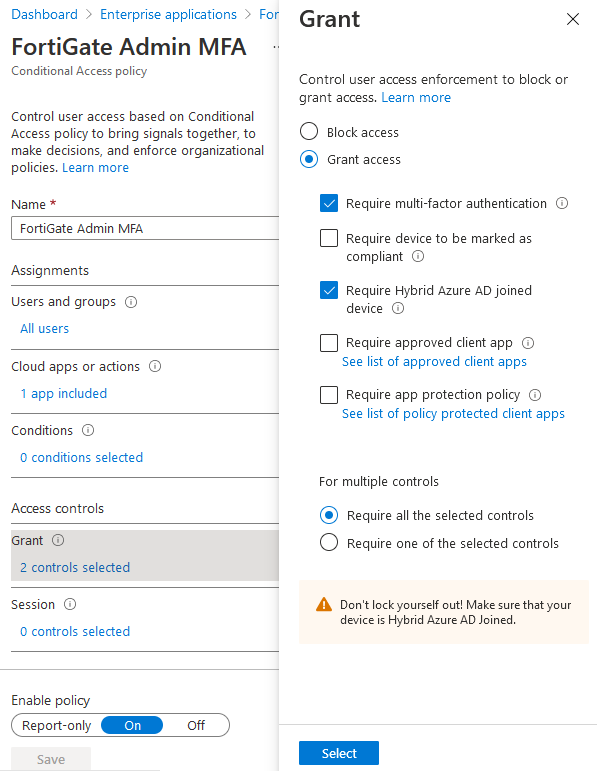
In Azure AD, we can use the Conditional Access Policy and set various special conditions for logging into the FortiGate interface (creating an Enterprise application). For example, we can require multi-factor authentication (MFA), allow connections only from certain IP addresses, or Hybrid Azure AD joined devices.
Note: It is important that the settings and changes to the Conditional Access Policy do not take effect immediately, but after 10 or 20 minutes. The Sign-ins logs are very useful, showing details of how the policies were applied. Entries in these logs appear after 3 to 5 minutes.
Creating a Conditional Access policy
- Open our Enterprise application (FortiGate Admin SAML)
- Under Security, click on Conditional Access and New policy
Note: If we create a policy here, it will automatically be limited to our application (set in Cloud apps or actions).
Policy configuration
- Users and Groups - select who it should apply to (most likely All users)
- Conditions - we can set various conditions, such as device platform and location
- Grant - we can control when access is allowed or denied; if we want multiple concurrent conditions, we must select Require all the selected controls at the bottom
- Enable Policy - On - activate the entire policy
- Save - save
Connecting only from selected devices
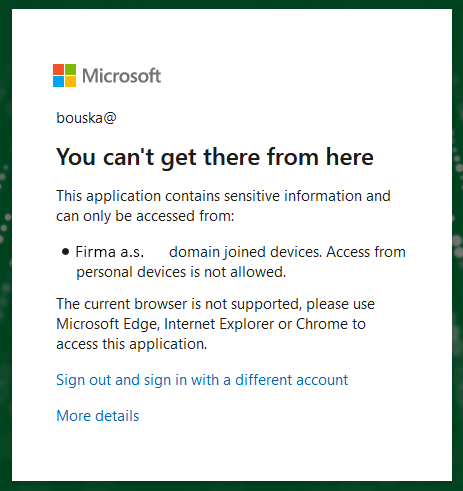
I like the option to allow connections only from corporate devices (Require Hybrid Azure AD joined device). However, there is a small problem if we log in using a web browser. Retrieving device information during login is supported only in Microsoft Edge or Internet Explorer. Alternatively, in Google Chrome after installing the Windows 10 Accounts extension. Firefox and others are not supported.
Note: New information on this topic is included in the article Fortigate SSL VPN with Azure AD MFA from computers in the domain.
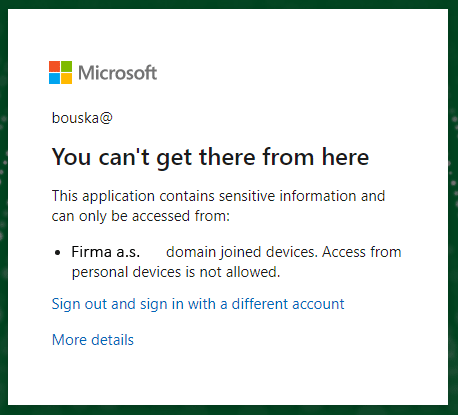
If the conditions are not met, information is displayed.
Opet paradni clanek ! Dekujeme :)
A jak je to s CLI pokud chci použít SSH?