
Note: The description in the article is based on the FortiClient EMS version 7.0.2. Compared to previous versions, there have been major changes (overall in version 7.0, in 7.0.2 the use of a certificate for client connection). A few changes have been added in version 7.0.3. We can read about the changes in FortiClient 7.0.0 - New Features.
Note: I often complain about Fortinet's documentation, and the documentation for FortiClient EMS is even worse. The menu items are vaguely described, but the principles of use, deployment recommendations, etc. are not addressed at all. My description is concise, many things are based on tests, and it focuses only on selected areas. The names FortiClient EMS and FortiClient already confuse me and make it difficult to search for information.
Note: After more than half a year of practical use, I have to write that I definitely do not recommend FortiClient EMS. The main slogan of FortiOS 7 is ZTNA, but it doesn't work at all on FortiOS 7.0.5 and FortiClient EMS 7.0.3. We bought EMS for the ZTNA tags, but after upgrading FortiOS, the transfer to FortiGate stopped working, so we haven't been able to use it for more than 3 months. There are many more issues, I have opened several support tickets. The problem is that if a person mentions multiple issues in one ticket, they choose one and don't even address the others. Issues include not being able to delete invitations, the FortiClient Shutdown feature not working (even though it's enabled in the policy), and the FortiClient disconnecting from EMS after an upgrade via EMS Deployment (this doesn't happen when the manually downloaded installer is run).
FortiClient EMS
Documentation
- FortiClient 7.0.2 - EMS Administration Guide
- Fortinet Video Library - FortiClient EMS
- FortiClient Endpoint Management Server Demo
- Endpoint Protection with FortiClient EMS
Features
The EMS server enables a number of things (probably more than I'll list), but some not very well:
- deployment of FortiClient to endpoint stations (the limitations and requirements don't appeal to me much, so I don't use the deployment)
- upgrade of already installed FortiClient (this is fine, except for the strange configuration)
- creating customized installers
- connection to the AD DS domain (I don't like this much either)
- setting policies that can assign different profiles within the company and outside the company
- creating profiles that configure individual FortiClient components
- FortiClient regularly sends telemetry data (endpoint telemetry) from the station to EMS, based on which tags can be created and passed on to FortiGate
- FortiClient can check vulnerabilities in applications (Vulnerability Scan) and in some cases fix them, EMS manages and displays everything
- FortiClient can use FortiGuard Web Filtering
Licensing
For each client (Fortinet Fabric Agent) we need a license. These are entered on the FortiClient EMS and when a client registers, it consumes one available license. Without a license, the client only works for a limited time. There are several types of licenses, and they offer different features. The on-premises EMS server itself does not need to be licensed.
It is possible to activate a Trial license, which includes 3 agents. I struggled quite a bit with the transition from the Trial license to a commercial one.
Possible Use - VPN Connection from Company Device
Fortinet provides the free FortiClient VPN client for remote connection to the company (VPN tunnels). For a similar purpose, we can use the VPN/ZTNA Edition license. It gives us additional central management (keeping the FortiClient version up-to-date, configuring VPN connections and agent behavior) and the ability to use Zero Trust Tags (previously known as Host Tag - Compliance Verification Rules). It also supports the (now widely advertised) ZTNA tunnels.
In the article FortiGate SSL VPN login using SAML SSO against Azure AD, I described that if we use Azure AD MFA (Multi-Factor Authentication) for VPN login, there is a problem with identifying company computers. We can use the EMS server and Zero Trust Tags for this. The tags are passed on to FortiGate as a list of IP addresses and can be used in Firewall policies.
It's not as simple or user-friendly as being able to set VPN connection parameters and not allowing connection from non-company devices. When using Zero Trust Tags control, the user always connects to the VPN. FortiClient regularly evaluates the rules (Zero Trust Tagging Rule) and sends telemetry data to EMS (typically every minute). EMS assigns the client's IP addresses to a Tag and synchronizes it to FortiGate. We need to use separate connections for company and non-company devices and assign addresses from different ranges to each. The policy that allows VPN communication contains the user and the Tag from EMS. If the conditions on the client change, it is quickly removed from the Tag and the communication stops working.
Deployment and Installation
Topology - Where to Place the Server
An important question that the documentation does not address at all. Where in the network to place the EMS server. The optimal location is where it is accessible (Telemetry port) to clients even from the internet. So the DMZ network would be the best option. To connect to the AD DS, communication with the domain controller is required. For the initial deployment of clients, even SMB and RPC are needed, which no one wants to open in the DMZ. So the optimal answer must be found by each individual.
Interesting information can be found in the discussion FortiClient EMS Topology?.
Installing the EMS Server
We download the installation file from the Fortinet Customer Service & Support website, in the Support - Downloads - Firmware Download section, where we can find FortiClientEMS and the version. For example, the file FortiClientEndpointManagementServer_7.0.2.0123_x64.exe with a size of about 500 MB. It is installed on a Windows Server. Requirements System requirements.
Brief Course of Action:
- run the installer
- the installation proceeds automatically (it also installs SQL Server 2017 Express)
- log in to the web interface as admin without a password
- set a password
- enter the license or Trial (log in to FortiCloud)
Note: If we want to change some of the main parameters (such as the admin interface port), we need to run the installation with command line parameters.
Upgrading the EMS Server
Upgrading from an earlier FortiClient EMS version
- download the new version
- run the installer
- we don't get any information that it's an upgrade, but it completes in a few minutes
- the application server (EMS) restarts and the new version loads
License Configuration
Licensing EMS by logging in to FortiCloud
- the license must be activated on the Fortinet Customer Service & Support website
- we choose whether it's an Upgrade/Renewal or a New Registration, when a Trial license was used, we likely need to use Renewal, when I chose a new registration, two devices with the same HW ID were created on the portal and the license synchronization from EMS reported an error (did not complete)
- the Hardware ID from EMS (Dashboard > License Information widget > Config License) is entered there
What to do when two products are created with the same Hardware ID:
- Asset - Product List - copy the S/N of the one we want to remove
- More Views - Decommissioned Units - click Add and add the device
- then the license synchronization from EMS will work again
Required Ports for Communication
Inbound Communication to EMS
- 443 - admin interface and connection from FortiGate
- 8013 - FortiClient Telemetry, client connections
- 10443 - client download
- 8015 - when FortiOS connects as a client?
If we want to change the port for the admin interface, we can only do so during installation, which we must perform from the command line - Installing FortiClient EMS using the CLI.
Outbound Communication from EMS
- 636 - LDAPS
- 25 - SMTP
- 443 - HTTPS update to FortiGuard servers
Connecting FortiClient EMS to FortiGate (FortiOS)
- FortiOS 7.0.1 - FortiClient EMS
- FortiOS 6.4.6 - FortiClient EMS
- FortiClient 7.0.2 - Configuring FortiOS 6.4 dynamic policies using EMS dynamic endpoint groups
Brief Procedure
- create a certificate
- upload the PFX (certificate with private key) to the EMS server
- (it's probably not necessary, it's loaded automatically and we authorize) upload the certificate to FortiGate (CA Certificate)
- on FortiGate - Security Fabric > Fabric Connectors - create a FortiClient EMS connector
- on EMS - authorize the request (Fabric Devices)
- on FortiGate - check the connector, possibly authorize the certificate
Replacing the Certificate on EMS, Must Be Replaced on FortiGate
If we replace the certificate on the EMS server, the connector on FortiGate will report as unauthorized. When we look at the connector configuration, we see that the certificate is stored similar to REMOTE_Cert_1.
config endpoint-control fctems
    edit "FortiClientEMS"
        set server "10.8.8.10"
        set certificate "REMOTE_Cert_1"
    next
end
We can either manually replace the certificate or delete the current one and trigger loading of the new (or also check) certificate from EMS.
FW (global) # config endpoint-control fctems
FW (fctems) # edit "FortiClientEMS"
FW (FortiClientEMS) # unset certificate
FW (FortiClientEMS) # end
FW (global) # execute fctems verify FortiClientEMS
...
EMS configuration needs user to confirm server certificate.
Do you wish to add the above certificate to trusted remote certificates? (y/n)y

certificate successfully verified/configured.
Basic EMS Settings
EMS Administration Guide - Left Pane
- System Settings > EMS Settings - IP, name, ports, certificate
- System Settings > SMTP Server - mail server
- Administration > Administrators - admin accounts, possible LDAP connection
- Administration > Log Viewer - logs
- Administration > Fabric Devices - connected FortiGate and other devices
- System Settings > Feature Select - we can hide features we don't use, which also turns them off in the configuration
Some Settings in EMS Settings
- System Settings > EMS Settings
- Use SSL certificate for Endpoint Control - new feature in version 7.0.2, uses an SSL certificate for communication with clients on port 8013, it is supported from at least FortiClient 6.4.7 and 7.0.2
- Listen on port - the port on which clients connect, default 8013
- Enforce invitation-only registration for - normally any client can connect by providing the correct server address for Telemetry, here we can restrict to using an invitation (Invitation), after the change, clients that don't meet the condition will disconnect
- FortiClient telemetry connection key - the key that needs to be entered when connecting to EMS on the client
Clients - Endpoints

LDAP Connection to AD DS Domain
- Endpoints > Manage Domains
We define an LDAPS connection to the domain controller, from which data is synchronized at the specified interval. For me, it's quite confusing. We can't define selected OUs, but everything is loaded in the optionally specified path (DN). The only option is to create multiple domain configurations for each OU. In the data, we see the number of loaded devices and users (but they are suspiciously few).
Groups
In general, we can use either devices in the domain (under Domains) or standalone (under Workgroups). In both places, we can create groups and assign devices to them (policies are applied to the groups). In the domain, we can use the loaded LDAP groups, which are read-only. Or we can create our own EMS groups. Under Workgroups there is a default group Other Endpoints.
It all seems very confusing to me and it's hard to find anything. When I did various experiments with domain settings (changes to Distinguished name), it all broke down and the created groups disappeared.
Automatic Group Assignment
- Endpoints > Group Assignment Rules
We can create rules where, based on certain parameters (Installer ID, IP address - subnet or range, and OS), devices are automatically placed in a specific group.
According to the documentation Group assignment rules, I would understand that the rules can be used for both groups in the domain and workgroup. When creating, only Workgroup groups are offered. I asked the Support and the answer was that it is only for non-Domain devices. (Group Assignment Rules are mostly applicable for non-Domain computers. AD Group tag is an option that allows you to sort Domain devices. However, Installer ID, IP, and OS do not allow you to)
Invitations
- Endpoints > Invitation
For the client to connect, we can enter the server address and port or use an invitation code. The invitation contains the server address, among other things. Restricting client connections to only invitations is recommended as more secure. The invitation can be sent by email and contains a link that performs the client activation (connection), or a link to install FortiClient.

The invitation can be Individual, which can only be used once. If the user disconnects from EMS (Disconnect), it cannot be used again. Or Bulk, which has no defined number of uses. We can delete a used invitation without affecting the clients.
Installer ID
In the Group Assignment Rule we can use the Installer ID to assign a device to a group. This can be entered in the Deployment Packages (FortiClient Installer) or as a parameter when running the installation.
msiexec /i forticlient.msi GROUP_TAG=<installer_ID>
FortiClientSetup.exe /v"GROUP_TAG=<installer_ID>"
Endpoint Management
- Endpoints (Managing endpoints)
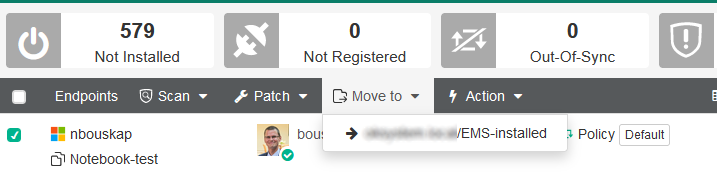
In the client list, we can filter in various ways and perform operations with clients. Using Move to, we can move clients to the created groups.
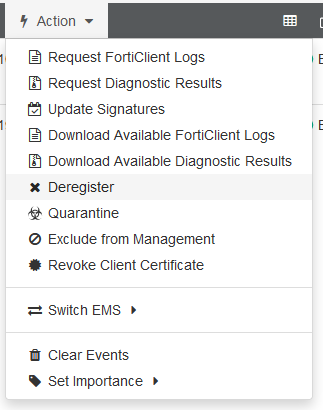
Under Action we have various operations, some of which are:
- Deregister - disconnects FortiClient from EMS (in the next FortiClient Telemetry communication), it can be reconnected manually in FortiClient
- Quarantine - places the endpoint in quarantine, if it has Application Firewall, it blocks access to the network
- Exclude from Management - disconnects the client and blocks it, so it cannot reconnect, it doesn't consume a license
Deployment & Installers
FortiClient Installer
- Deployment & Installers > FortiClient Installer = Deployment Packages
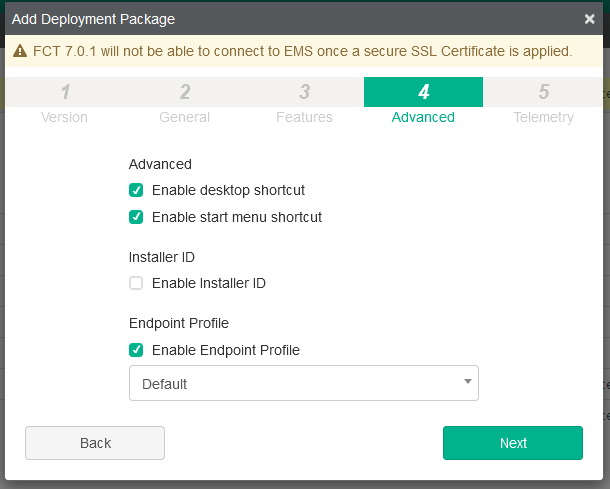
First, we choose whether it's an official version (official release), which is downloaded from the FortiGuard Distribution Servers (FDS), and the Release and Patch. Or a custom installer, where we can use an installation downloaded from Customer Service & Support. We need Windows 32bit and 64bit (zip files) and possibly Mac (dmg file).
We further define the components (properties) to be installed. We can assign a profile, Installer ID. It is automatically managed by the EMS server (Telemetry). We can download the installer and use it anywhere.
The choice of Keep updated to the latest patch will allow EMS to create a new package with the latest patch every time. The version is Release.Patch, the last digit is the patch.
If I install FortiClient on a computer where FortiClient VPN was installed, experience shows that it is necessary to first uninstall the old version, perform a restart, and then install the new one. When the installation was simply started, the old version was also removed, but various problems occurred.
Deployment Management
- Deployment & Installers > Manage Deployment = Deployment Configuration
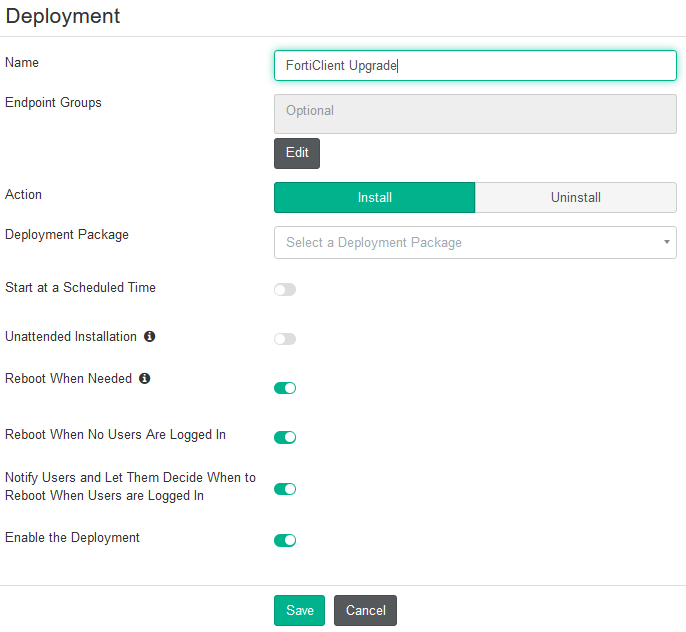
FortiClient deployment can perform installation, upgrade or uninstallation. For the initial installation, many conditions must be met and it only works for Windows. If we already have the client (and it's connected to EMS), everything works simply and better. We select the group and the installer. It either starts immediately (after enabling) or at a scheduled time, but we can only set the time, not the date or day.
Automatic FortiClient Upgrade
Deploying FortiClient software to endpoints, Deploying FortiClient upgrades from FortiClient EMS
- create a Deployment Package - Deployment & Installers > FortiClient Installer
- create a Deployment Configuration - Deployment & Installers > Manage Deployment
- assign the group where the upgrade should take place (Endpoint Groups)
- action Install, select the Deployment Package
- set the parameters (start, reboot...)
- user account (Username, Password) must be entered, but is only used for installation on computers where FortiClient is not yet installed (another note When using workgroups, the deployment configuration credentials in Deployment in FortiClient EMS are not taken into account)
- enable Enable the Deployment
- if we don't set a Start at a Scheduled Time, it will start immediately (after a few minutes)
- when the client connects to EMS, the installation will be done immediately (if we didn't set a time) and a window will pop up asking if we want to restart now or later (again based on the settings)
New FortiClient versions appear in EMS later than they are available for download from Support. On the FortiGuard Distribution Servers (FDS), they are provided about 10 days later. That's the answer I got from support.
Note: This again shows the quality of Fortinet's support. EMS still doesn't offer FortiClient 7.0.2, so I looked it up and in the FortiClient 7.0.2 Release Notes it states that this version is intentionally not available from FDS. The certificate checking is changing there. And they seem to have a bug, after the upgrade it doesn't connect to the EMS server (even though the trusted certificate is there). You need to disconnect and reconnect (and if a password is required for disconnection, you can't disconnect because the given password doesn't work).
FortiClient Uninstallation
For FortiClient to be uninstalled in Windows Programs, it must first be disconnected from EMS.
Profiles and Policies
Endpoint Profiles
- Endpoint Profiles > Manage Profiles
Using a profile we configure the client. We enable individual components and set their behavior. In the System Settings section, we set FortiClient globally. For some items, we need to switch to Advanced mode. We can modify the Default profile, which is applied to clients that are not assigned a different profile.
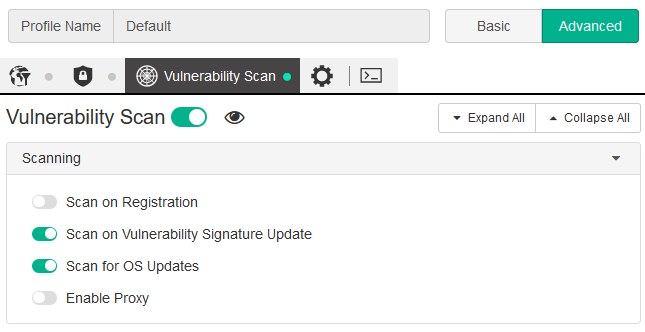
FortiClient EMS 7.0.3 brought a change where the shared profile was split into separate parts for Remote Access, Web Filter, System Settings, etc. Separate endpoint profiles
Endpoint Policy
- Endpoint Policy & Components > Manage Policies
Using the policy, we apply the profile to a specific group. By default, we select the endpoint group, but we can also add a user group from AD DS (FortiClient management based on Active Directory user/user groups). In the overview, the Profile column shows how the application is made to the clients.
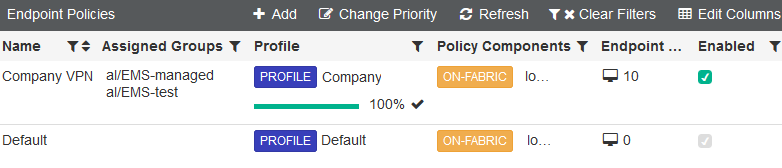
In FortiClient EMS 7.0.3, we assign individual profiles for the allowed features.
On-fabric Detection Rules
- Endpoint Policy & Components > On-fabric Detection Rules
We can define rules to determine whether a client is connected to the company network. Based on this, we can apply a different policy. We can check the DHCP server, DNS server, EMS connection, local IP/subnet, default GW, ping IP, public IP, Ethernet or WiFi connection, connected to a specific VPN tunnel. If we define multiple rules, they must all be met.
After creating the rules (Rule Set), we need to set in a certain policy that this detection should be used.
Zero Trust Tags
On EMS, we can define rules (Zero Trust Tagging Rule) that assign a specific tag to the endpoint. EMS then dynamically groups clients (Endpoints) with the same tag. FortiGate can use these dynamic groups (FortiClient EMS Tag) to create dynamic FW policies. The behavior changed with FortiOS 6.4.
FortiClient downloads the defined rules from EMS and evaluates them on each Telemetry communication (every minute). And passes the result back to EMS. Changes to the network or logout/login (as well as VPN connection/disconnection) are evaluated immediately and sent to EMS. The Tag is (immediately) synchronized from EMS to FortiGate.
It seems that in FortiClient EMS 7.0.2 there was a bug 728318 ZTNA tags sync to FortiOS is delayed. This was fixed in FortiClient EMS 7.0.3 EMS Release Notes. When updating the Tag on EMS, it often took several minutes for the Tag to change on FortiGate. Apparently, this problem affected me more after upgrading FortiGate to FortiOS 7.0.5 (from 6.4.8).
The Tag is really a list of IP addresses (and a second variant is a list of MAC addresses), which we can use in the policy as a source or destination. If the conditions on the client change, the Tag is removed and the address is updated on FortiGate after a while. The policy then stops working for that address.
Tags on FortiGate are classified among the special dynamic addresses (Addresses) and the name begins with the EMS serial number (I'd like to change this to a different text, but it's probably not possible). There are also a number of default Tags that we don't see on EMS.
When using Tags, it's important to remember that FortiClient must be connected to the EMS server. If the connection doesn't work, the client disappears from the given Tag.

Transferring Tags to FortiGate
It's important to note that by default, only the device addresses that are directly connected are transferred (and enforcement is required) to FortiGate. That is, they have FortiGate as their Default Gateway. But we can change this in Administration > Fabric Devices, where we edit FortiGate and enable Share tag info from all FortiClients.
If we use tags for VPN, it would be ideal if only the VPN interface address was passed. But if I didn't check to use all clients, I didn't get any addresses. So I don't really understand how the default behavior is supposed to work.
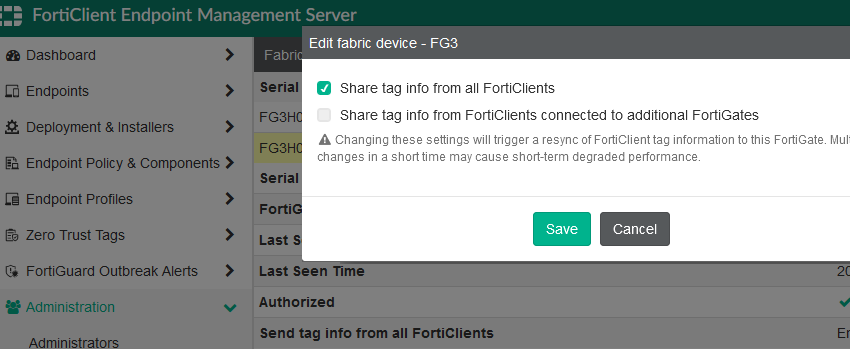
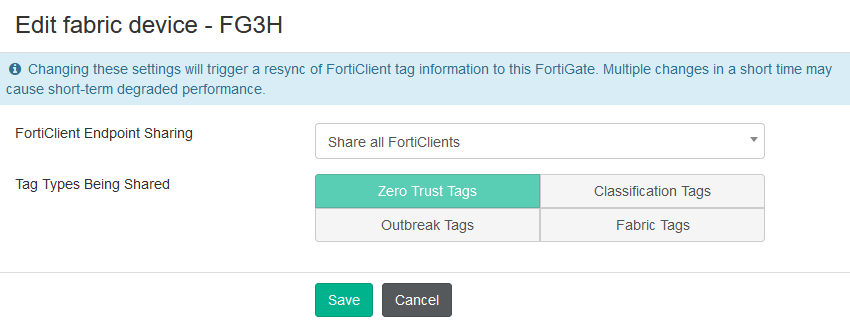
The setting changed again in FortiClient EMS 7.0.3. Instead of checkboxes, we select between
- Share all FortiClients
- Only share FortiClients connected to this fabric device (Recommended)
- Share FortiClients connected to selected fabric devices
But unlike in EMS 7.0.2 where (after checking) all client IP addresses were transferred in the Tag, now it's irrelevant which of the first two options I choose, but only the IP addresses from the VPN interface (which is what I ultimately wanted) are transferred.
Another new feature is that we can select the Tag category to synchronize (Zero Trust Tags are mandatory). Tag management and visibility improvement
Zero Trust Tagging Rules
- Zero Trust Tags > Zero Trust Tagging Rules
We define the name of the rule and the assigned tag. Further, one or more rules (Rules). By default, all rules must be met, but we can evaluate using AND and OR. We can define various rules, the basic division is by OS. We can use connection to EMS, registry check, file, IP addresses, user, running process etc.

Overall, there is no precise description of how to define the individual rules. Their capabilities are also limited. I wanted to identify the presence of a certificate, but that didn't work at all (even with the simplest entry) and the definition is very inadequate for real-world use (much worse than on FortiGate).
For managing the created Tags, click on Manage Tags in the top right.
Zero Trust Tag Monitor
- Zero Trust Tags > Zero Trust Tag Monitor
Here we see the active Tags and the clients that meet the rules. In FortiClient EMS 7.0.3, the Tags are divided into categories.
Using Tags on FortiGate 6.4
- FortiClient 7.0.2 - Configuring FortiOS 6.4 dynamic policies using EMS dynamic endpoint groups
- Synchronizing FortiClient EMS tags and configurations
In FortiOS 6.2, Tags were inserted into the user group. In FortiOS 6.4, Tags are addresses.
Using in FortiOS 6.4 is simple and functional. Synchronized Tags are visible among the addresses in Policy & Objects > Addresses in the group FortiClient EMS TAG (IP Address) and FortiClient EMS TAG (MAC Address). Hovering over the Tag displays the details and the list of addresses. The name starts with the EMS serial number.
We can also see the addresses in the configuration.
config firewall address
    edit "FCTEMS0000114746_Critical"
        set uuid 8a9d6b12-0648-51ec-4eb9-5149cb90bc45
        set type dynamic
        set sub-type ems-tag
    next
end
Here is the full English translation of the HTML-formatted text:
In the policy (Firewall Policy), we use the Tag simply. We insert it as the source (Source), where it is among the addresses (Address).

config firewall policy
    edit 10
        set name "VPN to Local"
        set uuid e07f3a5e-00dc-52ec-a3b6-68de24f5913d
        set srcintf "ssl.FW"
        set dstintf "LocalZone"
        set srcaddr "FCTEMS0000114746_company"
        set dstaddr "InternalNetwork"
        set action accept
        set schedule "always"
        set service "ALL"
        set logtraffic all
        set groups "G VPN"
     next
end
Using Tags on FortiGate 7.0.5
In FortiOS 7.0, the overall ZTNA functionality was added, which uses the HTTPS Access Proxy. There are ZTNA Servers and ZTNA Rules components, and ZTNA Tags are used. Overall, there were further changes in FortiOS 7.0.2 FortiOS 7.0.2 Release Notes - Changes in default behavior. We then don't have to use the Firewall Policy at all. But there is a usage option that is functionally the same as on FortiOS 6.4.
We need to enable (VDOM) > System > Feature Visibility - Zero Trust Network Access.
The synchronized Tags are visible in Policy & Objects > ZTNA - ZTNA Tags. The displayed name no longer contains the EMS serial number, but the CLI configuration still uses the same SN_name and it's the same object. Hovering over the Tag displays the details including the EMS SN, there is usually a count of corresponding endpoints, but it doesn't match reality. There is a View Resolved Addresses button. We can also create a Tag group.
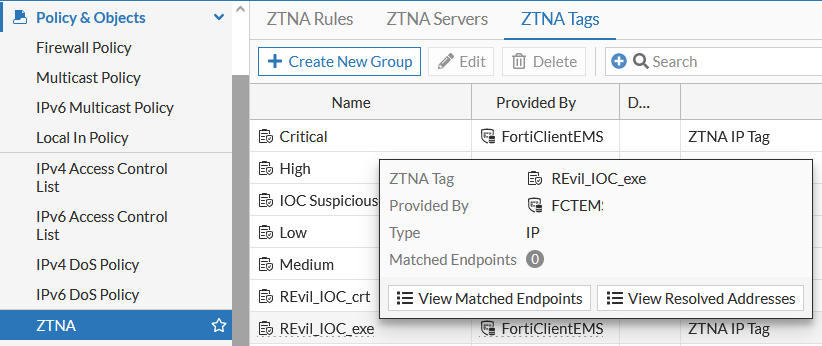
In the policy (Firewall Policy), a new item IP/MAC Based Access Control appeared, which allows IP/MAC filtering using the ZTNA tag (IP/MAC filtering with ZTNA tags). We can use All as the source address and filter using the Tag. Whenever I add a ZTNA Tag in the GUI and save it, SNAT gets enabled. This seems like a bug to me. I have to reopen the policy and disable NAT.

config firewall policy
    edit 10
        set name "Test VPN with ZTNA"
        set uuid e07f3a5e-00dc-52ec-a3b6-68de24f5913d
        set srcintf "ssl.FW"
        set dstintf "LocalZone"
        set action accept
        set ztna-status enable
        set srcaddr "VPNpool"
        set dstaddr "InternalNetwork"
        set ztna-ems-tag "FCTEMS0000114746_test"
        set schedule "always"
        set service "ALL"
        set logtraffic all
        set groups "G VPN"
     next
end
Note: I ran into a problem that I'm currently working with support on. As long as there are a few IP addresses in the Tag, the policy works correctly. But as soon as the number increases (maybe to 20), the policy doesn't apply
FortiOS - Deleting a Dynamic Address (EMS Tag)
It can happen that we are left with invalid Tags (perhaps from an old EMS) on FortiGate. A small trick is needed to delete them.
FW (FWINT) # config firewall address
FW (address) # edit "FCTEMS0000114746_Critical"
FW (FCTEMS0000114746~cal) # unset type
FW (FCTEMS0000114746~cal) # next

The IP address is set to 0.0.0.0/0 which means all IP addresses.
Type 'y' to confirm or 'n' to input an IP address.
 (y/n)y

FW (address) # delete "FCTEMS0000114746_Critical"
FW (address) # end
FortiOS - Information and Debug
- ZTNA troubleshooting and debugging (one piece of information differs in an otherwise identical article ZTNA troubleshooting and debugging)
We can list the dynamic addresses (ZTNA Tags) and they contain IP/MAC addresses.
diagnose firewall dynamic list
Similarly, we can display the addresses only for a specific Tag.
FW (FWINT) # diagnose firewall dynamic address FCTEMS0000114746_company

FCTEMS0000114746_company: ID(84)
        ADDR(10.20.100.11)
Total IP dynamic range blocks: 1.
Total IP dynamic addresses: 1.
List of endpoint records. Presumably, there should be various learned devices including EMS. We can filter by IP address or use | grep.
diagnose endpoint record list
Connectivity check to a specific EMS server.
diagnose endpoint fctems test-connectivity FortiClientEMS
Display connection information to EMS.
diagnose test application fcnacd 2
Enable debug mode for the FortiClient NAC daemon (fcnacd), which handles the connection between FortiGate and EMS, including timestamp display for individual records. If we use VDOM, we need to run it in Global.
diagnose debug app fcnacd -1
diagnose debug console timestamp enable
diagnose debug enable
When troubleshooting with support, they also added:
diagnose endpoint filter show-large-data yes
To disable debug mode, we can use:
diagnose debug disable
diagnose debug reset
Restart the FortiClient NAC daemon (fcnacd). (options are listed by pressing ENTER)
diagnose test application fcnacd 99

FW (global) # diagnose test application fcnacd
1. dump debug flag
2. dump EMS info
3. reinit fcems
4. unset report version
5. schedule host_tags call
6. set all notif
7. dump ztna cache
8. dump route cache
9. disable rest api
10. enable rest api
11. force terminate WebSocket connections
12. dump long lived socket clients
13. retry all rest-apis immediately
99. restart
I upgraded FortiGate from 6.4.8 to 7.0.5 (and later FortiClient EMS to 7.0.3) and the use of ZTNA tags in the policy stopped working. Support advised a restart of fcnacd. When I did this, the authorization of FortiGate on EMS was canceled and the overall behavior worsened. So I deleted the connectors and created them again (now the restart doesn't cause any problems). The setting Share all FortiClients vs. Only share FortiClients connected to this fabric device started working for me. But it still doesn't work overall, I'm continuing to troubleshoot with support.
During the support call, the technician used the following command to check the iprope list for policies.
diagnose firewall iprope list 100004
An error was displayed on the policy with the ZTNA tag, which is supposed to be a known bug.
ztna-ems-tag address (1): ERROR: Tried to convert non-legacy firewall address to legacy format!
Securing the Connection to the EMS Server
By default, any FortiClient can connect to the server. You just need to know the server address and possibly the port (if it's not the default). So there must be a free license on the EMS. We have two options to further secure this.
- connection to EMS can be protected by a key - System Settings > EMS Settings - FortiClient telemetry connection key
- connection to EMS using an invitation, cannot connect by entering the address, but must use (preferably) a one-time individual code - System Settings > EMS Settings - Enforce invitation-only registration for
If we use EMS to identify company devices for VPN access, we can use a simple Zero Trust Tags with the rule EMS Management - FortiClient installed and Telemetry connected to EMS. And make sure that only company devices connect to EMS. For additional security, we can move clients to groups.
- the Default Profile has most things blocked (like VPN), the client must be manually (or using Group Assignment Rules) placed in a special group that assigns the policy with allowed VPN
- we can pre-move company computers in the domain to the given group, so that the correct policy is immediately applied after installing the client and the client can start working right away
Hello,
Did you manage to fix this issue ?
ztna-ems-tag address (1): ERROR: Tried to convert non-legacy firewall address to legacy format!
Thx,
Tib
[2] According to Fortinet, this is a known bug that should be fixed in FortiOS 7.0.6.
Synchronizace IP adres klientů do dynamických skupin mi přestala fungovat po upgrade FortiClient EMS na verzi 7.0.3. Zvláštní však je, že problém se vyskytuje pouze na jednom FortiGate z celého SecurityFabric (celkem 4 FG, všechny na FortiOS 6.4.9).
Po řešení věci s podporou a testování všemožných oprav mi byl doporučen upgrade FortiOS na 7.0.6.
Co jsem za roky spravy Fortinet produktu zjistil a mam to ted potvrzene i supportem, tak se nedoporucuje pouzivat patche 1-5 v produkci. Behem prvnich peti patchu vzdy jeste pridavaji neco navic, neco meni atd.. az od patche 6 (napr. 7.0.6) se zabyvaji jen opravou bugu a nevyvijeji ten OS dal. Tzn, stable verze. Plati to pro vetsinu produktu od Forti.
Ahoj, máš zkušenosti se získáním EMS tagů ve Fortimanageru? Jde mi o to, že jsem právě vyčetl EMS tagy lokálně z EMS na FTG pomoci fabric connector a mám s nimi na FTG vytvořena pravidla. Když ale z Fortimanageru pošlu policy na FTG (Fortimanager běžné používám a držím v něm veškerou databazi pravidel a objektů) tak se mi pravidla s EMS tagy smažou. Potřeboval bych proto dostat dynamický objekt s EMS tagy do databáze Fortimanageru a odtud aplikovat pravidla.
Moc díky, na Samuraj-cz.com vždycky najdu skvělé zdroje, když se peklím s naší Fortinet infrastrukturou.