Note: The description in the article is based on FortiGate FG-300E with FortiOS version 6.4.6, which is configured as a FGCP cluster and uses VDOM.
The entire solution is quite simple, quickly deployed, and well-documented. So here we will focus more on various pitfalls and shortcomings, and on the description of real behavior.
Introduction and Documentation
The basis is to have a functional SSL VPN, a configured NPS server, and a created RADIUS connection from FortiGate. Before proceeding with the next steps, it is necessary to verify that the VPN is working and that users from the AD DS domain are authenticated via RADIUS. These things have been described in previous articles, primarily:
Microsoft has a nice description of the integration of NPS with Azure AD MFA. But when reading only the VPN description, we do not learn about various limitations (we need to look into other articles in the section).
- Integrate your VPN infrastructure with Azure AD MFA by using the Network Policy Server extension for Azure
- Integrate your existing Network Policy Server (NPS) infrastructure with Azure AD Multi-Factor Authentication
We can also find some instructions (after a more complex search) at Fortinet.
Microsoft NPS Extension for Azure MFA
Before we start planning the installation and use of the NPS Extension, we need to know how the entire solution works and what the known shortcomings (design limitations) are.
Choosing the NPS Server
When we install and configure the NPS extension for Azure MFA on a specific NPS server, all RADIUS client authentications (to this server) require the use of MFA. So if we use this server for other RADIUS authentications where we don't want to use MFA, we're out of luck. I would expect that MFA would be turned on for individual Network Policies, but after installation, it is activated globally.
The solution is to install a new NPS server where only MFA will be used. Fortunately, the NPS role can be installed on any Windows Server. If we already have a configuration in place, we can use export/import.
There is also a certain possibility in the registry to set that MFA will only be used for users with activated Azure AD MFA. Description Install and configure the NPS extension, Prepare for users that aren't enrolled for MFA.
HKLM\SOFTWARE\Microsoft\AzureMfa:REQUIRE_USER_MATCH
Just a mention, whether IP exceptions could be used.
Supported MFA Authentication Methods
Overall, Azure AD Multi-Factor Authentication (MFA), and the supported methods for the second authentication factor, have been described in the article
When we want to use the NPS Extension for Azure MFA, we can only use some methods under certain conditions. In principle, it is not possible to use the Microsoft Authenticator app sign-in, that is, Passwordless Phone sign-in, where the user password is not entered.
Furthermore, it depends on which authentication method (Authentication Method) we use between the RADIUS server and the client. Supported are
- EAP (Extensible Authentication Protocol) - only together with MSCHAPv2 (Microsoft Challenge-Handshake Authentication Protocol version 2) or PEAP (Protected EAP) - is the most secure, FortiGate does not support it here
- MSCHAPv2 (Microsoft Challenge-Handshake Authentication Protocol version 2) - contains several weaknesses
- PAP (Password Authentication Protocol) - is considered a weak authentication scheme, it is unencrypted
All RADIUS authentication methods support the MFA method of voice call (phone call) and Microsoft Authenticator notification (mobile app notification). In these cases, no input is required in the second authentication step. Approval occurs in Azure AD and the information is received by the NPS server. The problem is with methods where verification code input is required.
Only the weakest PAP supports all MFA methods. In addition to the previous two, it adds SMS (phone text message), OATH Hardware Token and mobile app verification code. After verifying the username and password, the RADIUS server sends the client a special RADIUS Reply-Message message (Enter Your Microsoft verification code) and requires further input.
In case verification code input is required, the RADIUS client must support this and display an input field to the user. FortiClient has no problem with this.
Official description Determine which authentication methods your users can use.
Transferring RADIUS Attributes to the Client
There is another problem when we meet the previous conditions. If we want to use an MFA authentication method that requires verification code input, we use PAP. So even if the authentication is successful and the NPS server responds that the verification was successful, it does not pass the configured RADIUS attributes (RADIUS attributes) in the Network Policy to the RADIUS client (FortiGate).
In practice, this most often means that the group assignment that we subsequently use on FortiGate is not passed on. The logged-in user is therefore not assigned to the group that has communication within the VPN allowed. And therefore, they cannot log in.
Basic Conditions and Principle of NPS Extension for Azure MFA
To be able to use this solution, we must meet some main conditions
- operate an On-Premises AD domain
- synchronize users to Azure AD
- users must have MFA enabled and set up (https://aka.ms/mfasetup)
- installed Network Policy Server (NPS) - Windows server with installed Network Policy and Access Services (NPAS) role
During authentication, the first factor is verified against the On-Premises AD and only the second against the Azure AD. We must have the same users in both ADs and they are compared by default by User Principal Name (UPN). If we used a different attribute (for Azure AD username) than UPN during synchronization, we must set it in the registry. Description Alternate login ID.
HKLM\SOFTWARE\Microsoft\AzureMfa:LDAP_ALTERNATE_LOGINID_ATTRIBUTE
SSL VPN Authentication Flow
- User (VPN client) logs in to the SSL VPN on FortiGate and enters username and password
- FortiGate (RADIUS client) sends a RADIUS
Access-Requestmessage to the NPS server (RADIUS server) - NPS verifies the primary authentication (username and password) against AD DS (if NPS policies are met)
- if authentication fails, NPS responds with a RADIUS
Access-Rejectmessage - if it is successful, it forwards the request to the NPS extension, which performs the secondary authentication with Azure AD MFA
- Azure AD MFA retrieves data from Azure AD and performs the secondary authentication using the method the user has set up, in case of success it returns a Security Token containing an MFA claim (issued by Azure STS)
- if the verification is successful (and the connection is overall authenticated and authorized), the NPS server sends a RADIUS
Access-Acceptmessage
The course of Azure AD MFA depends on the authentication method used. With notification or phone call, MFA waits for user confirmation (or timeout) and then returns a response to the NFS extension. If it's SMS or an OATH token, the NFS extension returns a message that further validation is required. The NFS server passes this information to the RADIUS client and waits for a response (verification code). If it arrives, it is verified in Azure AD MFA.
RADIUS Protocol Behavior - Repeated Messages
RADIUS uses the UDP protocol. If the VPN server (FortiGate) does not receive a response within a certain time (timeout), it assumes that the request did not reach the RADIUS server (NPS) and sends it again. In standard authentication, the NPS server responds immediately, but in the case of MFA, it waits for a certain user action, which can take longer. The NPS server identifies further requests from the VPN server as duplicates and discards them.
When we look at the NPS server logs (Event log), we can see many of these discarded requests. This is normal behavior. Official description RADIUS protocol behavior and the NPS extension. The messages indicate the reason for discarding the request.
The request was discarded by a third-party extension DLL file.
Microsoft recommends increasing the timeout on the VPN server to 60 seconds or more. FortiGate has a default value of 5 seconds and recommends setting it to 30 seconds.
config user radius
    edit "Firma RADIUS"
        set timeout 30
    next
end
I estimate (perhaps I'm wrong) that the global timeout for remote authentication should also be increased.
config system global
    set remoteauthtimeout 60
end
Installation and Configuration of NPS Extension for Azure MFA
Installation
- Download the NPS Extension for Azure MFA from the Microsoft website
- Run the file
NpsExtnForAzureMfaInstaller.exeand go through the short wizard
Configuration
Configuration involves running a PowerShell script that creates a self-signed certificate based on the specified Tenant ID and assigns the public key to the Service Principal in Azure AD.
- Run Windows PowerShell as an administrator
If the Microsoft Azure Active Directory Module for Windows PowerShell (MSOnline) is not installed on the server, the script will first install it. The NuGet provider is also required for this. If we get an error that it failed to download, the most common problem is that we don't have TLS 1.2 enabled in the .NET Framework. We can enable it using
[Net.ServicePointManager]::SecurityProtocol = [Net.SecurityProtocolType]::Tls12
- Run the script
PS C:\> cd "c:\Program Files\Microsoft\AzureMfa\Config"
PS C:\Program Files\Microsoft\AzureMfa\Config> .\AzureMfaNpsExtnConfigSetup.ps1
- First, a login dialog will appear, and we must sign in as an Azure AD administrator
Connecting to Microsoft Azure. Please sign on as a tenant administrator.
- Then we need to enter the Tenant ID (we can find it in the Azure Active Directory admin center - Overview)
Provide your Tenant ID For Self-Signed Certificate Creation:
- The setup will be completed, and the NPS service will be restarted
From this point on, the extension is active and performs the second verification in Azure MFA.
Checks, Tests, and Troubleshooting
Network Policy Server
Using the Event Viewer (or PowerShell), we can check the logs
- Network Policy and Access Services is located in the Custom View - Server Roles
- NPS Extension for Azure MFA is located in the Application and Services Logs - Microsoft - AzureMfa (mainly AuthZ - AuthZOptCh)
More info View Event Viewer logs for successful sign-in events, Troubleshooting.
FortiGate
We have described the RADIUS tests on FortiGate in the article FortiGate RADIUS authentication, groups and MS NPS in the section Troubleshooting (debug) RADIUS.
Authentication against the RADIUS server can be tested in the GUI. We expand our server and use the Test User Credentials button. But it is fully functional only for notification or phone call methods. If a verification code needs to be entered, only the information More validation is required is displayed, but we don't get a field to enter the code. We see the message from the RADIUS server
AVP: l=40 t=Reply-Message(18) Value: 'Enter Your Microsoft verification code'
If we perform the test in the CLI command, the entry of the verification code also works. In that case, we see that the RADIUS attributes (such as group assignment) are not passed on. If we don't have the PAP mechanism set up, the connection will end with Failed (no response).
FW1 (FWINT) # diagnose test authserver radius "Firma RADIUS" pap bouska Heslo
Enter Your Microsoft verification code******
authenticate 'bouska' against 'pap' succeeded, server=primary assigned_rad_session_id=228953860 session_timeout=0 secs
idle_timeout=0 secs!
FortiClient SSL VPN Login with NPS Extension for Azure MFA
Notification in the Mobile App or Phone Call
These are the most usable MFA authentication methods. In FortiClient, we typically log in with a username and password (we can also have a client (computer) certificate set up). The connection starts, but stops at 45%.
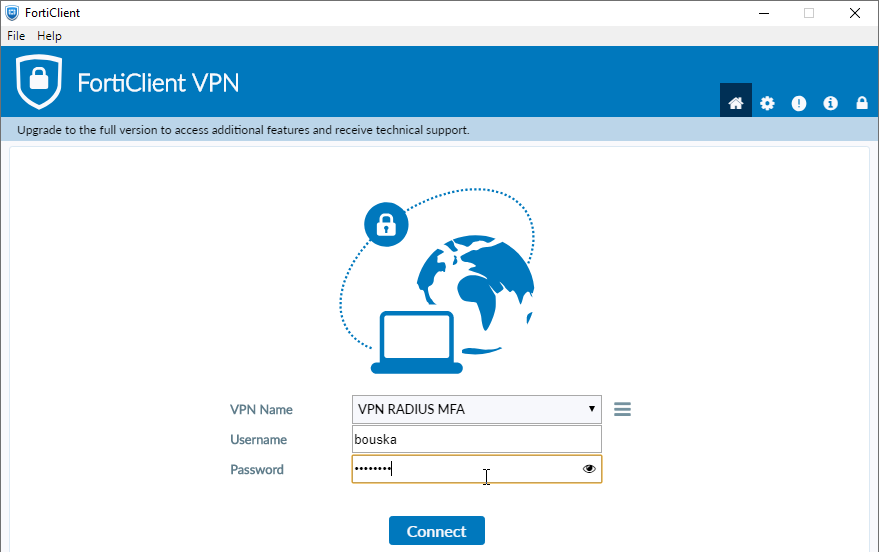

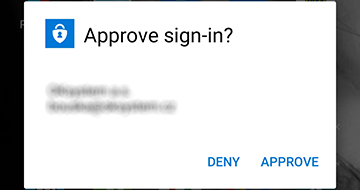
If we have notification verification set up, we'll get a login approval notification on our mobile phone.
If we have selected phone call, we'll receive an automatic call from Microsoft Authentication. It will tell us to confirm the login by pressing the # key. If everything is fine, the login will be completed, and we'll be connected to the VPN.
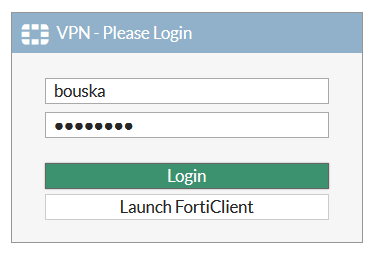
The login to the web VPN behaves a bit worse. After submitting the login dialog (Login), the appearance doesn't change, so I don't know if anything is happening. But after confirming the notification or phone call, the login is completed.
Verification Code - SMS, Mobile App Code, or Hardware Token
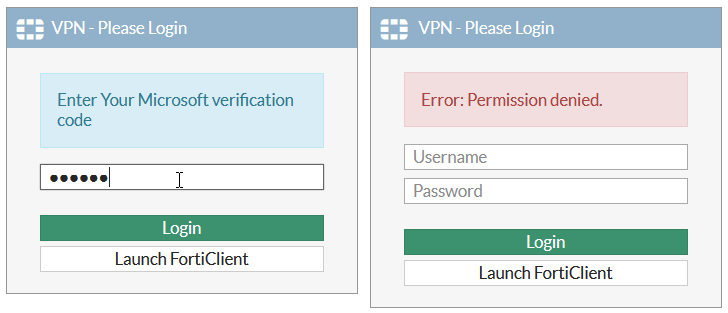
The login starts normally, and when it reaches 45%, a message (passed from the RADIUS server) is displayed, and an "Answer" field is added.
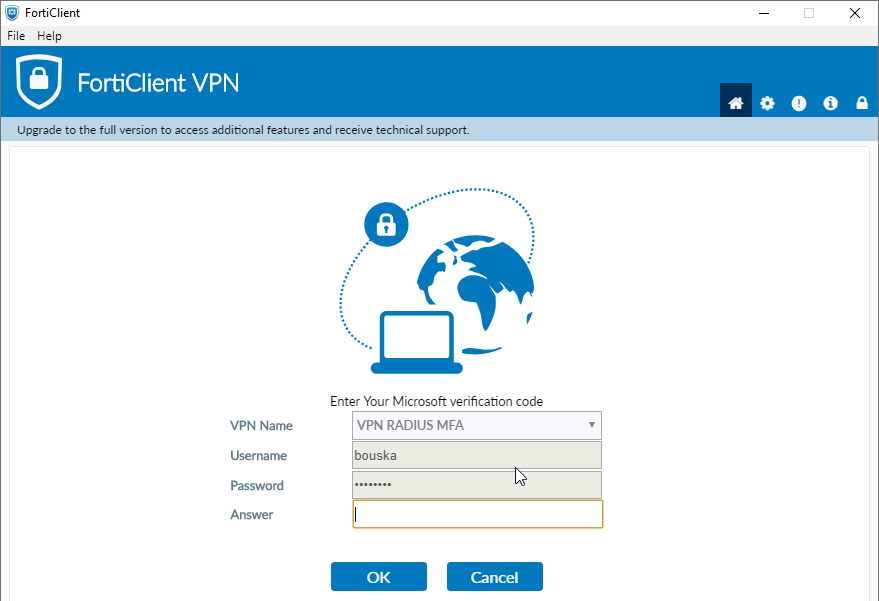
If we enter the correct code from the SMS, app, or HW token, the login will be completed, and we'll be connected to the VPN.
The disadvantage, compared to the standard Azure AD MFA login dialog (and SAML use), is that we don't see the details. For example, that an SMS was sent to our phone or we should use the code from the app. Similarly to the previous cases, that we're waiting for confirmation in the app.
As we mentioned, these MFA authentication methods only work with RADIUS authentication PAP. If we have something else set up, the FortiClient will display a field to enter the verification code, but after sending it, we'll move to 50% and nothing happens. The authentication will eventually expire, and it will also display a misleading error RSA new pin wrong. (-7201).
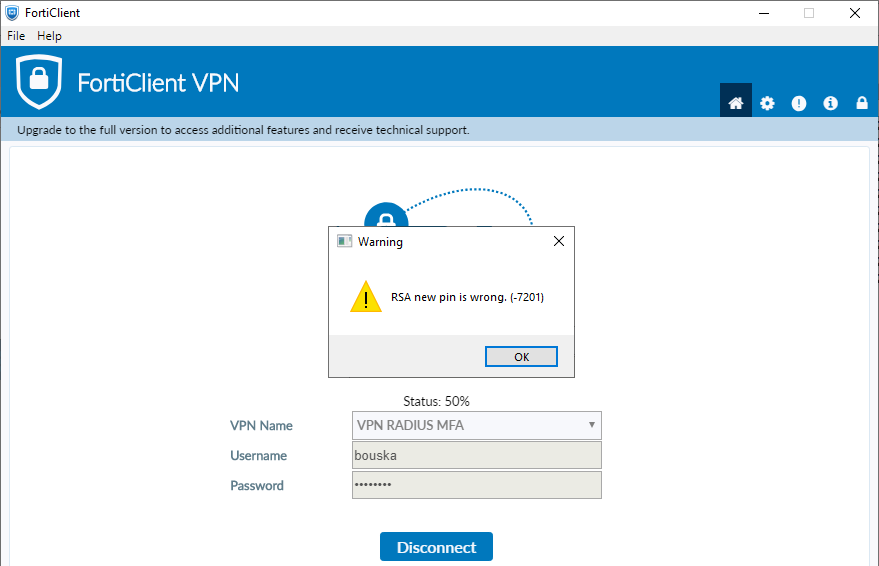
If we use PAP, but from the RADIUS server we pass the user's group that allows access to the VPN, the connection will also not pass, but the error will be displayed quickly. In the case of connecting to the web VPN, it looks a bit better.
very useful. Thanks
Je stále funkční pouze s PAP nebo se něco zlepšilo?;-)