Office Customization Tool
For basic configuration of the MS Office suite, the Office Customization Tool is a suitable tool, which is part of the installation and can be launched by calling setup.exe /admin. Using it, we can create a configuration file Setup customization (.msp) that will be used during installation. However, we are not going to cover that here, so just a link to the MS information Office Customization Tool in Office 2010.
Administrative Templates for MS Office
If we want to use Group Policy to configure applications from the MS Office suite, we need to download the templates (Administrative Templates) for the corresponding version. The description and download link for the Office 2010 version is at Office 2010 Administrative Template files (ADM, ADMX, ADML) and Office Customization Tool. We'll download the self-extracting archive, for example AdminTemplates_64.exe, and extract it somewhere on the disk. It includes both the older ADM templates and the newer ADMX templates (for Windows Server 2008 and Windows 7).
Note: The templates are only used to create policies, so if we have an administrative station with Windows 7 (or perhaps a DC with Server 2008), we can use the ADMX templates, even if we have Windows XP computers in the network.
ADMX templates should be copied to the Central Store in the domain \\FQDN\SYSVOL\FQDN\policies\PolicyDefinitions (FQDN is the fully qualified domain name) if we use one. Or locally to the path c:\Windows\PolicyDefinitions. If we need to use ADM, we load the templates when creating the policy.
The description of the entire issue from MS is in the article Enforce settings by using Group Policy in Office 2010. The list of properties that we can manage for Outlook 2010 is in the article Determine which features to enable or customize in Outlook 2010.
Outlook Policies Using the Template
Using Group Policy, we can control many properties of the Outlook application, but certainly not all. What we cannot set, MS often says we should not set, but practice demands the opposite. For example, we can set the default email message format to HTML, but we cannot define the font. In addition, we cannot prevent users from changing the parameters in a new message.
Setting the Default Email Format
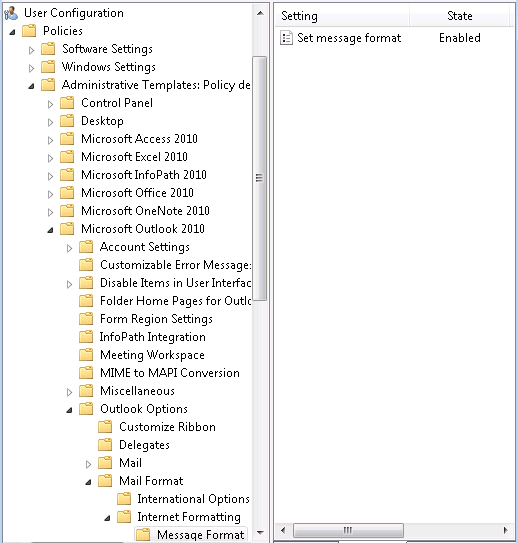
When we want to create a policy that sets the default email format to HTML and does not allow users to change this default format (as is common for policies), we create a new policy in the standard way. The settings can only be done for users. We navigate to the item User Configuration/Policies/Administrative Templates/Microsoft Outlook 2010/Outlook Options/Mail Format/Internet Formatting/Message Format. Here there is a single item Set message format, which we enable and set to HTML. We then link the policy to the container with the users to whom we want to apply the setting.
Outlook Policies Using the Registry
Values that we cannot set using the template, we can still set by directly writing to the registry (the template doesn't do much else). In this case, the users remain able to change the given value, but the next time the policy is applied, it will be overwritten.
Setting the Default Email Font
So, for example, if we want to set the default font for emails, we can use registry settings. It's best to set the desired values on a computer and then look in the registry where this setting is stored HKEY_CURRENT_USER\Software\Microsoft\Office\14.0\Common\MailSettings. Then we create a policy (preferences) and in the path User Configuration/Preferences/Windows Settings/Registry enter the Update of the individual keys in the registry. We select the Hive HKEY_CURRENT_USER, the Key Path Software\Microsoft\Office\14.0\Common\MailSettings, and the Value name for the individual items. We enter the font values as REG_BINARY, they must be in the correct format (for example, we export from the registry and remove the commas from the values).

Outlook, Group Policy, and PowerShell
We still have some settings that we can't manage using the above methods.
Setting Calendar Sharing
One common example is setting calendar sharing for the entire company. The user sets it in Outlook, but it's actually a setting on the Exchange server and the user account. On Exchange Server 2010 we already have a PowerShell command for this setting (Set-MailboxFolderPermission), but on Exchange Server 2007 we don't, so we can use PFDavAdmin for manual configuration. The only automated method I've found is using
There are no comments yet.