
Logging Certification Authority Events
If we enable auditing on the Certification Authority (CA), the events will be recorded in the standard Windows Security Event Log. Enabling logging is a two-step process. First, we choose which events we want to track, then we need to enable the logging itself.
Setting Up CA Event Auditing
- open the Certification Authority snap-in for MMC
- right-click on the name of our CA and choose Properties
- switch to the Auditing tab
- here we choose the events we want to record
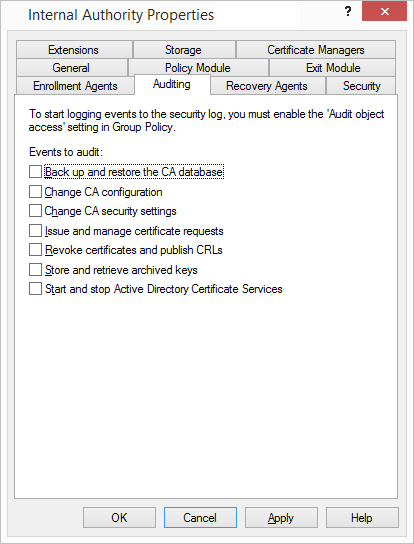
Subsequently, we need to restart the CA, perhaps again in the context menu of the authority All Tasks - Stop Service and then Start Service.
Enabling Auditing
Even though we have set up the events we want to record above, logging will not start. We need to set it up using the audit policy, which we configure in the local or domain Group Policy. We'll show an example on Domain Group Policy, where we need to choose a GPO that is applied to the server running the CA.
- start Group Policy Management
- create a new, or open an existing, policy in Group Policy Management Editor
- navigate to Computer Configuration/Policies/Windows Settings/Security Settings/Local Policies/Audit Policy, where we enable Audit object access
- or better, on newer Windows (from Windows Server 2008 R2), navigate to Computer Configuration/Policies/Windows Settings/Security Settings/Advanced Audit Policy Configuration/Audit Policy/Object Access, here we set Audit Certification Services (usually Success and Failure)
Now we need to wait or manually force the policy to be applied, and the events on the CA should start being logged.
Viewing the Events
The events are stored in the Security log, which usually contains a large number of different events. So we need to know how to select what interests us. The list of Event ID for an authority running on Windows Server 2008 R2 is in the article Audit Certification Services. These are the Event ID range from 4868 to 4898, for example, ID 4887 is the issuance of a certificate and ID 4888 is the rejection of certificate issuance.
A simple solution is to set a filter. We right-click on the Security log and choose Filter Current Log. We can set the Event ID that interests us (e.g., the entire range 4868 - 4898) or choose the Event sources as Microsoft Windows security auditing, and the Task category as Certification Services. Then we will see all the events related to the CA.


Permissions on the CA
A small note from another area. The Certification Authority is considered an important security element. Permissions can be controlled in many ways, where we have a number of roles such as Certificate Manager, CA administrator, Enrollment Agent, and others. We can use Role-Based Administration.
The main permissions are set up simply directly on the authority. For example, if we want to give a user the right to view all the CA parameters (without being able to change anything), we can do that as follows. The user will then use the Certification Authority snap-in, which they can install on the workstation from Remote Server Administration Tools (RSAT).
- open the Certification Authority snap-in for MMC
- right-click on the name of our CA and choose Properties
- switch to the Security tab
- here we add the user (or better, a group) and set the Read permission
There are no comments yet.