In the MS Outlook calendar, we can create events (Appointment) and meetings (Meeting). A meeting differs in that other people - attendees (Attendees) or resources (Resources) are invited. The person who creates it is the organizer.
When planning an event in a conference room, it is always a meeting (Meeting).
Creating a Meeting
- in the calendar, select the time
- click the New Meeting button
Alternatively, we can create an event and then change it to a meeting
- double-click on the time in the calendar
- or select the time and click the New Appointment button
- in the created event, click the Invite Attendees button
- this will change the event to a meeting
When planning, we can use the Scheduling Assistant tool and the Room Finder for meetings. The Room Finder helps us find an available conference room at the given time or an alternative time slot.
Creating a Room List on the Exchange Server
Documentation Create a room list.
To better utilize the Room Finder, we can prepare various lists of rooms or other resources on the Exchange server, which are referred to as Room List. We create the lists as Room List Distribution Groups, which is a special type of distribution group, into which we place the individual objects (conference rooms).
The Room List Distribution Group can only be created using the Exchange Management Shell (it cannot be done in the Exchange Admin Center, where we don't even see these groups).
New-DistributionGroup -Name Zasedacky -DisplayName "Zasedačky" -OrganizationalUnit "firma.local/Rooms" -RoomList
We can list all existing Room Lists with the command:
Get-DistributionGroup -RecipientTypeDetails roomlist
Individual resources (conference rooms) can be added to the group using the EMS or simply in the Active Directory Users and Computers (ADUC)
Finding an Available Conference Room in the List
- when creating a new meeting, we should see the Room Finder on the right, or there is a button to turn it on/off (this is not available for events)
- in the Show a room list dropdown, we can select the prepared lists from the Exchange server

- below the list, we will see which rooms are available for the given time, and additional possible times are offered below
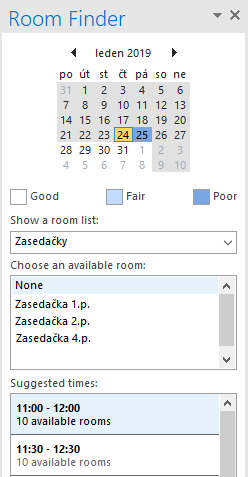
- in the list, we select the conference room and it is added as a meeting attendee
Finding an Available Conference Room from Manually Selected Ones
Alternatively, we can select only certain conference rooms (or other resources) and available time slots will be offered from those.
- when creating a new meeting, next to Location there is a Rooms button (if we are in the Scheduling Assistant, there is an Add Rooms button at the bottom)
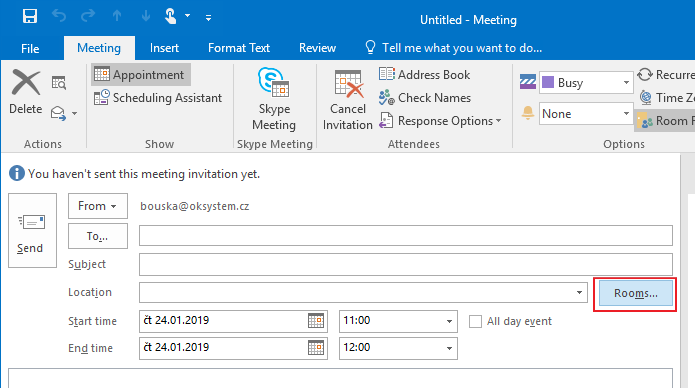
- this will offer us a list that contains only room-type objects
- we select the required conference rooms (they must be added to the Rooms line at the bottom) and confirm OK
- now in the Room Finder on the right, only the selected conference rooms (and the Custom list) are offered
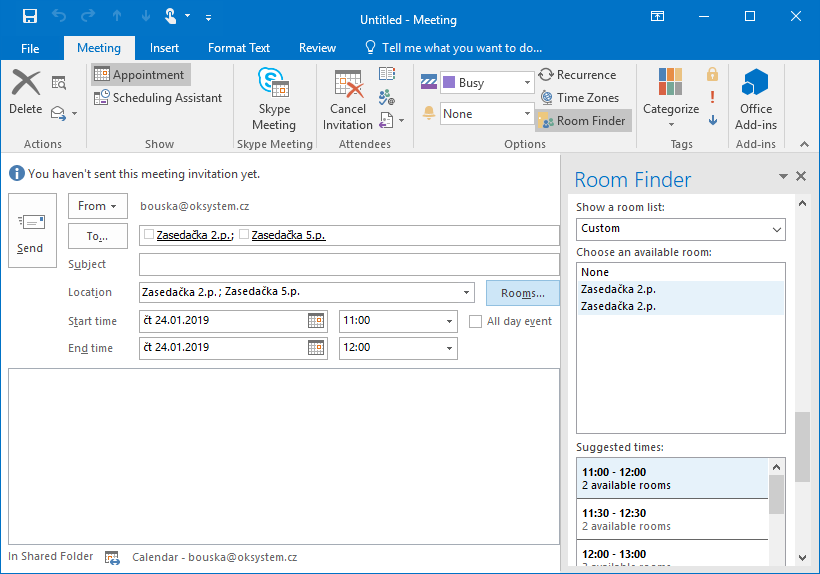
- we click on the desired one (or change the time) and the others are removed from the meeting attendees
There are no comments yet.