When I was describing How to Group Managed Service Accounts (gMSA), I encountered advice on how to restore computer membership in AD groups without a restart. This is when we set gMSA rights through a security group in which the given computers are. I wanted to look into this more, especially as it would be useful for restoring user membership. It's quite often described on the internet. However, the behavior in practice is not always the same. It probably works without problems for a computer, but it's more difficult with a user. The method that works for me is described at the end of the article.
Introduction
Kerberos and Security Groups
Microsoft stores membership in security groups in the Privilege Attribute Certificate (PAC). This is Microsoft's extension of the Kerberos protocol with authorization data. When a TGT is issued, a PAC is created as part of it, containing the current groups. When a Service Ticket is issued for a service, the groups are not re-evaluated, but the TGT is used.
Note: Here we are dealing with security groups, not distribution groups. A group can have a scope of Domain Local, Global, or Universal, which has no impact on us here.
Updating Group Membership
Membership in security groups (within the Kerberos protocol) is updated when a Kerberos ticket (TGT) is issued. This happens at startup for a computer and at login for a user.
Using the klist command, we can delete tickets and then new ones will be issued (on first use). This would avoid the need for a restart or new login. However, there may still be existing sessions with the original authentication, so the new access may not work. It is necessary for the session to be newly created. In practice, this works well, for example, within web applications, but it's more difficult when accessing a file server.
Locking and Unlocking Windows
Many places state that the tickets for the user are deleted/restored when Windows/the computer is locked and unlocked. If we need the user to gain access to the file server according to the newly added group, this will work only sometimes after unlocking Windows. This probably relates to the existence of a bound session with the old authentication.
When we perform practical tests, we often see that after unlocking, we have deleted all tickets. But upon login after unlocking, no ticket is issued (not even a TGT). Even when we subsequently access the file server, no tickets are issued, but the accesses work (though without the new groups).
Note: I've also encountered situations where the tickets were not deleted after unlocking and the original ones remained. Deletion also does not occur if we are logged in remotely via RDP.
Displaying Information about Groups and Tickets
The command line command whoami and its information are reliable. The whoami command displays information from the current Access Token in the system.
There are also a number of other commands or PowerShell cmdlets, such as net user, dsquery user, Get-ADUser, [Security.Principal.WindowsIdentity]::GetCurrent().
Currently Logged In User (sAMAccountName)
Prints the NetBIOS name of the domain and the user name.
C:\> whoami
company\bouska
Currently Logged In User (User Principal Name)
Prints the user's login name with the UPN suffix (domain).
C:\> whoami /upn
bouska@company.cz
List of Security Groups the Current User is a Member Of
Using whoami we get a list of membership in security groups, including implicit groups (these groups cannot be edited, their membership is controlled by the system, like Authenticated Users) and nested groups (the user is included in a group that is included in another group).
C:\> whoami /groups

GROUP INFORMATION
-----------------

Group Name                       Type             SID          Attributes
================================ ================ ============ ==================================================
Everyone                         Well-known group S-1-1-0      Mandatory group, Enabled by default, Enabled group
BUILTIN\Administrators           Alias            S-1-5-32-544 Group used for deny only
BUILTIN\Users                    Alias            S-1-5-32-545 Mandatory group, Enabled by default, Enabled group
NT AUTHORITY\Authenticated Users Well-known group S-1-5-11     Mandatory group, Enabled by default, Enabled group
FIRMA\G Média                    Group            S-1-5-21-2200562...
Note: This command does not show membership in the Domain Users group.
We can simply search for the name of a particular group (or part).
C:\> whoami /groups | findstr "Users"
BUILTIN\Users
A slightly different formatted output of the list of groups.
C:\> whoami /groups /fo list | findstr /c:"Group Name:"
Group Name: Everyone
Group Name: BUILTIN\Administrators
Group Name: BUILTIN\Users
If we want to format it somehow, we can use PowerShell.
PS C:\> whoami /groups /fo csv | ConvertFrom-Csv | FT 'Group Name', Type

Group Name                                               Type
----------                                               ----
Everyone                                                 Well-known group
BUILTIN\Administrators                                   Alias
List of Groups Using PowerShell
Another option is to use PowerShell and display the list of groups including implicit and nested ones.
PS C:\> [System.Security.Principal.WindowsIdentity]::GetCurrent().Groups.Translate([System.Security.Principal.NTAccount])

Value
-----

COMPANY\Domain Users
Everyone
BUILTIN\Administrators
List of Groups Using gpresult
The gpresult command gives a nice result. The list of groups is loaded from a different source than whoami (it displays the Resultant Set of Policy). It also contains implicit and nested groups.
We can print the security groups of the user.
C:\> gpresult /r /scope user

The user is a part of the following security groups
---------------------------------------------------
Domain Users
G Média
Or the computer. But for this we need local administrator permissions.
C:\> gpresult /r /scope computer

The computer is a part of the following security groups
-------------------------------------------------------
BUILTIN\Administrators
Domain Computers
List of Groups from the AD Domain
Another option is to query the user's group membership directly in Active Directory, for example with the net user command. By default, the user has permission to only display their own groups. Only security groups that the user is directly assigned to are displayed (not implicit and nested groups). It displays the current state in AD DS, not the groups for the current login on the computer.
C:\> net user /domain bouska
...
Local Group Memberships      *DHCP Users
Global Group memberships     *Domain Users     *G Média
The net user command doesn't have a very reasonable output and truncates the names to 21 characters. So it's better to use PowerShell cmdlets.
PS C:\> Get-ADUser bouska -Properties MemberOf | Select-Object -ExpandProperty MemberOf | Get-ADGroup | FT Name -AutoSize

Name
----
DHCP Users
G Média
Information about Obtained Kerberos Service Tickets on the Client
In Windows, we can use the command line command klist, which lists all cached Kerberos tickets (TGT and Service Ticket) that the client has obtained. You can see for which identity (Client) and service (Server) the ticket was issued, which DC issued it (Kdc Called) and when it was created (Start Time).
Note: It's very important that if we use User Account Control (UAC), then it depends on whether the command prompt is running normally or as an administrator (elevation prompt). Each situation will display different tickets, because there are two different sessions in the system (a different User Access Token is used).
Listing tickets issued for the current user.
klist
Listing tickets issued for the computer (Local System).
klist -li 0x3e7
Obtaining a ticket for a specific service (SPN).
klist get cifs/FileServer
Deleting all tickets for the user.
klist purge
Deleting all tickets for the computer.
klist -li 0x3e7 purge
Example of displaying the TGT ticket for the user.
C:\>klist

Current LogonId is 0:0xe3ada4f

Cached Tickets: (1)

#0>     Client: bouska @ FIRMA.LOCAL
        Server: krbtgt/FIRMA.LOCAL @ FIRMA.LOCAL
        KerbTicket Encryption Type: AES-256-CTS-HMAC-SHA1-96
        Ticket Flags 0x40e10000 -> forwardable renewable initial pre_authent name_canonicalize
        Start Time: 10/4/2024 15:13:28 (local)
        End Time:   10/5/2024 1:13:28 (local)
        Renew Time: 10/11/2024 15:13:28 (local)
        Session Key Type: AES-256-CTS-HMAC-SHA1-96
        Cache Flags: 0x1 -> PRIMARY
        Kdc Called: dc.firma.local
Example of displaying the TGT ticket for the user running as an administrator.
C:\>klist

Current LogonId is 0:0xe3ad6c4

Cached Tickets: (1)

#0>     Client: bouska @ FIRMA.LOCAL
        Server: krbtgt/FIRMA.LOCAL @ FIRMA.LOCAL
        KerbTicket Encryption Type: AES-256-CTS-HMAC-SHA1-96
        Ticket Flags 0x40e10000 -> forwardable renewable initial pre_authent name_canonicalize
        Start Time: 10/4/2024 15:14:38 (local)
        End Time:   10/5/2024 1:14:38 (local)
        Renew Time: 10/11/2024 15:14:20 (local)
        Session Key Type: AES-256-CTS-HMAC-SHA1-96
        Cache Flags: 0x1 -> PRIMARY
        Kdc Called: dc.firma.local
Updating Group Membership
For a Computer Account
We need administrator permissions. We start the command prompt (cmd.exe) as an administrator and enter the commands below.
- (optional) We can list the current groups and tickets for the computer.
gpresult /r /scope computer
klist -li 0x3e7
- Add the computer account to a security group in AD.
- Delete the tickets for the computer and update the group policies (to obtain new tickets).
klist -li 0x3e7 purge
gpupdate
- When we now list the list of groups for the computer, it contains the new group.
gpresult /r /scope computer
For a User Account
For the operations we do not need administrator permissions. But as we have seen, if we use UAC, there are two different sessions with different tickets. So it depends on whether we run the command prompt as an admin or not. Likewise, the applications in which we will use the accesses. When we use the klist command, the beginning of the output contains Current LogonId is, which identifies the login session.
- (optional) We can list the current groups and tickets for the user. Alternatively, we can search for the group we want to add (that the user doesn't have yet). For further testing, it's better to use the
whoamicommand.
gpresult /r /scope user
whoami /groups | findstr ADU
klist
- Add the user account to a security group in AD.
- Delete the tickets for the user (I actually don't have to do this, see next description).
klist purge
Some guides end here, but that doesn't work in practice. Others suggest that we should start a command prompt with a new user login (RunAs). We can do this with the command below or by right-clicking on cmd.exe and choosing Run as different user.
runas /User:%USERDOMAIN%\%USERNAME% cmd.exe
This leads to a new login and creates a new session (only for this cmd.exe). The klist command will show a different LogonId. It is unnecessary to delete tickets in the original session. In this window, we will see the newly added group (using whoami, gpresult does not display it).
whoami /groups | findstr ADU
I would expect that if I start explorer.exe from this window, the access would work. But in some cases, it doesn't. Another peculiar behavior is that in many tests, access works from Total Commander, but not from File Explorer.
In many places, another recommendation is given. And this works for me in practice.
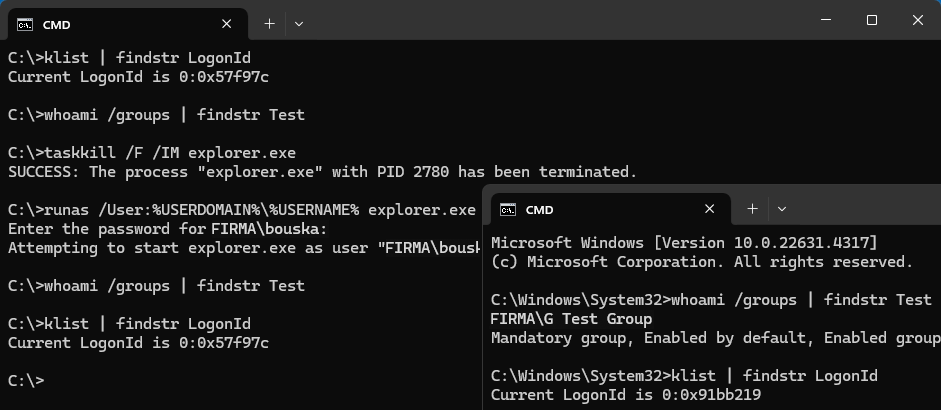
- Terminate the Windows Explorer process and restart it with the user login.
taskkill /F /IM explorer.exe
runas /User:%USERDOMAIN%\%USERNAME% explorer.exe
A new session is created with the new login. If we reopen cmd.exe (the original one doesn't change), the klist will show a different LogonId and the new group will be displayed (gpresult still doesn't show it). If we start something like File Explorer, the added accesses will work.
whoami /groups | findstr ADU
Perfektní článek. Ještě jsem slyšel o možnosti "čištění" SMB session pro uživatele pomocí restartu služby Workstation (v CZ Pracovní stanice). Nicméně funkčnost jsem reálně nezkoušel.
Dobry den, diky za clanek, uz nejakou dobu praktikujeme reseni se sestrelenim exploreru a spusteni nove explorer session pres cmd-propmt.
Mame ale novy pripad, ktery je ponekud komplikovanejsi tim, ze jsou ve hre dve domeny. Pocitac s Win11 je clenem domeny A a file server, na ktery dani uzivatele potrebuji pristupovat je clenem domeny B. Mezi temito domenamy neexistuje zadna forma trustu.
Pristupy funguji spolehlive pro stavajici uzivatele, kteri meli pristup od jakziva, nicmene v situaci, kdy napriklad novy zamestnanec dostane novy pocitac s domenou A a zaroven dostane pristupova prava do slozek na serveru v domene B, nevim zda existuje reseni, jak docili obnoveni clenstvi ve skupinach v takove situaci.
Jen pro upresneni - jde o situaci, kdy firma A koupila firmu B a uzivatele dostali nove laptopy/desktopy od firmy A a maji vybaveny pristup do site firmy B a k pristupu ke zdrojum ve firme B stale pouzivaji jejich stare (potazmo nove pokud jde o nove zamestnance) domenove ucty - maji napr. namapovane slozky stylem: net use K: \\server\folder /user:domena_B\uzivatel
Mel by nekdo nejaky typ jak resit obnoveni clenstvi ve vyse popsane situaci?