Note: We rented a vDC and I had to build the infrastructure and get everything operational in a short time. There wasn't much time for study, fortunately many things in vCloud Director are intuitive. This article contains brief notes on individual operations as I collected them during short practice or from official documentation (which I consider quite weak). In the introduction, I wrote some theory according to official VMware materials. In our vDC, we created a more complex infrastructure using separate networks; for their connection we don't use the native Edge GW, but a virtual FW appliance.
What is vCloud Director
VMware vCloud Director orchestrates (orchestrates - automatic coordination and management of complex systems and services) the provisioning of Software-Defined Data Center (Software-Defined Data Center - SDDC) services as complete virtual Data Centers (virtual Data Center - vDC), which are ready for consumption within minutes. vDC provides virtualized compute (compute), networking (networking), storage (storage) and security (security).
VMware vCloud Director is a platform for creating software-defined vDC. For this it uses underneath the physical data center (servers, networks, storage), above that the virtualized infrastructure (VMware vSphere), from which Virtualized Resource Pools are created (Virtualized Resource Pools, using vCenter server and NSX). This creates a Multi-Tenant (for multiple tenants) Cloud.
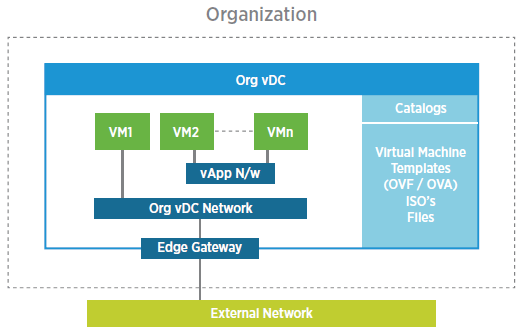
vCloud Director Architecture
vCloud Director is designed for Service Providers, who thus create individual elastic resource pools that they rent to (many) customers as a service. As mentioned, vCloud Director depends on VMware vSphere and VMware vCenter for providing compute resources and on vCNS/NSX for providing network resources. From all resources it creates a general pool called Provider vDC, which is further divided into individual units called Org vDC. These are allocated to the end customer. Org vDC is a container for all customer virtual machines (VM).
An important role is played by the organization (Organization), which is a multi-tenancy unit that represents a logical security boundary. An organization contains users, virtual data centers and networks. One organization can have multiple Org vDC. Inside Org vDC we create vApp, which is a container for distributed software solutions (simplified VM and networks) and the basic unit we deploy. And Org Networks, which provide network services for VMs (limited to organization boundaries).
Main Features
VMs are stored on storage according to profiles (Storage Profiles), which have assigned SLAs. We can therefore choose a profile according to the required SLA, which usually means disk speed. vCloud Director provides an application catalog service (Catalog), where we can publish virtual applications vApp or media to one or more customers. The standard Open Virtualization Format (OVF) is used and we create OVF vApp templates, which contain preconfigured VMs.
For access to vCloud Director we can use the Role-based Access Control (RBAC) model and assign different levels of permissions to different users and limit the resources they can consume. Generally we divide into Tenant Admin, who can create users and catalogs. And Tenant User, who consumes the cloud, creates VMs, Snapshots, etc.
Some other features we can use are Snapshot (and rollback to it), NSX security features (such as Firewall, NAT, DHCP, VXLAN, VPN, Load Balancing), vCloud API, Affinity and Anti-Affinity rules (we can set which VMs can be located on the same ESXi server), Fast Provisioning.
Documentation
- vCloud Director - PDF documents vCloud Director Datasheet, Architecture Overview White Paper
- VMware vCloud Director 8.20 Documentation Center
- vCloud Director Series Part 7 - Basic concepts of vCloud Director
Users and Roles
Documentation Managing System Administrators and Roles, Manage Users and Groups in Your Organization.
The main administrator of the entire vCloud Director has the role System Administrator, for each customer an organization is created and its main administrator has the role Organization Administrator. They can create additional users within the organization and assign them predefined roles.
- Administration - Members - Users
List of predefined roles and their permissions Predefined Roles and Their Rights.

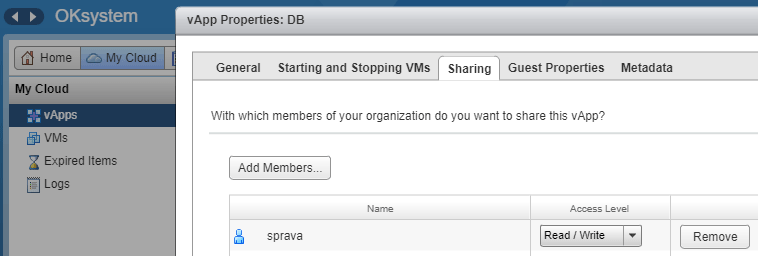
When we create a user who is not an organization administrator, the selected role gives them permissions they can apply to their objects. To be able to work with objects created by another user, that user must share them with them. Sharing is handled at the vApp level, where we share the entire vApp with selected members of our organization - Share a vApp.
- My Cloud - vApps
- right-click on the vApp and select Share
Available and Used Resources
What resources (processor, memory, storage) we have available for our vDC, and what we are currently using, can be viewed in several places.
Display of what model is used for resource allocation, available and used resources, for storage the Storage Policy (i.e. SLA), limit on networks and VMs:
- Administration - Cloud Resources - Virtual Datacenters
- right-click on our vDC - Properties
vDC overview with available resources (graphically displayed usage):
- Administration - Cloud Resources - Virtual Datacenters
- switch the view to Monitor and set the columns for display
Display of vApp list and total resources they consume:
- Administration - Cloud Resources - Virtual Datacenters - our vDC - tab vApps
Networks and Addresses
Documentation Managing Organization Virtual Datacenter Networks, Managing Organization Virtual Datacenter Networks.
Network Types
- Direct - direct connection to external network, connects organization with other organizations/networks (e.g. internet, data circuit), can only be created by System Administrator
- Routed - routed network within Org vDC, provides controlled access to external network (e.g. internet) through Edge Gateway
- Isolated (Internal) - isolated network within Org vDC, connects only VMs (vApp) assigned to it
Organization vDC Network
Within the organization we can create networks Org VDC Network either of type Routed or Isolated and use any addressing. It is always necessary to enter the gateway IP address and mask, even when creating an isolated network. From this data Director determines which addresses are valid for addressing within this network. The entered gateway address is also standardly allocated to vShield Edge (NSX Edge GW). For a routed network this makes sense, because Edge GW serves as the network gateway for this network and provides other network services (such as NAT, FW, etc.). For an isolated network this already seems unnecessary. Director does this because even in an isolated network it provides one network service and that is DHCP. If we disable this service on the given network (Configure Services), the allocation disappears.
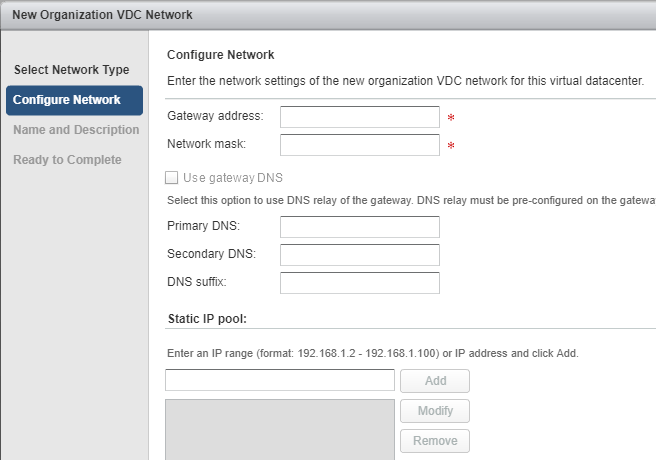
It appears that VMware does not account for situations where we don't want to use Edge GW for routing between networks, but some virtual machine (VM), which could be a Linux router/FW or (as in my case) a virtual version of a commercial firewall. Because the gateway address entered in the network configuration cannot be used anywhere (even when Edge GW is not allocated to it). It treats it as not belonging to the given subnet. Yet in this situation we would need to set it on the VM that will function as a router.
We have two options for solving the situation, but neither seems clean to me (both work). Either when creating the network we enter some unused address as the gateway address (after creating the network it can no longer be changed). Then Guest OS Customization won't work correctly, which sets this gateway during VM network configuration. Or we enter the gateway correctly, but in the VM configuration we enter a different address for the NIC (that one is ultimately not important, only for Guest OS Customization), inside the OS we must manually enter the correct address. Again, Guest OS Customization won't work correctly for us, but only for the router (if it's an appliance, it doesn't work anyway).
- Administration - Cloud Resources - Virtual Datacenters - our vDC - tab Org VDC Networks
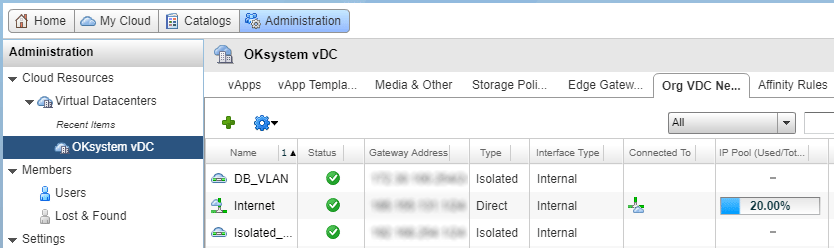
Creating a New Network
- Administration - Cloud Resources - Virtual Datacenters - our vDC - tab Org VDC Networks
- click on Add Network (green plus)
- choose the network type isolated or routed
- enter the gateway address and mask (these details cannot be changed later), optionally we can set DNS servers and Static IP Pool
- name the network
Deleting a Network
To be able to delete a network, it must not be used anywhere (it is described below how to display connected vApps and IP addresses allocated to VMs). This means that no NIC in a VM can be connected to this network. But this network must also not be assigned to any vApp. To be able to delete a network from a vApp, a very inconvenient condition must be met - the entire vApp must be powered off.
Deleting a network from vApp:
- My Cloud - vApps - specific vApp - tab Networking
- right-click on the network and select Delete
Complete network removal:
- Administration - Cloud Resources - Virtual Datacenters - our vDC - tab Org VDC Networks
- right-click on the network and select Delete
Assigning IP Addresses for VMs
For networks we can set Static IP pool, then when we include a VM in the network, we can set IP mode to Static - IP pool and an address is automatically assigned (it is set on the VM only if we enable Guest OS Customization).
- Administration - Cloud Resources - Virtual Datacenters - our vDC - tab Org VDC Networks
- right-click on the network and select Properties
- switch to the tab Network Specification, section Static IP pool
We can also enable DHCP on the network and let it assign addresses (enabled by default).
- Administration - Cloud Resources - Virtual Datacenters - our vDC - tab Org VDC Networks
- right-click on the network and select Configure Services - DHCP tab
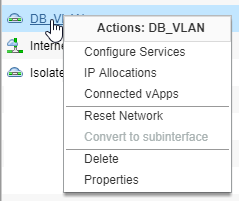
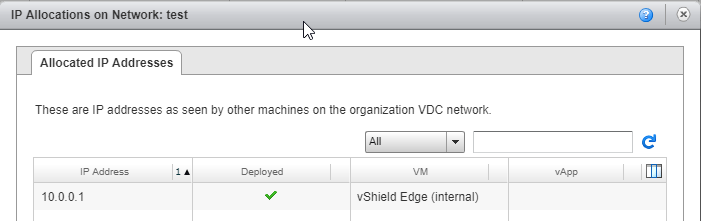
IP Allocations - Assigned IP Addresses
On VMs it is mandatory among HW parameters to set an IP address. If we don't enable Guest OS Customization, the address won't be set inside the VM and we can enter any other address. Addresses entered in the configuration are used for various statistics. We can display a list of (configurably) assigned addresses in a given network (which may not be real).
- Administration - Cloud Resources - Virtual Datacenters - our vDC - tab Org VDC Networks
- right-click on the network and select IP Allocations
Connected vApp - Connected vApps
To be able to use a network for VMs, it must be added to the corresponding vApp (which can be done while running). To remove a network, the vApp must first be stopped. For a network, we can view which vApps it is assigned to.
- Administration - Cloud Resources - Virtual Datacenters - our vDC - tab Org VDC Networks
- right-click on the network and select Connected vApp
vApp Network
Besides networks within the organization, we can create networks within vApps, i.e. vApp Network. This allows us to create isolated networks that are not accessible from other vApps. We can connect them using new Edge GW (gateway for a given vApp and connect it with Organization Edge GW) and thus handle routing or NAT.
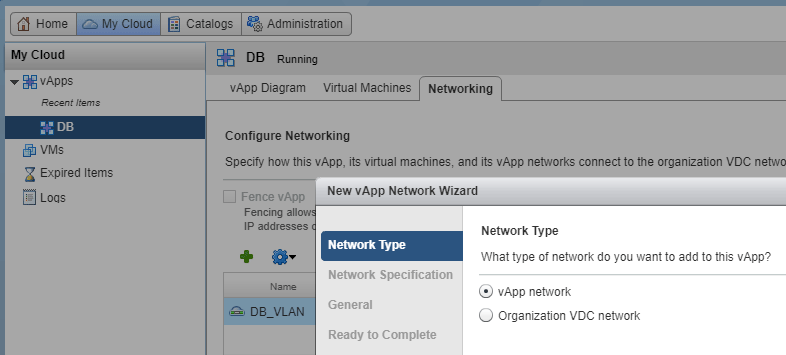
- My Cloud - vApps - specific vApp - tab Networking
- click on the green plus (Add Network)
- select type vApp Network (by selecting Organization VDC network we would only assign an existing network from vDC)
- enter the details the same way as when creating Org vDC Network
vCloud vApp
Documentation Working with vApps.
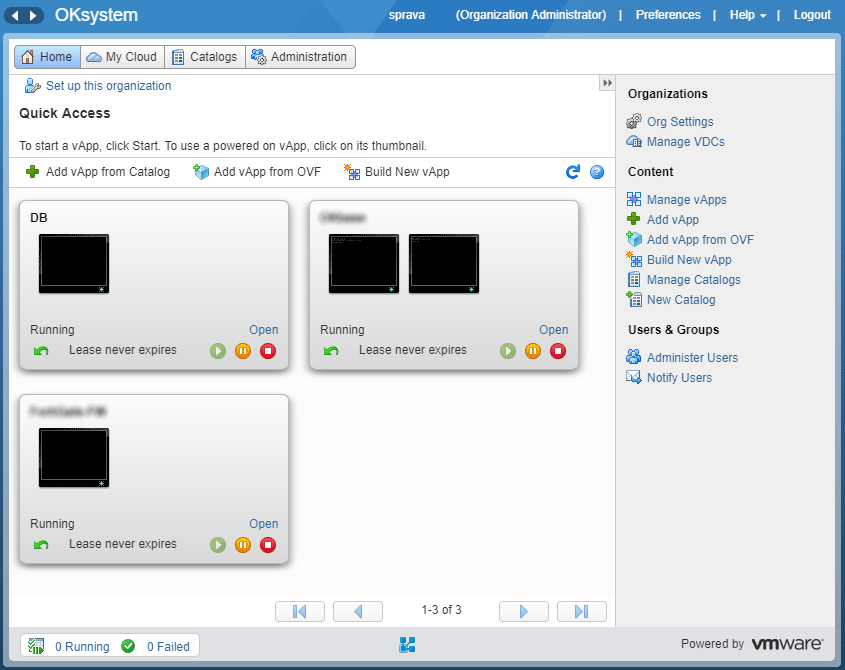
vApp is a container for distributed software solutions that consist of one or more virtual machines (VMs). vApp allows defining the startup and shutdown of VMs in a specific order. We can export or import them as OVF packages. We can use special constructs such as vApp networks (internal networks within vApp). VMs in vCloud Director cannot exist without vApp. We can access the list of our vApps in several places:
- My Cloud - vApps
- Home
- Administration - Cloud Resources - Virtual Datacenters - our vDC - tab vApps
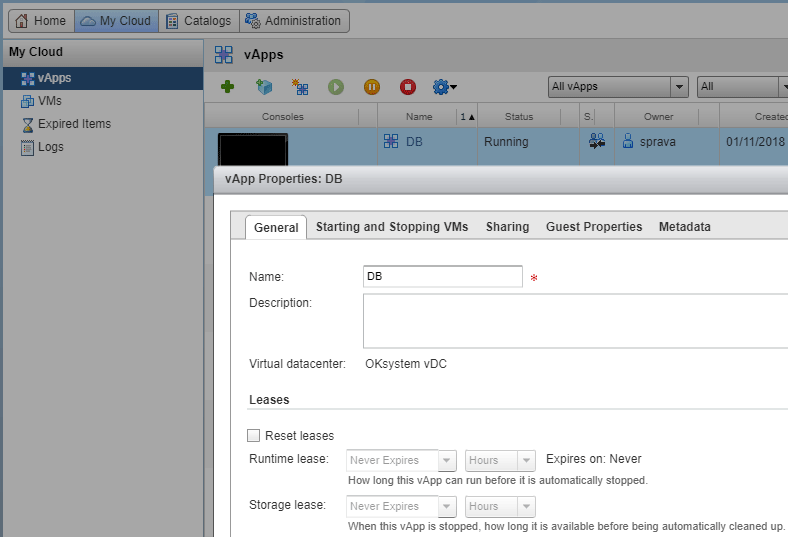
The idea of vApp is that we place an entire application consisting of multiple servers (for example application and database) into one vApp and then we can distribute and control them together. Even networks can be contained within vApp. We create a template from vApp and then deploy the entire application for different customers in a moment.
OVF and OVA
vCloud Director supports OVF (Open Virtualization Format) packages and can import vApp from OVF or save vApp as OVF, the same for vApp Template. OVF directory can be distributed as a single packaged (tar) file OVA (Open Virtual Appliance). Thanks to OVF we can transfer VMs between different environments.
vApp Actions
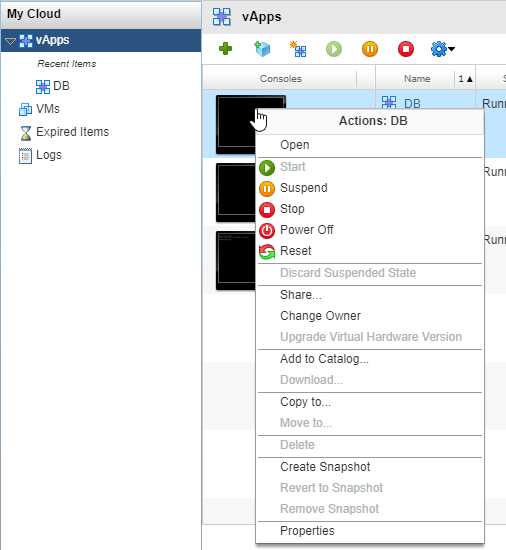
On vApp we can perform a number of actions:
- Start, Suspend, Stop, Power Off, Reset - control operations for running, which are performed on all VMs (in settings we can determine the order of VMs, how it is applied)
- Create Snapshot, Revert to Snapshot, Remove Snapshot - working with Snapshots
- Share - share vApp and thus grant administrative rights
- Copy to, Move to, Delete - copy (clone), move or delete the entire vApp
- Add to Catalog - from vApp we can create a template and save it to catalog
- Download - download (powered off) vApp as OVF package
Creating vApp
To create a vApp we have several options:
- Add vApp from Catalog - creating a new vApp based on a vApp template that we have saved in catalog
- Add vApp from OVF - creating vApp directly from OVF package (for example export from internal VMware environment)
- Build New vApp - creating an empty vApp with basic parameters (in the wizard it is possible to add VMs from catalog right away)
Creating vApp from Template
- My Cloud - vApps
- click on Add vApp from Catalog (green plus)
- select My Organization's Catalogs and All Templates
- select the desired template
- in the next step enter the name of the vApp being created and determine the vDC location
- in resource definition select the VM name and Storage Policy for placement on disk array
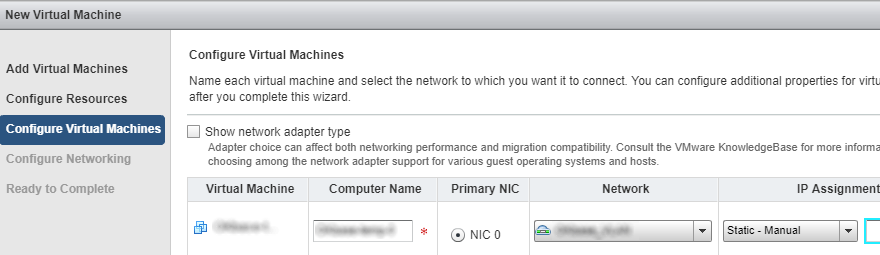
- in network configuration enter the computer name and NIC assignment to network (we cannot change the IP address assignment method)
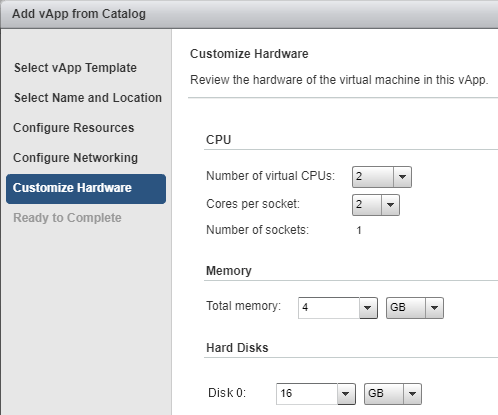
- at the end we can change VM HW parameters (vCPU, vRAM, vDisk - we can enlarge it, but then intervention in the OS is required) compared to the template
Virtual Machine (VM)
Documentation Working with Virtual Machines, Customizing Your Guest Operating System.
In vCloud Director we create classic Virtual Machines (VMs), which however must be included in a specific vApp. A virtual machine is a software computer where an operating system and applications run. We can access the list of our VMs in multiple places:
- My Cloud - VMs
- My Cloud - vApps - expand vApp - tab Virtual Machines
VM Parameters
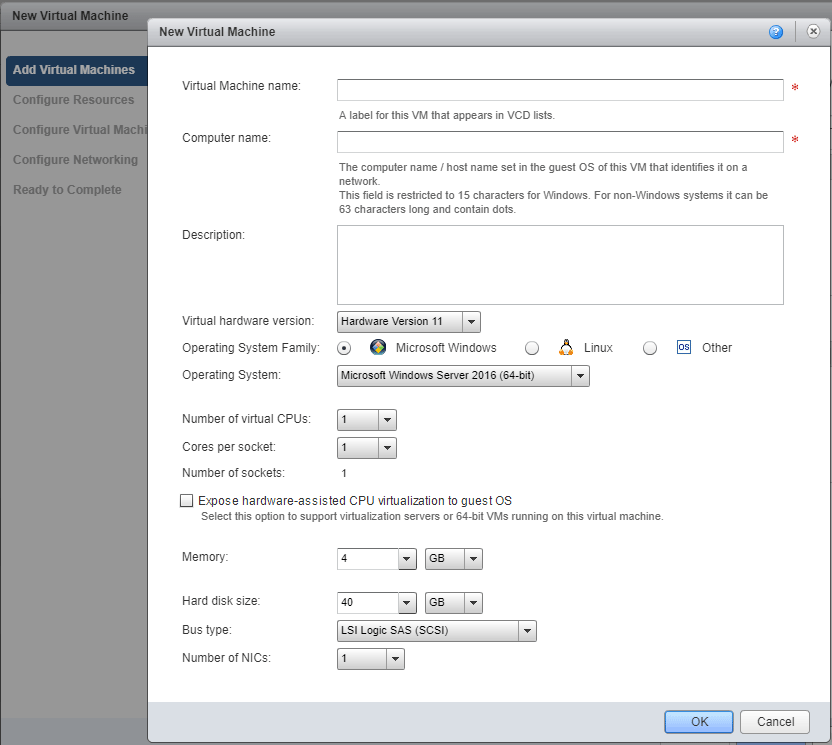
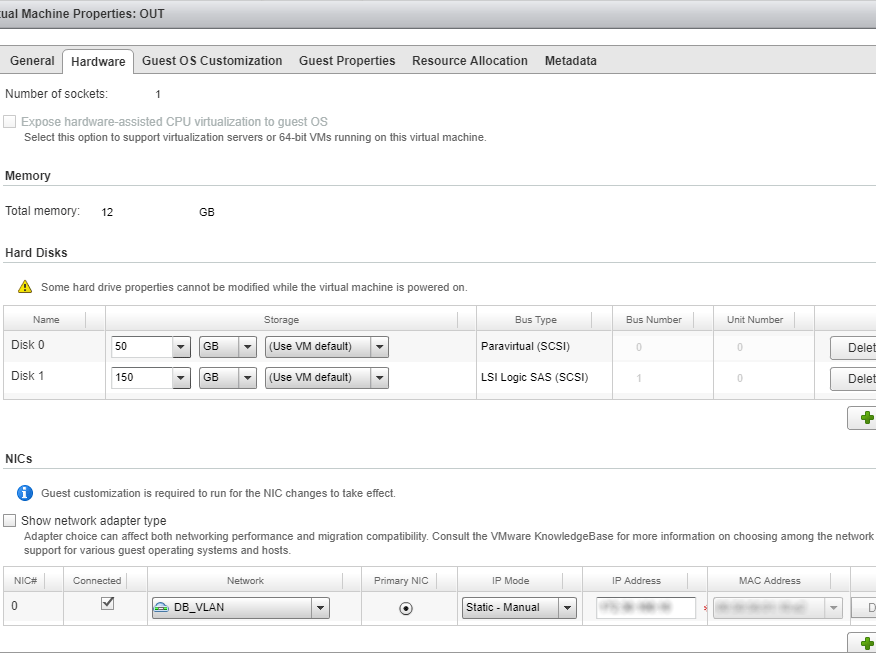
For each virtual machine we must define a number of parameters:
- Virtual Machine name, Computer name - virtual machine name (how it is displayed in Director) and computer name (hostname in the OS inside the VM)
- Virtual hardware version - the latest is HW11, determines the maximum vCPU and vRAM and other properties
- Operating System Family, Operating System - determines the type of network adapters, disk controllers, VMware Tools and more
- Number of virtual CPUs, Cores per socket - number of virtual processors vCPU and how many cores the socket has (if we enter the same number, it will be treated as one processor with multiple cores, which can be advantageous for licensing)
- Memory - vRAM size
- Hard disk size, Bus type - vDisk size and controller type, most commonly LSI Logic Parallel (SCSI), for disks we also define Storage Policy (determines what type of disk array the VM files - disks - are stored on)
- Number of NICs - number of network cards (maximum 10), we use type VMXNET3
We can only use networks that are added to the vApp (which we can do directly in VM editing, we can add all organization networks to vApp). We must choose the IP address assignment method IP Mode (the entered address will be used in the OS only when Guest OS Customization is enabled):
- Static - IP Pool - IP address is assigned automatically from the configured range for the network
- Static - Manual - we enter IP manually in the adjacent field
- DHCP - DHCP assignment is used
VM Actions
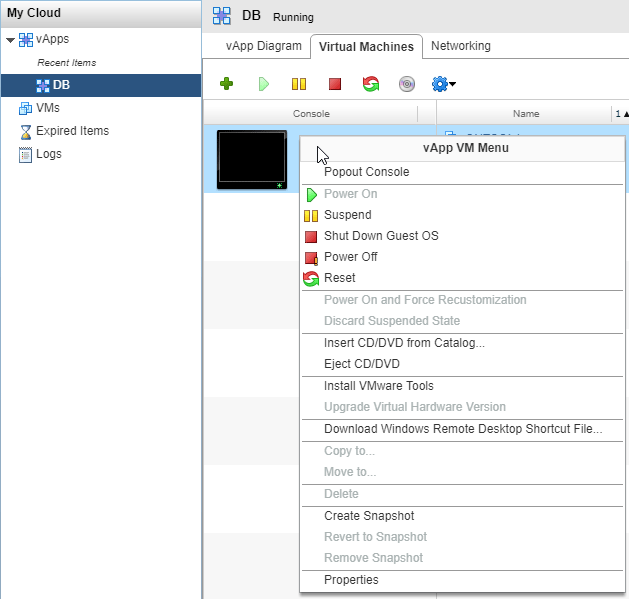
On VMs we can perform a number of actions:
- Popout Console - open console in a new browser window
- Power On, Suspend, Shut Down Guest OS, Power Off, Reset - control operations for running
- Power On and Force Recustomization - powers on the VM and applies Guest OS Customization settings
- Create Snapshot, Revert to Snapshot, Remove Snapshot - working with Snapshots
- Insert/Eject CD/DVD - mount (unmount) media image from catalog
- Copy to, Move to, Delete - copy (clone) or move VM to another vApp (because many parameters are linked to vApp, mainly available networks, the move is not just an administrative placement into another vApp, but various parameters are changed) or delete, VM must be powered off
Guest OS Customization
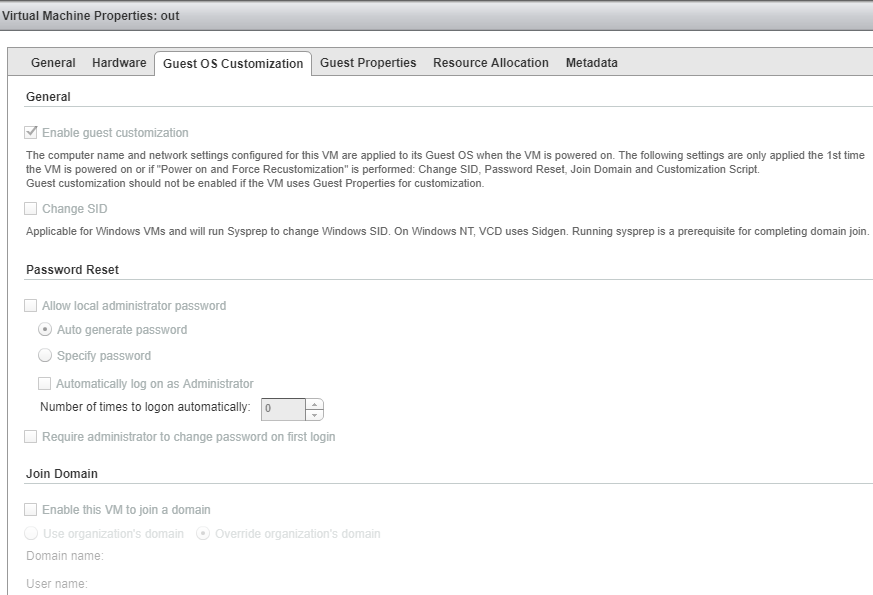
vCloud Director has a feature called Guest Customization, which allows setting certain parameters inside a supported operating system in the VM. This is useful when creating a series of unique VMs from a template, so different network parameters are set for each and there is no conflict. The requirement is to have VMware Tools installed (they enable access to the OS). Values that can be set using Guest OS Customization:
- computer name and network parameters - set according to Computer name and IP address set on NIC in the VM, other network parameters (gateway, DNS servers) are taken from network settings
- Change SID, Join Domain - for Windows it is possible to use sysprep (not recommended in some discussions), join the machine to a domain
- password reset - setting the local administrator password to a generated or specified value, automatic login
- optional script - we can attach a script that will run in the OS
Setting changes can only be made when the VM is powered off. Name and network parameters are always set when the VM starts (in some places it is stated that only if these values change). Other properties are applied only at first start or when using Power On and Force Recustomization.
Creating a VM
In vCloud Director it is standard to work with entire vApps, but we also have certain options to add a new VM to a vApp:
- New Virtual Machine - we can add a new empty VM to an existing vApp, option Add VM and button New Virtual Machine
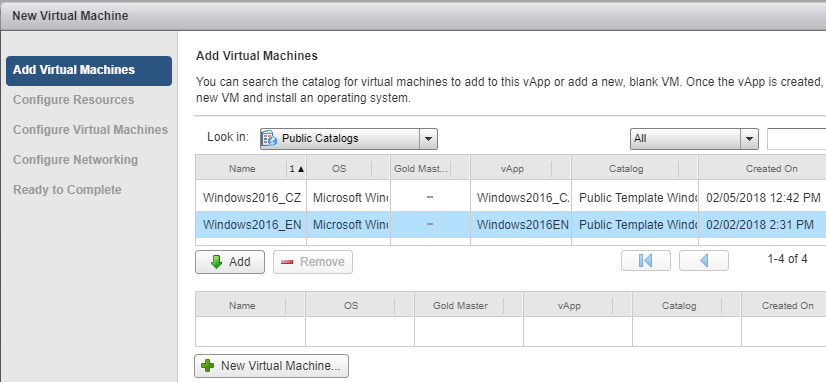
- Add VM from Catalog - from a vApp template (vApp Template) in the catalog we can select only a specific VM and add it to an existing vApp, option Add VM and selection in catalog
- Add VM from OVF/OVA - creating a VM directly from OVF is not possible! When we export a VM to OVA (for example on VMware vSphere) to transfer it to vDC, we can either create an entire new vApp (Add vApp from OVF) and then move the VM. Or create a vApp template (Upload OVF package as a vApp Template) and from it insert the VM into an existing vApp (Add VM from Catalog).
Creating VM from Template
- My Cloud - vApps - expand vApp - tab Virtual Machines
- click on Add VM... (green plus)
- select My Organization's Catalogs
- select the desired VM and add using the Add button
- in resource definition select the VM name and Storage Policy for placement on disk array
- in VM settings enter the computer name and NIC assignment to network, we also choose IP address assignment
- in the network configuration step we can only enable Fence vApp
- when creating a VM from a template it is not possible to change VM HW parameters (vCPU, vRAM, vDisk)
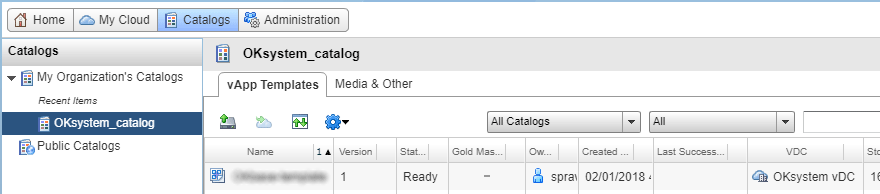
Catalog - vApp Templates and Media
Documentation Working with Catalogs, Working with vApp Templates, Working with Media Files.
Catalog (Catalog) is used to store vApp templates and media files, i.e. templates and ISO images. Available are public catalogs Public Catalogs and organization private catalogs My Organizations Catalogs. Within the organization we can create various catalogs and share their content. Our disk space is used for storage (we can define the location).
- Catalogs - My Organizations Catalogs
We can also view our templates and media in
- Administration - Cloud Resources - Virtual Datacenters - our vDC - tab vApp Templates or Media & Other
Actions within Catalog
In our catalog we can:
- Upload Media & Other - directly upload ISO images, they must always have the ISO extension
- Upload OVF package as a vApp Template - directly upload OVF/OVA as a vApp template (when exporting VM to OVF, no media must be attached to it and it is recommended to remove networks)
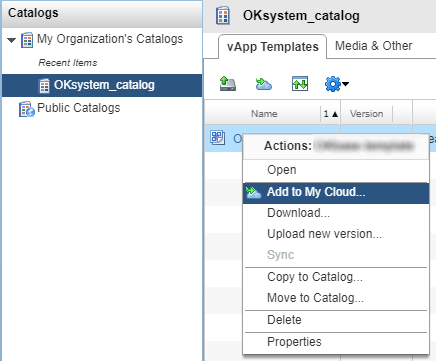
- Add to Catalog - save existing vApp as a vApp template (action on vApp)
- Download - we can also download templates and media from catalog
- Copy to Catalog/Move to Catalog - or copy/move between catalogs
For both uploading and downloading, the Client Integration Plug-In is used, which is quite problematic to get working (we only managed on Google Chrome version 44). For a virtual machine that is in a vApp template, we cannot change (almost) anything. When we want to make a change, we must create a new vApp from the template, make changes and then add it to the catalog again.
Interestingly, if we create an entire vApp from a template using Add vApp from Catalog, we can change HW parameters for the VM (if Customize VM Settings was used when creating the template). But if we only create a VM into an existing vApp using Add VM from Catalog, the values in the template are used.
Creating Template from vApp
We can create a template even from a running vApp, but then an identical copy is created and the VMs are in suspended state. It is better to shut down the vApp first.
- My Cloud - vApps
- right-click on the vApp and select Add to Catalog
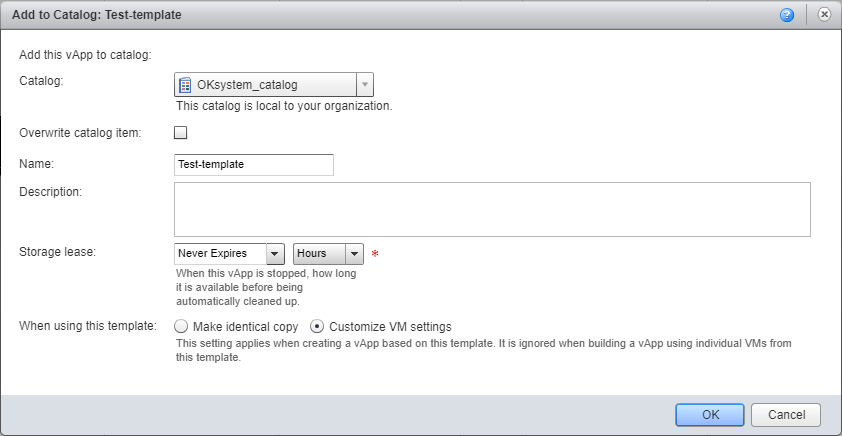
- select the catalog where the vApp Template will be created
- optionally we can check Overwrite catalog item and select a template to be overwritten, or enter a name for the template
- finally we choose the behavior when creating a vApp from this template, Make Identical Copy (created with values in the template) or Customize VM Settings (usually more suitable, we can set parameters during creation, MAC address changes)
Updating Template
We create a new vApp from template:
- My Cloud - vApps
- click on Add vApp from Catalog (green plus)
- select My Organization's Catalogs and All Templates
- select the desired template
- in the next step enter the name of the vApp being created and determine the vDC location
- in resource definition select the VM name and Storage Policy for placement on disk array
- in network configuration enter the computer name and NIC assignment to network (we cannot change the IP address assignment method)
- at the end we can change VM HW parameters (vCPU, vRAM, vDisk - we can enlarge it, but then intervention in the OS is required) compared to the template
After creating vApp:
- if we use manual static IP addresses and Guest OS Customization, we must edit the VM and enter an appropriate IP address
- we start the VM (Start) and make the required modifications
- we shut down the OS inside the VM (Shutdown)
- in vCloud Director the VM will likely report as Partially Powered Off and vApp as Partially Running, right-click on the vApp and select Stop
We update the template:
- My Cloud - vApps
- right-click on the vApp and select Add to Catalog
- select the catalog where the vApp Template will be created
- check Overwrite catalog item and select the original template to be overwritten
- select Customize VM Settings
Edge GW - vCloud NSX Edge Gateway
Documentation Managing Edge Gateways.
Edge Gateway uses VMware NSX (Network Virtualization and Security Platform). It functions as a router and connection to external networks (such as the internet). Routed Organization VDC networks are connected to it. It provides various services, such as Load Balancing, Network Address Translation (NAT), Firewall (FW), VPN. The standard gateway can be switched to Advanced Gateway.
- Administration - Cloud Resources - Virtual Datacenters - our vDC - tab Edge Gateways - expand our GW
- various services are available when we right-click on our gateway
Moc dobře napsaný.