
EtherChannel - Link Aggregation
EtherChannel is a widely used term, but it is primarily used by Cisco. It is also related to Cisco's protocol PAgP (Port Aggregation Protocol). A similar term is Link Aggregation, which is also used in the IEEE 802.1ax standard (formerly IEEE 802.3ad, which is still often cited). This standard also describes the LACP (Link Aggregation Control Protocol) protocol. Several other terms are used for this technology; in the server world, it is referred to as NIC Teaming (or NIC bonding or link bundling).
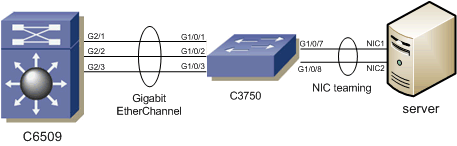
My description will, as is common here, focus on Cisco devices. Nowadays, EtherChannel is supported even on small Cisco switches, both using Cisco's PAgP protocol and the standard LACP.
EtherChannel is a method that manages sending and receiving data across multiple interfaces. The PAgP and LACP protocols are used for automatic negotiation and creation of EtherChannel. To create an EtherChannel, we can use 2 to 8 physical interfaces (L2 or L3) for PAgP or up to 16 interfaces for LACP (but only 8 are active and the rest are standby). The condition is that they must be of the same type and speed, assigned to the same VLAN or in trunk mode with the same parameters. On a switch, we can create up to 48 (groups of) EtherChannels. Originally, the condition was that all ports of one side of the group had to be on one switch. Today, it's possible for ports to be part of one stack.
The original use of EtherChannel was for connecting the network backbone (for example, connecting Core switches with Distribution), which achieved higher reliability and especially higher speed. Today, a common use is also connecting a server through multiple ports/network cards.
When we create an EtherChannel, a single virtual port is created, which all technologies then work with. So, for example, Spanning Tree sees the group of ports as one port and everything therefore works as it should (these redundant links are not blocked).
EtherChannel uses Load Balancing to distribute the load across all links in the group. When sending data, it determines which link to send the data through based on MAC address, IP address, source or destination (it's not dependent on link utilization or speed). There's an effort to send frames from one TCP session over the same link, otherwise out-of-order delivery and other problems could occur. Incoming data is aggregated from all interfaces into the virtual port. When one link is interrupted, the traffic is redirected without interruption to the remaining ones (there's about a second delay, but the session isn't interrupted and, for example, network copying continues to work).
NIC Teaming
It allows combining 2 or more physical NICs (network cards) into one logical adapter, which is referred to as a bound. It can use the IEEE 802.3ad standard. If we have the right driver for the network card (which we can find for most Intel NICs, and my short description below is based on this driver), we can configure VLANs and NIC Teaming on it. Using VLAN, we divide one physical adapter into multiple virtual ones. Using Teaming, on the other hand, we combine multiple physical ports into one virtual one.
NIC Teaming can also work with an ordinary switch/hub that doesn't support Link Aggregation. In that case, we only configure on the server side and it applies (primarily) to outgoing traffic. Network adapters can be connected to different switches and can have different speed and duplex. Creating a team according to 802.3ad creates one virtual interface, which gets a MAC address from one of the physical interfaces and we can set one or more IP addresses for it. If we use some mode independent of the switch, then all physical ports (inside the virtual one) use their own MAC address.
If we have the option to set Teaming, we can usually choose from a range of methods or types of teaming.
- Adapter Fault Tolerance, where one adapter is active and others are standby (they switch in case of failure), not set on the switch side
- Switch Fault Tolerance supports two links connected to two different switches, one is active and the other is standby, not set on the switch side
- Adaptive Load Balancing outgoing traffic is balanced across all adapters, also provides fault tolerance, can perform load balancing on incoming traffic as well, not set on the switch side
- Static Link Aggregation is the use of manual EtherChannel, where the switch is set to
onmode - Dynamic Link Aggregation uses the LACP protocol according to IEEE 802.3ad
Port Aggregation Protocol - PAgP
This is a protocol created by Cisco and supported, almost exclusively, only on Cisco switches. PAgP supports creating an EtherChannel only from interfaces on one switch (not within a stack).
PAgP can work either in active mode, where it actively tries to negotiate the establishment of an EtherChannel, this is referred to as desirable. Or in passive mode, where the EtherChannel starts negotiating only when a request comes from the other side (it never starts negotiation itself), this is the auto mode.
Link Aggregation Control Protocol - LACP
LACP has two modes, similar to PAgP. Their designations are active, where it sends packets to negotiate the connection itself, and passive, where it waits for the start of negotiation.
Manual EtherChannel
We can also establish EtherChannel manually. In this case, ports on both sides need to be set to on mode. No LACP PDUs or PAgP protocol packets are sent.
Difference between LACP/PAgP and manual EtherChannel
The main features are the same whether we use a protocol to negotiate link aggregation or set it up manually. In both cases, we must perform configuration on both sides and on all ports. When a link fails, communication is automatically redirected to others, and if it's restored, it starts being used again.
So what's the difference? In many practical situations, we can perform manual configuration. Using a protocol adds one feature. Frames (LACPDU) are sent between directly connected devices (more precisely, their ports) and these are used to determine if the link is available (without the protocol, only the link down state is considered). These frames are also used to verify that the other side is correctly configured.
Configuration in Cisco IOS
Before starting the EtherChannel configuration, it's important to check if the selected ports have the same configuration. After we create an EtherChannel, all configuration changes we apply to the resulting virtual port will apply to all physical ports. But commands we enter for a physical port will only apply to that port (and if we change some basic value, the interface may be removed from the EtherChannel).
Note: The same commands are used to configure PAgP or LACP.
We create an L2 EtherChannel by assigning ports to a channel group (number 1 to 48). This automatically creates a logical interface port-channel. The following shows the individual modes for EtherChannel and an example configuration.
SWITCH(config-if)#channel-group 1 mode ?
   active     Enable LACP unconditionally
   auto       Enable PAgP only if a PAgP device is detected
   desirable  Enable PAgP unconditionally
   on         Enable Etherchannel only
   passive    Enable LACP only if a LACP device is detected
SWITCH(config-if)#channel-group 1 mode desirable non-silent
By assigning ports to a channel group, a virtual interface is created (if it doesn't already exist) named Port-channel and group number, for example Port-channel 1, we can refer to it in short as Po1. Removing ports from the channel group doesn't delete the port-channel. We have to delete it manually. However, if we delete the port-channel, the ports that were in it are shut down and removed from the group.
SWITCH(config)#no interface port-channel 1
We create an L3 EtherChannel from physical routed ports (we enter no switchport on the port). We don't enter the IP address on physical ports, but on the EtherChannel.
SWITCH(config)#interface port-channel 3
SWITCH(config-if)#no switchport
SWITCH(config-if)#ip address 192.168.10.5 255.255.255.0
Globally, we can determine what method will be used for Load Balancing within the EtherChannel. It can be source IP or MAC, destination IP or MAC, both source and destination IP or MAC. The default setting is src-mac.
SWITCH(config)#port-channel load-balance dst-mac
We can set a priority for a certain port, the higher the priority, the more likely the port is to be selected for sending. The default priority for PAgP is 128 and we can set 0 to 255.
SWITCH(config-if)#pagp port-priority 200
With LACP, a maximum of 8 ports can be active and another 8 can be in Hot-standby mode. Which port becomes active is determined by LACP system priority, switch MAC, LACP port priority and port number. Lower values have precedence. Priority values are from 1 to 65535, default is 32768.
SWITCH(config)#lacp system-priority 16384
SWITCH(config-if)#lacp port-priority 16384
For completeness, I'll mention one more command that I haven't seen described much. It's a manual choice of which protocol to use on the interface. This protocol is otherwise determined by the mode we choose when assigning the port to a group.
SWITCH(config-if)#channel-protocol lacp // the other option is pagp
Commands for checking settings
We can check if a given interface supports EtherChannel with the following command. The result is in the Channel line.
SWITCH#show interfaces g1/0/1 capabilities
GigabitEthernet1/0/1
  Model:                 WS-C3750E-48PD
  Type:                  10/100/1000BaseTX
  Speed:                 10,100,1000,auto
  Duplex:                half,full,auto
  Trunk encap. type:     802.1Q,ISL
  Trunk mode:            on,off,desirable,nonegotiate
  Channel:               yes
Broadcast suppression: percentage(0-100)
Flowcontrol: rx-(off,on,desired),tx-(none)
Fast Start: yes
QoS scheduling: rx-(not configurable on per port basis),
tx-(4q3t) (3t: Two configurable values and one fixed.)
CoS rewrite: yes
ToS rewrite: yes
UDLD: yes
Inline power: yes
SPAN: source/destination
PortSecure: yes
Dot1x: yes
Some other informational commands:
SWITCH#show etherchannel 1 detail
SWITCH#show etherchannel load-balance
SWITCH#show etherchannel port
SWITCH#show etherchannel protocol
SWITCH#show etherchannel summary
SWITCH#show pagp 1 neighbor
SWITCH#show lacp 2 counters
Troubleshooting Issues
It is good to configure ports for port-channel together to achieve the same settings. Before that, we can reset them to the default state.
SWITCH(config)#default interface range g1/0/7,g3/0/6
SWITCH(config)#interface range g1/0/7,g3/0/6
SWITCH(config-if-range)#switchport mode access
SWITCH(config-if-range)#switchport access vlan 100
SWITCH(config-if-range)#channel-group 1 mode on
Creating a port-channel interface Port-channel 1
This creates a virtual interface, but it does not necessarily mean that the ports are correctly assigned. When we display the Etherchannel data, we can see something like the following. For Port-channel1, we see SD, which means it is a Layer2 etherchannel and is Down. For individual ports, we see that they are suspended.
SWITCH#show etherchannel 1 summary
 begin Group
Group Port-channel Protocol Ports
------+-------------+-----------+-----------------------------------------------
1 Po1(SD) - Gi1/0/7(s) Gi3/0/6(s)
This means there was an error in assigning the port to the bundle. We can find more information in the log.
SWITCH#show logging
 ...
Jul 1 16:26:53: %EC-5-CANNOT_BUNDLE2: Gi1/0/7 is not compatible with Po1 and will be suspended (dtp mode of Gi1/0/7 is off, Po1 is on)
S2NP01#show int g1/0/7 status
Port Name Status Vlan Duplex Speed Type
Gi1/0/7 test-bundl suspended 100 a-full a-1000 10/100/1000BaseTX
From the log, we see that portchannel Po1 has a different configuration than port G1/0/7, which we want to include in it. This happened because Po1 already existed from previous configurations. So we either delete it and create it again or adjust its configuration.
SWITCH#show running-config interface Po1
Building configuration...
Current configuration : 92 bytes
!
interface Port-channel1
 switchport trunk encapsulation dot1q
 switchport mode trunk
end
SWITCH#conf t
Enter configuration commands, one per line. End with CNTL/Z.
SWITCH(config)#int po1
SWITCH(config-if)#switchport mode access
SWITCH(config-if)#no switchport trunk encapsulation dot1q
SWITCH(config-if)#switchport access vlan 100
SWITCH(config-if)#^Z
SWITCH#show etherchannel 1 summary
 begin Group
Group Port-channel Protocol Ports
------+-------------+-----------+-----------------------------------------------
1 Po1(SU) - Gi1/0/7(P) Gi3/0/6(P)
Now we see that the portchannel is Up and the individual ports are participating in the etherchannel. Finally, a recommendation. When we want to make changes to the etherchannel type, first shut down the ports, then remove the old configuration, create a new one, and bring the port up.
Link State Tracking
This is an auxiliary method that ties the states of several interfaces. This means that when all primary interfaces lose the link (go down), the state of the secondary interfaces changes to error-disabled transparently.
For Link State Tracking, we create link-state groups and include interfaces (EtherChannel, L2, L3 port) in these groups. Some are set as downstream and are automatically linked to upstream. Among the upstream interfaces, we include connections to the distribution/core layer or gateways. As downstream, we include interfaces where servers are connected. The state change of the upstream interface is reflected on the downstream.
We can use this technique in conjunction with NIC Teaming. For example, if we connect a server with the primary network card to one switch and the secondary to another. We enable Teaming Fault Tolerance over these NICs. Thus, communication works through the primary adapter, and in case of adapter failure or link state change (the entire switch or connected port goes down), it switches to the secondary adapter. However, if the port on the switch is still up, but there is a failure, for example, on the connection to the core switch, the server does not notice. Therefore, we use Link State Tracking to switch to the secondary adapter even in this case.
Configuration in Cisco IOS
On one switch, we can configure a maximum of 10 link-state groups. An interface can be a member of only one group and can be either upstream or downstream.
SWITCH(config)#link state track 1 // enable the function
SWITCH(config)#interface Te1/0/1
SWITCH(config-if)#link state group 1 upstream // set the interface to group 1 as upstream
SWITCH(config)#interface G1/0/5
SWITCH(config-if)#link state group 1 downstream // set the interface to group 1 as downstream
Displaying information about link-state groups:
SWITCH#show link state group detail
jeste:
show etherchannel summary - nabidne pomerne prehledni vypis v nemz se nejvice hodi flag "U" - in use
respond to [1]cm3l1k1: Díky :)
[6]
Co mi tady vypisuješ za sračky ty zmrde?!?!?