
Methods for users to retrieve information
Security information for a work account
Every user can manage their authentication methods online within their My Account portal under Security Info. A list of registered methods is displayed there.

Classic Windows Hello for Business is not shown here. For passkeys, you can view the AAGUID of the given authenticator type. It would be useful to have information about when a given method was registered or last used, along with other details.
Passkeys stored (registered) on a device
If you have passkeys registered on a device (authenticator) or with a provider (passkey provider), you can (depending on its capabilities) view a list and certain details. A few examples are given below.
Microsoft Authenticator
- launch the Microsoft Authenticator app
- open your work account and tap Passkey

Windows 11
- Settings - Accounts - Passkeys
In Windows, passkeys are stored in Windows Hello. Since Windows 11 22H2, you can view the passkeys stored on a given device. The example shows passkeys for a work and personal Microsoft account, a Google account, and the test site passkeys.io.
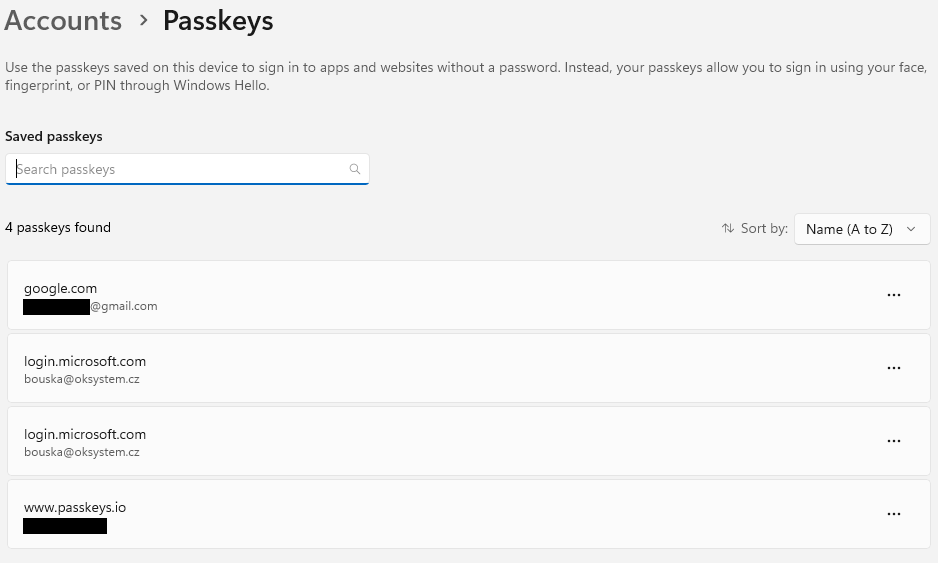
Unfortunately, there is a minimum amount of information available here and the only action available is to delete the passkey. Only the URL (domain) and the email (username) for which the passkey was issued are shown.
If you have a passkey for both a corporate Entra ID account and a personal Microsoft account, both use login.microsoft.com (and both may share the same email address, making them indistinguishable). There is also no difference shown between the original Windows Hello for Business and the new passkey in Windows Hello.
YubiKey security key by Yubico
If you have a security key from Yubico, you can use their YubiKey Manager to manage and retrieve information about the key. However, the Windows GUI application is fairly limited. For many operations, you need to use the command-line tool ykman.exe.
You can view (and manage) credentials stored on a YubiKey. These must be discoverable credentials (which passkeys always are). The example shows output from a security key registered in Microsoft Entra ID that also has a passkey for Google stored on it.
c:\Program Files\Yubico\YubiKey Manager>ykman fido credentials list

Enter your PIN:
Credential ID  RP ID                Username                Display name
d0fb5472...    login.microsoft.com  bouska@xxxx.cz          Bouška Petr
d9deb560...    google.com           bouska@gmail.com        bouska@gmail.com
Methods for administrators to retrieve information
Summary overview of registered user methods
- Microsoft Entra admin center - Entra ID - Authentication methods - User registration details
This report contains all users and their registered authentication methods. You can search for specific users and apply filters, for example by method type. Only the methods are listed here, not details about a specific instance of a method. If, for example, you use several Security keys, you will only see Passkey (other device-bound) listed once. Opening the Methods Registered filter will show a list of all possible methods.
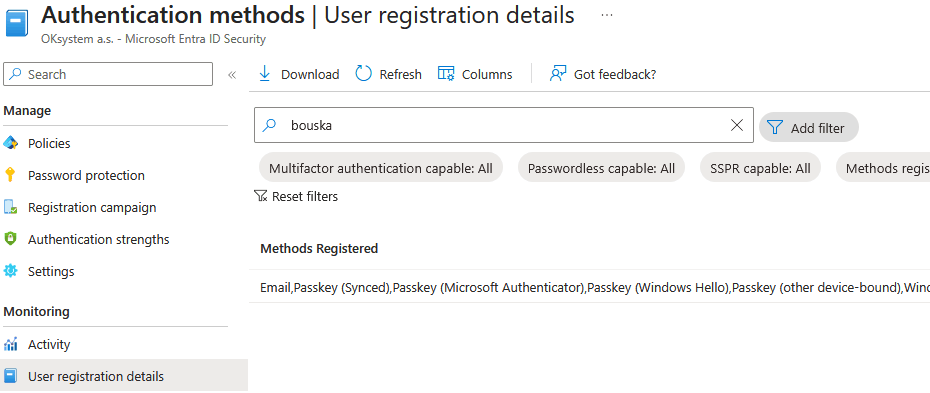
Note: This report also shows data for your own administrator account.
Authentication methods for a specific user
- Microsoft Entra Admin Center - Entra ID - Users - All users - select a user - Authentication methods
The most detailed information about a user's authentication methods can be found in the user account detail under the Authentication methods section. This shows a list of all instances with the method type and a more detailed description.
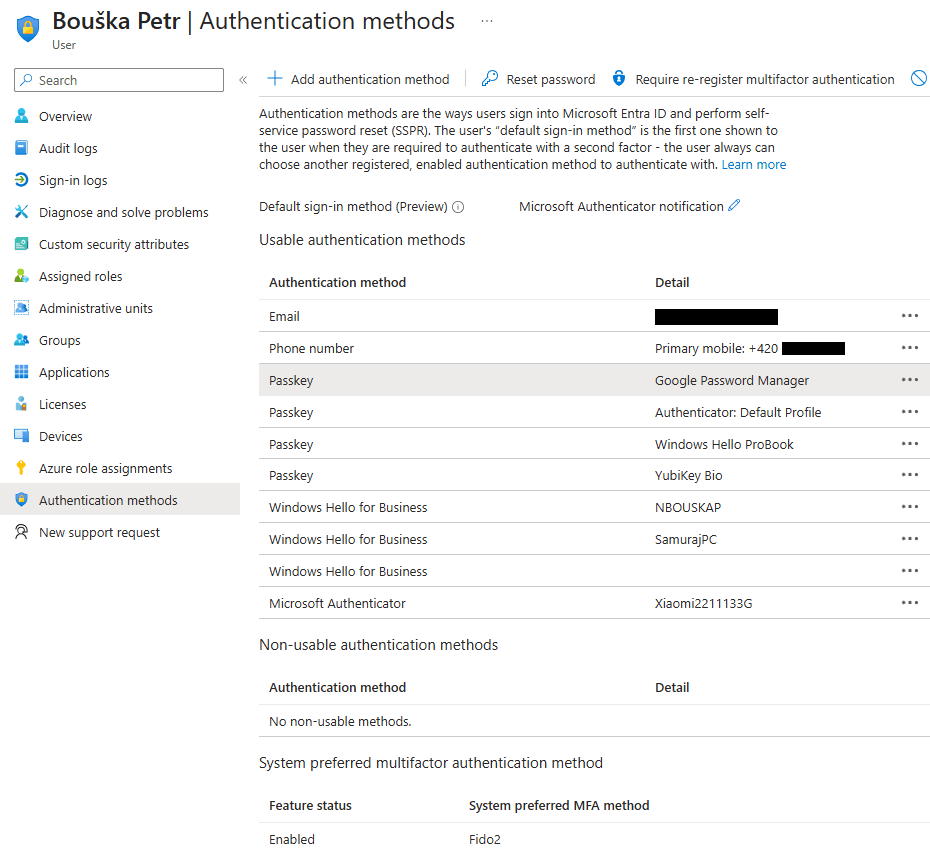
Note: I'm not sure what this is meant to protect, but administrators cannot see the methods for their own account here.
On the right-hand side of each method row there is a menu (three dots) where you can select View Details. This provides a number of useful details (depending on the method). In most cases, this includes the creation date and various device details.
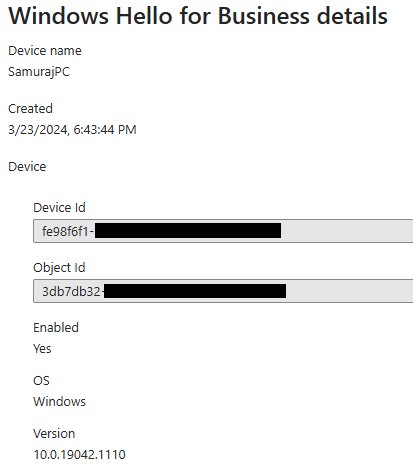
The amount of data available apparently depends on how old the registration is. Some older, unused registrations contain very little data. This is particularly notable for Windows Hello for Business, where older registrations do not show the computer name in the details — only the creation date is displayed. Another thing that surprised me is that Passkey in Microsoft Authenticator does not include device information.
The top menu contains a View authentication methods policy option, which provides information about the evaluated authentication methods.
Retrieving information using PowerShell
You can use the Microsoft Graph PowerShell Beta cmdlet Get-MgBetaUserAuthenticationMethod, which displays all registered authentication methods for a user. It is important to note that this uses the Beta Graph API.
Basic listing of a user's authentication methods
First, you need to install the Microsoft Graph Beta module, import it, and connect with sufficient permissions.
Install-Module Microsoft.Graph.Beta.Identity.SignIns
Import-Module Microsoft.Graph.Beta.Identity.SignIns
Connect-MgGraph -NoWelcome -Scopes UserAuthenticationMethod.Read.All
Basic usage will not provide very readable information.
PS C:\> Get-MgBetaUserAuthenticationMethod -UserId bouska@oksystem.cz

Id                                    CreatedDateTime     LastUsedDateTime
--                                    ---------------     ----------------
28c10230-6103-485e-b985-xxxxxxxxxxxx  03.02.2024 14:34:21
3ddfcfc8-9383-446f-83cc-xxxxxxxxxxxx
f3f00df0-334d-4b49-8d04-xxxxxxxxxxxx  26.05.2023 16:10:55 30.03.2026 13:11:33
Note: The lastUsedDateTime property, which contains the date a given method was last used, was added at the end of last year. Not every authentication method supports this field.
Interestingly, there are also specific cmdlets for individual authentication methods, such as:
Get-MgBetaUserAuthenticationMicrosoftAuthenticatorMethod -UserId bouska@oksystem.cz
Get-MgBetaUserAuthenticationWindowsHelloForBusinessMethod -UserId bouska@oksystem.cz
Get-MgBetaUserAuthenticationFido2Method -UserId bouska@oksystem.cz
Detailed listing of a user's authentication methods
The output of the Get-MgBetaUserAuthenticationMethod cmdlet contains a lot of information, but most of it is hidden in the AdditionalProperties blob. This contains different objects depending on the authentication type. The output needs to be properly formatted to surface the relevant information. Different methods contain different attributes, so some fields will be empty in the output.
An example of a possible user authentication methods listing:
$methods = Get-MgBetaUserAuthenticationMethod -UserId bouska@oksystem.cz
$methods | ForEach-Object {
    [PSCustomObject]@{
        Type     = $_.AdditionalProperties.'@odata.type'.substring(17)
        Name     = $_.AdditionalProperties.displayName
        Model    = $_.AdditionalProperties.model
        Phone    = $_.AdditionalProperties.phoneNumber
        Device   = $_.AdditionalProperties.deviceTag
        Created  = $_.CreatedDateTime
        LastUsed = $_.LastUsedDateTime
    }
} | Format-Table -AutoSize
Sample partial output
Type                                                   Name                           Created             LastUsed
----                                                   ----                           -------             --------
passwordAuthenticationMethod                                                          03.02.2025 14:34:21
emailAuthenticationMethod
phoneAuthenticationMethod
fido2AuthenticationMethod                              Google Password Manager        27.03.2026 9:12:05
fido2AuthenticationMethod                              Authenticator: Default Profile 26.03.2026 17:01:19
fido2AuthenticationMethod                              Windows Hello ProBook          24.03.2026 14:25:33
fido2AuthenticationMethod                              YubiKey Bio                    24.09.2024 5:48:35
windowsHelloForBusinessAuthenticationMethod            NBOUSKAP                       24.10.2024 17:18:11
passwordlessMicrosoftAuthenticatorAuthenticationMethod Xiaomi2211133G                 26.05.2023 16:10:55
windowsHelloForBusinessAuthenticationMethod            SamurajPC                      23.03.2024 17:43:44
windowsHelloForBusinessAuthenticationMethod                                           01.04.2024 15:53:02
microsoftAuthenticatorAuthenticationMethod             Xiaomi2211133G                 26.05.2023 16:10:55 30.03.2026 13:11:33
You could rewrite the authentication method type into a more readable format. A list of types can be found in the authenticationMethod resource type documentation.
For reference, you can also try the User Password and Authentication Report, specifically the script Report-UserPasswordChanges.PS1.
There are no comments yet.