
Windows Hello and passkeys
Let's start with a brief attempt to compare the basic terms.
Windows Hello vs. Windows Hello for Business
When I was describing Windows Hello, I looked for the difference in the Business version. I couldn't find any clear comparison. We often simply talk about Windows Hello and the basic features are identical. It is MFA, uses a PIN or biometrics, and can only be used locally on the computer (not remotely).
Windows Hello is designed for home users. PIN or biometrics serve as a convenient sign-in method and grant access to a password stored in a local vault. It is typically used with a local account, but can also be used with a (cloud-based) personal Microsoft account.
Windows Hello for Business is designed for organizations. It is configured centrally via policies. It is tied to a work account (Identity Provider such as Active Directory or Entra ID). The computer must be Entra joined or Entra hybrid joined. Authentication itself uses asymmetric cryptography and should make use of a Trusted Platform Module (TPM).
Windows Hello is generally used for signing in to the computer. However, if it is tied to an Identity Provider account (corporate or cloud account), it can also be used for (FIDO2/WebAuthn) browser-based sign-in (on the web).
Passkeys vs. Windows Hello
This question is not widely discussed, but when I was studying passkeys, I came across the following information. Windows Hello was developed in accordance with FIDO2 standards and since Windows 10 1903 has been officially certified by the FIDO Alliance. Therefore, both Windows Hello and passkeys represent FIDO2 authentication.
Windows Hello is a platform authenticator, keys are bound to the device. It enables signing in to Windows. Passkeys were created primarily for web-based sign-in and can be synchronized.
Microsoft changed the sign-in dialogs for cloud (work) account sign-in in January 2024.
- previously the option was called
Sign in with Windows Hello or a security key - it is now called
Face, Fingerprint, PIN or security keywith additional textUse your device to sign in with passkey
The term passkey is used everywhere. For example, when signing in using Windows Hello, the dialog is called Sign in with a passkey.
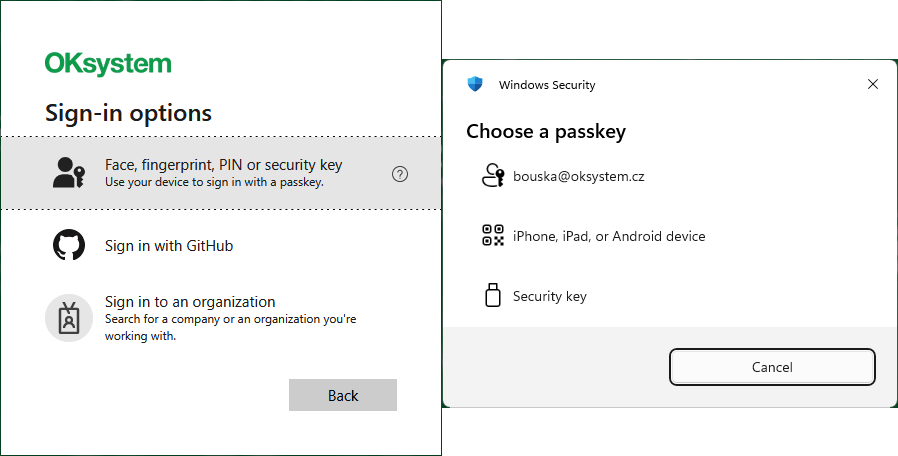
Within Entra ID, users still have the authentication method listed as Windows Hello for Business. If you add a passkey to Windows Hello using the method described in this article, the method is labeled as Passkey.

Using passkeys in Entra ID
Passkeys can be used to sign in to a number of places. The details depend on the type and conditions met.
- local sign-in to a device (Windows)
- sign-in to an application or service on the web (via a supported browser)
- sign-in to a remote desktop (RDP) of a corporate computer (option Use a web account to sign in to the remote computer)
- sign-in within a remote desktop session (redirection of a local device WebAuthn (Windows Hello or security keys))
Passkeys in Windows Hello
Microsoft is introducing Microsoft Entra passkeys on Windows to enable phishing-resistant sign-in to resources protected by Entra. The Public Preview runs from the end of March to May 2026. You can opt in by configuring a passkey policy.
Key features
When this option is enabled, users can add a new passkey to their account via Security Info in the usual way. It will be stored in the Windows Hello container on their computer (This Windows device).
- Windows Hello must be active (PIN must be set).
- This is a device-bound passkey that cannot be synchronized.
- Both Windows Hello for Business and Windows Hello are supported for devices that are not Entra joined or registered.
- A user can have multiple Entra accounts on the same Windows device.
- For corporate devices, the use of Windows Hello for Business is still recommended.
- Users cannot register a passkey to Windows if Windows Hello for Business credentials already exist for the same account and container.
In principle, this is the same as the ability to create a passkey stored in Windows Hello for a personal Microsoft account or a Google account, which has been available for some time (covered in previous parts of this series).
Enabling passkey registration in Windows Hello
Similar to what was required with Microsoft Authenticator during Preview, we currently need to explicitly allow the AAGUID for Windows Hello. There are three authenticators:
08987058-cadc-4b81-b6e1-30de50dcbe96Windows Hello Hardware Authenticator9ddd1817-af5a-4672-a2b9-3e3dd95000a9Windows Hello VBS Hardware Authenticator6028b017-b1d4-4c02-b4b3-afcdafc96bb2Windows Hello Software Authenticator
Note: Authenticator Attestation Global Unique Identifier (AAGUID) is a unique identifier for an authenticator type. A specific product (manufacturer and model) with the same properties shares a common AAGUID.
Thanks to passkey profiles, which we covered last time, configuration is considerably simplified (compared to enabling the MS Authenticator as described in part three of the series, where we had to add all the AAGUIDs in use).
- Microsoft Entra admin center - Entra ID - Authentication methods - Policies
- select the Passkey (FIDO2) method and switch to Configure
- add a new profile using Add profile
Name- give the profile a name, e.g. Windows HelloEnforce attestation- must be disabled (unchecked)Passkey types- select Device-boundTarget specific AAGUIDs- enable (check) to specify Security key models and/or passkey providersBehavior- select AllowModel/Provider AAGUIDs- enter the 3 AAGUIDs listed above, after saving they will display as names (Windows Hello (preview)is now directly available)- save using the Save button

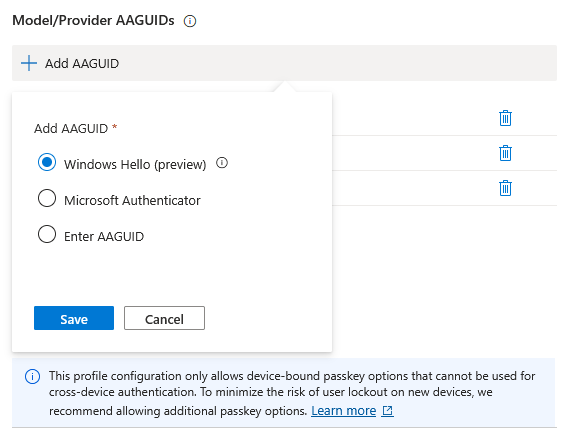
Next, you need to assign the profile to either a selected group of users or to everyone.
- switch to Enable and Target
- edit an existing group or add a new one using Add target
- under Passkey profiles, check the newly created profile
- save using the Save button

Working with passkeys in Windows Hello from the user's perspective
Setting up Windows Hello
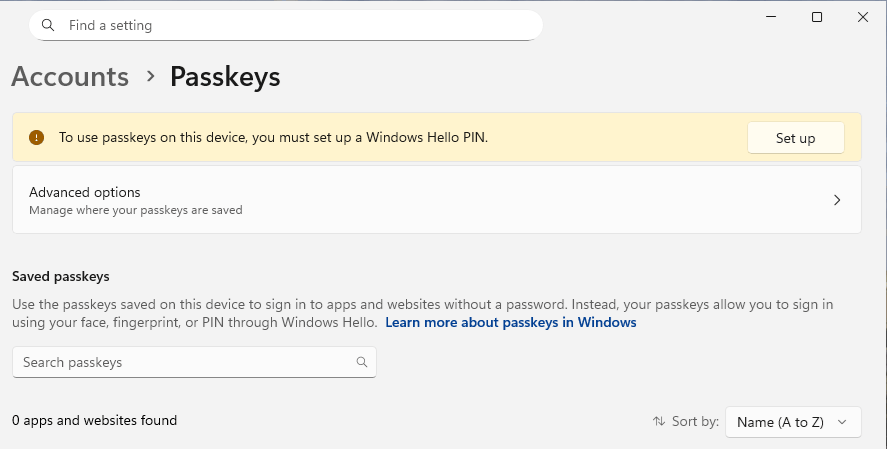
To be able to create a passkey in Windows Hello (on a Windows device), Windows Hello must be configured (active). This means at minimum having a PIN configured.
- Settings - Accounts - Passkeys
If you look at the passkeys settings, you will see a notice about the requirement to have a Windows Hello PIN set up.
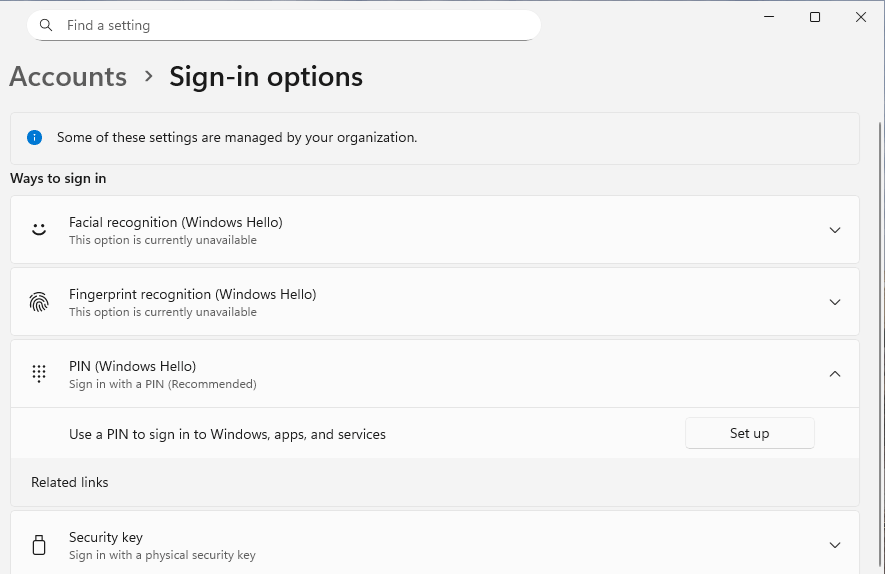
- Settings - Accounts - Sign-in options
In the sign-in options settings, you can choose one of three Windows Hello sign-in methods. Under PIN, select Set up and follow the wizard.
Creating a passkey on an unmanaged Windows device
Users typically manage their authentication methods within their account at My Account under Security Info, where there is an option to add (register) a new sign-in method. In this section, we will use a personal (unmanaged) computer running Windows 11.
- open the Security Info page and sign in (you must have authenticated within the last 5 minutes)
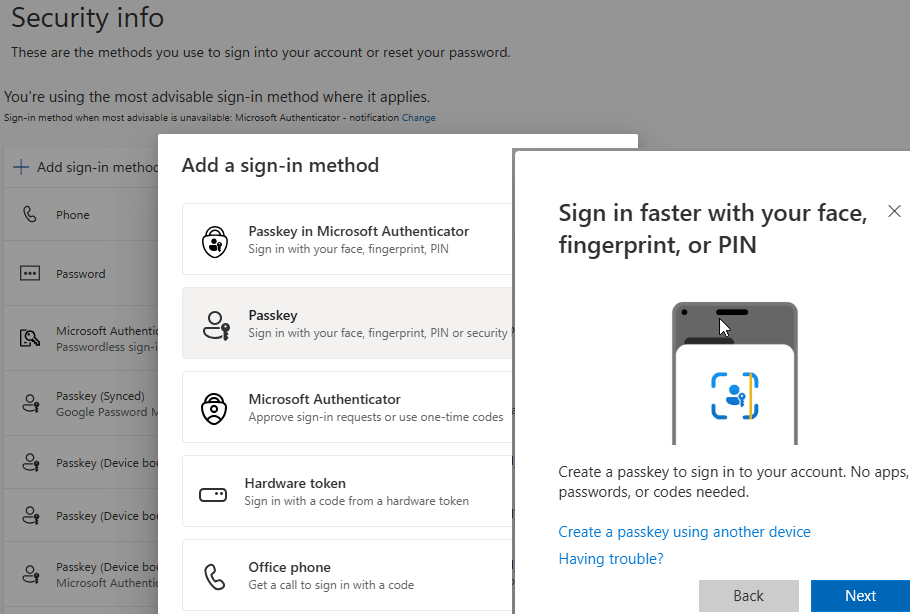
- click Add sign-in method
- select Passkey
- information about creating the passkey will be displayed, you have the option to create it on another device, click Next to continue
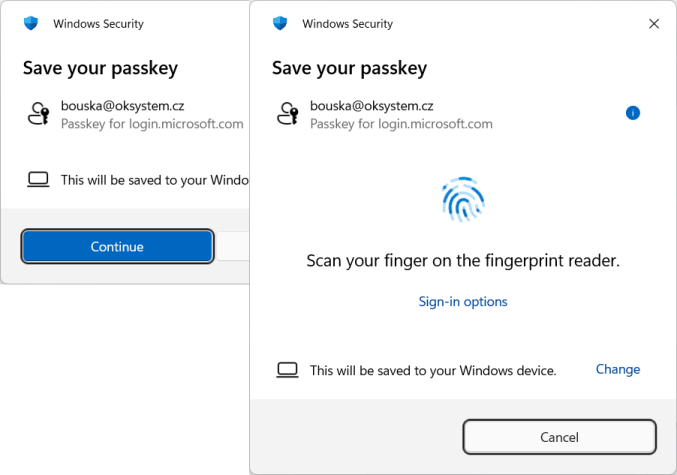
- a Windows Security dialog will open, showing information about the passkey and that it will be stored on your Windows device (only if Windows Hello is active, the storage location can be changed), click Continue
- you must authenticate with Windows Hello (PIN or biometrics)
- back on the Security Info page, enter a name for the passkey and it will be created
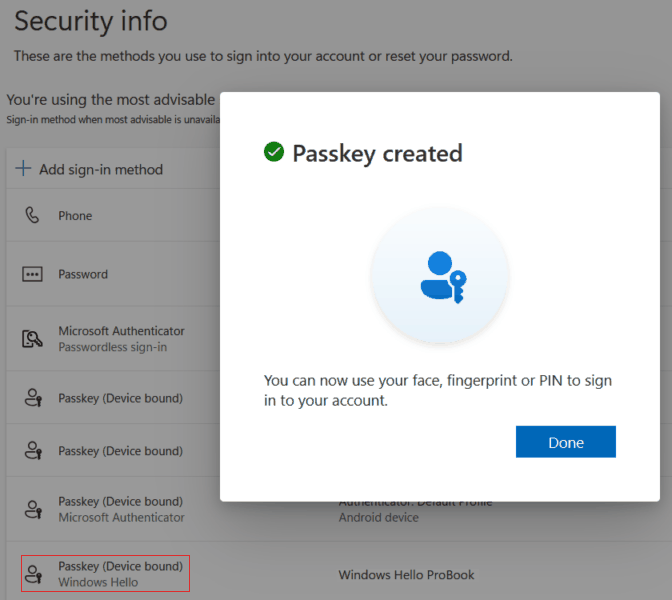
The new passkey will appear as Passkey (Device bound) Windows Hello. The standard Windows Hello for Business entry is not visible to the user here.
Creating a passkey on a managed Windows device
If your device is Microsoft Entra joined, Entra hybrid joined, or simply Entra registered, and your organization has Windows Hello for Business enabled (configured), then setting up Windows Hello will create keys for your Entra account. It is stated that due to policy, Windows Hello setup is required together with a work or school account.
If Windows Hello is not set up, when attempting to add a passkey sign-in method on the Security Info page, this computer (This Windows device) will not be offered as a storage location at all.
Once you set up Windows Hello and navigate to Settings - Accounts - Passkeys, you will see a passkey for login.microsoft.com. In the Entra ID administration, the user will have the Windows Hello for Business authentication method listed.
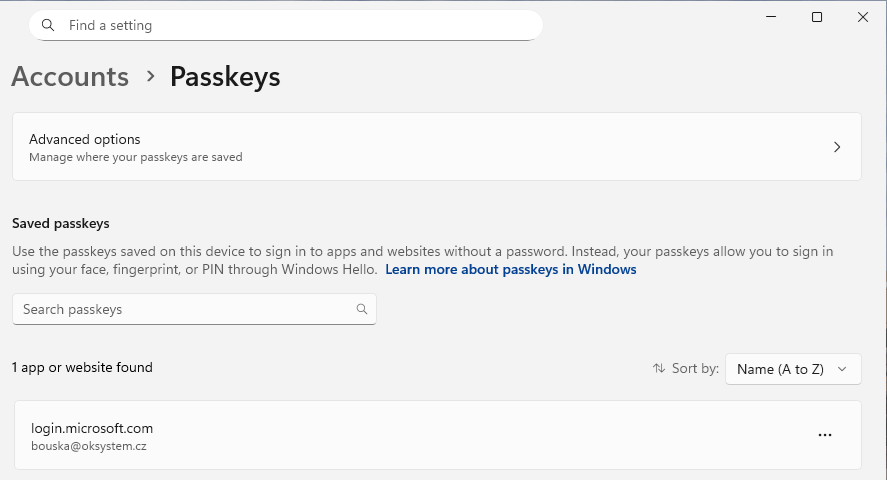
If you now try to register a passkey on this Windows device, you will receive an error message stating that this device is already registered.

In Windows Settings, you cannot delete a passkey that belongs to Windows Hello (you would have to delete the entire Windows Hello container via the command line). A message will appear stating that it is required for sign-in.
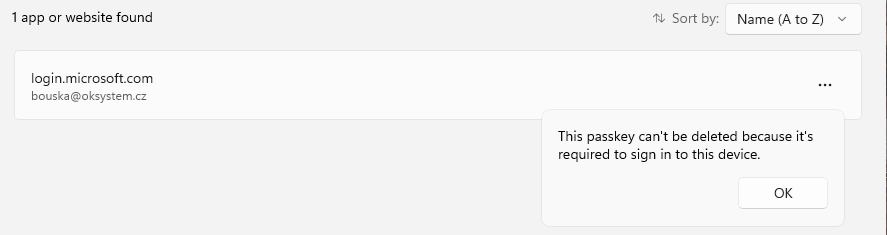
The Windows Hello for Business method can be deleted from the user account in the Entra ID administration. After that, it is possible to create a passkey in Security Info. The process is exactly the same as for an unmanaged device. In Windows under Accounts - Passkeys settings, you will see two identically labeled passkeys. However, this new one can be deleted.

Sign-in and registration logs
Just a brief mention of some places where you can find information about the sign-in or registration process.
Sign-in logs in Entra ID
- Microsoft Entra admin center - Entra ID - Users - Sign-in logs (or All Users - user - Sign-in logs)
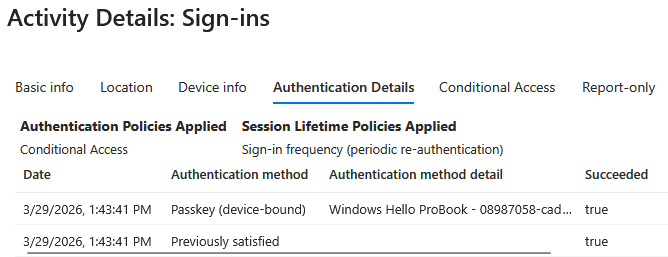
In the sign-in details, you can see the authentication method used - in this case, sign-in using a passkey stored in Windows Hello.
Client-side logs in Windows
Windows Event Viewer contains many logs. Data about the Provisioning process (registration) of Windows Hello for Business and prerequisite checks can be found at:
Applications and Services Logs - Microsoft - Windows - User Device Registration - Admin
For passkey registration into Windows Hello, the following log may be more relevant:
Applications and Services Logs - Microsoft - Windows - HelloForBusiness - Operational
It is named Windows Hello for Business, but information is logged here even on unmanaged devices. The events 5225 Key Creation and 8226 Key Deletion may be of particular interest.
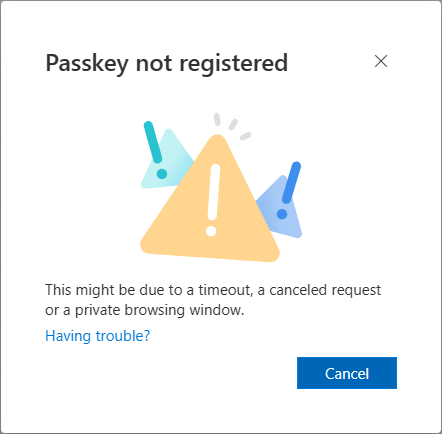
My first passkey registration attempts ended with a Passkey not registered error. It was apparent that the hardware key was created, but creation in Entra ID failed. Perhaps it took a short while for the policy to take effect, as the registration succeeded shortly after.
Passkey registration logs in Entra ID
- Microsoft Entra admin center - Entra ID - Users - Audit logs (or All Users - user - Audit logs)
Here you can find various registration information (deletions and other events) for authentication methods. Unfortunately, when I failed to create a passkey, no error was logged. Only the action User started security info registration appeared, with no subsequent record of a successful registration.
Certain entries in the Service field may be of interest:
- Authentication Methods
- Device Registration Service
- Azure MFA
Or the more detailed Activity field:
- Get passkey creation options
- Add Passkey (device-bound)
- User registered security info
- Add passwordless phone sign-in credential
- User started security info registration
There are no comments yet.