
Passkeys
FIDO authentication with passkeys is a standardized method of Phishing resistant Multi-Factor Passwordless Authentication. Passkeys are credentials based on the FIDO2 standard.
Passkeys can be stored on various models of security keys or with various passkey providers. Passkeys cannot be used in the self-service password reset (SSPR) process.
Types of passkeys
Microsoft Entra ID now (newly) supports two main types of passkeys
- Device-bound passkeys - the private key is created and stored on a single physical device and cannot leave it; examples include FIDO2 Security keys and Microsoft Authenticator
- Synced passkeys - the private key is generated by a hardware security module (HSM), encrypted and stored on the device; the encrypted key is synchronized between the user's devices via a cloud service; synced passkeys do not support attestation; examples include Google Password Manager and Apple iCloud Keychain, as well as various password managers with passkey support (such as 1Password, Bitwarden)
Note: Passkeys were described in detail in previous parts of this series.
What's new - passkey profiles and synced passkeys
- MC1221452 - (Update)Microsoft Entra ID: General Availability of passkey profiles and migration for existing Passkeys (FIDO2) tenants
- How to enable passkeys (FIDO2) in Microsoft Entra ID
From March 2026, new features within Microsoft Entra ID are transitioning to General Availability (GA). These are passkey profiles and synced passkeys.
Rollout to tenants began at the start of March and is expected to complete by end of March. When I activated the feature, it was still labeled as Public Preview. During the writing of this article it switched to the final version.
Profile transition process
In the first phase, administrators are given the option to opt in to the new way of working with passkey profiles, which supports configuring passkeys at the group level and introduces the new passkeyType property.
In the second phase, automatic migration will occur for tenants that have Passkeys (FIDO2) enabled and have not opted in themselves, moving them to the passkey profiles schema. This is expected to run from April through the end of May.
Supported passkey types (passkeyType)
- Device-bound passkeys
- Synced passkeys
- Both
Passkey profiles
Currently we can create up to 3 passkey profiles. In each profile we can set different requirements for passkeys, such as requiring attestation, specific AAGUIDs, or a supported passkey type. Profiles are then assigned to user groups.
We can assign multiple profiles to a single group, combining the available options. A passkey must then meet the conditions of at least one profile in order to be registered and used for authentication. If we disable synced passkeys, even existing ones cannot be used for authentication. In contrast, a registered Security Key can still be used (even after its type has been blocked).
Enabling passkey profiles
- Microsoft Entra admin center - Entra ID - Authentication methods - Policies
- select the Passkey (FIDO2) method
- at the top there is a banner with the text Upgrade to the new experience to opt in to profiles
- a
Default passkey profileis automatically created containing the original settings - we must edit it and choose the Passkey type
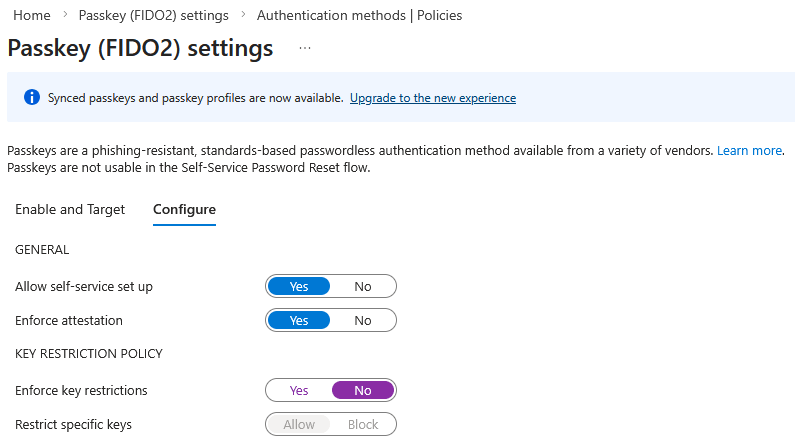
Creating or editing a profile
- Microsoft Entra admin center - Entra ID - Authentication methods - Policies
- in the Passkey (FIDO2) method, switch to Configure
- we must have
Allow self-service set upenabled so users can register passkeys - we can edit an existing profile or add a new one using Add profile
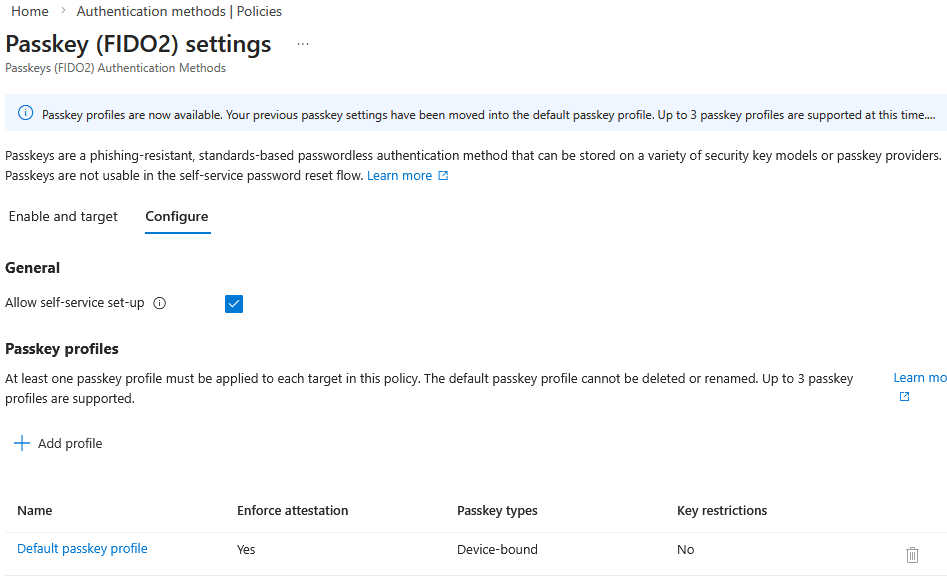
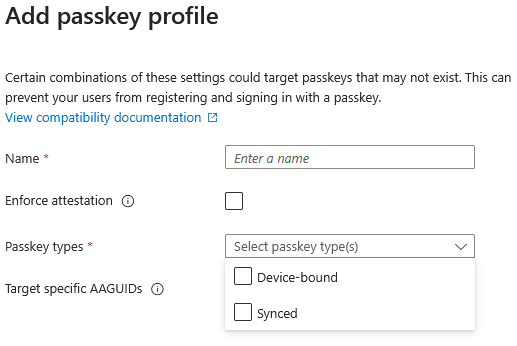
- the settings are the same as before, except for the new passkey type option
Passkey typesallows choosing Device-bound, Synced, or both; to allow synced passkeys,Enforce attestationmust not be set- save the new profile using the Save button
Applying a profile to a group
- Microsoft Entra admin center - Entra ID - Authentication methods - Policies
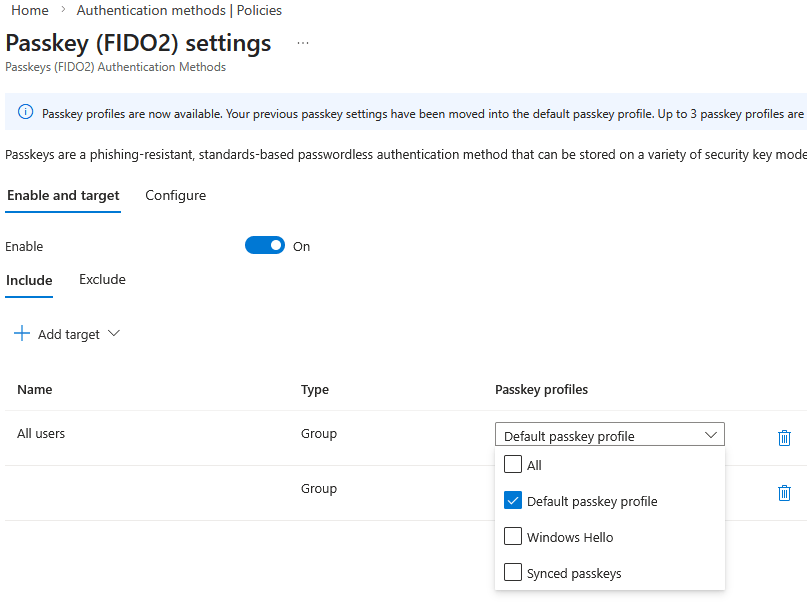
- in the Passkey (FIDO2) method, switch to Enable and Target
- passkey usage (the method) must be set to
Enabled - using Add target we can add All users or Select targets, where we choose specific groups
- under Passkey profiles select the profiles you want to assign to a specific target
- save the settings using the Save button
Synced passkeys
If we enable synced passkeys, the question is how and where to try or start using them. So far I have run a few tests with Google Password Manager, which is integrated into Google Chrome, and I tested it on both an Android device and on Windows.
Registering a passkey to Google Password Manager on Android
Users typically manage their authentication methods within their My Account under Security Info. Here it is possible to add (register) a new method.
- use Google Chrome on an Android device
- open the Security Info page and sign in (you must have been authenticated within the previous 5 minutes)
- click Add sign-in method
- choose Passkey
- information about creating a passkey is displayed; you have the option to choose creation on another device; continue with Next
- the passkey setup begins; a Google Password Manager dialog appears where you must authenticate

- back on the Security Info page, enter a name for the passkey and it will be created

Registering a passkey to Google Password Manager on Windows
The process works similarly when using Google Chrome on a Windows device where our Google account is signed in.
- open the Security Info page and sign in
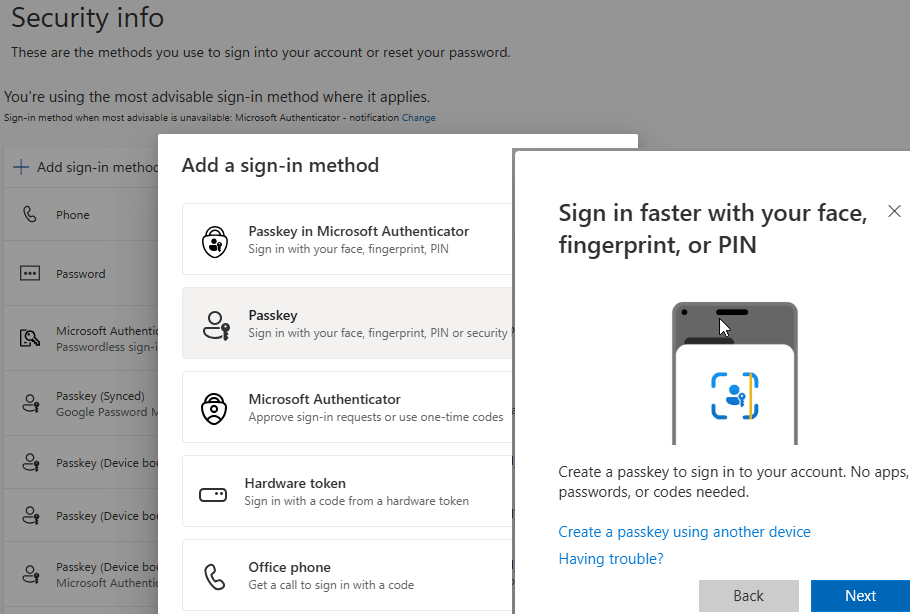
- click Add sign-in method
- choose Passkey
- information about creating a passkey is displayed; continue with Next
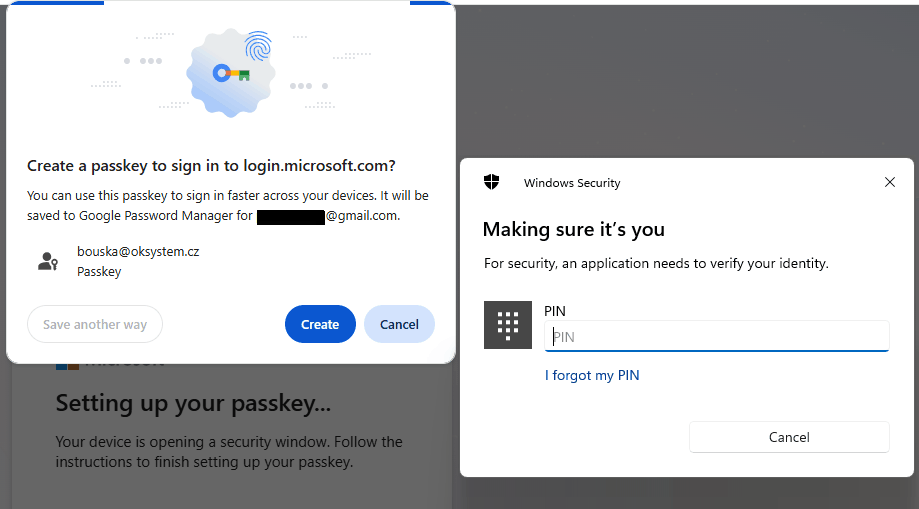
- at this point it depends on which passkey providers are available on the system; in my case a dialog for using a Security key appeared first, which I dismissed with the Cancel button
- a Google dialog then appeared offering Google Password Manager, which we select
- there is information that a passkey will be created; we proceed with the Create button and then must authenticate
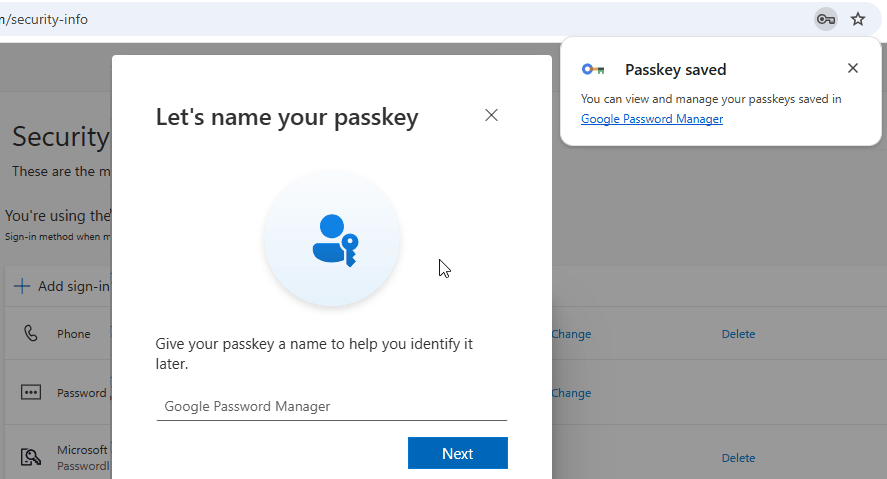
- enter a name for the passkey and it will be created
Note: While running my tests I was constantly creating and deleting passkeys. I repeatedly encountered a problem with creation. When I deleted an existing passkey from my account in Security Info but not on the device, for example in Google Password Manager, then upon creating a new one, the passkey would be created (and visible) in Google Password Manager, but the wizard would end with a Passkey not registered error. It was necessary to delete the passkey from the given storage first, after which creation succeeded.
Passkey in Security Info for the account
A newly registered passkey in My Security Info is marked with a passkey icon and the text Passkey (Synced) Google Password Manager. Next to it our entered name Google Password Manager is displayed.

Signing in with a passkey
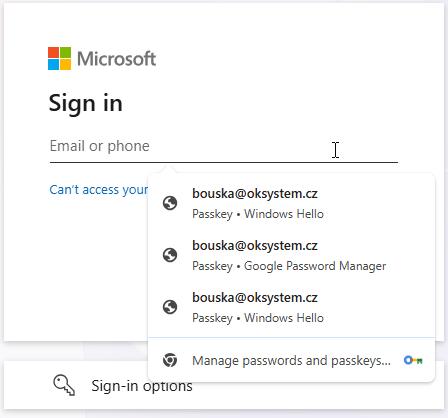
When signing in to an Entra ID account, the new passkey is offered among other passkeys in various places. Below is a screenshot of the Microsoft login dialog in the Chrome browser, which has the Google Password Manager integrated.
There are no comments yet.