Note: I had a brief opportunity to meet with the HPE 3PAR 8400 storage array, so I wrote down my observations. The most interesting part was that it was a configuration of two arrays in different data centers in a geographic cluster (more on that another time).
Note: In general, with storage systems, the English term Host is used for the devices that connect to the array and to which we provide storage space. Host means hostitel in Czech, which seems like a rather strange term to me, as it seems to me that the array is the host and the one connecting is rather the guest (English) or client. There is also the confusion that the Czech and English words for "host" have the opposite meaning. So in many articles about arrays, I mix the terms, using Host (thinking of the English word) or client, etc. But I hope the context helps everyone understand.
HPE 3PAR StoreServ Storage - basic characteristics
The HPE 3PAR 8400 storage array is an HPE 3PAR StoreServ Storage model from the 8000 series, equipped with the HP 3PAR Operating System (OS, currently version 3.2.2 (MU4) P50).
The HPE 3PAR family currently includes two array series, the 8000 series (8200, 8400, 8440, 8450 AllFlash) and the 20000 series (20450, 20800, 20850). They all have the same OS, feature set, and management interface. The 20000 series are the highest-performance arrays, with each controller having 2x ASIC, up to 8 controllers can be connected in a cluster, and they have the greatest expandability, capacity, and performance.
The 8000 series has a 12 Gbps SAS BackEnd, includes 16 Gbps Fibre Channel ports on the controller, 5th generation ASIC, and a maximum of 4 controllers can be connected in a cluster.
The architecture is based on connecting controllers into a cluster. At the base, we have a Controller Enclosure, which contains two controllers, i.e., cluster nodes. Depending on the array model, we can expand to 4, 6, or 8 cluster nodes by connecting additional Controller Enclosures. This increases reliability and performance. The cluster nodes are connected in a Full Mesh, which HPE calls Virtualized Storage Architecture. The controllers operate in Active/Active mode. Performance is evenly distributed across all disks on all shelves. For RAID, we do not specify certain disks, but all RAID types can be located on the same disk. It does not use a traditional Spare disk, but the Spare is distributed, with a bit of free space on each disk.
Deduplication is supported, but only on SSD disks created as a special Volume. Adaptive Flash Cache (AFC) is a read cache formed by SSD disks, which can only be a part of the space on the SSD disks. The array supports a converged approach using block access - SAN (Ethernet iSCSI and FCoE, Fibre Channel optics) and file - NAS (NFS, CIFS/SMB, object access) - HPE 3PAR File Persona. The array can be divided into independent administrative parts (virtual domains), where we have a shared storage array, but the admin has access only to a part of the resources. High availability can be solved not only within the disks, but also across different shelves (Enclosure).
Official documentation
- HPE 3PAR StoreServ 8000 Storage - Product documentation
- HPE 3PAR StoreServ 8000 Storage Series Cabling Configuration Guide
- HPE 3PAR StoreServ 8000 Storage Installation Guide
- Single Point of Connectivity Knowledge (SPOCK) website
- HP 3PAR Management Console User's Guide
- HPE 3PAR StoreServ Management Console 3.0 User Guide
Configuration and cabling
The basis of a 3PAR array is the Controller Enclosure, also called the Base Storage System, which is a 2U high shelf. We can insert up to 24 2.5" disks on the front, and on the back there are 2 controllers. In this case, it is the HPE 3PAR StoreServ 8400 2N Base. The number 4 in the 8400 designation indicates that we can have up to 4 controllers, so we can connect a second Controller Enclosure and get a 4-node cluster. Each controller is equipped with:
- 6-core 2.2GHz processor, 16GB cache
- 2x 12Gbps SAS ports for connecting the disk shelf, Slot 0
- 2x 16Gbps Fibre Channel for data, Slot 1
- 1x PCI port for an expansion HBA card, Slot 2
- 2x 1Gbps Ethernet ports, for management and Remote Copy or File Persona (RCIP), Slot 3
- 2x cluster expansion ports for connecting additional controllers

The ports on the controller are labeled Node:Slot:Port, and the disks are labeled Cage:Disk:0 (it's actually Cage:Magazine:Disk, but in the magazine there is always one disk, so the magazine number corresponds to the disk position, and the disk in the magazine is 0). As an expansion card, we can use a 4-port 16 Gbps FC, a 2-port 10 Gbps iSCSI/FCoE, a 4-port 1 Gbps Ethernet Adapter, or a 2-port 10Gbps Ethernet Adapter.

To the base, we can connect a series of Expansion Disk Enclosure, which HPE often refers to as Cages. Either 2U for 24 SFF 2.5" disks (HP 3PAR 8000 SFF(2.5in) Fld Int Drv Encl) or 4U for 24 LFF 3.5" (HP 3PAR 8000 LFF(3.5in) Fld Int Drv Encl). The number of disk shelves we can connect depends on the model and is per shelf with controllers. For the 3PAR 8400, it is 0 to 11 shelves if we have one Controller Enclosure, and if we use two, the maximum is 22 shelves.
An image from the official documentation showing the interconnection of the disk shelves.

HPE 3PAR Remote Support
To be able to use remote assistance, as well as monitoring the array and sending events, we must use a Service Processor. These are special appliances that we can deploy as a virtual machine for VMware, one for each controller. It then monitors the array and sends error events and performance statistics to HPE via HTTPS, or locally via email.
Managing the 3PAR array
We can use several options for management. We can connect via SSH to the array's command line (CLI). We can use the older but widely used HPE 3PAR Management Console (MC) application, which is an application we install on a workstation. Or the new StoreServ Management Console (SSMC), which we have to install on a server and then connect to it through a web interface. The default user is 3paradm with the password 3pardata. It is also possible to connect the array to HPE OneView, which provides centralized management of servers, storage arrays, and networks.
StoreServ Management Console (SSMC)
SSMC is a modern web application with a OneView-style design. It allows complete management of the array, should be able to do everything like the older MC, but also supports performance monitoring, better reporting, and alerts. Management of new features is added only to SSMC, not MC (we can always use the CLI).
SSMC must be installed on a server with a Windows or Linux OS. From there, it provides a web interface, typically using HTTPS on port 8443. During installation, we create a user for the Administrator Console. On the first launch, we connect to the console and configure the connection to the array. Subsequently, we connect directly and use the account on the array.
HPE 3PAR Management Console (MC)
MC is an older management application that we can still use. It is an application that we install on the client and then connect to the array (encrypted connection TCP 5783 or unencrypted TCP 5782). We can connect to multiple systems at the same time. The appearance is similar to MS Outlook, and it may be more intuitive than SSMC.
Command Line Interface (CLI)
Everything can be configured through the command line (CLI). We can connect using SSH (e.g., Putty), or we can install the special HPE 3PAR OS CLI application, which also installs various integrations. It uses a Linux format. Some examples:
display help
hpe3par cli% help createcpg

information about the controllers
hpe3par cli% shownode

check the health of the array
hpe3par cli% checkhealth

list firmware versions of all components
hpe3par cli% showversion
OS Tools
HPE offers several utilities for Windows and Linux that can help on the OS side.
- Host Explorer - runs as a service, communicates via iSCSI or FC and provides the storage array with detailed information about the client
- HP3PARInfo - a command-line tool that provides detailed information about the volume (LUN) mapped to the server, allows identifying individual LUNs exported to the server (displays the Volume name from the storage array)
Terms and Principles
On physical disks, we create Chunklets, which we group into Logical Disks according to type, where we define RAID. We group Logical Disks into Common Provisioning Groups and create Virtual Volumes inside. When we export a volume to the client, a LUN (VLUN) is created.
- Chunklets - basic disk unit (allocation unit), fixed size of 1 GB, automatically created on each disk, standard Chunklets and Spare chunklets (instead of Spare disk) are created, allows creating volumes across different disks of different sizes, as a certain number of chunklets are always allocated, and RAID is created on top of them
- Logical Disk (LD) - logical disk is a combination of chunklets, where chunklets from disks of the same type (Nearline - NL, Fast Class - FC, SSD) are grouped, RAID is created (supported RAID 0 (default off), 1, 5 (off for NL), 6)
- Common Provisioning Groups (CPG) - virtual pool of logical disks, a container for volumes, adaptive and dynamic optimization runs on them, we set various properties and policies for availability on the CPG, it determines RAID and the type of disks used (tier) for volumes, a Default CPG is automatically created for disk groups and different RAID, we can run the Compact CPG function on the CPG to release the returned space
- Virtual Volume (VV) - logical space inside the CPG, contains its own data, can be of different types - Base (basic), Virtual Copy (Snapshot), Physical Copy (Clone) or differently provisioned - Full Provisioned (e.g., for logs), Thinly Provisioned (e.g., for virtualization), Thin Dedup (on SSD disks)
- Virtual LUN (VLUN) - exported (assigned) volume on the server (host), the client sees the Volume as a local disk
The array supports two optimization methods:
- Dynamic Optimization - online, without downtime, it moves data to different Tiers - disk types (NL, FA, SSD) or RAID types, according to the CPG properties. It is licensed.
- Adaptive Optimization - we create policies for setting and scheduling, data analysis is performed, and commands for movement are automatically generated. By default, the Volume is located in one CPG, which has disks of one type. AO allows the Volume to be across multiple disk types (Tiers) and solves subvolume data assignment. It is licensed.
Disk Operations (Virtual Volume - VLUN)
We will describe the common operations of creating a volume, a client (host), and assigning them (export). I assume that the Common Provisioning Groups (CPG) have already been created. The description will be for the Management Console, and for SSMC, we will only mention the menu items (the principle is similar).
Creating a Virtual Volume
HPE 3PAR Management Console
- in the lower left part (Manager Pane), switch to Provisioning
- in the tree (Management Tree), open Storage System - name - Virtual Volumes and select Create Virtual Volume with the right mouse button (or in the menu)

- in the first step of the wizard, read the help, and in the second step, enter the parameters for the volume
- the important parameter is Name, where we enter the name for the Volume, Size, where we choose the required size, User CPG, in which CPG the volume will be created, the provisioning type, we can set Copy CPG
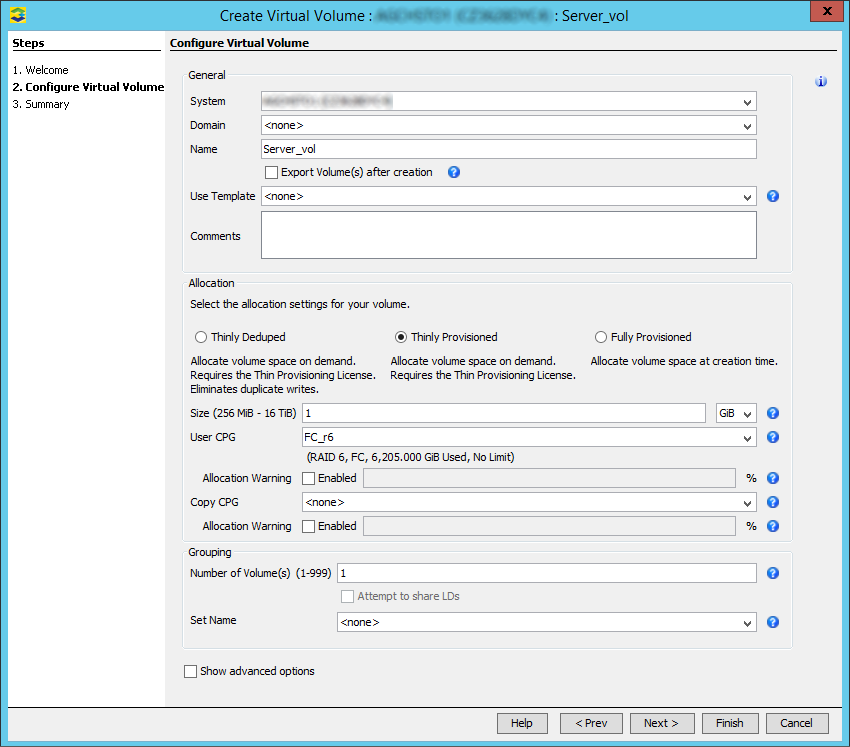
- at the bottom of the window, we can check Show advanced options, then several more items will be displayed that we can fill in, and an additional step will be added
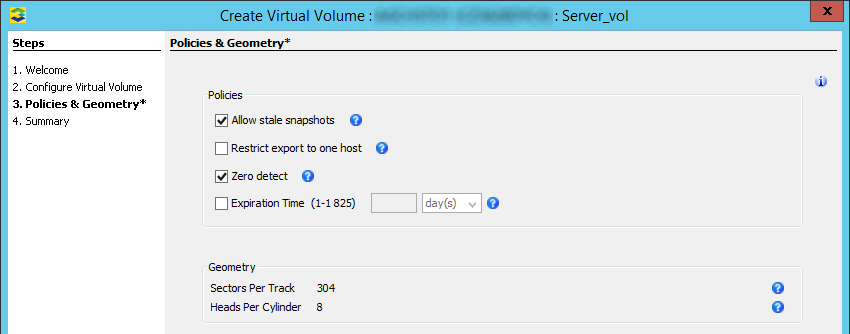
- click on Next, the summary will be displayed, and Finish will create the volume
SSMC (StoreServ Management Console)
- top left corner 3PAR StoreServ (Mega Menu) - Block Persona - select Virtual Volumes - click the Create virtual volume button
- in the wizard, fill in the data and we can immediately perform the Export
Creating a Virtual Volume Set
We can combine several volumes into a group and then work with them all at once (for example, if a server has multiple disks).
- launch the HPE 3PAR Management Console application
- in the lower left part (Manager Pane), switch to Provisioning
- in the tree (Management Tree), open Storage System - name - Virtual Volumes Sets and select Create Virtual Volume Set with the right mouse button (or in the menu)
- enter a name for the group, in the next step, select existing volumes, and finish with Finish
Creating a Host (server)
HPE 3PAR Management Console
- in the lower left part (Manager Pane), switch to Hosts
- in the tree (Management Tree), open Storage System - name - Hosts and select Create Host with the right mouse button (or in the menu)

- in the wizard, fill in the parameters, enter a name for the host, select the operating system, and can enter descriptive information

- for Fibre Channel connection, select or enter the WWN, for iSCSI, select or enter the IQN (iSCSI Name)
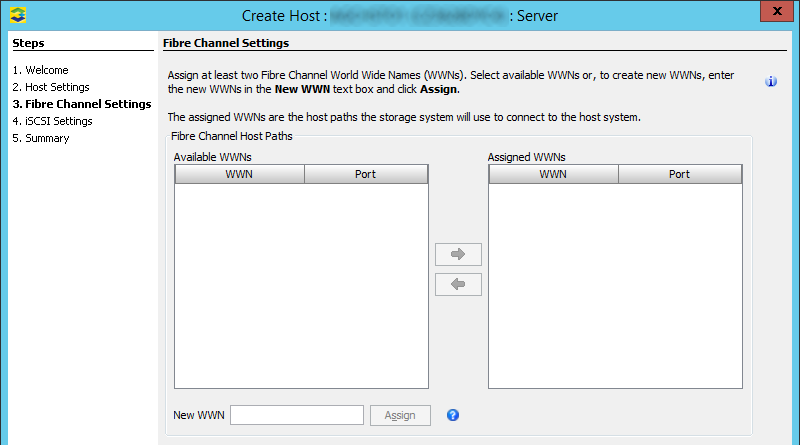
- click on Next, the summary will be displayed, and Finish will create the host
SSMC (StoreServ Management Console)
- top left corner 3PAR StoreServ (Mega Menu) - Block Persona - select Hosts - click the Create host button
Creating a Host Set
We can combine several clients (Hosts) into a group and then work with them all at once (for example, when we have a server cluster and assign them a common disk).
- launch the HPE 3PAR Management Console application
- in the lower left part (Manager Pane), switch to Provisioning
- in the tree (Management Tree), open Storage System - name - Host Sets or Hosts and select Create Host Set with the right mouse button (or in the menu)
- enter a name for the group, in the next step, select the existing Hosts, and finish with Finish
Assigning (Exporting) Volume to Host - Creating VLUN
HPE uses the term Export for assigning a disk (Volume/LUN) to a client (Host) on 3PAR arrays. In contrast to the commonly used mapping, assign, or present elsewhere. We can export a volume either on Hosts or Virtual Volumes, and the same wizard is always launched.
HPE 3PAR Management Console
- in the lower left part (Manager Pane), switch to Hosts or Provisioning
- in the tree (Management Tree), open Storage System - name - Hosts or Virtual Volumes (and select the Volume)
- and select Export Volume or Export with the right mouse button (or in the menu)
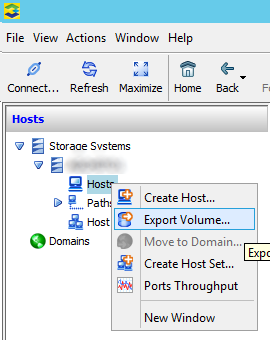
- in the wizard, we select the combination of Virtual Volume and Host

- we can also switch the view to Virtual Volume Set and Host Set and assign groups
- click on Next, the summary will be displayed, and Finish will export the volume to the client and create the VLUN
SSMC (StoreServ Management Console)
- top left corner 3PAR StoreServ (Mega Menu) - Block Persona - select Virtual Volumes - select the desired volume (Virtual Volume) - in the dropdown Actions menu, click Export
Unexporting a Volume from a Client
HPE 3PAR Management Console
- in the lower left part (Manager Pane), switch to Provisioning
- in the tree (Management Tree), open Storage System - name - VLUNs
- on the VLUN Templates tab, select the desired ones and choose Unexport Volume with the right mouse button or in the menu
- a warning dialog will be displayed, where we confirm the deletion of the VLUN by clicking Delete
SSMC (StoreServ Management Console)
- top left corner 3PAR StoreServ (Mega Menu) - Block Persona - select Virtual Volumes - select the desired volume (Virtual Volume) - switch the view to Exports (in the middle next to the volume name) - in the dropdown Actions menu, click Unexport
Deleting a Virtual Volume
HPE 3PAR Management Console
- in the lower left part (Manager Pane), switch to Provisioning
- in the tree (Management Tree), open Storage System - name - Virtual Volumes and on the right tab Virtual Volumes, find the desired volume
- select Remove with the right mouse button (or in the menu)
- a confirmation dialog with the details will be displayed, confirm OK
- another warning will be displayed that data will be deleted, confirm Delete
SSMC (StoreServ Management Console)
- top left corner 3PAR StoreServ (Mega Menu) - Block Persona - select Virtual Volumes - select the desired volume (Virtual Volume) - in the dropdown Actions menu, click Delete
super
chcelo by to aj nimble, primeru, msa ;)