
Note: The description in this article was tested on Veeam Backup & Replication 13.0.1, licensed with Veeam Universal License (VUL), equivalent to Enterprise Plus. It covers the VMware and Hyper-V platforms. For some questions I could not find an answer in the official documentation, and my information is based on practical tests.
Introductory Information on the Technologies
The first half of the article briefly describes the technologies. We then address the question of where we can use gMSA and whether a special account is even needed for Application-Aware Processing. Those interested only in the practical configuration of gMSA accounts can skip to the second half of the article.
What is gMSA?
A Group Managed Service Account (gMSA) is a type of managed domain account that provides automatic password management. The Windows operating system retrieves the password (a randomly generated 240-byte value that changes every 30 days by default) from the DC on its own, without administrator intervention (the administrator does not know the password).
As already indicated in the name, it is used for service accounts. It does not allow interactive logon. Otherwise it can be used in a standard way. For example, added to security groups or used to set permissions on the file system.
Password management (rotation) is handled by the Microsoft Key Distribution Service (kdssvc.dll) on the domain controller (DC). Member computers obtain the current password from the DC. gMSA is supported from Windows Server 2012 onward.
Veeam Application-Aware Processing (Guest Processing)
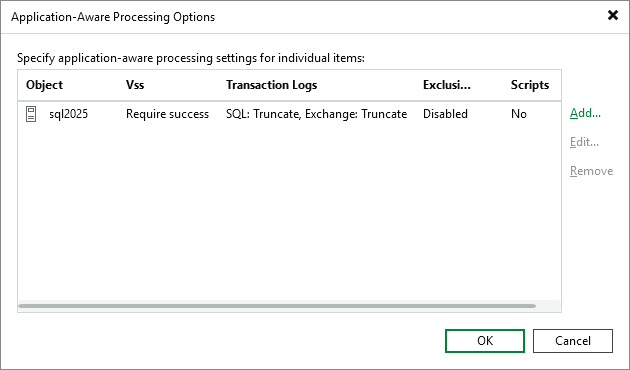
If a Crash-consistent backup (as if we had cut power to the server) is not sufficient and we require an Application-Aware backup (Application / Transaction Consistent), where applications and the OS are brought to a quiesced state. Then in Veeam Backup & Replication we must use Application-Aware Processing together with sufficient credentials (often a local administrator) to log on to the backed-up OS. We therefore need a service account. Network communication is also required (or alternatively VMware VIX API or Microsoft PowerShell Direct).
Note: Consistent here means a valid, coherent state. A consistent file system has all writes to disk completed (it is not a mid-write state where a file would be corrupted). Similarly, application consistency means that transactions (e.g. on SQL, Exchange, or AD) have been completed and the cache has been flushed to disk.
It is difficult to find precise details about how these things work in VBR. It also depends heavily on the virtualization platform, the hosted OS, and other circumstances. In VBR we can configure Guest Quiescence or Application-Aware Processing (the recommended option).
When Application-Aware Processing is enabled, Veeam installs temporary or persistent components in the hosted OS. These are primarily the Veeam Guest Helper, which in the case of persistent components is part of the Veeam Guest Agent. Optionally, the Log Shipping Service for transaction log backup is also installed.
Snapshots
During a standard VM backup (Crash-consistent), a VM Snapshot / Checkpoint is taken at the virtualization level and the backup runs from it.
During a consistent VM backup (File-system / Application consistent), a system snapshot is taken first. For this, technologies such as Volume Shadow Copy Service (VSS) on Windows or File System Freeze on Linux are used. This can be invoked via VMware Tools or Hyper-V Integration Services when creating a VM snapshot. It is referred to as a Hyper-V Production Checkpoint (vs. Standard Checkpoint) or VMware Snapshot with Quiesce Guest File System. To quiesce an application, the appropriate VSS Writer for that application must be present on Windows.
Veeam VSS Logs
When using Application-Aware Processing, logs are created on Windows VMs where we can find a range of information or errors. The default path is C:\ProgramData\Veeam\Backup. VSS-related entries are stored in the file VeeamVssSupport.log.
Guest Interaction Proxy
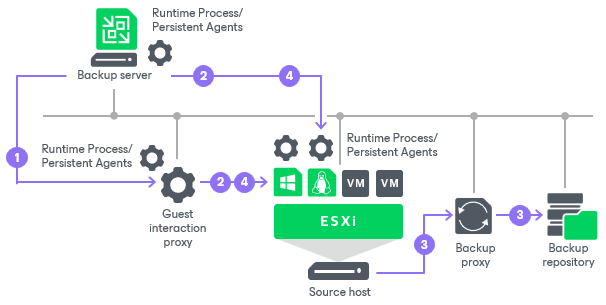
The Guest Interaction Proxy (GIP) is a component that acts as an intermediary between the Backup Server and the backed-up VM. It handles communication between Veeam Backup & Replication and the hosted VM's OS for Guest Processing. This role can be filled by the Backup Server or any Windows or Linux server added to the managed servers in VBR. The GIP can also serve as a Log Shipping Server.
The documentation is not very clear about exactly what the GIP does. It is stated that it performs the installation of Non-Persistent Runtime Components or Persistent Agent Components. For the installation of Non-Persistent Runtime Components, it requires a specified account (Guest OS credentials) under which the installation is performed (connecting from the GIP). Subsequent communication with the components is authenticated by certificate. Certain information can be found in the port requirements at Ports - Guest Processing Components.
Persistent Guest Agent
When we want to use the Persistent Guest Agent, the full component installation does not happen automatically (from the GIP). We must first deploy the Veeam Installer Service, or more precisely the Veeam Deployment Kit (Backup Infrastructure - Managed Servers - Create Veeam deployment kit), on the backed-up server. This removes many security and port requirements. The Backup Server or Guest Interaction Proxy communicates with the Installer Service, which has administrator privileges on the server.
The server then runs the Veeam Installer Service (VeeamDeploymentSvc.exe), which by default listens on port 6160, and the Veeam Guest Agent (VeeamGuestHelper.exe), which by default listens on port 6173. Both run under the Local System account.
Where Veeam Supports gMSA
In Veeam Backup & Replication (from version 12 onward), gMSA can be used (only) for running Guest Processing jobs. Specifically, this covers the following operations:
- Application-Aware Processing - ensuring transactional consistency of backups for AD domain controllers, Exchange, SQL Server, and Oracle DB (SharePoint is not supported), this also includes transaction log backup, transaction log truncation, and script processing inside the OS (pre-freeze and post-thaw scripts)
- Guest File System Indexing - file indexing
This applies to image-level backups or replicas. For backups using Veeam Agent, gMSA is supported for backup jobs managed by the Backup Server and only for SQL Server and script processing.
Where gMSA Is Not Supported
The gMSA account cannot be used anywhere other than for Guest Processing. Common areas where it is not supported include adding infrastructure components (managed servers, virtual infrastructure with Windows Server, Hyper-V, SCVMM), computers in a Protection Group (Veeam Agent), and Veeam Explorers for granular data recovery.
Official Requirements
The official documentation lists the following requirements for using gMSA. Both the Guest Interaction Proxy and the backed-up machine must be running Windows, be domain members, and have network access to a domain controller (which issues them the current gMSA password). On the backed-up machine, the gMSA must be added to the Administrators group and must have the Logon as a service right (which members of Administrators have by default). The GIP itself then uses this gMSA account to access the hosted OS of the backed-up machines.
These are likely the requirements to cover all possible scenarios. For some practical situations, not all of them need to be met. I performed various tests (on Hyper-V and VMware only), which are briefly described at the end of the article. From these I derived the following requirements for specific situations.
Admin rights on the backed-up server are needed primarily for installing Non-Persistent Runtime Components. For this purpose, the Guest Interaction Proxy also needs to use the gMSA. If we use the Persistent Guest Agent, these requirements fall away.
Windows Server Without a Special Application
We have a Windows server with no supported application present (such as SQL Server or Exchange Server). We want to perform a backup with the file system (OS) in a consistent state. This might be a file server, for example.
If we use the Persistent Guest Agent (deploying the Deployment Kit on the server), the account specified in Guest OS credentials (in our case gMSA) may not be used at all, and therefore there are no requirements. Communication goes to the Installer Service, through which the Veeam Guest Agent is installed.
If we want to use Non-Persistent Runtime Components, components must be injected at each job run. This likely uses an Administrative share or VIX API / PowerShell Direct. The Guest Interaction Proxy must be able to retrieve the gMSA password and will use this account to access the backed-up server. On the backed-up VM, the gMSA must be a member of the local Administrators group (but does not need rights to retrieve the gMSA password). The GIP must therefore be domain-joined.
SQL Server
We have a SQL Server running on a Windows server. We want to perform a backup with the databases in a consistent state, truncate SQL transaction logs (or perform their backup).
If we use the Persistent Guest Agent, the account specified in Guest OS credentials is needed for log truncation. It is used directly on the backed-up server, so that server must be able to retrieve the gMSA password. It must have sufficient rights on SQL Server, but does not need to be a local administrator. The GIP does not interact with the gMSA.
If we want to use Non-Persistent Runtime Components, both the Guest Interaction Proxy and the backed-up VM must be able to retrieve the gMSA password (and be domain-joined). On the backed-up server, the gMSA must be a local administrator and have the necessary rights on SQL Server.
Exchange Server
We have an Exchange Server running on a Windows server. We want to perform a backup with everything in a consistent state and truncate Exchange transaction logs. Log truncation works by having the Volume Shadow Copy Service (VSS) Microsoft Exchange Writer notify Exchange Server that a valid backup has completed. Exchange then removes the logs itself.
I only tested with the Persistent Guest Agent (using Non-Persistent Runtime Components would be the same as in the previous cases). The specified account is not used / is not needed (everything completed correctly with the selected gMSA, which had no rights at all).
Active Directory (AD) Domain Controller (DC)
We have a domain controller running on a Windows server. We want to perform a backup with everything in a consistent state.
In this case as well I only tested with the Persistent Guest Agent. The specified account is not used / is not needed. Veeam services and VSS with the NTDS Writer are used.
Use of Guest OS Credentials
On the backed-up server we can examine the VeeamVssSupport.log log. Here we can find when the service attempted to use the specified account (Guest OS credentials).
In all cases I reviewed, it attempts to gather information about SQL AlwaysOn, connect to the Microsoft Failover Cluster, and Detect Oracle Installation. If the account lacks the required permissions, we can see that the attempt failed (example below). However, this does not matter if the relevant application is not present on the server. VBR does not signal any error during backup either.
| CVssSupportInvokeDispatcher::Invoke DetectOracleInstallation
|   RPC: DetectOracleInstallation
|       RPC: DetectOracleInstallation
| ERR |Failed to detect Oracle installation.
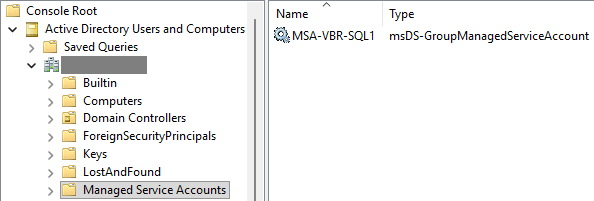
| ERR |Failed to create a process token for MSA account: MSA-VBR-SQL, domain: FIRMA

| >>  |Win32 error:Access is denied.
Recommendations
The Backup Server should not be a domain member. This means that when we need to use a gMSA account on the Guest Interaction Proxy, we need a separate domain-joined server to act as the GIP. Alternatively, we can use Persistent Guest Agent everywhere.
If backing up a domain controller requires local administrator rights, in this context that means Domain Admin privileges. It is not recommended to grant these rights to a gMSA account. The solution here is again to use the Persistent Guest Agent, which does not require an account.
Creating a gMSA and Using It in VBR
A detailed description can be found in the article How to Group Managed Service Accounts (gMSA), here we cover only the essentials.
Creating the KDS Root Key
For the domain controller (DC) to be able to generate gMSA passwords, the Key Distribution Services (KDS) requires a Root Key. Using PowerShell (with sufficient rights on the DC) we can verify that a key exists (there should be only one).
Get-KdsRootKey
If it does not exist, we must create a new key.
Add-KdsRootKey -EffectiveImmediately
To ensure that synchronization to all DCs has taken place, it is advisable to wait 10 hours before creating the first gMSA. If you want to speed this up (for testing purposes), you can create the key with a time offset.
Add-KdsRootKey -EffectiveTime ((get-date).addhours(-10))
Creating a Group Managed Service Account (gMSA)
To create the account, PowerShell must be used.
New-ADServiceAccount -Name MSA-VBR-SQL -DNSHostName msa-vbr-sql.firma.local -PrincipalsAllowedToRetrieveManagedPassword sql$,gip$ `
-KerberosEncryptionType AES128, AES256
In this example we create an account named MSA-VBR-SQL (the name can be a maximum of 15 characters) with the following parameters:
DNSHostName- required parameter, the FQDN for the account (may not be of great significance)PrincipalsAllowedToRetrieveManagedPassword- the computer(s) that are allowed to use the gMSA (retrieve its password), we can specify computer names (with a trailing$) or a security group containing their accountsKerberosEncryptionType- optional, the allowed encryption types for Kerberos
Note: There is a security recommendation against using descriptive names (as in the example above) for server or account names.
Modifying Account Settings
We can adjust account parameters at any time. The example below adds permissions for an additional server.
Set-ADServiceAccount -Identity MSA-VBR-SQL -PrincipalsAllowedToRetrieveManagedPassword sql$,gip$,server2$
Installing and Testing gMSA on the Target Server
The official Microsoft documentation states that it is necessary to install the gMSA on the target computer (Install a gMSA on your system) in order to cache the password. In my tests, everything works without this installation step.
Many sources state that this step is unnecessary. I have also read an explanation that it is intended for cases where permissions are assigned to the gMSA via a group, so that the computer's group membership is refreshed (obtaining an updated Kerberos ticket). It is mentioned that an alternative is to purge tickets for the computer (Local System).
klist.exe -lh 0 -li 0x3e7 purge
If we do want to install the gMSA, we must have the Active Directory module for Windows PowerShell on the target computer. The installation also verifies that the computer is authorized to host the given account.
Install-WindowsFeature RSAT-AD-PowerShell -IncludeAllSubFeature

Install-ADServiceAccount -Identity MSA-VBR-SQL
I performed a number of tests. When I removed the rights to retrieve the gMSA password from a server, it sometimes stopped working immediately (failing even the test). But sometimes it continued to work, apparently due to cached credentials. The solution is to uninstall the gMSA on the server - it then immediately stops working when it lacks permissions (and starts working again immediately once permissions are restored).
Uninstall-ADServiceAccount -Identity MSA-VBR-SQL
We can also run a direct test to verify that the computer has permission to retrieve the password.
Test-ADServiceAccount -Identity MSA-VBR-SQL
Configuring gMSA on the Target Server
For the account to perform the required operations, it needs sufficient permissions on the backed-up server (no rights need to be assigned on the GIP). The Veeam documentation directly recommends adding it to the local Administrators group. This can be done in the standard GUI via Computer Management or via PowerShell.
Add-LocalGroupMember -Group "Administrators" -Member MSA-VBR-SQL$
If we are backing up a Microsoft SQL Server, our account needs sufficient permissions to perform transaction log truncation or backup. Granting the sysadmin role is not an elegant solution, but assigning lower-level permissions is not straightforward.
Configuring the Account in Veeam Backup & Replication
Adding the gMSA
The created gMSA must be added to the Credentials Manager in VBR. This can be done within the job where it will be used, or via the main menu.
- Veeam Backup & Replication Console
- Main menu - Credentials and Passwords - Datacenter Credentials
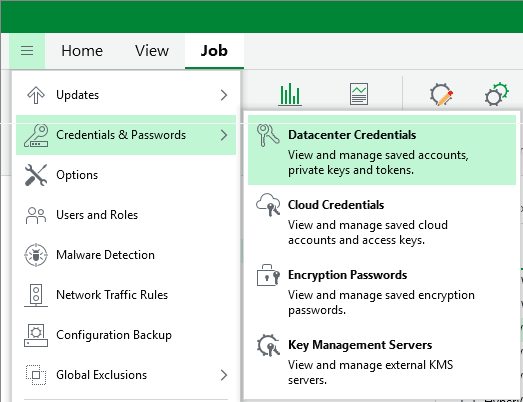
- Add - Managed service account
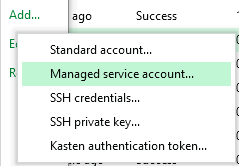
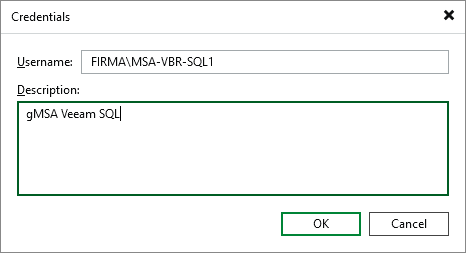
- enter only the username (either in NetBIOS logon name or User Principal Name format), for example
FIRMA\MSA-VBR-SQL, and a description
Configuring gMSA on a Job
The account can then be selected in the backup job settings as the Guest OS credentials.
- Veeam Backup & Replication Console
- Home - Jobs - create a new job or edit an existing one
- Guest Processing - enable one of the processing options, then select the gMSA account under Guest OS credentials, optionally select a suitable Guest interaction proxy or leave the automatic selection
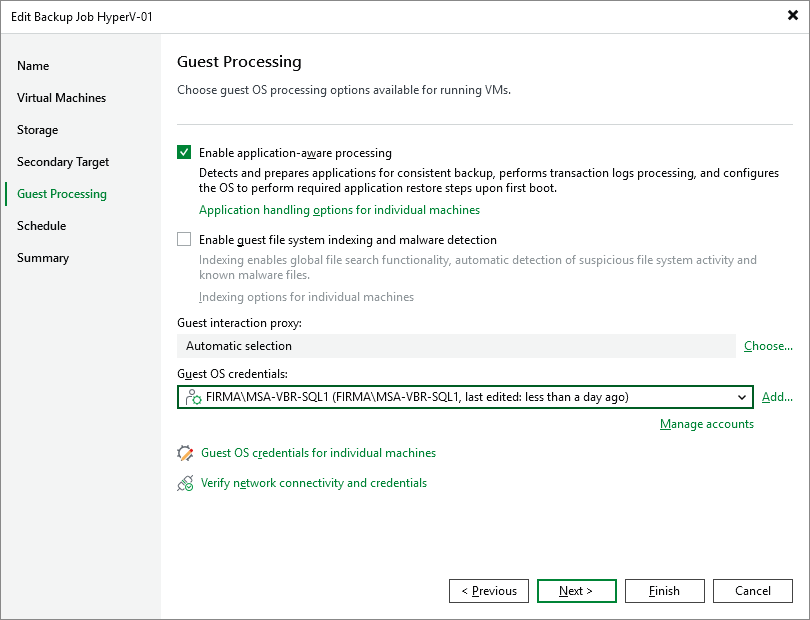
- if you want to use different accounts for different VMs, this can be done under Guest OS credentials for individual machines
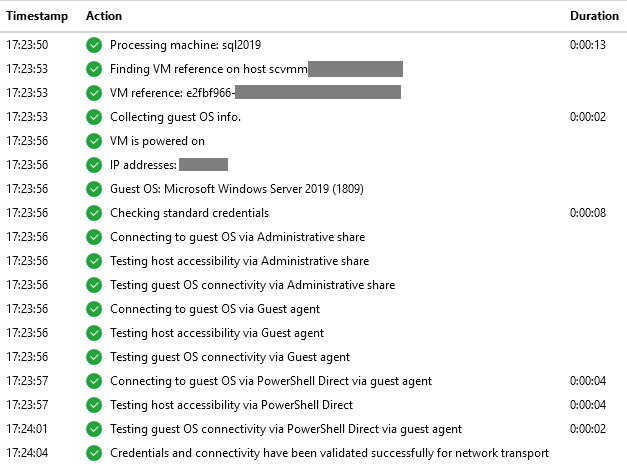
- a useful option is to run a connectivity test via Verify network connectivity and credentials
Using Persistent Guest Agent
- in the Guest Processing section, click Application handling options for individual machines
- select the desired VM and click Edit
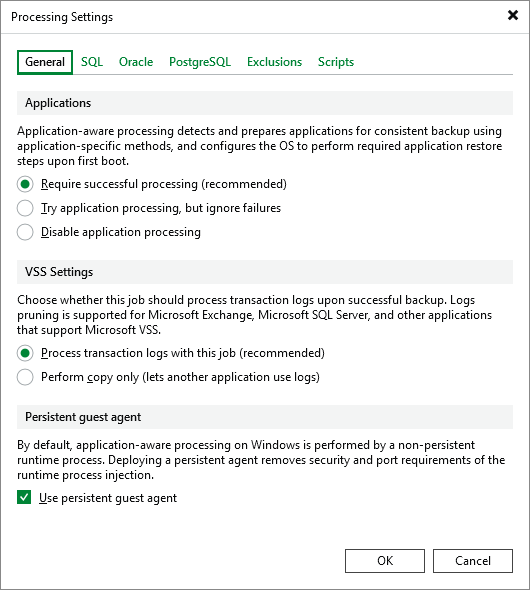
- check Use persistent guest agent
Tests of Various Configurations
SQL Server
I tested gMSA on an existing job that backs up SQL servers. Previously, a standard account and Persistent Guest Agent were used. The VMs run on Hyper-V.
In the first test, I granted the gMSA permissions only for the computer running SQL Server. During backup, the Backup Server was used as the Guest Interaction Proxy, which is not a domain member (and had no rights to the gMSA). Despite this, the backup completed successfully, including transaction log truncation under the gMSA account (once the account was granted sufficient rights on SQL) and transaction log backup.
I then removed the gMSA permissions for the SQL server. Transaction log truncation failed.
09.05.2026 20:38:54 Warning : Failed to truncate Microsoft SQL Server transaction logs. Details: Failed to create a process token
 for MSA account: MSA-VBR-SQL, domain: FIRMA
 Win32 error:Access is denied.
  Code: 5  (Failed to create a process token for MSA account: MSA-VBR-SQL, domain: FIRMA
) (Win32 error:Access is denied.
) ( Code: 5)
Further tests confirmed that the gMSA must have permission to retrieve its password on the SQL Server and must have sufficient rights for SQL Server. It does not need to be a member of the Administrators group on the server.
Connectivity Test
I ran Verify network connectivity and credentials on the backup job. The Guest OS connection via Administrative Share failed. Connection via PowerShell Direct was not tested at all.
07.05.2026 18:16:17 Failed : Failed to connect via Administrative share. Host: [sql2025.firma.local]. (Failed to connect to the
 guest OS. [Failed to connect to guest agent. Errors: 'Failed to connect to the administrative share.;Failed to connect to the
 administrative share.;']);
I configured a different Windows server (domain-joined) as the GIP and added permissions for that server to the gMSA. The connection via Administrative Share then succeeded.
I tested another SQL server on which the gMSA was not a member of the local administrators group. The connection via Administrative Share failed due to insufficient permissions.
07.05.2026 18:17:25 Failed : Failed to connect via Administrative share. Host: [sql2019.firma.local]. (Failed to connect to the
 guest OS. [Cannot connect to remote SCM database. Machine: [10.10.0.10]. Requested rights: [0x20005].;Win32 error:Access is
 denied.; Code: 5]);
Windows Server
For another test I created a new Backup Job, added new VMs with a clean Windows Server installation that was domain-joined. On the job I enabled Application-Aware Processing and selected the gMSA account. I tested VMs running on both Hyper-V and VMware.
First I left automatic GIP selection, which resulted in the Backup Server being used (it is not domain-joined and has no rights to the gMSA). The backed-up VM also had no rights to the gMSA. An error occurred indicating that runtime components could not be injected.
10.05.2026 17:15:48 Succeeded : Failed to inject guest runtime components via GIP, failing over to guest agent connection via GIP
10.05.2026 17:15:50 Succeeded : Failed to connect to guest agent via GIP, failing over to guest runtime components
10.05.2026 17:15:50 Succeeded : Failed to inject guest runtime components, failing over to guest agent connection
I selected the prepared Windows server (domain-joined, with rights to the gMSA) as the GIP. The same error occurred.
I added the gMSA to the local administrators group on the backed-up VM. The job completed successfully, temporary components were used, and a VSS Snapshot was created. I switched the job back to automatic GIP selection - injecting the temporary components failed again.
I configured the use of the Persistent Guest Agent and received an agent connection error.
10.05.2026 17:49:45 Succeeded : Failed to connect to guest agent via GIP, failing over to guest agent connection
10.05.2026 17:49:45 Warning : Failed to create VM recovery checkpoint (mode: Veeam application-aware processing) Details: Unable to
 perform application-aware processing because connection to the guest could not be established
I realized I had forgotten to install the Veeam Deployment Kit on the backed-up server. Once I corrected this mistake, everything worked correctly - with automatic Guest Interaction Proxy selection, using the Backup Server. Most likely the gMSA is not used at all, the connection goes to the Veeam Guest Agent and is authenticated by certificate.
The conclusion from these tests (in this scenario) is that when using the Persistent Guest Agent, the Backup Server can serve as the GIP and gMSA is not needed. Everything works even when the gMSA has no admin rights anywhere and no server has permission to retrieve its password. I even tried using a non-existent account and everything still worked.
There are no comments yet.