Note: The article is based on version ONTAP 9.9.1.
Viewing System Events (Logs)
- event log show
- How to efficiently search the event log in clustered Data ONTAP (an old article for ONTAP 8.2, where there were more severity levels)
Severity Level
- EMERGENCY - Disruption
- ALERT - Single point of failure
- ERROR - Degradation
- NOTICE - Information
- INFORMATIONAL - Information
- DEBUG - Debug information
Viewing Events Using the CLI
In the CLI, we have a command with various parameters to display the contents of the event log. By default, the most recent events are displayed, with values for time when the event occurred, the cluster node, the severity of the event, and the event text.
event log show
For more details, we can add the detail parameter, but instance shows even more.
event log show -detail
event log show -instance
By default, only events with severity EMERGENCY, ALERT, and ERROR are displayed. We can change this by specifying the severity.
event log show -severity DEBUG
event log show -severity <=NOTICE
We can filter by message name
event log show -message-name secd.*
Or by the entire event text (and using other parameters that are not mentioned here)
event log show -event *Aggregate*
We can select events by time, for example, the last 10 minutes or a specified interval.
event log show -time >10m
event log show -time "11/30/2021 1:00:00".."11/30/2021 22:00:00"
Note: In practice, we usually need to combine various parameters.
According to the information in The 'event log show' command displays only 3 days or 2048 events, the command only works with the last 3 days or 2048 records. All EMS messages are counted, so it's usually just a short time period.
The article also describes various ways to work with older logs. For example, download log files. We can do this easily through the web interface Service Processor infrastructure (SPI), at the address http(s)://<cluster-mgmt-ip>/spi/ (cluster address plus /spi).
Viewing Events Using ONTAP System Manager
- Events & Jobs - Events
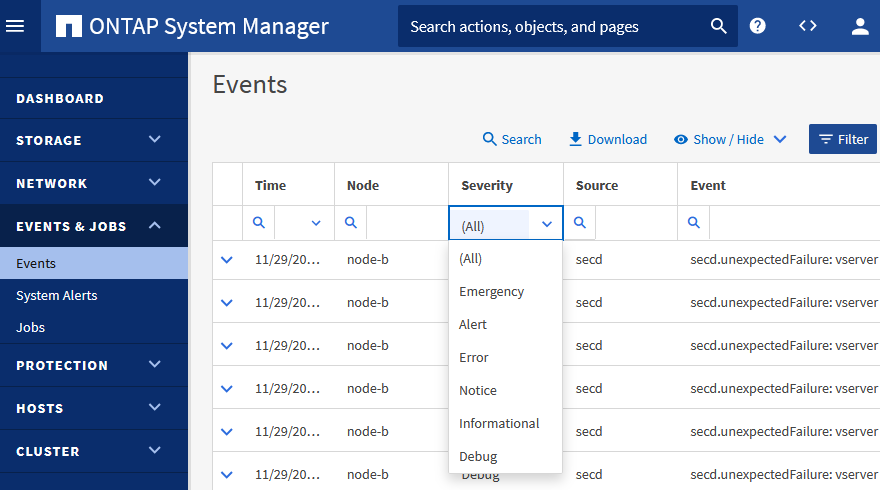
On the website, we can view events, filter, and search them. However, the display is not very responsive.
I also have a peculiar behavior on one NetApp system with ONTAP 9.9.1P3, and I couldn't find out if it's a feature or a bug. Here, only events with EMERGENCY, ALERT, and ERROR severity are displayed. Whereas on an older system with ONTAP 9.8P7, all severity levels are visible (all categories are also offered in the filter).
Setting up System Event Notifications (Sending to Email)
Note: According to the documentation, from ONTAP 9.10.1 onwards, it will be possible to configure how EMS delivers event notifications using the (GUI) System Manager. In older versions, CLI must be used.
We can send selected events directly to email, Syslog server, REST API client (WebHooks), or as an SNMP trap. The configuration is quite similar, here we'll focus on sending emails.
Configuring the SMTP Server
Setting up the SMTP mail server (not many options are offered).
event config modify -mail-server SERVER.COMPANY.COM -mail-from EMAIL@COMPANY.COM
Creating Recipients (Email Addresses)
Creating email recipients (we generally define various notification recipients), it's always a single address, so for multiple addresses, we must define several records or use a distribution group.
event notification destination create -name ADMIN1 -email RECIPIENT1@COMPANY.COM
event notification destination create -name ADMIN2 -email RECIPIENT2@COMPANY.COM
Selecting Events to Send (Filtering)
The events we're interested in and want to be notified about are selected using an event filter. It's made up of one or more rules (Rule), which are processed from top to bottom until a match is found (First Fit). At the end, there's an implicit rule that catches everything and excludes it (Exclude).
A rule can be of type include (a message matching the rule is included) or exclude (not included). In the rule, we set the event message name (message-name), severity (severity), and SNMP Trap type (snmp-trap-type). These three items are evaluated using logical AND. When there are multiple values in an item, OR is used. The asterisk (*) is a wildcard for everything (we can combine it with other characters).
We can use a predefined filter or create our own. Listing existing filters along with their rules:
event filter show
There are 3 system-defined event filters
- important-events - all ALERT and EMERGENCY events
- no-info-debug-events - all EMERGENCY, ALERT, ERROR, and NOTICE events (no INFO and DEBUG)
- default-trap-events - all ALERT and EMERGENCY events and all Standard and Built-in SNMP traps
Creating a new event filter (selects all EMERGENCY, ALERT, ERROR events, plus events about aggregate or volume filling)
event filter create -filter-name important-events-2
event filter rule add -filter-name important-events-2 -type include -severity DEBUG -message-name monitor.volume.full
event filter rule add -filter-name important-events-2 -type include -severity DEBUG -message-name monitor.volumes.one.ok
event filter rule add -filter-name important-events-2 -type include -severity DEBUG -message-name monitor.volume.ok
event filter rule add -filter-name important-events-2 -type include -severity EMERGENCY,ALERT,ERROR
Excluding a specific message from being sent
event filter rule add -filter-name important-events-2 -type exclude -message-name tsse.scan.start.failed
event filter rule reorder -filter-name important-events-2 -position 4 -to-position 5
Configuring Notification Delivery
The final step is to connect the event filter and one or more recipients (destinations) by creating an Event Notification. Once created, the notification will start working.
event notification create -filter-name no-info-debug-events -destinations ADMIN1,ADMIN2
Modifying or deleting is done using the ID, which is displayed when listing.
event notification show
event notification modify -ID 3 -destinations ADMIN3
event notification modify -ID 3 -filter-name important-events-2
event notification delete -ID 1
We can also view the history of events that were sent to a specific notification destination (email).
event notification history show -destination admin1
Event Catalog
We have a command that lists the events according to a specified filter or the details of a single event.
AFF::> event catalog show -message-name *nearlyFull*
Message                          Severity         SNMP Trap Type
-------------------------------- ---------------- -----------------
fg.inodes.member.nearlyFull      ALERT            Severity-based
fg.space.member.nearlyFull       ALERT            Severity-based
monitor.volume.nearlyFull        ERROR            Built-in
3 entries were displayed.

event catalog show -message-name monitor.volume.nearlyFull
Another command summarizes information about event occurrences.
event status show -message-name *nearlyFull*
Monitoring Aggregate and Volume Filling
- How to configure Aggregate and Volume Nearly Full and Full Thresholds in Clustered Data ONTAP 8 and ONTAP 9
- Address aggregate fullness and overallocation alerts
- How the FlexVol volume and aggregate fullness alerts work (an old description that is no longer entirely up-to-date)
Nearly Full and Full Thresholds
For volumes (Volume) and aggregates (Aggregate), percentage values are defined when they are considered
- nearly full - EMS generates an error (ERROR), default is 95%, 0 means disabled, maximum is 99%
- full - EMS generates a message (DEBUG), default is 98%, 0 means disabled, maximum is 100%
EMS messages are generated each time the threshold is exceeded. If the fill level is increasing, it's an ERROR/DEBUG, if it's decreasing, it's an OK. If we set up notification sending for these events, it can inform us in time about depleting space in a volume or aggregate.
Aggregate Thresholds
Viewing the current settings. We can display all items for a specific aggregate or just the threshold values for all or a specific aggregate.
storage aggregate show -aggregate AFF_01_NVME_SSD_1
storage aggregate show -fields space-nearly-full-threshold-percent,space-full-threshold-percent
We can change one or both values for a specific aggregate.
storage aggregate modify AFF_01_NVME_SSD_1 -space-nearly-full-threshold-percent 90 -space-full-threshold-percent 95
Volume Thresholds
Viewing the current settings.
volume show -fields space-nearly-full-threshold-percent,space-full-threshold-percent
Changing the values.
volume modify -volume Server_vol -vserver svm-iscsi -space-nearly-full-threshold-percen 94 -space-full-threshold-percent 97
We can also set multiple volumes at once.
volume modify -volume VMware* -space-nearly-full-threshold-percen 90 -space-full-threshold-percent 95
EMS Messages for Events
If a message is generated when the nearly full threshold is exceeded, it's the following event. It's the same whether it's a volume or aggregate.
AFF::> event catalog show -message-name monitor.volume.nearlyFull

     Message Name: monitor.volume.nearlyFull
         Severity: ERROR
      Description: This message occurs when one or more file systems are nearly full, typically indicating at least 95% full.
 This event is accompanied by global health monitoring messages for the customer. The space usage is computed based on the
 active file system size and is computed by subtracting the value of the "Snapshot Reserve" field from the value of the
 "Used" field of the "volume show-space" command.
Corrective Action: Create space by increasing the volume or aggregate sizes, or by deleting data or deleting Snapshot(R)
 copies. To increase a volume's size, use the "volume size" command. To delete a volume's Snapshot(R) copies, use the "volume
 snapshot delete" command. To increase an aggregate's size, add disks by using the "storage aggregate add-disks" command.
 Aggregate Snapshot(R) copies are deleted automatically when the aggregate is full.
   SNMP Trap Type: Built-in
    Is Deprecated: false
The sent email contains the subject and message and continues with the description and corrective action above.
Subject: AFF-01: monitor.volume.nearlyFull [ERROR]

Message: monitor.volume.nearlyFull: Aggregate AFF_01_NVME_SSD_1 is nearly full (using or reserving 75% of space and 0%
 of inodes).
If a message is generated when the full threshold is exceeded, it's the following event. Again, the same for volume and aggregate.
AFF::> event catalog show -message-name monitor.volume.full

     Message Name: monitor.volume.full
         Severity: DEBUG
      Description: This message occurs when one or more file systems are full, typically indicating at least 98% full. This
 event is accompanied by global health monitoring messages for the customer. The space usage is computed based on the active
 file system size and is computed by subtracting the value of the "Snapshot Reserve" field from the value of the "Used"
 field of the "volume show-space" command. The volume/aggregate can be over 100% full due to space used or reserved by
 metadata. A value greater than 100% might cause Snapshot(tm) copy space to become unavailable or cause the volume to become
 logically overallocated. See the "vol.log.overalloc" EMS message for more information.
Corrective Action: NONE
   SNMP Trap Type: Built-in
    Is Deprecated: false
The email contains.
Subject: AFF-02: monitor.volume.full [DEBUG]

Message: monitor.volume.full: Volume HV01lab_vol_01@app:602... is full (using or reserving 87% of space and 0% of inodes).
When returning below the threshold, a DEBUG-severity message monitor.volumes.one.ok and monitor.volume.ok are generated.
When completely full, additional messages such as wafl.vol.full (ALERT), LUN.out.of.space (EMERGENCY) are generated.
There are no comments yet.