
Situation Description
In general, this involves replacing Fortinet FortiGate FG-300E with FortiGate FG-200G.
Documentation
Current Solution
Because support for the current FortiGate devices is ending, it is necessary to purchase new ones and transfer the configuration to them. We are replacing two HW boxes FortiGate FG-300E, which will soon be Out of Support, with new FortiGate FG-200G. Newer generations typically offer higher performance, so if requirements have not increased, it is possible to choose a lower model range.
HW Appliances are configured as an FGCP HA cluster (FortiGate Cluster Protocol High Availability) and use VDOMs (Virtual Domains). They are currently running on FortiOS 7.4.11.
Configuration Migration Method
My original idea was to restore the current configuration on the new device, and that would be it. However, in that case problems may arise, mainly due to differences between HW models.
The recommended solution is to use the FortiConverter service. It also supports migration from other vendors' firewalls. In the case of FortiGate-to-FortiGate conversion, it enables migration from older versions and between different hardware. It handles, for example, interface mapping. Under certain conditions, we can use it for free.
General Device Replacement Procedure
- connect both new devices, perform basic configuration and registration
- save (back up) the configuration from one of the existing FortiGates and convert (migrate) it using FortiConverter
- restore the converted configuration on one new device
- connect the second new device to the cluster, configuration synchronization will occur
- fine-tune configuration details
- shut down the original devices, reconnect the network cables, power on the new devices
Connection and Basic Configuration
On both new boxes, we perform basic configuration that enables connection to the web/SSH management over the network. We mount the devices in the rack, ideally close to the existing ones, so we can simply reconnect the network cables during the swap. We connect the MGMT interface to the network and interconnect the Heartbeat Interfaces of both boxes.
Preparing Credentials
We prepare basic information for both the existing and new devices.
- name, IP address for management, model, serial number
- admin account password (temporary/permanent)
- virtual IP address for management
If we want to connect both the existing and new devices (Management) to the administration network simultaneously, we must use different IP addresses. Here we have a cluster, so a virtual IP and MAC address is used for management. For direct access to individual cluster members, we use In-band management (and therefore additional IP addresses). This is described in the article FortiGate High Availability cluster and Virtual Domains (VDOM).
Connecting to the Device
For management, we can primarily use the Console Port or the MGMT Ethernet port. For initial setup, we can connect the MGMT port to a network with DHCP to obtain an IP address. Or we can use the preconfigured address 192.168.1.99/24. We can then connect to the GUI at https://192.168.1.99.
After logging in, it is first necessary to set a password, followed by the mandatory step of FortiCare registration. We are unable to change any settings, for example to configure internet access.

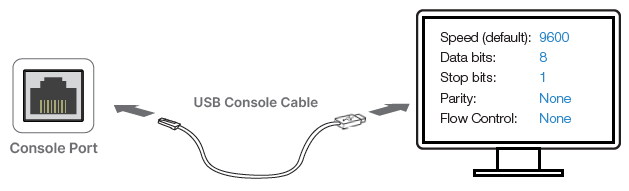
In some cases, it may therefore be more convenient (or necessary) to connect via the console and perform the initial configuration in the command line (CLI). Included in the box is a nice white console cable to USB, which worked immediately (emulates a serial COM port). I also tried the classic blue Cisco console cable. We can use PuTTY with the standard 9600-8-N-1 settings.
Initial CLI Configuration
We log in as admin with no password. Setting a password is enforced.
FortiGate-200G login: admin
Password:
Verifying password...

You are forced to change your password. Please input a new password.
New Password:
Confirm Password:
Verifying password...
Welcome!
We set the IP address on the MGMT interface.
Note: When attempting to set the address, I found that a LAN interface is created with the IP address 192.168.100.99/24. If this subnet conflicts with our management network, it must first be changed or removed.
config system interface
    edit "lan"
        set ip 192.168.2.100 255.255.255.0
    next
    edit "mgmt"
        set ip 192.168.100.223 255.255.255.0
    next
end
Setting the gateway for MGMT.
config router static
    edit 1
        set gateway 192.168.100.1
        set device "mgmt"
    next
end
Setting the hostname for better identification.
config system global
    set hostname FW1n
end
DNS is preconfigured, but I had to change the protocol to get it working.
config system dns
    unset protocol
end
Device Registration
Using a web browser, we log in to the GUI and are required to complete FortiCare registration and accept the terms.
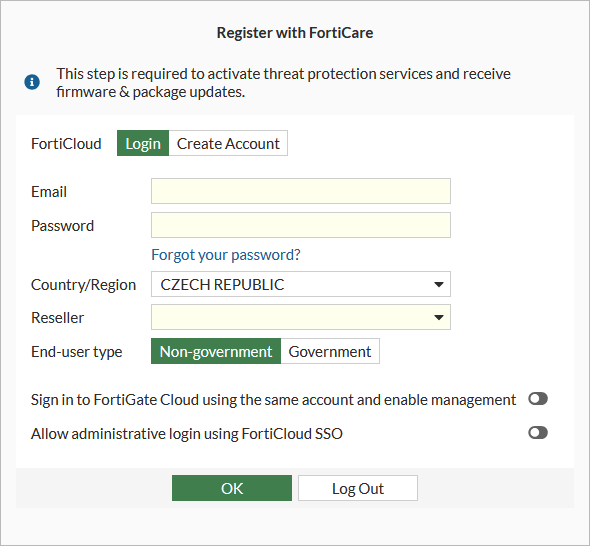
The new FortiGate then immediately appears in the list of our products on FortiCloud.
FortiOS Upgrade
I think it is better to have the same firmware version on the new box as on the existing one. Both new FortiGates must certainly have the same version to form a cluster. The devices were delivered with FortiOS 7.4.8, so I upgraded to FortiOS 7.4.11. I did this via CLI, although we could complete the initial wizard and upgrade via the GUI.
Note: I did not test whether this step can be performed right at the beginning or whether the device must be registered first.
FW1n # execute restore image management-station ?
Image-ID    Version
07006000FIMG0035306006  v7.06 MR6-GA-M P6 b3652 (upgrade)
07006000FIMG0035306005  v7.06 MR6-GA-M P5 b3651 (upgrade)
07006000FIMG0035306004  v7.06 MR6-GA-F P4 b3596 (upgrade)
07004000FIMG0035304011  v7.04 MR4-GA-M P11 b2878 (upgrade)
07004000FIMG0035304010  v7.04 MR4-GA-M P10 b2867 (upgrade)
07004000FIMG0035304009  v7.04 MR4-GA-M P9 b2829 (upgrade)
07002000FIMG0035302013  v7.02 MR2-GA-M P13 b6687 (downgrade)
07002000FIMG0035302012  v7.02 MR2-GA-M P12 b6663 (downgrade)
07002000FIMG0035302011  v7.02 MR2-GA-M P11 b6561 (downgrade)
07002000FIMG0035302008  v7.02 MR2-GA-M P8 b6397 (downgrade)

FW1n # execute restore image management-station 07004000FIMG0035304011
Please wait...

Getting image 07004000FIMG0035304011 from Management station...
########################################################################
This operation will replace the current firmware version!
Do you want to continue? (y/n)y

Verifying the signature of the firmware image.
Warning: Upgrading to an image with Mature maturity notation.

Please wait for system to restart.
Transferring the Existing Configuration to the New Device
Fortinet offers a (one-time) cloud-based migration service FortiConverter Service. Simply upload the existing firewall configuration and after some time download the converted result.
Alternatively, we can use the software tool FortiConverter Tool, which is intended for service providers. It allows an unlimited number of conversions and is available as part of an annual subscription.
FortiConverter License
To use the FortiConverter service, we need a license. For converting configuration between FortiGate devices, it can be obtained for free. The Enterprise Protection bundle includes a full FortiConverter license (Comparing Bundles).
Configuration Migration in FortiGate GUI
Since FortiOS 7.4, it is possible to transfer the configuration from an older FortiGate device to a new one directly from the FortiGate graphical user interface during FortiGate Setup. Both FortiGate devices must be registered under the same FortiCare account and have available communication to FortiConverter servers. The target FortiGate must have a valid FortiConverter license.
On the source device, it is necessary to enable Allow FortiConverter to obtain config file once. On the target device, a wizard is run that creates a ticket on the FortiConverter Portal (without needing to connect to the portal directly). The conversion takes some time (typically stated as 1 business day). The migrated configuration is then applied (restored) directly from the FortiGate GUI.
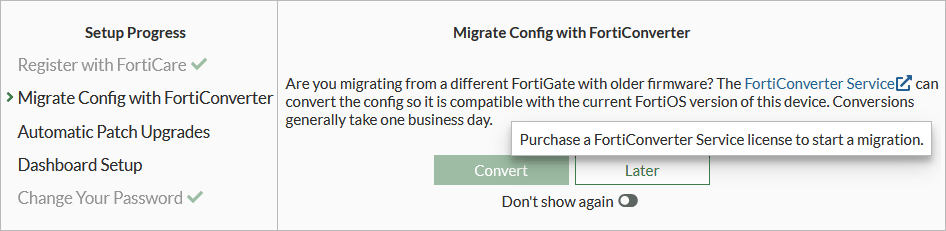
The migration can also be performed later, as this step is offered at every login. Simply skip it now using the Later button and complete the wizard.
Note: The dialog kept showing that I had no license and I was unable to click Convert. I contacted support, which confirmed it should work — at most, synchronization with FortiGuard had not occurred. Nevertheless, this feature still did not work for me. In the end, I used the FortiConverter portal (the process is very similar, so the integration into the FortiGate GUI does not add much benefit).
FortiConverter Service Portal
Configuration migration is performed by creating a ticket at service.forticonverter.com, where we log in with our FortiCloud account. Either under Tickets - Create New Ticket or under Devices in the Action column next to the device and Create Ticket.
Note: The documentation states that this is a one-time conversion service. Within 12 months of the service contract registration date, only one service ticket can be created. However, this may not apply to the full license in the Enterprise Bundle, as additional migrations are offered to me.
Ticket Creation Wizard
- Ticket Basics - first, select the target device and enter contact details
- Device - in the next step, select the source device manufacturer, upload the configuration, and specify the target FortiOS version
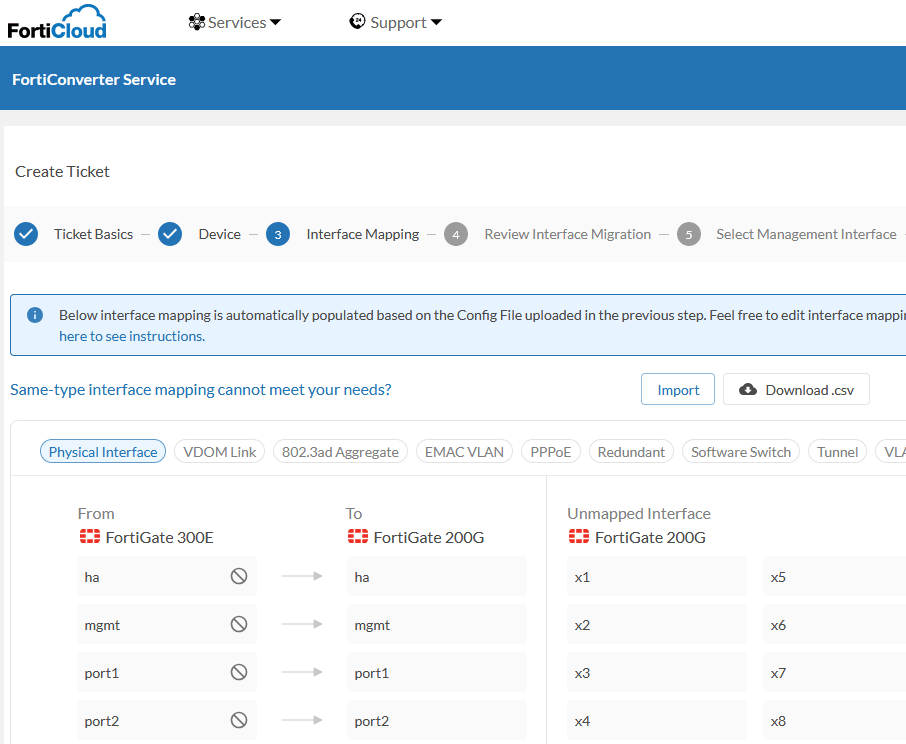
- Interface Mapping - a more complex step involving the mapping of interfaces of all possible types; most are prepared automatically, but all source physical interfaces must be mapped; unused interfaces can be marked as Do not migrate
- Review Interface Migration - shows how the interfaces look after configuration migration; settings can be adjusted
- Select Management Interface - select the management interface for the target device and set the IP address
- Comment - special requirements can be added in the comment field
- Submit Ticket - the complete configuration is displayed; clicking Create Ticket submits the request
The input for the migration is of course our configuration, which we send to Fortinet. It typically contains passwords and other sensitive information. We may consider whether to mask them in the input configuration and add them back afterwards.
Note: Fortinet states that conversion typically takes 1 to 2 days. My conversion was completed in an hour and fifteen minutes.
Downloading the Converted Configuration File
Once the request has been processed, we will receive an email notification. We log in to the FortiConverter Service Portal, open the ticket, and from there we can download the converted configuration file and the summary report. There is also information that a certain temporary password has been set for the admin account to access the device. This is also visible in the configuration file.
Editing the Configuration File
We can review the converted configuration file, compare it with the original, or otherwise verify it. We should definitely go through the migration report, which lists any issues and warnings. The new FortiGate is currently connected only to the management network. It is important to check the MGMT interface settings to avoid address conflicts.
In my case of a cluster with In-band management, the original management-ip remained configured, so it needs to be changed. We locate the relevant section in the configuration file and change the address.
config system interface
    edit "mgmt"
        set management-ip 192.168.100.223 255.255.255.0
        set ip 192.168.100.219 255.255.255.0
If desired, we can change the hostname.
config system global
    set hostname "FW1n"
Cluster Group ID - Virtual MAC Address
There is one more important setting related to the HA cluster. The MGMT port is a cluster member and uses a virtual IP address as well as a virtual MAC address, which is active on the primary device (Master). The MAC address is generated in the manner described in Technical Tip: HA Cluster virtual MAC addresses. Therefore, when we restore the configuration to the new FortiGate, the same virtual MAC address will be used and a conflict will occur (MAC is flapping between port).
This can be resolved simply by setting a different Group ID than the current cluster uses. The default value is 0, so we can use for example 1.
config system ha
    set group-id 1
We can check the current settings as follows.
FW1 (global) # get system ha
group-id            : 0

FW1 (global) # get hardware nic mgmt | grep HWaddr
Current_HWaddr      00:09:0f:09:00:01
Permanent_HWaddr    04:d5:90:53:61:16
HW_Permanent_HWaddr 04:d5:90:53:61:16

FW1 (global) # get system ha status | grep "HA oper"
Primary: FG3H0xxxxxxxxxxx, HA operating index = 0
Secondary: FG3H0xxxxxxxxxxx, HA operating index = 1
Restoring the Configuration to the New Device
We log in to the new FortiGate and complete the Setup. We skip the migration, optionally disable automatic upgrades, and configure the Dashboard (Optimal).
Then we perform the configuration restore:
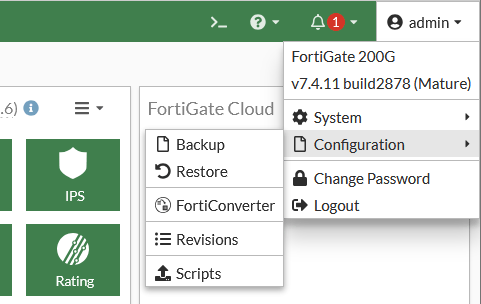
- in the top right corner, click on the logged-in user (Admin)
- Configuration - Restore
- upload the configuration file
- click OK
- confirm that the global configuration will be restored and the device will restart, using OK
- after restart, log in with the temporary password and set a new password
Adding the Second Device to the Cluster
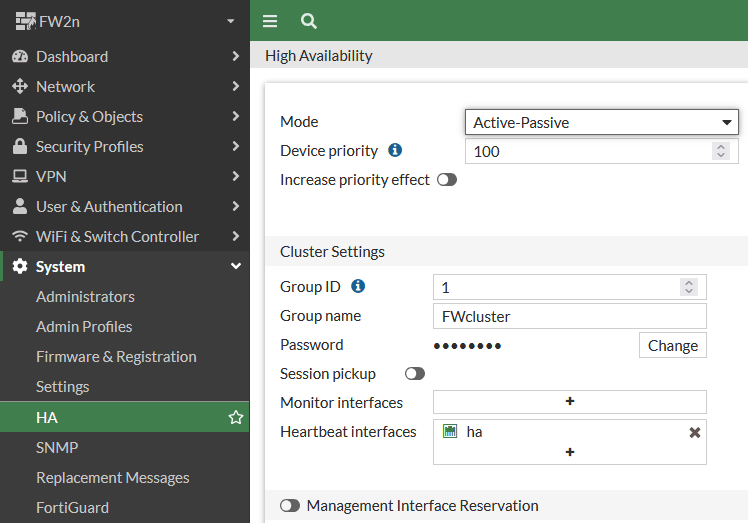
- (Global) - System - HA
Note: This topic was described in detail in an older article FortiGate High Availability cluster and Virtual Domains (VDOM). The information is still valid.
The cluster configuration was transferred to the new FortiGate where we restored the configuration. We verify that everything is in order and may adjust priorities.
We log in to the second new FortiGate. It is currently in Standalone mode, which we will change according to our requirements to Active-Passive. We set the same values for Group ID, Group name, Password, and Heartbeat interfaces as on the first device. We confirm with OK and the cluster begins to form (the new node starts joining).
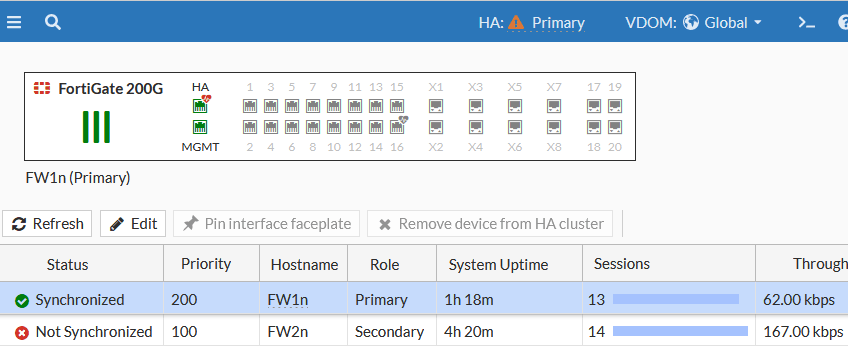
On the first FortiGate (Primary), the new device will appear as Not Synchronized and synchronization will run for some time.
In-band Management
At the same time, we will lose direct administrative access to the second box, because the MGMT interface configuration will be overwritten. We can configure In-band management via CLI. We log in to the first FortiGate and connect through it to the second one, where we set the management-ip.
FW1n (global) # execute ha manage ?
<id>    please input peer box index.
<1>     Subsidiary unit FG2H0xxxxxxxxxxx

FW1n (global) # execute ha manage 1 admin
Warning: Permanently added '169.254.0.2' (ECDSA) to the list of known hosts.
admin@169.254.0.2's password:

FW2n # config global
FW2n (global) # config system interface
FW2n (interface) # edit mgmt
FW2n (mgmt) # set management-ip 192.168.100.224/24
FW2n (mgmt) # end
Completing the Transition to the New FortiGate
Everything should now be ready for the final switchover. We verify the cluster functionality and review the settings.
Connecting to FortiAnalyzer
If we use FortiAnalyzer, we need to connect/authorize the new devices. This can be done after the final switchover.
Dashboard Configuration
There is one thing that does not get transferred during migration. I think this is an area Fortinet could improve. It concerns Dashboards.
The configuration is saved in the backup, but it can only be accessed in the configuration backup file. It is not displayed via show commands. The configuration is also not synchronized within the cluster. It is separate for each user (a way to copy one user's settings to others would be useful).
We can copy it from the backup and apply it on the new FortiGate for a specific user.
config system admin
    edit "admin"
        config gui-dashboard
            edit 1
        next
        end
        set gui-default-dashboard-template "minimal"
    next
Device Replacement - Firewall Switchover
The final step is to move traffic to the new FortiGate cluster. We plan a maintenance window during which we perform the switchover.
We have a functioning original cluster (FortiGate FW1, FW2) and a new HA cluster (FortiGate FW1n, FW2n). Each consists of a primary unit that processes traffic, and a secondary unit that simply waits for a failover. The secondary unit can be powered off without affecting traffic. Roles change based on device availability, so hopefully the description below is not too confusing.
The procedure that seems most effective to me for minimizing downtime. It may not be necessary to power off the new FortiGate boxes, which could result in an even shorter outage. However, a clean start seems safer to me.
- power off both new units (FW1n, FW2n)
- power off the secondary unit of the original cluster (FW2)
- reconnect the network cables between the secondary units (FW2 > FW2n)
- power off the primary unit of the original cluster (FW1)
- outage begins
- power on the secondary unit of the new cluster (FW2n), it will take a few minutes to boot and will become the primary
- reconnect the network cables between the primary units (FW1 > FW1n)
- power on the primary unit of the new cluster (FW1n), it will become the secondary
- outage ends when the first new unit finishes booting (in my case it took just under 5 minutes, which is approximately the boot time of a FortiGate device)
Shutting Down FortiGate
Via GUI
- click on the logged-in user in the top right corner
- System - Shutdown
Via CLI
FW1 # execute shutdown

This operation will shutdown the system !
Do you want to continue? (y/n)y
System is shutting down...

The system is going down NOW !!

The system is halted.
Powering On FortiGate
To power on a physical FortiGate, the power supply must be restored. Typically, we disconnect and reconnect the power cables.
Díky za pěkné shrnutí, ostatně jako vždy :-). Aktuálně jsem dvakrát migroval 40F do novějšího boxu z řady G a FortiConverto se sice nabízel, ale zhodnotil jsem, že rychlejší bude to udělat přes ruční úpravu zálohy konfiguráku z původního boxu. Co se týká FortiOS, obojí na 7.2.13. Bylo potřeba:
1. přepsat hlavičku v prvním řádku na model nového boxu
2. v původní záloze upravit část interfaců (s opravou SNMP indexu)
3. ve zbytku konfiguráku si pohlídat, že tam jsou správně nahrazené jména ifaců
Ve výsledku to nebyla zase tak velká "drbačka", ale až budu migrovat něco většího.
Im doing this exact conversion right now, but with some extras like ipsec/sslvpn currently, great guide, thanks!