Note: The description in the article is based on Veeam Backup & Replication 11a, licensed using Veeam Universal License (VUL), similar to Enterprise Plus.
Introduction
What is Veeam Backup & Replication
Veeam Backup & Replication is a platform for backup, replication, and data recovery. In other words, a solution for data protection and disaster recovery. It primarily specializes in virtual environments and the backup of entire virtual machines (VM - Virtual Machine). However, it also supports the backup of physical machines and applications. It can work with various cloud environments.
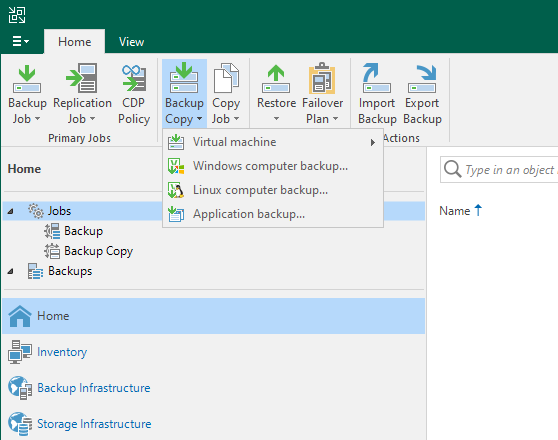
What backups it creates and what it backs up
The main principle allows creating bit-level backups - image-level backups and restoring from them. We can back up computers
- virtual (VM) - VMware vSphere, Microsoft Hyper-V, and with the Nutanix AHV plugin
- cloud (Cloud VM) - AWS EC2, Microsoft Azure, Google Cloud
- physical
Veeam emphasizes that VM backups can be performed agentless, utilizing the features of the virtualization host (via proxy server). This is less demanding on maintenance, has a smaller impact on VM resources, and can be faster than installing an agent on each VM.
We can also back up file servers (File Share Backup, NAS). Using the Veeam agent, we can create file-level backups and back up physical computers with Windows, Linux, and macOS. We also have agents for Oracle Solaris and IBM AIX. For integration with Oracle RMAN and SAP HANA, we can use Veeam Plug-ins.
We can create application-consistent backups for
- Microsoft SQL Server
- Oracle Database
- Active Directory
- Microsoft Exchange
- Microsoft OneDrive
- Microsoft SharePoint
Veeam provides native support for certain storage systems and tape devices. This allows VM backups using native snapshots on the storage system and storing backup copies on tape devices.
Control
We have a centralized console (Veeam Backup & Replication Console) for backup/restore/replication on all supported platforms (virtual, physical, cloud). The entire system can also be controlled using Veeam PowerShell.
Documentation
- Veeam Help Center - Technical Documentation - documentation center
- Veeam Blog - blog
- Recorded Videos - resource library - videos
- Community Resource Hub - community resources
- Veeam Backup & Replication Best Practices - best practices
- Veeam R&D Forums - technical discussions
- Frequently Asked Questions - FAQs
- Veeam Architects Site - Veeam architects' site
- Veeam Clickable Demos
Various calculators and sizing tools
- Veeam Size Estimator (VSE)
- Veeam Backup Calculator
- The Restore Point Simulator - discontinued
- Veeam Ports Calculator
- ReFS Calculator
- Bandwidth Calculator
- NAS Calculator
An interesting article on installation and configuration VBR v11 - Step by step: Installation & Configuration Best Practices.
Veeam Software Tools
To install the entire Veeam Backup & Replication solution, we download a huge ISO, which is about 10 GB. The server installation, with all the main components, takes over 20 GB. If we install only the administration console, it takes about 1 GB and the installation takes quite a long time.
Various installations, such as the main installation ISO, but also standalone installations of the Console, can be found on the Veeam Backup & Replication: Download website.
Management Tools
- Veeam Backup & Replication Console - user interface for server access, installed together with the server, can be installed separately, but must be exactly the same version as the server, Backup & Replication Console
- Veeam Backup Enterprise Manager - web console, optional installation, allows management of multiple Veeam Backup Servers (Veeam installations), Veeam Backup Enterprise Manager Guide
- Veeam Backup PowerShell Module - extension of Microsoft Windows PowerShell, adding cmdlets for controlling backup, replication, and recovery, Veeam PowerShell
Veeam Explorers Suite
Documentation Veeam Explorers User Guide, Hassle-free granular recovery anyone can use
Applications (explorers) that extend the recovery or export capabilities from backup or replicated files. Using an explorer for a specific application, we can browse the backup, view and search individual items, and restore or export them. They allow granular data recovery for specific applications.
Currently, the following explorers exist. The last 3 are related to Veeam Backup for Microsoft Office 365. Exchange can be used on-premises or with Microsoft 365.
- Veeam Explorer for Microsoft Active Directory
- Veeam Explorer for Microsoft SQL Server
- Veeam Explorer for Oracle
- Veeam Explorer for Microsoft Exchange
- Veeam Explorer for Microsoft SharePoint
- Veeam Explorer for Microsoft OneDrive for Business
- Veeam Explorer for Microsoft Teams
Veeam Agents
Documentation Veeam Agent Management Guide, Veeam Agent for Microsoft Windows
Agent is installed on the backed-up computer according to the type of operating system. It can be a physical or virtual machine. It allows backing up the entire system using an image (System Image Backup), a specific disk volume, or selected files and folders. For application-consistent VM image backup, an agent is not needed. For backing up a physical machine or cluster (Failover Cluster - SQL Server, Exchange DAG, File Server, or Oracle RAC), an agent is necessary.
- Veeam Agent for Microsoft Windows
- Veeam Agent for Linux
- Veeam Agent for Mac
- Veeam Agent for Oracle Solaris
- Veeam Agent for IBM AIX
Veeam Plugins
Documentation Veeam Plug-ins for Enterprise Applications Guide
Plugin is installed on the backed-up server with a supported enterprise application. It allows creating transaction-consistent backups.
- Veeam Plug-in for Oracle RMAN
- Veeam Plug-in for SAP HANA
- Veeam Plug-in for SAP on Oracle
Basic Veeam Terms
Backup
- Backup - (under certain conditions application-consistent) image-level backups
- Backup Job - defines how, where, and when to back up specific data, can process multiple VMs, can be run manually or scheduled, a specific execution of a backup job is referred to as a Backup Job Session
- Backup Copy - Backup Copy Job allows creating multiple instances of backed-up data in different locations, copying (synchronizing) data from one storage to another, retention can be defined
- Backup Chain - a chain is made up of backup files, consisting of the first full backup file, incremental backup files, and a metadata file, for recovery (return to a specific point in time) we need the backup chain
Replication
- Replication - for protecting critical VMs, replication can be used, creating an exact copy of the VM on another VMware or Hyper-V server, this copy is kept synchronized with the original, using a hypervisor snapshot, scheduled at a specific interval (e.g., once an hour), can be application-consistent
- Continuous Data Protection (CDP) - a new feature in version 11 for VMware, achieving RPO in seconds, creating a VM replica and continuously replicating I/O operations as they occur using vSphere APIs for I/O filtering (VAIO), not using snapshots, not application-consistent
- VM Snapshot - can be thought of as a read-only copy of the VM at a specific point in time, containing virtual disks, system state, configuration, etc.
Backup Retention
- Restore Point - each successful backup job creates a restore point, allowing data to be returned to that point in time, Short-Term Retention Policy
- Retention or Retention Policy - defines how old data we want to keep and thus can restore, specifying either the number of restore points or the number of days, older backups are removed
- GFS Retention Policy - long-term retention policies (Grandfather-Father-Son, GFS), assigning a GFS flag to a full backup file, types are weekly (W), monthly (M), and yearly (Y), files with a GFS flag are not subject to retention policies (not deleted), after the specified period, the flag is removed (and retention ensures deletion)
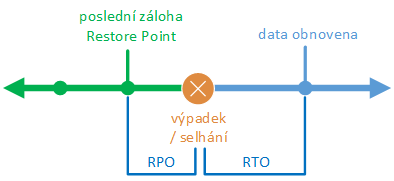
- Recovery Point Objective (RPO) - the nearest point in the past to which data can be restored (if an outage occurs, how old the nearest backup is), how much data we can lose in an outage, thus determining how often we need to perform backups, Define RPO and RTO
- Recovery Time Objective (RTO) - how long it takes to recover after an incident, duration of downtime
Recovery
In English, we encounter two terms Restore and Recover, which can be understood as data recovery from backup (Data Restore, Data Recovery). On the internet, we find various explanations and descriptions. The meaning of both terms is sometimes taken as identical, but more often it is slightly different.
Veeam states in its documentation that their products offer 2 types of disaster recovery operations:
- Failover - the process of switching from the original VM on the source host to its replica on the target host
- Restore - the process of recovering a VM from a backup file to the original or another location
The term Recovery is general and refers to both Failover and Restore. Recover can be used as a synonym for Restore, but not vice versa.
Veeam uses these terms differently in recovery methods, the entire section is called Data Recovery. The main menu item is called Restore (Restore from backup). We have Instant Recovery, but VM, Disk, File Restore. And then OS File Recovery, but Application Items Restore.
Information from other sources (may not be entirely consistent with Veeam usage) and related terms:
- Restore - recovery - restoring the entire backup to the original location, the process of copying backup data from the backup storage and restoring it to the original or new location
- Recovery - recovery, restoration - rescuing (recovering) one or more files, the process that allows recovering lost data
- Failover - taking over services by a backup (redundant) system (component) in case of primary failure
- Data loss - data loss - data that is, for example, deleted, unavailable, damaged, lost, overwritten
Most sources agree that Restore and Recover both mean retrieving files (data) from a backup. The difference is that Recovering usually means rescuing one or more files, while Restore means replacing the entire system from a full backup.
If data loss occurs, and this data is backed up, we can restore it to a certain point in time to the same or another location.
Disaster Recovery
- Disaster Recovery - a set of policies, tools, and procedures that enable the recovery or continuation of vital systems after a disaster, one of the methods used is backup
- Disaster - disaster - can be, for example, hardware failure, power outage, natural disaster (flood, fire, earthquake), cyber attack, war, human error
- Service Continuity - ensuring that the service is delivered without interruption, even when unexpected influences occur that prevent its provision, uses Disaster Recovery and Resiliency
- Resiliency - system resilience using High Availability or Fault Tolerance
- High Availability - ensuring an agreed level of availability that is higher than normal, using redundancy, an example is a VM running on a cluster, if one node fails, the VM immediately starts on another
- Fault Tolerance - allowing the system to continue operating even if a part of it fails, using Failover, an example is a VM running on a cluster, where a mirrored copy runs on another node, in case of node failure, the operation switches to the second VM (essentially without downtime)
If a disaster occurs, depending on its extent, we can use various methods to ensure service continuity. For different systems, we need to set the required RTO. Many disasters are resolved by high availability and may not result in service interruption. Other solutions are backups, where we need available resources to restore the data.
The highest level is site failure. In such a case, we need to have another location available where we can restore important services. For faster recovery, we can have systems ready in a backup location. Or maintain up-to-date copies of data in this location. The lowest downtime is achieved by operating a geographic cluster.
Restore vs. Disaster Recovery
A simple comparison is given. Restore - recovery of backed-up data in case of accidental deletion, database corruption, or software update issues. Disaster recovery - disaster recovery means plans and processes for quickly restoring access to applications, data, and IT resources after an outage. It is sometimes stated that it is a functional copy of the system in standby mode, which can be switched to in case of a disaster.
Guest Processing
- Guest Processing - when backing up a running computer (physical or VM), we can use advanced tasks where Veeam communicates with the machine's OS, allowing the creation of transaction-consistent backups, truncating transaction logs, backing up transaction logs, indexing the file system, excluding certain files from the backup, Guest Processing
- Application Consistent (or Application Aware) - uses Guest Processing, on Windows using VSS creates a Snapshot and puts applications into a quiescent state, then performs an (intact) backup, ensuring proper recovery without data loss
- Crash-consistent backups - corresponds to a backup where the server is powered off (not properly shut down), upon recovery, some applications may have issues, but it is better than no backup
Generally, there are several levels of backup consistency
- Inconsistent backup - simple file copy, without memory and locked files
- Crash-consistent backup - Snapshot of all files on the disk, without pending I/O operations
- File-level consistent backup - all files with the latest updates, without ongoing transactions
- Transaction-consistent backup - all data from the same point in time, including completed transactions
Storage
- Immutable Backups - backups that cannot be modified for a set period, protection against Ransomware, Veeam uses the new Hardened Repository with a Linux server and XFS file system, supported only for image backups, must use the Forward Incremental Backup method (Full Backup cannot be modified when we cannot write), Hardened Repository (Quickly setup a Veeam immutable repository via this GitHub Script)
- Scale-Out Backup Repository - scalable storage consisting of one or more repositories called Performance Tier, can be expanded with object storage Capacity Tier and Archive Tier, which behave as a single system with total capacity, can also be used to change storage for backups on the fly (Seal extent, Maintenance mode), Scale-Out Backup Repository
Others
- WAN Acceleration - technology that optimizes data transfer to remote locations, for Off-site Backup Copy Jobs, WAN Accelerators
- Protection Groups - protected computers with Veeam Agent are organized into protection groups
Technologies Used for More Efficient Backup
VMware
- VMware vStorage APIs for Data Protection (VADP) - framework for efficient agentless backups
- vSphere Changed Block Tracking (CBT) - VADP component for incremental VM backups, allows backing up only changed blocks, creates a CBT log during backup and tracks block changes
- VMware vSphere APIs for I/O filtering (VAIO) - allows capturing I/O requests from hosted operating systems to virtual disks (VMDK), using an I/O filter in the vSphere I/O stack
Hyper-V
- Hyper-V Resilient Change Tracking (RCT) - change tracking for VHDX disks (since 2016)
- Hyper-V (VM) Checkpoint - similar to VMware Snapshot (and before Windows Server 2012 R2 it was called Snapshot), i.e., saving the state of the VM at a point in time, for achieving consistent backup, Volume Shadow Copy Service (VSS) on Windows or File System Freeze on Linux is used
Microsoft
- Microsoft Volume Shadow Copy Service (VSS) - framework for application-consistent backups of Windows OS, allows creating a consistent Snapshot of application data for domain controllers (Active Directory), Exchange, SQL Server, NTFS file system
- Volume Snapshot (Shadow Copy) - creates a consistent copy (Snapshot) of the volume using the Volume Shadow Copy Service (VSS)
Backup
3-2-1 Rule
Documentation What is the 3-2-1 backup rule?
When backing up, the 3-2-1 rule is often used. This means keeping at least 3 copies of data (production, backup, backup copy), using 2 independent backup media (copies on different devices), and keeping 1 backup off-site.
Veeam Backup Files
Documentation Backup Chain
Veeam creates main types of files for storing backups:
- VBK - full backup file (base image)
- VIB or VRB - incremental backup file
- VBM - backup metadata file, contains information about the backup job, the number and structure of backup files, Restore Points, information about backed-up VMs, computers, or files, etc., updated with each completed backup job
Additionally, it can create other types of files
- VSB - virtual synthetic backup files, used for generating synthetic full backups on tape
- VLB, VSM, and VLM - files for storing Microsoft SQL Server transaction logs
- VLB, VOM, and VLM - files for storing Oracle archive logs
Per Job vs. Per Machine Backup File - Backup Chain Format
Documentation Per-Machine Backup Files
By default, one backup job stores data in one file and creates one write stream. This puts less load on the storage and allows deduplication among all data in the file (VM).
In the Backup Repository settings, we can activate the Use per-machine backup files option. Then a separate file is created for each VM. This can increase performance as it is transferred separately. Separate files are easier and more efficient to work with, likely without issues with maximum size.
The improved Per Machine Backup File was introduced in version 12. More information in the article Veeam Backup & Replication 12 - Backup Chain and Backup Copy format upgrade.
Backup Methods
Documentation Backup Methods
Generally, there are three basic backup methods:
- full backup - complete backup of all data
- incremental backup - only differences from the last backup (of any type) are backed up, for recovery we need the last full backup + all incrementals
- differential backup - differences from the last full backup are backed up, for recovery we need the full backup + the last differential
Veeam Backup & Replication uses incremental backup, utilizing the Changed Block Tracking (CBT) technique and storing new, unique VM blocks in a special VIB file.
Full Backup
To create a full backup (VBK) file, we can use the method:
- Active Full Backup
- performs a complete data backup (reads all data) from the backup source and stores it in a VBK file (standard deduplicated and compressed)
- puts load on the source storage
- creates a Snapshot for VM
- Synthetic Full Backup
- synthesizes a full backup from data already on the backup storage (does not transfer any data from the source)
- takes the previous full backup and subsequent incrementals (i.e., the last Backup Chain) and consolidates them into a new full backup
- puts load on the backup storage, but not on the source
- advantage is using the operating system Windows ReFS or Linux XFS, where the Fast Clone technology is used, which uses references to previous files
Incremental Backup
As an (incremental) backup method that creates a Backup Chain, we can choose
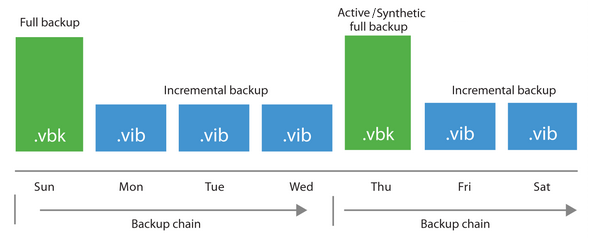
- Forward Incremental
- regular full backups (VBK) are created with subsequent forward incrementals (VIB)
- full backup can be created using synthetic or active method
- takes up more space as there are multiple full backups (typically performed once a week)
- full backup divides the Backup Chain into smaller parts (the chain always starts with a full backup)
- older backups cannot be deleted until a new chain exists and meets retention requirements (so more restore points are often kept than retention policies state)
- has the lowest I/O load on the backup storage, increases when synthetic full backups are created, puts load on the source storage when active full backups are created
- recovery can be most optimal (depends on which restore point we return to), as the Backup Chain is divided into smaller parts
- in the Backup Job settings, we choose Incremental and Create synthetic (and/or active) full backups periodically
- Reverse Incremental
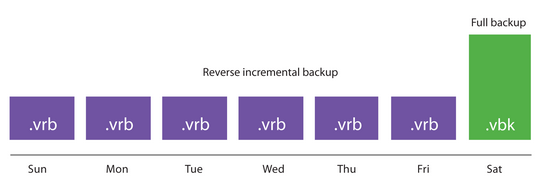
- consists of a full backup (VBK) and a set of preceding reverse incremental backups (VRB)
- during backup, changed data blocks are inserted into the full backup, and a VRB file is created simultaneously
- the full backup file can be fragmented, so it is recommended to schedule a compact operation
- saves space, the full backup is one, and retention is maintained
- puts the highest load on the backup storage I/O, the advantage is the fast recovery of the last point in time
- in the Backup Job settings, choose Reverse incremental
- Forever Forward Incremental
- consists of the first full backup (VBK) with subsequent forward incrementals (VIB)
- before removing a VIB, its data is inserted into the VBK
- the full backup file can be fragmented, so it is recommended to schedule a compact operation
- saves space, the full backup is one, and retention is maintained
- has medium I/O load on the backup storage
- in the Backup Job settings, choose Incremental

With all backup methods, an active full backup is always created initially. Each performed backup creates a restore point, allowing data to be returned to a previous point in time. Retention policies determine how long we keep restore points (backups in the target backup storage).
Backup Schedule (Period) and Retention
Initially, we need to determine the required RPO (the nearest point in the past to which data can be restored), i.e., how often backups must occur. And also what historical data we want to have available, i.e., the required retention (retention policies). According to various studies, recovery occurs in the majority of cases from the last backup. Of course, there are situations where we need to restore data that is not in the last few backups. There are many variants of how we set these parameters, and we have many options to achieve the desired goal.
We address RPO by setting the job schedule to the corresponding period. Often, the job runs daily at a specific hour, achieving an RPO of 1 day. We can set a longer RPO, where the job runs only on specific days of the week. Or on a specific day of the month, or only in selected months. For a shorter RPO, we can set it to run every X hours or every hour. Or every X minutes. There is also an option for continuous, where a new job starts as soon as the previous one finishes.
If we want to retain restore points in the same period as we perform backups, it is simple. We set the Retention Policy to the given number of days or the number of restore points. The situation is a bit more complicated when we want to retain several recent restore points (Short-Term Retention Policy) in a short period and also retain certain older restore points (Long-Term Retention Policy) in a longer period. An example is performing backups daily and retaining them for one week. Additionally, we want to retain three weekly backups.
We use the GFS Retention Policy for the settings. We can retain weekly, monthly, or yearly full backups for a set number of weeks, months, or years. A new backup file is not created, but the full backup file is marked with a GFS flag during its standard creation (it does not mark backups retroactively). Therefore, a full backup must exist in the given period, and (by default) we must use Forward Incremental Backup.
Using short-term and long-term retention policies, we can cover a large number of requirements (situations). Unfortunately, there is a practical variant that we cannot solve this way. If we want to perform backups every hour, retain them for several days, and retain daily backups for several weeks. We can solve this with a workaround mentioned in many discussions as optimal.
We create a Backup Job that backs up every hour with a retention of 2 days (the required number of days we want hourly backups). Then we create a Backup Copy Job that copies data once a day. The target is a Backup Repository in the same location, but it must be a different Repository than the source (otherwise, we get the error Restore point is located in Backup Copy target repository and cannot be used as a source). We set a retention of 14 days (the required number of days we want daily backups).
The backup job initially creates an active full backup, followed by incremental backups. If we want to perform a Forward Incremental Backup, we must regularly create synthetic or active full backups. It is important how we can schedule their creation. Synthetic Full Backup can be scheduled at most on a weekly basis, and we can select any days of the week. Active Full Backup can be scheduled weekly, on selected days, or monthly, on a specific day in chosen months.
Restore
Data Recovery Options
Documentation Data Recovery
- VM Recovery - recovery of the entire VM
- Entire VM restore - recovery of the entire VM, VM image files are extracted from backups to production storage
- Instant VM Recovery (to VMware vSphere or Microsoft Hyper-V) - allows starting (instantly recovering) a VM (or even a physical server) directly from compressed and deduplicated backup files in the backup storage (without needing to restore data beforehand), provides limited performance, migration to production environment can be performed
- Disk Recovery - recovery and export of disks
- Virtual disk restore - recovery of a VM disk, which is extracted from the backup to production storage
- Instant Disk Recovery - instant recovery of a VM disk from backup files, retains the original disk format
- Disk export - conversion of disks to VMDK, VHD, or VHDX format
- Item Recovery - recovery of VM files, files and folders of the guest OS, or application items
- VM files restore - recovery of specific VM files
- Guest OS file recovery - recovery of only files and folders from the guest OS
- Application items restore - using Veeam Explorer, we can recover application items, the backup must be performed with the application-aware processing option
Recovery Verification
Documentation Recovery Verification
- SureBackup - Veeam technology that allows testing VM backups and checking if data can be recovered from them, during a SureBackup Job, live verification occurs
- SureReplica - similar to SureBackup for verifying replicas
- Application Group - if an application consists of multiple VMs (requires additional services and components to start first), we define an application group
- Virtual Labs - isolated virtual environment (Sandbox) where VMs start for verification, networks are the same as in production but separated, for ensuring communication from the production network, Proxy Appliance and Network masquerading, or Static IP Mapping are used
The basic functioning of Recovery Verification is
- VM starts (boots in an isolated environment) directly from the backup storage (Instant Recovery)
- runs in a virtual lab with a special internal network to avoid conflicts with production
- using SureBackup jobs (running prepared tests), it is tested that everything works
- after completion, the publishing of the VM is canceled (it is turned off) and a report is created
- during testing, the backed-up VM is in a read-only state, all changes are written to a redo log in the virtual lab, and are deleted after completion
Recovery Verification can be used not only for backup verification but also for internal testing, training, and troubleshooting - On-Demand Sandbox.
Veľmi zaujimavý a aktuálny článok. SUPER, teším sa na ďalšie články.
Ještě by mě zajímalo jak Veeamem zálohovat databáze a jejich logy
děkuji
respond to [2]Druid: Vše, co jsem k tomu zjistil, jsem popsal v díle "Veeam Backup & Replication - zálohování aplikací"
výborný článek, děkuji za něj!:-)
Hezký článek, osobně ale preferuji Altaro VM Backup na hyper-V a VMware zálohování, je mnohem levnější a dělá to samé, někdy i lépe.