
Note: The description in the article is based on Veeam Backup & Replication 12.3.1, licensed using Veeam Universal License (VUL), which is similar to Enterprise Plus. It tries to be general, but in practice is based on NetApp ONTAP storage connected via iSCSI. Working with Snapshots directly in the NetApp ONTAP system is described in the article NetApp ONTAP working with Snapshots.
Note: This area was covered in an older article Veeam Backup & Replication - Backup from Storage Snapshot, which also described another option Backup from Storage Snapshot. This article discusses in more detail the current possibilities of Snapshot-Only Jobs and recovery from Snapshots.
Snapshots
Snapshot refers to instantly capturing the state of a system or data at a specific time. It uses only changes (differences), so it doesn't take up the full size of the data and is not a copy of the data. It is standardly read-only. It allows for a quick return to the saved state or access to an older version of data.
Snapshots do not replace backups. They are located on the same device as the original data and information is stored only once. So when it is damaged or deleted, both are lost. Nevertheless, Snapshots on storage can be a suitable complement to backup. In certain situations, they allow us to quickly restore data.
Snapshots are used at different levels
Storage
- snapshot at the disk array level for the entire volume (Volume/LUN), suitable for short-term retention
- storage manufacturers use their own technologies that are very fast and efficient today
- creating a snapshot is almost instantaneous, takes up little space (only deleted or changed data blocks since its creation), and doesn't burden the system (doesn't slow it down)
- it consists only of pointers to blocks on the disk that were in the volume at the time the snapshot was taken (blocks contained in the Snapshot are locked, when deleted they are not removed or overwritten)
- they often offer additional features such as replication, retention, cloning, or something like a writable snapshot
- recently, manufacturers have added the ability to set Snapshot Immutability (lock changes, WORM principle) as protection against ransomware
- they typically use copy-on-write or redirect-on-write principles
Virtualization
- snapshot of a virtual machine (VM) captures the VM state including disk, configuration, and possibly memory
- freezes the current state of the disk, changes are written to a delta file
- before a risky operation, you can create a VM snapshot (in Hyper-V it's called a Checkpoint) and quickly return to it in case of problems
- long-term running of VM on a snapshot is not recommended, can lead to performance loss and risk of data inconsistency
Operating (file) system
- snapshot of a disk volume allows backup of a running system in a consistent state
- before creating a snapshot, write operations are completed and paused, cache is emptied, and application cooperation may occur (e.g., SQL Server)
- can be File-system consistent (file system is in a consistent state) or Application-consistent (applications are also in a consistent state)
- a typical example on Windows is Volume Shadow Copy Service (VSS) and VSS Writers for communication with applications, or File System Freeze for Linux
- in virtualization (e.g., VMware), VSS can be launched via VMware Tools Quiescence when creating a VM Snapshot
Using Snapshots in backup
When backing up VMs, temporary Snapshots are created. The brief process is:
- if we require an application-consistent backup, a System Snapshot is performed (typically VSS Snapshot in Windows)
- virtualization (for example VMware) performs a VM Snapshot (freezes the current state of the disk, changes are written to a delta file)
- Veeam performs data backup from the VM Snapshot (CBT can be used)
- the VM Snapshot is removed (delta changes are merged back into the main disk)
Snapshot (or the backup made from it) can be in different states:
- Crash-consistent - like after a power failure, writes may be incomplete, files may be damaged (and application data), contains all files on disk, without pending I/O operations
- File-system consistent - like after proper shutdown, file system is fine (but applications may not be, e.g., a database may require repair), closed files and completed writes to disk, contains all files with latest updates, without ongoing transactions
- Application-consistent - supported applications are put into idle state, complete transactions, empty cache and are ready for recovery without repairs (on Windows, VSS + VSS Writers are used), contains all data from the same point in time, including completed transactions
Storage System Snapshot Integration
Veeam Backup & Replication integrates with storage systems and allows working with Snapshots. It offers native support for certain manufacturers (and their systems) for NAS integration or VMware and Veeam Agent integration. Or it allows using a plugin and Universal Storage API. A list of supported devices can be found in Supported Features for Backup and Orchestration or System Requirements - Storage Systems.
Veeam Backup & Replication provides the following types of Snapshot integration:
- VMware integration - backup of VMware vSphere VM from Storage Snapshot, performing Snapshot orchestration (on primary or secondary storage), data recovery from Snapshots
- NAS integration - backup of NAS File Share from Storage Snapshot
- Veeam Agent for Microsoft Windows integration - backup of a Windows computer using an agent from Storage Snapshot
Snapshot integration allows the use of two features:
- Snapshot-Only Jobs - backup job that performs Snapshots on storage and maintains them according to set retention, before creating a snapshot it can bring a VMware VM to a consistent state
- Backup from Storage Snapshot - a Snapshot is created on storage and used as a backup source (so the virtual infrastructure is less burdened and VM Snapshot is needed for a very short time)
Unfortunately, Veeam Backup & Replication does not allow for general management of Snapshots (technically it wouldn't be a problem). Probably because the primary feature is recovery. This requires VMware integration, so we cannot use it for volumes used by Microsoft Hyper-V and others.
As a protected workload we can select certain VMs. Veeam determines on which VMware datastores they are stored and which disk array volumes (Volume) are involved. It creates Snapshots for them.
Add Storage System
To work with Snapshots on storage, we must add a supported device to the backup infrastructure. In the example, we work with NetApp ONTAP storage.
- Veeam Backup & Replication Console
- Storage Infrastructure - Add Storage
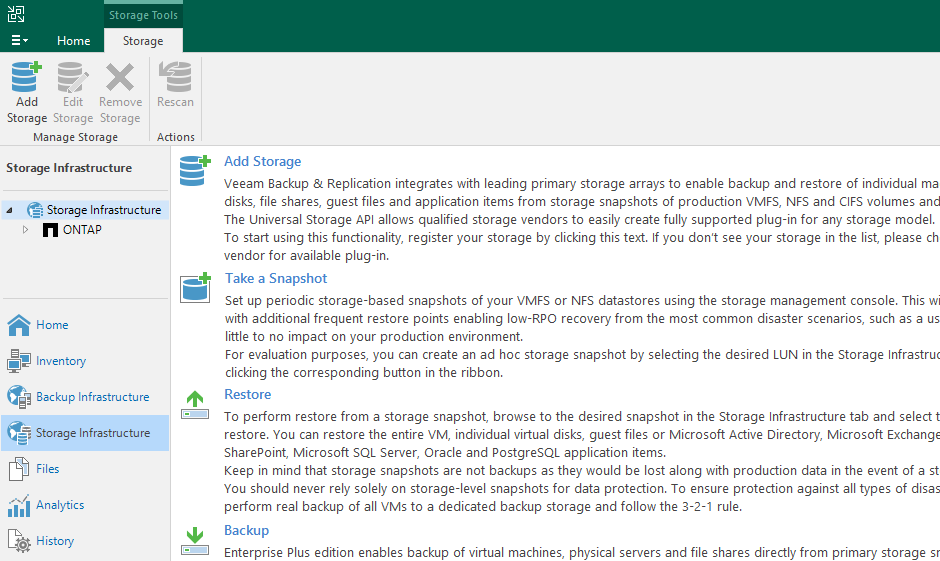
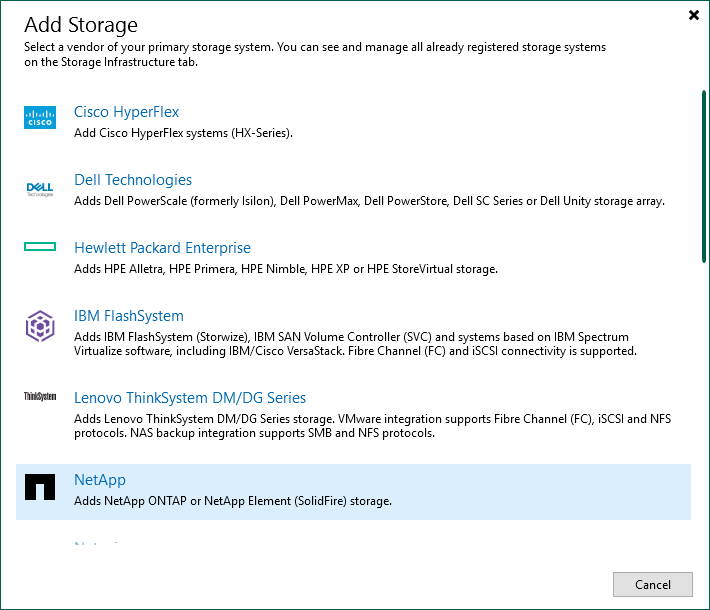
- we select the manufacturer and array model (NetApp - ONTAP)
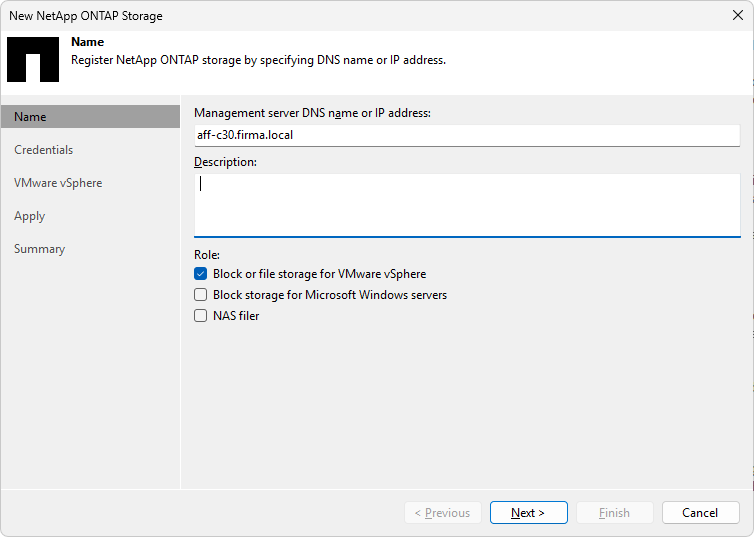
- Name - we enter the DNS name or IP address of the storage management and select for which types of backup jobs we want to use it (in our case VMware)
- Credentials - we select or add access credentials to our storage (permissions needed are quite high, for ONTAP NetApp Data ONTAP/Lenovo Thinksystem DM Permissions, can be solved with the admin role), we choose protocol and port for communication with the storage
- Veeam tries to connect to the storage, if there is an untrusted certificate, we get a warning
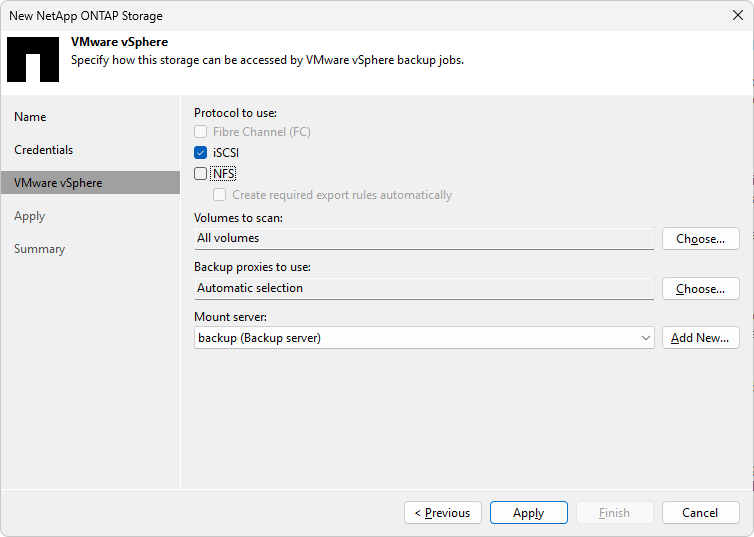
- VMware vSphere - we select the used protocols (in our case iSCSI), we can select only specific volumes that should be scanned (Rescan), Veeam works only with VMware (VMFS LUN) anyway, so others are not needed and prolong the scanning
Rescan storage / volume (Storage Discovery)
After adding new storage, Rescan is started by default. We can also start it manually and it runs regularly automatically.
Rescan, which we see in the log as a Storage discovery job, detects information about
- storage and its volumes, LUNs, Snapshots, etc.
- whether Proxy has Direct Storage Access and Backup from Storage Snapshot can be used for iSCSI/NFS/SMB
- pairs vCenter/ESXi datastores with volumes (LUNs/share files) on storage
- creates a list of VMs located on datastores and in the Snapshot of respective volumes
During the Rescan operation, existing Snapshots on the given volume are loaded. This means that Snapshots created directly on the storage side, outside of Veeam, are also displayed. Similarly, snapshots that were removed from storage are removed from Veeam during this process. If the volume does not serve as a VMware datastore, the Snapshot will appear in Veeam, but we won't see any VMs.
During Rescan, all VMware VMs that are on the Snapshots are also loaded. So even if we only put one VM into the job, all existing ones will appear.
Snapshot-Only Job
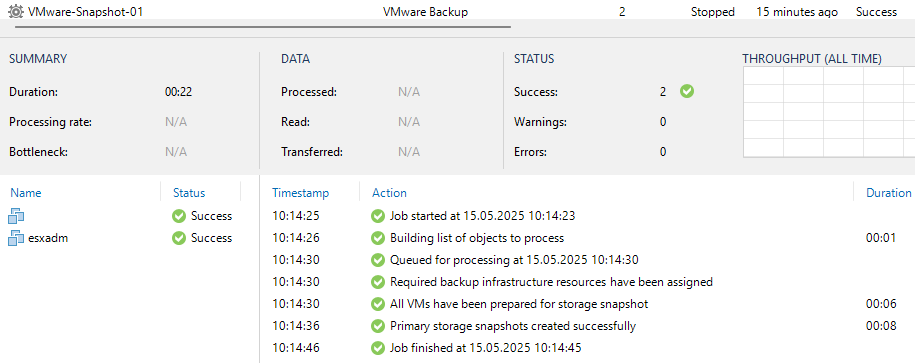
Scheduling automatic creation of Volume Snapshots can be done directly on the storage. For volumes that serve as VMware datastores, this can be done in Veeam Backup & Replication. This is done using a job referred to as a Snapshot-Only Job, which creates new Snapshots according to schedule and removes those that are outside the retention. Depending on the job settings, Snapshots can be Application Consistent or Crash-consistent.
Creating a Snapshot-Only Job
This is a standard backup job for VMware, where we select Snapshot of a specific array as the Repository. If our device supports it, we can also configure replication to secondary storage (Secondary Target) and Immutability.
- Veeam Backup & Replication Console
- Home - Backup Job - Virtual Machine - VMware vSphere
- Name - we enter a unique name, and optionally a description
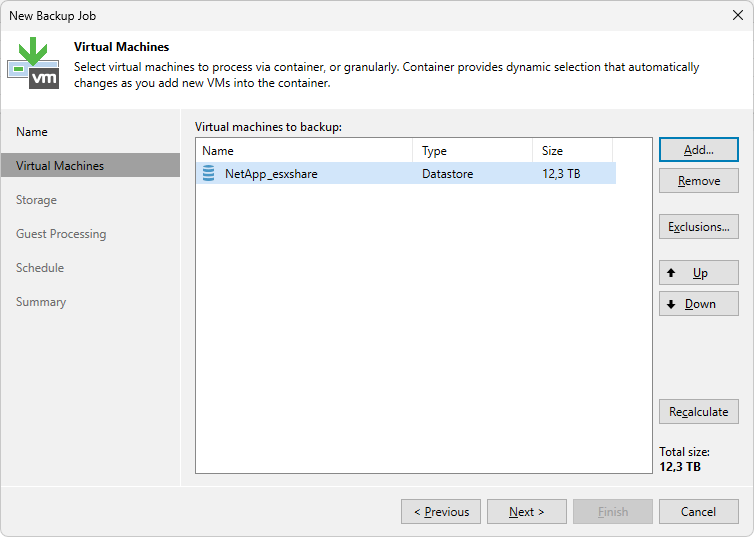
- Virtual Machines - we add virtual machines whose disks are on storages where we want to perform Snapshots, we can add an entire Datastore, which adds all VMs that have a disk on it, when adding VMs we must consider the impact on licenses, we can only perform a consistent backup for added VMs, but all VMs on the volume are available
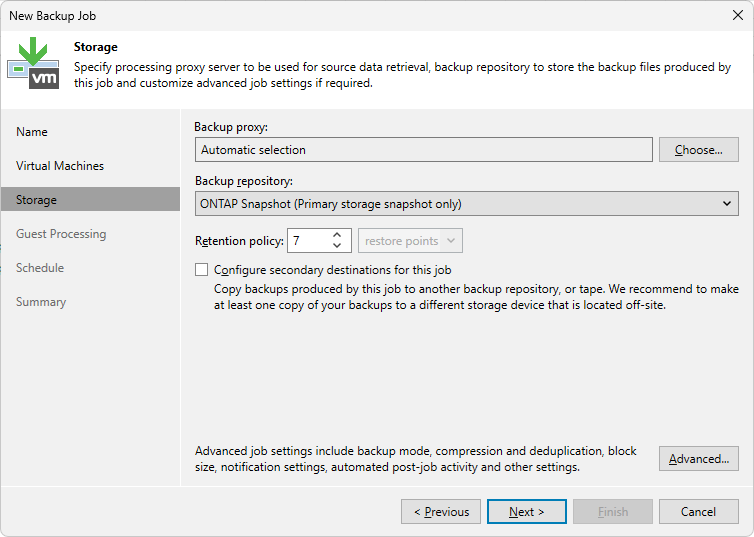
- Storage - as Backup repository we choose for example ONTAP Snapshot (Primary storage snapshot only), we specify Retention Policy, how many Snapshots should be maintained, under Advanced we can adjust notifications, enable VMware Tools quiescence, run some script
- Guest Processing - we can perform application-consistent backup using Veeam services
- Schedule - we can schedule regular running of the job (the second option is to run manually)
Note: When we add individual VMs, a Snapshot of the entire volume where they have stored disks is performed. It may be multiple volumes, but they must be of the same manufacturer and model.
Licensing
Veeam typically uses instance licensing, where each protected workload requires a license (VUL). A data source that has been processed in the last 31 days is considered protected. Typically, a backed-up VM needs one VUL.
In the documentation, we also read that VMs processed by a Snapshot-Only Job are considered protected VMs and consume a license instance. So all VMs added to the job consume a license, if we're not already backing them up with another job (one VM can consume only one license).
I have confirmed the following. Snapshot is taken as Restore Point, license is consumed only by VMs added to the task. We can perform consistent backup for these VMs. During Rescan operation all VMware VMs located on Snapshots are loaded. We can then use Veeam to recover data from all these VMs.
Special Situations and License Consumption
When testing Snapshot-Only Job in Veeam Backup & Replication, I encountered interesting behavior related to licensing. I created a job to which I added an entire datastore, resulting in a Snapshot and a job containing all VMs on the given volume. Veeam counted a license for each VM that was detected on the Snapshot.
I deleted the job and Snapshot, and the number of consumed licenses returned back (deleting the Snapshot would have been sufficient). I created a new job with only one VM. As soon as Rescan ran, a license was again counted for all VMs on the volume, even though the job contained only one of them.
I thought this was a bug, but Veeam support explained what was happening:
- when the first job ran, a record was created in the DB for all VMs with the current
last_processed_datevalue - when deleting the Snapshot (and job), this record remains
- after running the second job, all VMs are detected in the Snapshot, a record with a date less than 30 days old is found for them, and a license is counted (even though the VM is not in the job)
- when running the second job, the record in the DB (last processing date) is updated only for one VM (which is part of the job)
- if a month passes, the license stops being counted for VMs that were only in the first job
There is also a quick solution to the situation. If licenses are counted for VMs that are no longer in the job after running the job, we can revoke the license from these VMs. This causes a reset of the last_processed_date value to 01.01.1900.
- Main menu - License - Instances - Manage - Revoke
Veeam support works very well. They also advised me of a nice way to find out the last processing date from the database using PowerShell and SQL query.
Invoke-Sqlcmd -ServerInstance localhost\VEEAMSQL2016 -Database VeeamBackup `
 -Query "select li.instance_id InstanceID, bosi.display_name VM_Name, li.registration_time, li.last_processing_time from [dbo].[Licensing.LicensedInstances] li join BObjectsSensitiveInfo bosi on bosi.bObject_id = li.instance_id order by bosi.display_name" |
 Format-Table | Out-File C:\Temp\instances.log
Data Recovery from Storage Snapshot
A great advantage is that Veeam Backup & Replication allows restoring VMware virtual machine data directly from storage Snapshots. The entire process is fully automated and controlled by Veeam, so no manual interventions are required on the storage side or virtualization platform.
Recovery typically uses a copy of the Volume Snapshot that is writable. It is connected to the ESXi server, which can update metadata. The original Snapshot remains unchanged.
Supported data recovery methods are
- Instant Recovery (VMware VM)
- Instant Disk Recovery
- Restore Guest Files
- Restore Application Items
Snapshot recovery process
- Snapshot from storage is made accessible to the selected ESXi server (clones the Snapshot, connects LUN to ESXi server)
- on the ESXi server, HBA rescan is performed, Datastore is connected, VM files are searched for, VM is registered
- data recovery operations are performed
- after completion, cleanup occurs and everything is removed (unregisters VM, disconnects Volume, LUN, deletes Snapshot clone)
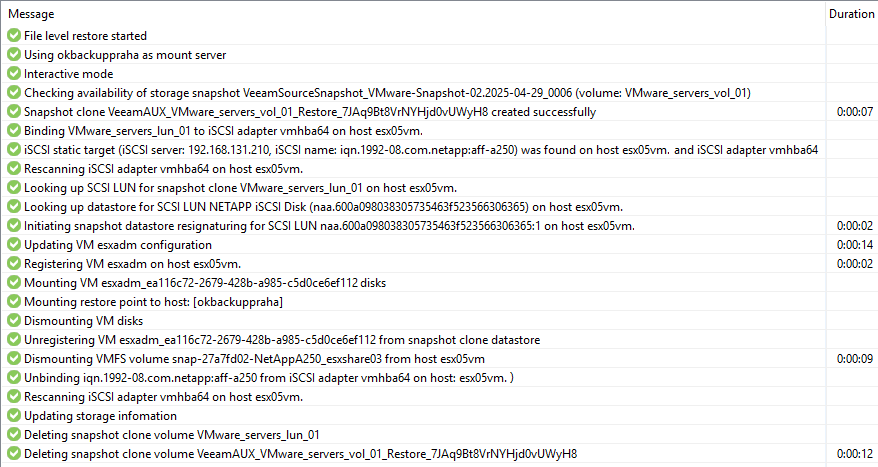
Note: During recovery, we can look at VMware vSphere, where we will see a new VM with our name supplemented by an ID and a connected datastore whose name begins with snap. On the disk array, we will see a new Volume (probably consuming some free space).
Restore Guest Files
Note: As an example, we will describe file recovery from a Windows VM. Other options are similar.
Storage Snapshots that Veeam knows (created them or scanned from storage) can be found in
- Veeam Backup & Replication Console
- Home - Backups - Snapshots
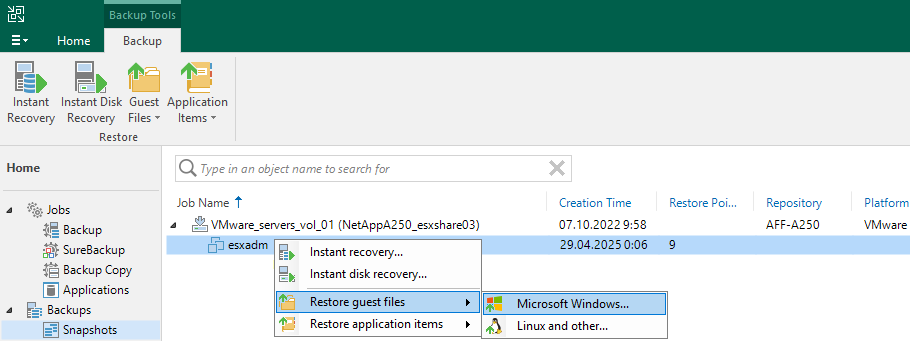
Here is a list of volumes (Storage Volumes) on which there is a Snapshot containing VMware VMs. Identification is by volume name and in parentheses the name of the VMware datastore. In the Repository column, we see the storage name. After clicking, a list of VMs and the number of Restore Points (i.e., Snapshots in which the VM exists) is displayed.
- right-click on the VM, for Windows VM select Restore guest files - Microsoft Windows
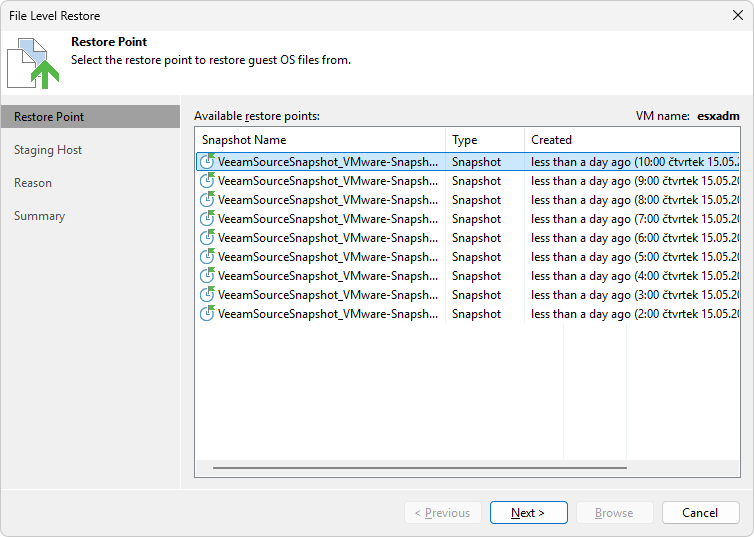
- the File Level Restore wizard starts
- Restore Point - we select the Snapshot for recovery
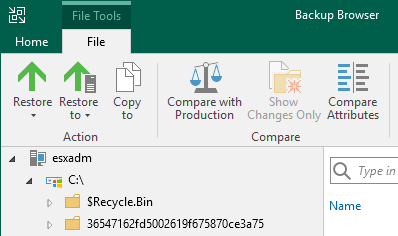
- Staging Host - on which ESXi server and with what parameters it should be registered
- the Browse button starts Veeam Backup Browser, the disk is connected to the Mount server (set up at the storage)
Storage Infrastructure
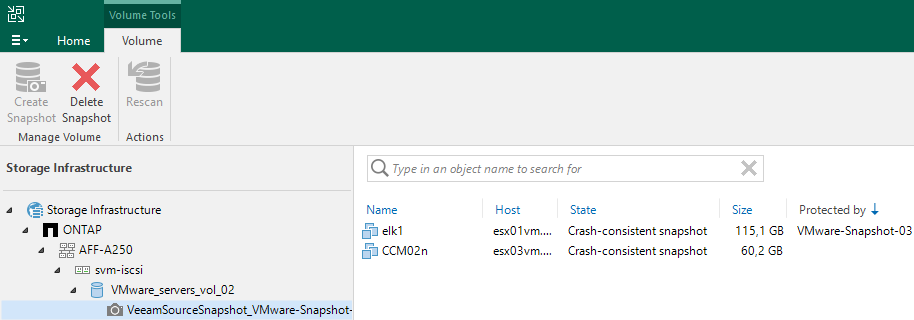
Various information can be found in the Storage Infrastructure view. We can also manually create a Snapshot, perform Rescan storage / volume, delete a Snapshot, and also start recovery from VM.
- Veeam Backup & Replication Console
- Storage Infrastructure - hierarchy (manufacturer, storage, etc.) - volumes
- after opening a volume, we see a list of existing Snapshots
- after opening a Snapshot, we see a list of VMware VMs
- VMs that were processed by a Snapshot-Only Job have the job name in the Protected by column
There are no comments yet.