
Note: The description in the article is based on Veeam Backup & Replication 12.3, licensed using Veeam Universal License (VUL), which is equivalent to Enterprise Plus.
Introduction
Veeam Backup & Replication 12 introduced support for direct backup storage to object storage - Direct-to-Object Storage. This can be either local storage or a cloud service, such as Wasabi Hot Cloud Storage. A cloud object storage service from Wasabi Technologies.
Wasabi Hot Cloud Storage is verified and tested by Veeam. Wasabi has achieved Veeam Ready status in the category of Object Storage with Immutability.
Object Storage and Immutability
A general description of object storage, how Immutability works and its usage, and practical examples of using S3 compatible storage or Microsoft Azure Blob Storage as backup storage in VBR are contained in previous articles. We build upon this information here in many aspects.
- What is Object Storage?
- Veeam Backup & Replication - Immutable Repositories and Secure Backups
- Veeam Backup & Replication - Object Storage Repository and Immutability
Detailed information is provided in a new article.
Official Documentation
Veeam
Wasabi
- Wasabi Hot cloud storage
- Backup to Wasabi and Recover More Than Your Data
- Veeam With Wasabi
- Create a Backup Job in Veeam v12 to Backup to Wasabi
- Wasabi Hot Cloud Storage (Console)
Wasabi Hot Cloud Storage
Wasabi Hot Cloud Storage can be purchased either in Pay as You Go (PAYG) mode with monthly payments or Reserved Capacity Storage (RCS) for a year or longer period. The comparison can be found in Pricing. We only pay for capacity, there are no charges for egress or API requests.
Wasabi RCS can be purchased directly or through a partner. It has various advantages. The Minimum Storage Duration Policy can be significant, which is 30 days for RCS and 90 days for PAYG. Even if we delete the data earlier, we pay for this minimum period. Information in PAYG FAQ and RCP FAQ.
Wasabi Account and 30-day Trial
When we want to start with Wasabi, we need to create an account. We also have the option to use a 30-day free trial version, where we have full functionality and 1 TB of space. During registration, we don't enter a payment card, just a few details (like name, email, country). We can then switch to the paid version. We create an account on the Try Free page.
Multi-Factor Authentication (MFA)
Once we have created an account, we log in on the page console.wasabisys.com. For security, it's good to set up Multi-Factor Authentication (MFA). It uses OATH One-Time Password (OTP), so we can use applications like Microsoft Authenticator or Google Authenticator. The registration is different than usual. We scan the QR code, then we must copy the OTP from the application into Authentication Code 1 and when it changes, into Authentication Code 2.
Wasabi and Immutability
- Object Lock: Enabling
- Immutability: Compliance and Object Lock
- Wasabi Veeam Object Lock Integration
- Object Lock: Setting for a Bucket or Object, Disabling, and Applying a Legal Hold
Wasabi supports two methods for ensuring Immutability. These are Compliance and Object Lock. They are mutually exclusive, so we can only use one of them on a bucket. First, we must enable the method and then configure it for immutability to work.
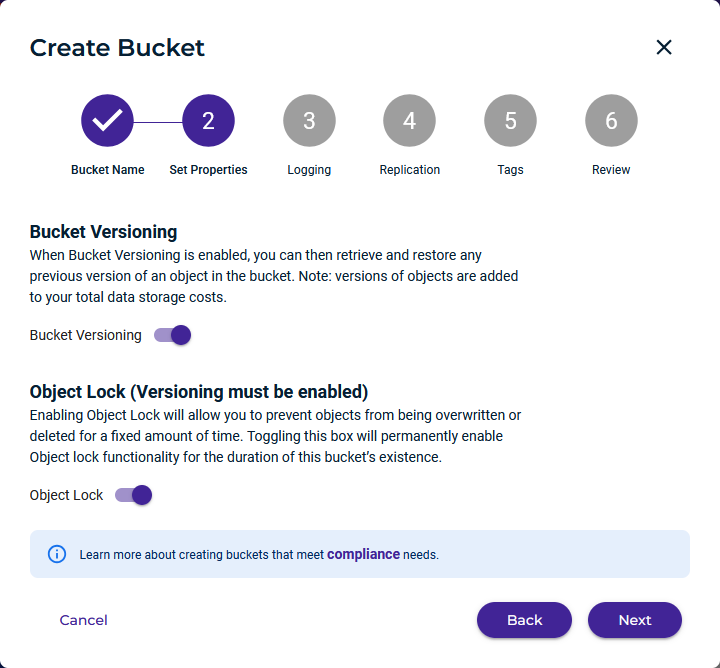
For Veeam, we need Object Lock, which must be enabled when creating the bucket. It cannot be activated later. This method allows Veeam to set immutability on specific objects in the bucket and determine retention. To enable Object Lock, we must enable Versioning.
S3 Object Lock can use two Retention Modes, which are set at the bucket or object level. Objects are immutable until they reach the defined Retention Date.
- Governance Mode - a user with special permission has the right to modify or delete
- Compliance Mode - no one (not even root) can modify or delete
Additionally, we can set Legal Hold, where object versions are protected indefinitely until the Legal Hold is removed. This setting takes precedence over both modes.
Note: Veeam uses Object Lock in Compliance Mode.
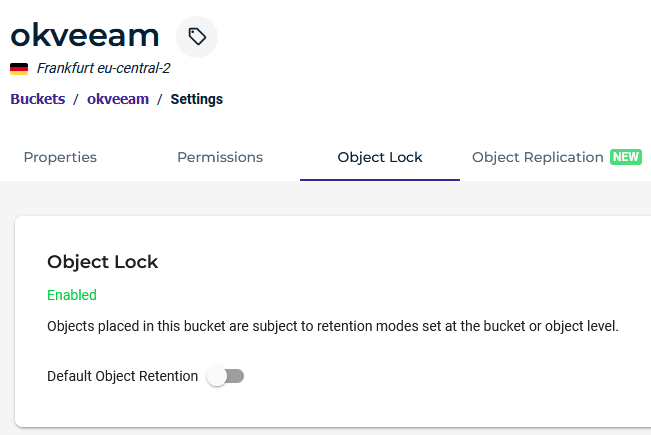
When we create a bucket with Object Lock enabled, we can go to its settings. Here is the Object Lock tab and the option to enable Default Object Retention. This setting applies the defined Retention Period to all newly placed objects in the bucket. We must not do this for Veeam. We need it to manage the settings itself. Generally, on object storage, we must not enable default retention, Lifecycle Rules, or Tiering.
Creating a Bucket (S3 bucket)
Note: For performance reasons (limits on IOPS or API calls per second), it might be better to have multiple smaller buckets than one large one. But this probably applies to values of tens or hundreds of TB (Veeam Best Practice mentions 250 TB). Wasabi wanted to set a limit of 100 million objects per bucket in the past, but apparently didn't implement it.
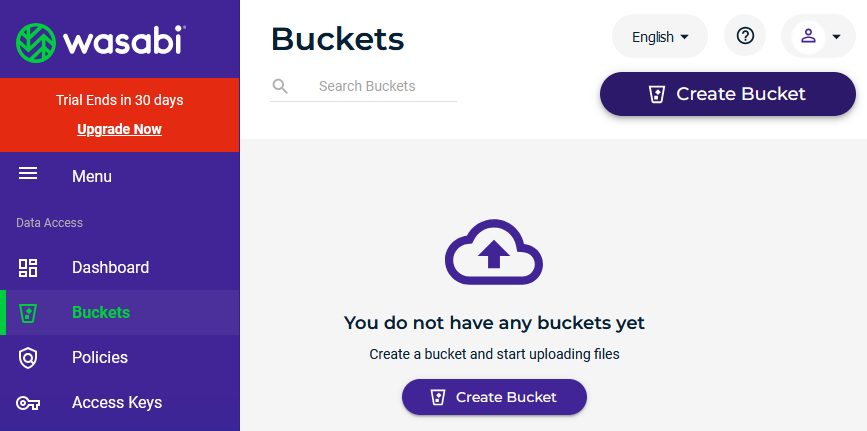
In the Wasabi Console, we create a bucket using a 6-step wizard. If we already have an existing bucket, we can use Quick Setup and copy settings from a selected bucket.
- menu Buckets - Create Bucket
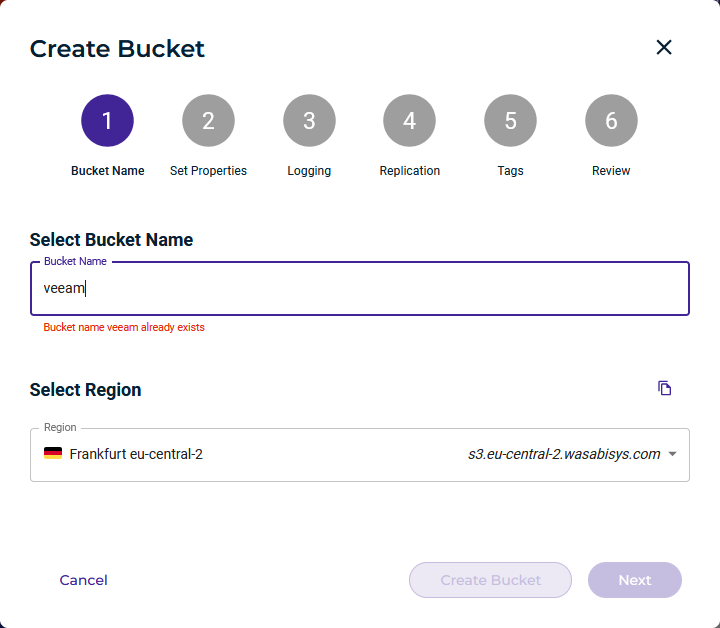
- 1 - Bucket Name - we must enter a unique name for the bucket (within all of Wasabi) and select a region (geographical location)
- 2 - Set Properties - we enable versioning and Object Lock
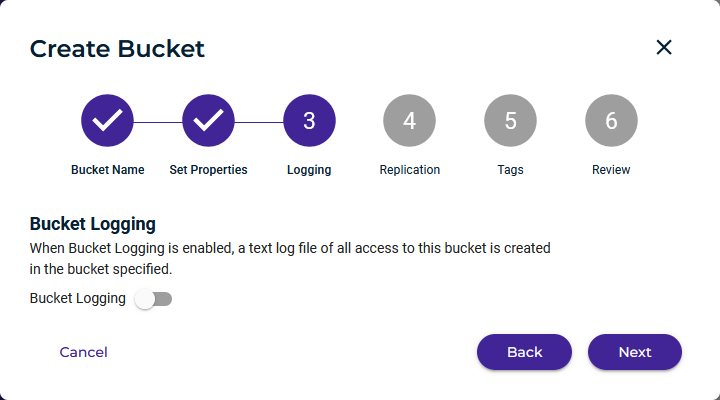
- 3 - Logging - we can enable logging of all bucket access, creates a text file that is stored in a bucket and takes up space
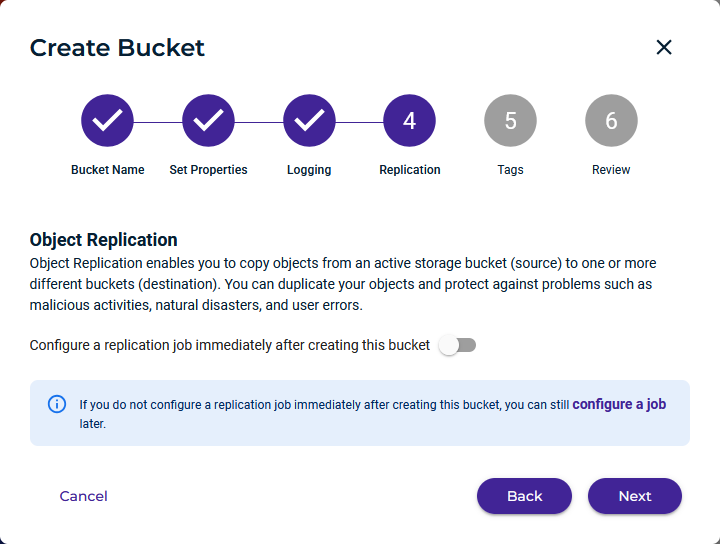
- 4 - Replication - we can enable replication of data to another region
- 5 - Tags - we can create tags for organizing objects
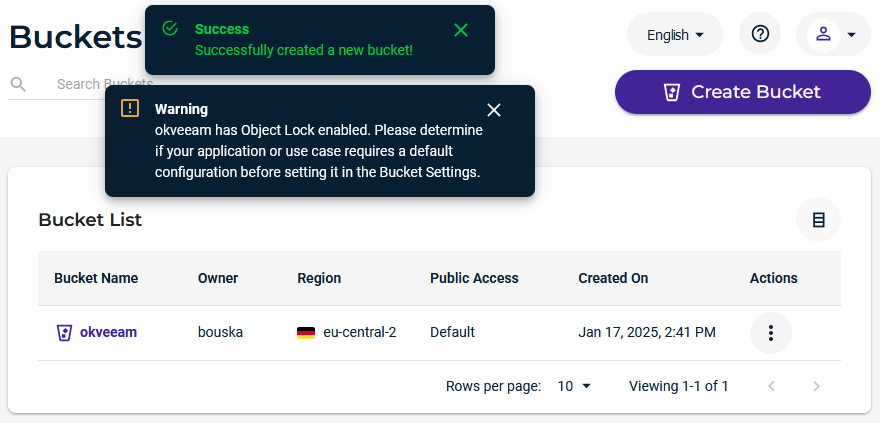
- 6 - Review - we see the configured parameters, we create the bucket using the Create Bucket button
Creating a User and Getting Access Key
For access to the S3 API used by Veeam, we need an Access and Secret Key. Access keys are assigned to a user account (each can have 2).
We create a new user account (we could also use the root account). For grouping users for common management, we can first create a group, to which we add the account during creation.
- menu Users - Create User
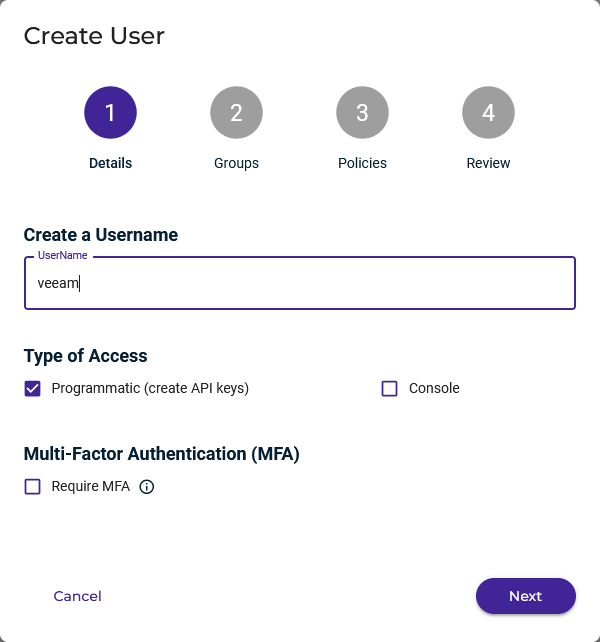
- 1 - Details - we enter the user's name and check Programmatic (create API keys)
- 2 - Groups - we can assign groups
- 3 - Policies - we assign policies that determine account permissions
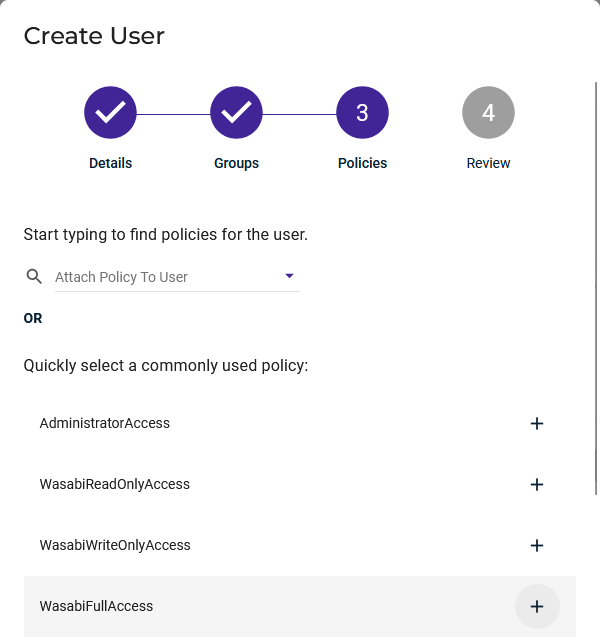
- 4 - Review - we see the configured parameters, we create the user by clicking the Create User button
- an access key is created, which we can copy or save
Note: Access keys can be found collectively in the Access Keys menu.
Limiting User Access to a Single Bucket
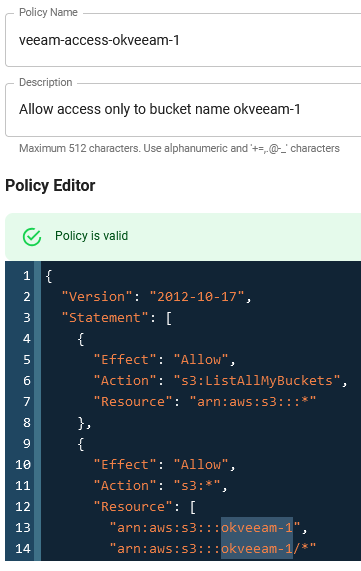
For enhanced security, we may want to restrict user access (using Access Keys) to only a specific bucket. We can create a separate user for each bucket. We can use policies (Policy) with JSON code for this purpose.
- menu Policies - Create Policy
- Policy Name - enter a unique name, for example
veeam-access-okveeam-1 - Policy Editor - insert code that allows access to a bucket with the specified name
okveeam-1(found on the internet)
{
  "Version": "2012-10-17",
  "Statement": [
    {
      "Effect": "Allow",
      "Action": "s3:ListAllMyBuckets",
      "Resource": "arn:aws:s3:::*"
    },
    {
      "Effect": "Allow",
      "Action": "s3:*",
      "Resource": [
        "arn:aws:s3:::okveeam-1",
        "arn:aws:s3:::okveeam-1/*"
      ]
    }
  ]
}
- assign the policy to the user when creating or modifying an existing one
Storage Usage and Minimum Storage Duration
Wasabi calculates the bucket occupancy size once daily (at night). We can see the data for each bucket in its settings under Settings - Properties - Bucket Size. We can download accounting data, which is a CSV with details for each day (number of objects, active storage, deleted, transfers, API calls). On the Dashboard, we see the usage of the entire storage (shown to me with a one-day delay). This includes not only active data but also deleted data that is subject to the minimum storage duration policy.
During my first test, I performed a backup of an empty VM, so the occupied space was just a few kB. But deleted space also appeared. When I uploaded a real backup of about 260 GB, deleted space of about 40 MB appeared.
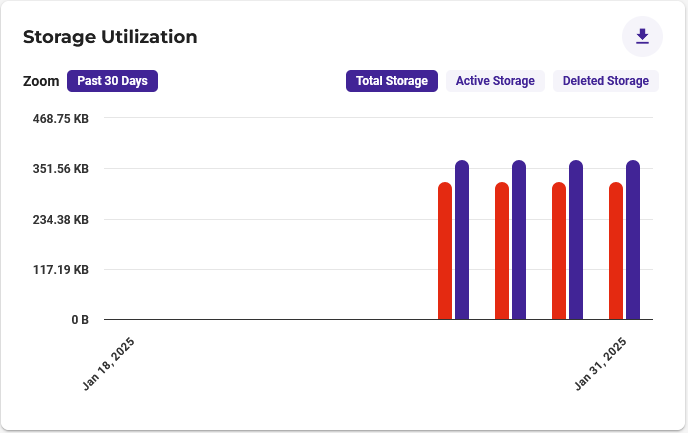
Wasabi has a Minimum storage duration policy, which is at least 30 days. This means that when we upload any data, it pays to keep it for at least 30 days. If we delete it earlier, we still pay for it until 30 days have passed from its storage.
Set Immutability Period on Object
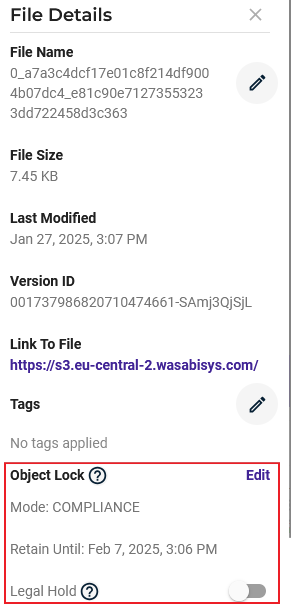
In the Buckets menu, we can browse bucket contents. We can view details of individual objects (files). We can see if Object Lock is set, in which mode, and until what date.
- we navigate to a specific object
- we enable version display with Show Versions on the right above the object list (otherwise we won't see lock information)
- we click on the object row and details appear on the right
Veeam Backup & Replication
Creating Wasabi Cloud Storage Repository
Adding Wasabi Cloud Object Storage
- Veeam Backup & Replication Console
- Backup Infrastructure - Backup Repositories - Add Repository
- we choose Object Storage - Additional Providers - Wasabi Cloud Storage
- Name - unique name and storage description
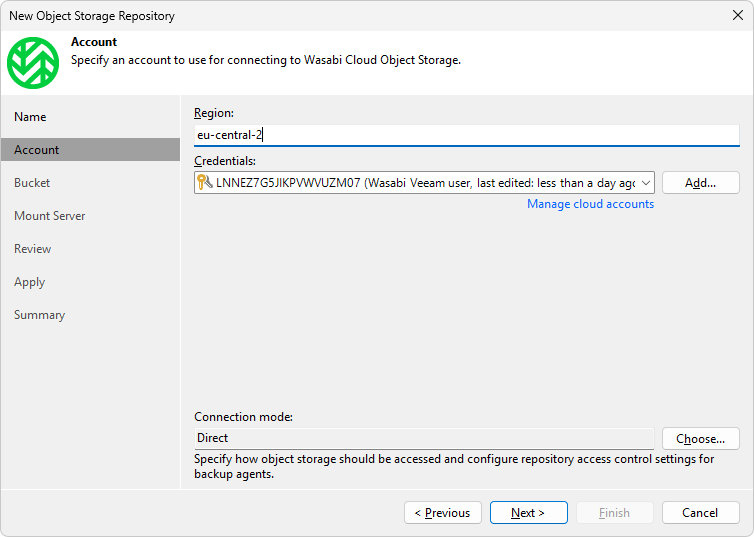
- Account
- Region - we copy the region we selected when creating the bucket
- Credentials - we select or add access credentials for our Wasabi user (Access key and Secret key)
- Connection mode - we choose the data transfer method, either direct (most common) or through a gateway
- Bucket
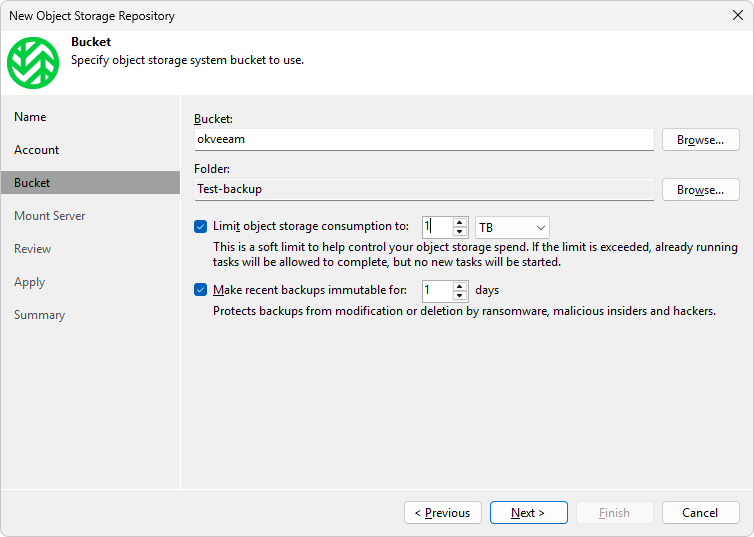
- Bucket - we select a pre-prepared bucket for storing backups
- Folder - we select an existing folder or create a new one
- Limit object storage consumption to - we can set a soft limit for storage usage, if the limit is exceeded, the running job will complete but a new one won't start
- Make recent backups immutable - we can set the immutability period, the time during which stored data cannot be modified or deleted, GUI allows 1 to 90 days, longer periods can be set using PowerShell
- Mount Server - we select a mount server and its parameters for file and application item recovery
- Review - we click Apply and the installation and configuration of all required components takes place
Real Immutability Duration (Block Generation)
Veeam automatically applies something called Block Generation. The reason is to save API calls to object storage at the cost of greater space occupation (longer immutability period). In Wasabi, we don't pay for API calls, so this might not be important.
Block Generation is a time period during which all blocks in backups (full and incremental backups) have the same immutability period. It adds 10 days to the specified Immutability Period on storage (for most object storage). We can change this value by modifying the registry.
For example, we set the immutability period on storage to 20 days. When the first full backup is performed, its blocks are set to be immutable for 30 days. This starts a generation that lasts 10 days, and all incremental backups will have the same expiration date for immutability (as the full backup). If incremental backups are performed once daily, then each time immutability is set one day less. All blocks within a generation have immutability of at least 20 days.
Veeam extends the immutability expiration for blocks that still exist in newer backups. They are therefore part of newer Restore Points.
Backup Repositories
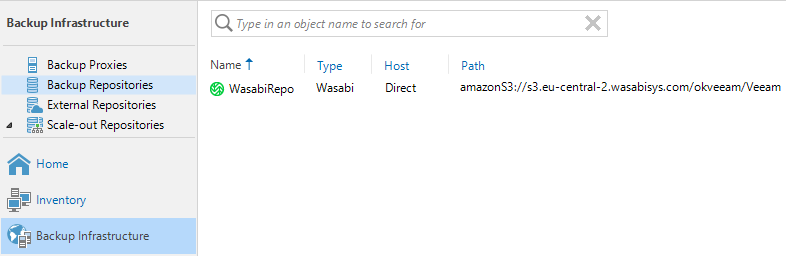
Overview of created repositories.
Creating a Backup Job
We create a backup job in the standard way (described in older articles). As Storage - Backup repository, we select our Wasabi Cloud Storage Repository. The immutability of backups will be at least as long as the Immutability period specified on the Backup Repository. So there's no point in setting a shorter Retention policy.
Among other things, we should consider setting Storage - Advanced
- Maintenance - Health Check for Object Storage Repositories (if it's a copy of data, it's not as important), Remove deleted items data after
- Storage - enabling encryption (strictly recommended)
- Notifications - if we're not using the default
Creating a Backup Copy Job
Personally, I think it's good to have primary backups stored close to the source, meaning On-Premises, where good network latency and performance are achieved. Then store a copy of backups in cloud storage.
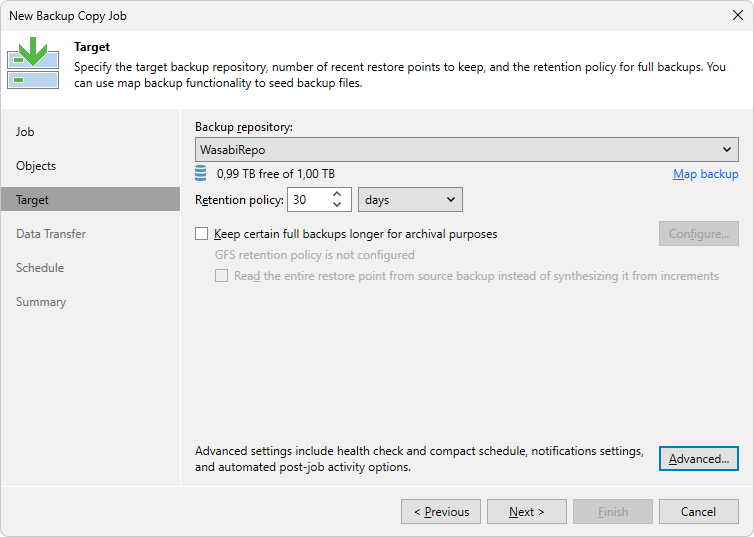
We create a backup copy job again in the standard way (described in older articles). Probably as a Periodic copy. In Target - Backup repository, we select our Wasabi Cloud Storage Repository. We set the Retention policy longer than the Immutability period.
Backups
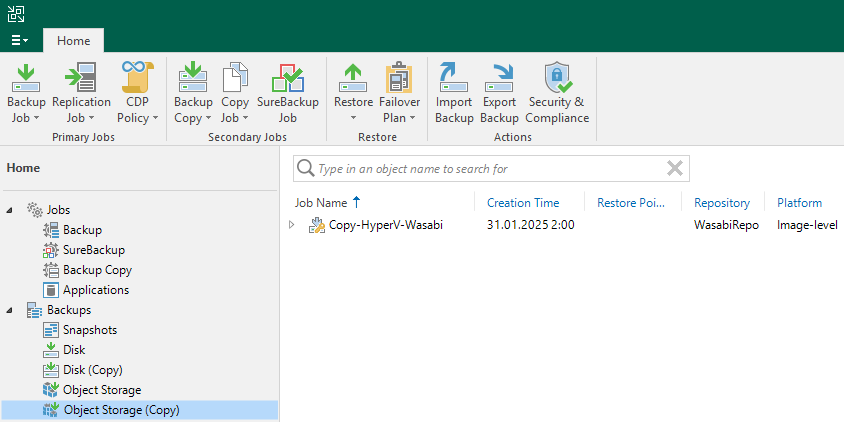
We can see created backups in the Object Storage or Object Storage (Copy) folder.
Attempt to Delete Backup Files
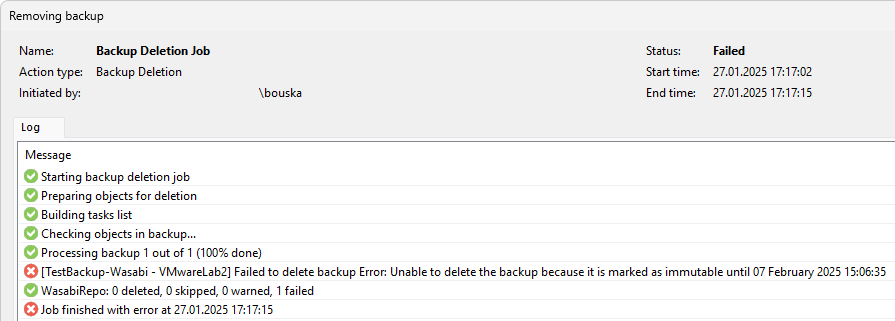
When we try to delete a backup in Veeam Backup & Replication, the deletion doesn't occur and we get information that Immutability is set until a certain date. In the test case, I set the Immutability period to only 1 day, but it shows that the file can't be deleted for 11 days. This is the added 10 days as part of Block Generation.
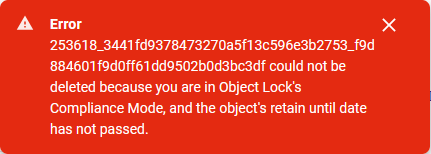
If we try to delete in Wasabi, we get a similar error.
How Backup Storage Works on Object Storage
The operation is described better and in more detail in a new article How Veeam works with Object Storage and leveraging Immutability.
If we have an object storage as a target in a Backup Job, then Forever Forward Incremental is created by default (without the need to merge data into a full backup). Synthetic full backups are never created, which is due to the principle of object storage. We can set up regular active full backup, which will increase storage space consumption. Or enable Long-Term Retention Policy (GFS), in which case a synthetic full backup is created. And thus switch to Forward Incremental.
Note: Backup Copy Job uses Forever Forward Incremental by default even on file storage.
Synthetic full backup is created by combining the previous full backup with subsequent incrementals. A new file is created that takes up the given disk space. If we use a file system with Fast Clone (ReFS or XFS), we can save space (and copying time) because links to data blocks in previous files are used.
Object storage doesn't work with files, but with objects. Veeam divides backup files (Restore Points) into blocks of a certain size (1 MB by default), compresses them and transfers them as objects to object storage. Immutability is set on each object. Each restore point references the required objects.
When an incremental backup occurs, objects with new (changed) data are transferred. The new restore point again references all necessary objects to enable full recovery. That means older objects (without any newly replaced or deleted ones) plus newly uploaded ones. When retention ends for a specific restore point, it is deleted. Objects referenced by this restore point but not referenced by any newer ones are deleted. Therefore, active data remains stored. For this reason, we don't need to perform a synthetic full backup and space is saved similarly to Fast Clone.
Veeam creates and maintains a directory structure on object storage. The description is in the documentation Object Storage Repository Structure.
Restore from Wasabi and Backup and Restore Performance
I tested several test restores. Internet communication to Wasabi storage goes through a 1 Gb/s line.
- Copy Backup - copying a backup of one VM to internal storage, copied 20 GB in about 6 minutes, speed 59 MB/s (472 Mb/s)
- Restore Guest Files (File Level Restore) - connecting a disk from a Windows VM directly from the backup, could smoothly browse files, restoring a smaller file was instantaneous
- Instant VM Recovery - VM recovery (connecting to virtualization) directly from the backup, this was slower but functional, VM started in over 2 minutes and responded more slowly, this storage is not intended for such use
A full backup of approximately 265 GB of data transferred to Wasabi storage. It took 53 minutes and the actual transfer on the line was consistently around 750 Mb/s (94 MB/s). The restore intermittently loaded the line, which is why the average was lower.
Jaké z toho máte zatím dojmy? A co myslíte o úvaze, že se z cenového pohledu (na první dobrou) mnohem výhodnější alternativu k ukládání dat přes Veeam Cloud Connect?
Jestli chápu správně dotaz, že Wasabi je levnější než využít Veeam Cloud Connect s nějakým providerem. Nemám s tím zkušenost.
Zatím mi to běží bez problémů, musím udělat testy s větší zátěží. Ale v diskuzích člověk nalezne hodně informací o zkušenostech s Wasabi. Vypadá to, že ho pro Veeam využívají lidé již řadu let. Cílí hlavně na nízkou cenu.
Ještě jsem při hledání informací narazil na podobný 1111systems.com/.
respond to [2]Samuraj: ano, díky za tipy
I made a lot of test on Veeam and Wasabi and this is definitively a good explanation. Good job !
I would like to add an information on security and limiting access to the bucket.
Wasabi FAQ / Veeam ask us to implement security with this json:
"Effect": "Allow", "Action": "s3:ListAllMyBuckets", "Resource":arn:aws:s3:::*"
The result is that all users defined at the s3 level are allowed to list all existing buckets even if they are not allowed to get in. If you share your Wasabi S3 against different customer it could be an issue to see other buckets.