
Note: The description in the article is based on Veeam Backup & Replication 11a, licensed using Veeam Universal License (VUL), which is equivalent to Enterprise Plus.
Article Contents
- Data Restore / Recovery
- Instant VM Recovery
- Complete VM Restore - Entire VM Restore
- VM Disk Recovery
- Agent Disk / Volume Restore - Volume Restore, Disk Export
- Restore Selected (Windows) Files - Restore Guest Files
- Restore Application Items
- Recovery History and Reports
- Disaster Recovery
Data Restore / Recovery
Two terms are used for recovery: Restore and Recovery. I wrote about my thoughts on their differences, which are not entirely clear to me, in Veeam Backup & Replication - Introduction, Terms and Principles - Recovery.
Veeam Backup & Replication offers many recovery options. We can restore backups from various sources/platforms to the same or different targets. For example, we can restore a server backup using Windows Agent to the cloud as an Azure VM. We can restore an entire server / VM or just specific files / objects. We can export certain data from backups.
Recovery Options (Types)
- VM Recovery - recovery of an entire VM (or agent backup) to different environments
- Entire VM Restore - recovery of an entire VM to the same platform, VM image files are extracted from backups to production storage
- Instant VM Recovery (to VMware vSphere or Microsoft Hyper-V) - allows you to power on (instantly recover) a VM (but also a physical server) directly from compressed and deduplicated backup files in the backup storage (without the need to restore data in advance), provides limited performance, we can then perform migration to the production environment
- Disk Recovery - recovery (or export) of a disk or volume from a VM (or agent backup)
- Virtual Disk Restore - recovery of a VM disk, which is extracted from the backup to production storage, only for VMware
- Instant Disk Recovery - instant recovery of a VM disk from backup files, preserves the original disk format, only for VMware
- Disk Export - conversion of disks to VMDK, VHD or VHDX format, only for Agent Backup
- Volume Restore - recovery of a volume to the original or new location, only for Agent Backup
- Item Recovery - recovery of VM files, guest OS files and folders, or application items from a VM (or agent backup)
- VM Files Restore - recovery of specific VM files
- Guest OS file recovery - recovery of only files and folders from the guest OS
- Application items restore - using Veeam Explorer we can restore application items, the backup must be performed with the application-aware processing option
For most recovery operations, Secure Restore is available, which allows you to perform an antivirus scan of the data before restoring it. It is supported only for Microsoft Windows, we must have a specific Antivirus installed (on the Mount server) and configured (in Veeam).
Choosing the Recovery Type and Invoking the Wizard
We can start the recovery, i.e. invoke the recovery wizard, in several ways. There are two primary methods.
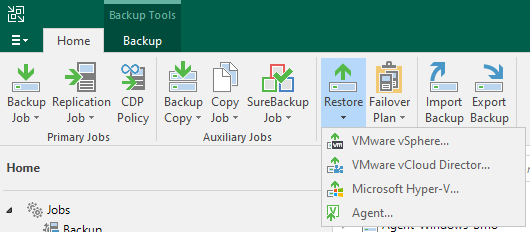
From the Home tab using the Restore option. We go through several steps where we choose which platform (VMware, Hyper-V, Agent, etc.) we want to recover. The main recovery type (Entire VM/Machine, Disk, Guest Files, Application items) and then in more detail (Instant, Virtual disk, VM files, Windows Files, etc). Then the specific wizard for that recovery is launched, where we first select from which Job and which Restore Point we want to recover.
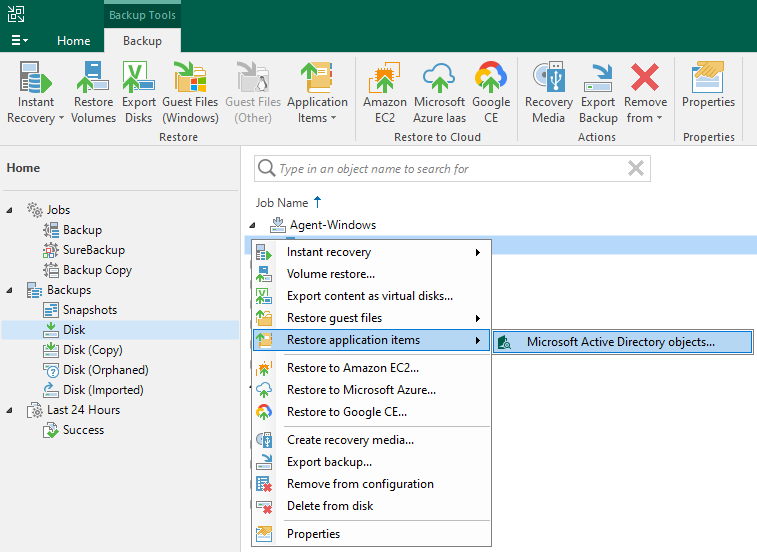
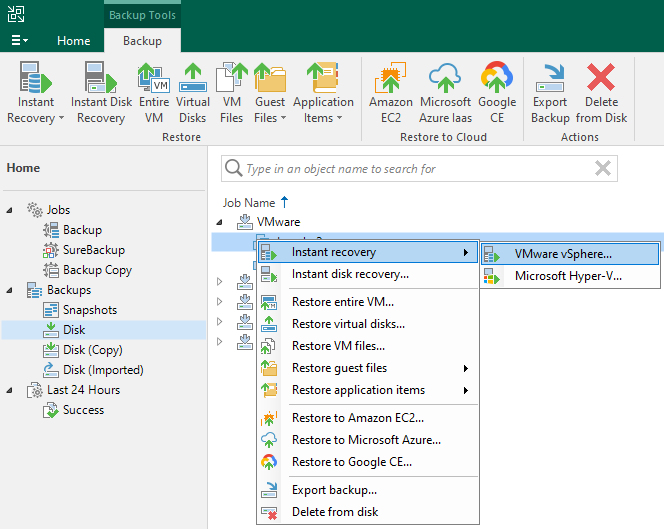
Or in the Home view (in the Inventory Pane) under Backups, we find the required job and within it the object (VM, computer, Oracle RMAN) from which we want to recover. Right-click and we are offered possible backup operations. Depending on the backup type, operations that are available for recovery are offered. So there are different types for VMware, Hyper-V or Agent backups. Additional options appear if we had Application-aware processing active during backup and one of the supported applications was detected (DC, Exchange, SQL Server, etc). After selection, the specific wizard for that recovery is launched, where the object is already selected (we can modify, add).
VMware Backup Proxy - Transport Mode Direct SAN
If we want to use direct access to shared storage via SAN during recovery to VMware vSphere (similar things apply during backup), i.e. use the Backup Proxy transport mode Direct Storage Access. Then we must meet certain rules. In practice, it often happens that even if we have the Direct storage access mode set on the Backup Proxy (and we don't even need to have Failover to network mode enabled), the recovery takes place in Network mode.
Note: We can see which Backup Proxy mode was used in the recovery log. There is a line about using a specific target proxy Using target proxy ... and after it in parentheses is the current mode as [san] or [nbdssl].
The basic principle is that the shared Datastore, which is connected to the ESXi servers and where we want to restore the data, must be connected to the Backup Proxy (this can be the Veeam Server, we further assume Windows OS). In the storage array management, we map the given LUN to the SAN Initiator Group for the given server. On the Veeam server in Windows Disk Management, a new disk appears, which should be Offline (we leave it that way and do not initialize!).
If we have newly connected a volume to the server, we must perform a Rescan Proxy in the Veeam Backup & Replication Console.
- Backup Infrastructure - Managed Servers (not Backup Proxies) - right-click on the server with Backup Proxy and select Rescan
For security reasons, when backing up using Direct SAN, the volume is set to read-only mode. For recovery, write must be allowed. We can check, and if necessary change, using diskpart.
DISKPART> list disk
DISKPART> select disk x
DISKPART> attributes disk
DISKPART> attributes disk clear readonly
The recovered disks must be Thick Provisioned, i.e. type Thick (lazy zeroed) or Thick (eager zeroed). During recovery, we can change the type if the original was Thin.
More information How to setup SAN access for use with Veeam Backup & Replication, 3 reasons why direct SAN restore failover to NBD, Physical proxy
Instant VM Recovery
A backed up virtual machine (VM) from VMware or Hyper-V, or a computer backed up using Veeam Agent, can be restored (started) to VMware or Hyper-V directly from backups. For VMware, it's possible to use recovery from Storage Snapshot. VM files are connected to the ESXi or Hyper-V server directly from data in the backup storage. A temporary VM with limited I/O performance is created (registered). The VM runs in a read-only state, changes are written to a redo log. When the VM is deleted, the changes are discarded, or they are merged during VM migration to production. The created VM has the same hardware parameters as the original VM or computer.
If we want to keep the recovered VM, we can perform a migration to the production environment. On VMware, we can use Storage vMotion or Quick Migration. On Hyper-V, Veeam Data Movers are used for data copying.
Recovery Process
The Wizard contains various steps, depending on what and where we are recovering and what options we choose in the wizard.
- the source can be a VM from a VMware or Hyper-V backup or a computer from an Agent Backup
- we start the recovery of the selected machine - under Home - Backups right-click and select Instant recovery
- the Instant Recovery to wizard starts, where the selected machine is added and the last Restore Point is chosen (we can change to any available)
- Restore Mode - when recovering VMware to VMware or Hyper-V to Hyper-V
- Restore to the original location - original values are preserved, if the original VM still exists in production, it will be deleted
- Restore to a new location, or with different settings - we set parameters for the new VM
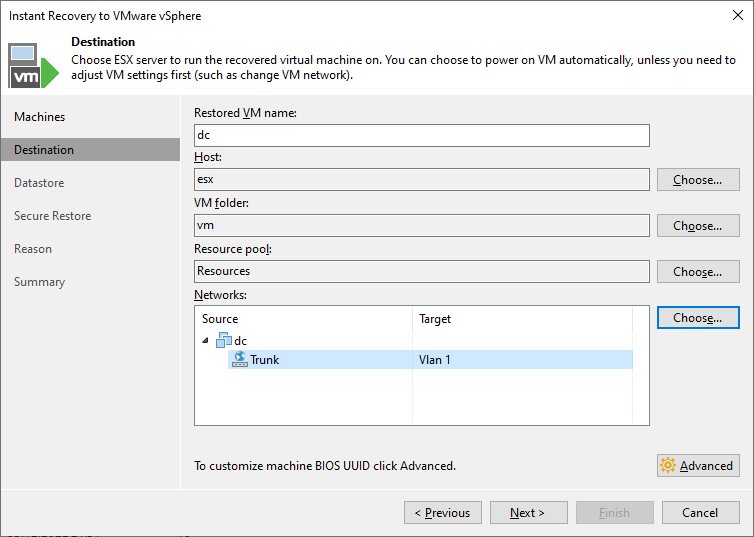
- Destination - for VMware we set the VM name (if we leave the original, we get a warning if it exists that it will be overwritten), target host (server), VM Folder, Resource Pool and whether we want to preserve the BIOS UUID, for non-VMware machines we specify network mapping
- Host - for Hyper-V we select the target host (server)
- Datastore - for VMware we can specify where to store redo logs, by default it's on the Veeam server (vPower NFS server), for Hyper-V we specify the path to VM files
- Network - for Hyper-V we can set network mapping, or disconnect the network
- Name - for Hyper-V we can set the VM name and whether we want to preserve the BIOS UUID
- Secure Restore - for Windows OS we can perform an antivirus check before recovery
- Summary - in the last step there is a summary, but also two important settings, whether the VM should be connected to the network (only for VMware) and whether it should be powered on after recovery
When we perform Instant recovery, we see the recovered VM on the Home - Instant recovery tab. We can perform Migrate to production here if we want to keep it. Or Stop publishing if we want to cancel. If we used recovery to the original location, the given VM will not exist (the original was deleted and the temporary one is also canceled).
Complete VM Restore - Entire VM Restore
Entire VM recovery extracts the VM image from the backup to production storage and registers the VM on the selected ESXi or Hyper-V server. We can restore VMware to VMware or Hyper-V to Hyper-V. We can restore to the original location, where in the case of VMware the original VM is powered off and only the backed up disks are restored. In the case of Hyper-V, the original VM is deleted and newly restored. Or to a new location, where we can specify VM parameters and create a copy of the original VM, for example.
In the case of VMware, a certain transport mode is used, just like for backup. Direct Storage Access [san] stores data directly on the datastore, for Direct SAN VM disks must be Thick. Virtual Appliance (HotAdd) stores data directly on the datastore using the ESXi I/O stack, Backup Proxy must run on the same ESXi server where we are restoring. Network Mode [nbd/nbdssl] is the classic mode over LAN.
Quick Rollback allows for quick recovery, where only the data blocks necessary to return the VM to an earlier point in time are restored. Changed Block Tracking (CBT) technology is used. The recovery must be to the original location.
Recovery Process
- the source can be a VM from a VMware or Hyper-V backup
- we start the recovery of the selected VM - under Home - Backups right-click and select Restore entire VM
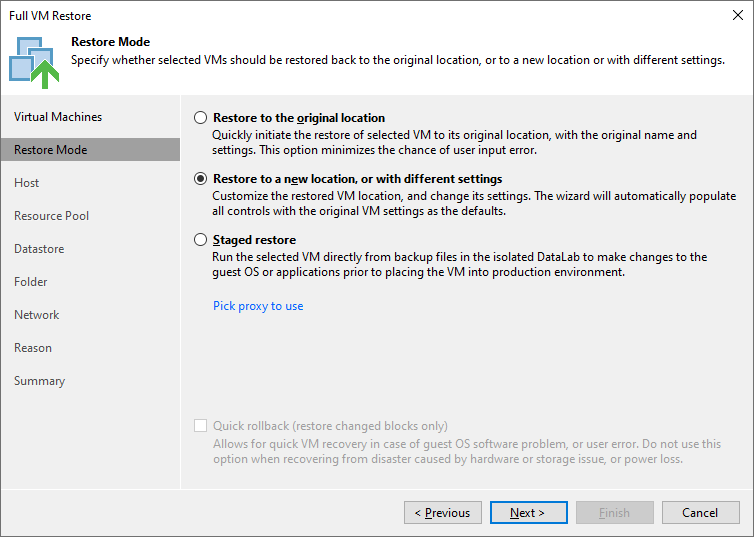
- the Full VM Restore wizard starts, where the selected machine is added and the last Restore Point is chosen (we can change to any available)
- Restore Mode - whether we are restoring to the original location or a new one with parameter settings, we can perform Quick Rollback or select a Backup Proxy
- Host - we select the target host (server)
- Resource Pool - for VMware we can select a Pool
- Datastore - where VM files should be stored, for VMware we can change the disk type (Thin, Thick)
- Folder - for VMware we can specify the target VM folder and VM name
- Network - we can set network mapping, or disconnect the network
- Name - for Hyper-V we can set the VM name and whether we want to preserve the BIOS UUID
- Secure Restore - for Windows OS we can perform an antivirus check before recovery
- Summary - along with the summary we can set whether the VM should start after recovery
VM Disk Recovery - Disk Recovery
The options for disk recovery or export depend a lot on the backup type. We probably have the most options from agent backups. For Hyper-V we don't have any options (we can only restore VM files - VM Files Restore). VMware offers more options, where we can perform Instant Disk Recovery (or Instant First Class Disk Recovery) and Virtual Disk Restore.
Using Instant Recovery, the disk is restored in its original format directly from the backup files. The target VM to which we attach the disks can remain powered on. It's possible to use recovery from Storage Snapshot. If we are restoring an existing disk (to the original location), it will be deleted. After attaching the restored disk to the VM, a protective Snapshot is performed. Changes are written to a redo log.
First Class Disks (FCD), also known as Improved Virtual Disk, are an improved type of VMDK that are independent of VMs (they are not assigned to a VM, they exist independently).
Virtual Disk Restore extracts the VM disk from the backup to production storage. We can attach the restored disk to the original or another VM. During recovery, Veeam powers off the target VM to reconfigure settings and attach the disk.
Recovery Process
- the source can be a VM from a VMware backup
- we start the recovery of the selected VM - under Home - Backups right-click and select Restore virtual disks (or Instant disk recovery)
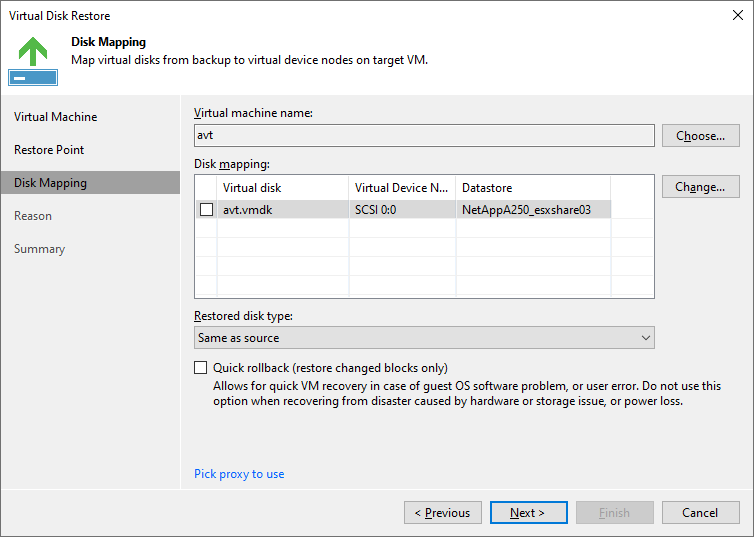
- the Virtual Disk Restore (Instant Disk Recovery) wizard starts, where the selected machine is added
- we select a Restore Point for recovery
- Mount Mode - for Instant Disk Recovery we choose whether it's a recovery of a VM disk or First Class Disks, then the wizard changes, we select disks and VMware Cluster where FCD is registered
- Disk Mapping - we select the target VM (must not have a Snapshot), disks for recovery and their mapping (Datastore, Virtual device node), we can change the disk type (Thin, Thick), perform Quick Rollback or select a Backup Proxy
- Secure Restore - for Windows OS we can perform an antivirus check before recovery
Agent Disk / Volume Restore - Volume Restore, Disk Export
We have different options available if the backup is performed using Veeam Agent for Microsoft Windows, or Veeam Agent for Linux or Veeam Agent for Mac.
Volume Restore - volume recovery
From Windows backups (type Volume-level Backup) we can restore a specific volume. It loads data blocks related to a specific volume from the backup and copies them to the required location. We can restore to the original or new location. It must be a computer with an agent in managed mode, added to the Veeam inventory, which has online volumes of sufficient size attached. If data exists at the destination, it is overwritten.
The new location can have more or less space than the size of the volume in the backup. During recovery, we can shrink or extend the volume. We cannot restore a system volume to a system volume, for this recovery we must boot a recovery image.
- the source can be a computer from an Agent Backup
- we start the recovery of the selected computer - under Home - Backups right-click and select Volume restore
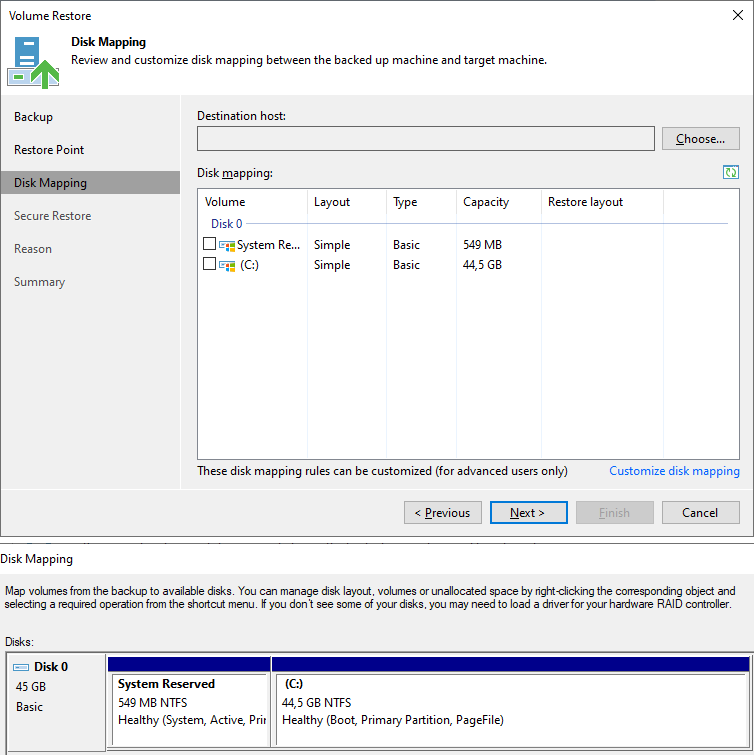
- the Volume Restore wizard starts, where the selected machine is added
- we select a Restore Point for recovery
- Disk Mapping - we select the target computer where we want to restore the data (by default it's the original), and the volume we want to restore, if the original disk layout is not present on the target computer, we must perform manual mapping, for mapping the computer's disks are displayed in the style of Windows Disk Management, we can apply disk layout, change size, remove existing
- Secure Restore - for Windows OS we can perform an antivirus check before recovery
Disk Export - disk export
Or we can export disks of machines backed up using various agents (type Volume-level Backup). This means restoring disks and converting them to VMDK, VHD or VHDX format. Veeam creates standard disks that can be used by VMware vSphere or Microsoft Hyper-V. So we can attach them to a VM. We can store the disks locally on any server added to the backup infrastructure or place them on storage (datastore) connected to an ESXi server.
- the source can be a computer from an Agent Backup
- we start the recovery of the selected computer - under Home - Backups right-click and select Export content as virtual disks
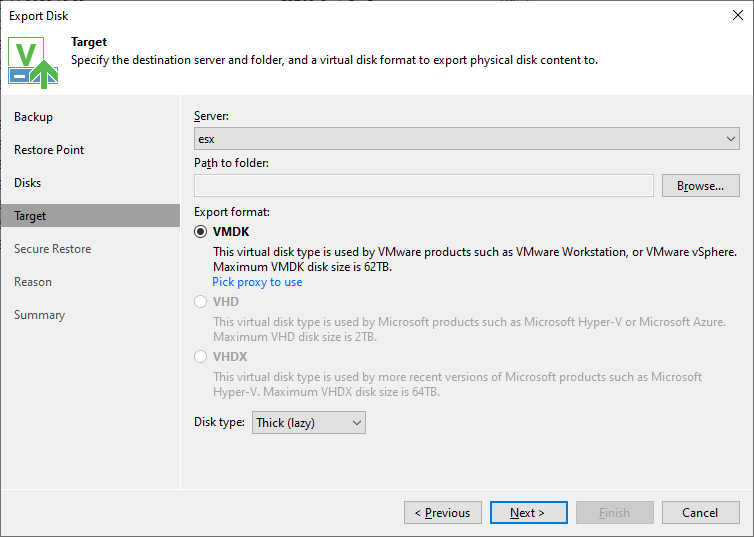
- the Export Disk wizard starts, where the selected machine is added
- we select a Restore Point for recovery
- Disk - from the menu we select the disks we want to export
- Target - we select the server and path where the virtual disk should be stored, the format (if we're storing to an ESXi datastore, it must be VMDK) and the disk type (Thin / Thick for VMDK (for Direct SAN it must be Thick), Dynamic / Fixed for VHD / VHDX)
- Secure Restore - for Windows OS we can perform an antivirus check before recovery
Note: We can use agent volume backup and subsequent recovery for various migrations of large amounts of data. I used this to move several TB of data from a Hyper-V VM with an RDM disk (Raw Device Mapping) to VMware.
Recovery of Selected (Windows) Files - Restore Guest Files
We can recover selected files and folders from the OS of a backed-up VM/machine. We don't need to copy the VM from backups or start it. The disk is mounted directly from the backup (on the Mount Server). Everything remains in read-only state. We can recover to the original or a new location, using Veeam Backup Browser. Data is transferred over the network from the server where the Mount point is created. In special cases, VIX API/vSphere Web Services or PowerShell Direct can be used to access the VM.
Note: For file recovery from Linux (or BSD, Solaris, and Mac), a Helper Host (target host where we want to restore data) or Helper Appliance (a tiny Linux VM that Veeam deploys to virtualization) must be used, where the disk from the backup is mounted.
Recovery Process
- the source can be a VM from VMware or Hyper-V backup or a computer from Agent Backup
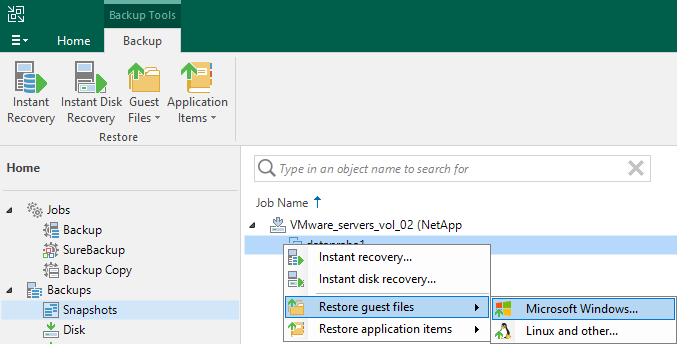
- we start the recovery of the selected machine - under Home - Backups right-click and select Restore guest files - Microsoft Windows
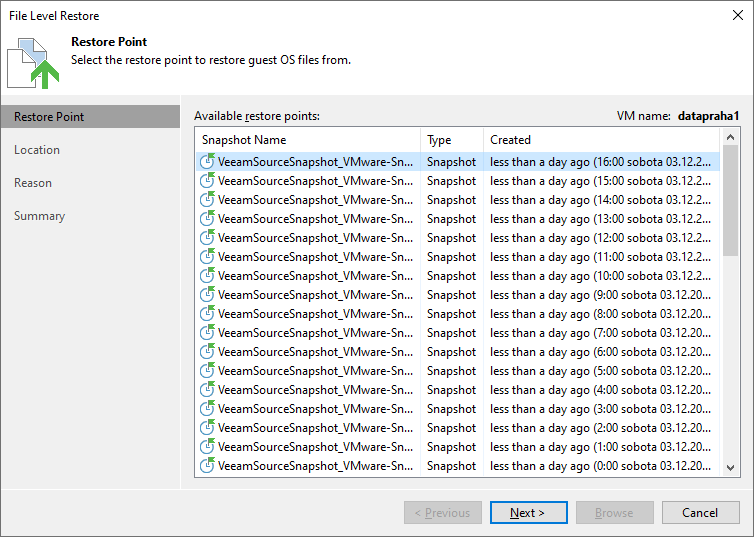
- the File Level Restore wizard starts
- we select a Restore Point for recovery
- Location - it works similarly for VMware VM from Storage Snapshot, additionally we choose the ESXi server where the VM will be temporarily registered (it doesn't start, it's removed after recovery)
- at the end, the Veeam Backup Browser is launched with the Browse button, even Remote Console accesses the mounted data on the Backup Server (Mount Server)
Veeam Backup Browser
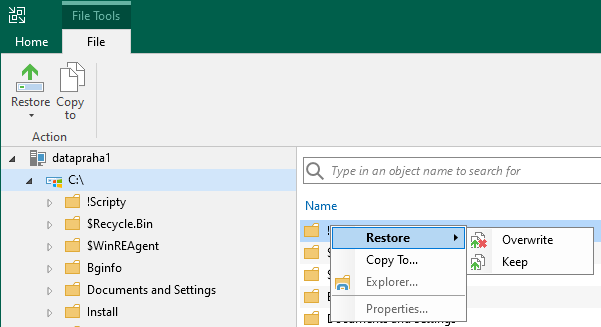
- right-click on the folder or file to be restored and we can use
- Restore > Overwrite - restore to the original location, if data exists, it will be overwritten
- Restore > Keep - restore to the original location, the prefix
RESTORED-(or date) will be added to the name - Copy To - restore to a new location, we can select a folder on the server where the Veeam Console is running, or enter a network path, we can preserve original NTFS permissions
- when we close the Backup Browser, the disks are unmounted and the recovery process ends, while the browser is open, the file with the given backup is locked
Note: On the Home tab, there are several functions. We can launch a specific Veeam Explorer to recover application items. Mount to Console mounts the disk to the computer where the (remote) Veeam Console is running. Using Open in Explorer opens Microsoft Windows File Explorer where we can browse the backed-up files.
Recovery of Application Items - Restore Application Items
- VMware Application Item Restore, Hyper-V Application Item Restore, Agent Restoring Application Items
- Veeam Explorers User Guide, Hassle-free granular recovery anyone can use
We can use various Veeam Explorers, which are part of the installation, for granular data recovery from supported applications. The explorers allow browsing the backup, viewing and searching individual items, and restoring or exporting them. The backup must be performed with the Application-aware processing option. During recovery, the application database is located and opened in the Veeam Explorer.
We have at our disposal:
- Veeam Explorer for Microsoft Active Directory
- Veeam Explorer for Microsoft SQL Server
- Veeam Explorer for Oracle
- Veeam Explorer for Microsoft Exchange
- Veeam Explorer for Microsoft SharePoint
- Veeam Explorer for Microsoft OneDrive for Business
- Veeam Explorer for Microsoft Teams
Recovery Process
- the source can be a VM from VMware or Hyper-V backup or a computer from Agent Backup
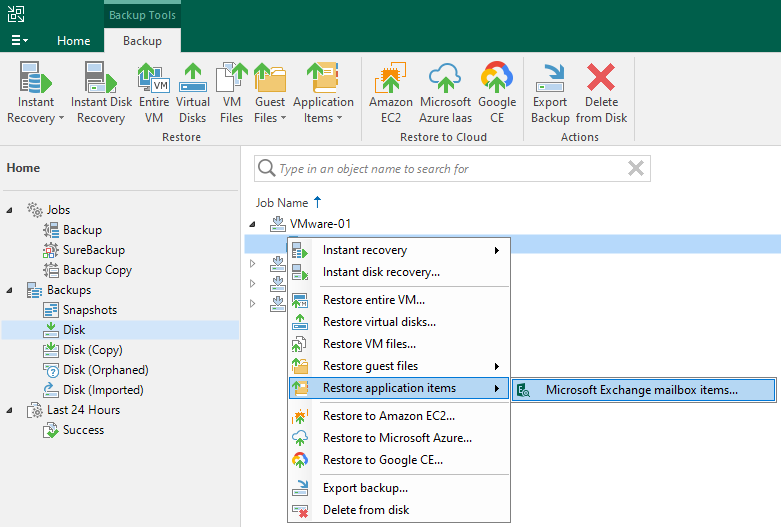
- we start the recovery of the selected machine - under Home - Backups right-click and select Restore application items - type
- a wizard starts according to the application type, such as Microsoft Exchange Mailbox Item Restore, Microsoft SQL Server Database Restore, Microsoft Active Directory Object Restore
- we select a Restore Point for recovery
- Location - it works similarly for VMware VM from Storage Snapshot, additionally we choose the ESXi server where the VM will be temporarily registered (it doesn't start, it's removed after recovery)
- at the end, the application browser is launched with the Browse button, such as Veeam Explorer for Microsoft Exchange, Veeam Explorer for Microsoft SQL Server, Veeam Explorer for Microsoft Active Directory, disks are mounted to the computer where the Veeam Console is running
Veeam Explorer for Microsoft Exchange
- on the mounted (backed up) disks, Exchange Database files (EDB) are found, to work with them, a corresponding version of the
ese.dlllibrary is needed (set in Menu - General Options) - Add Store - we can directly add (open) an EDB file and work with it
- Compare with Production - compares the backup with the state in production
- after expanding a specific database, the store loading begins
- we can browse mailboxes and various types of items in them, search and view email messages in the integrated browser (loading data - folder contents takes some time)
Recovery Options
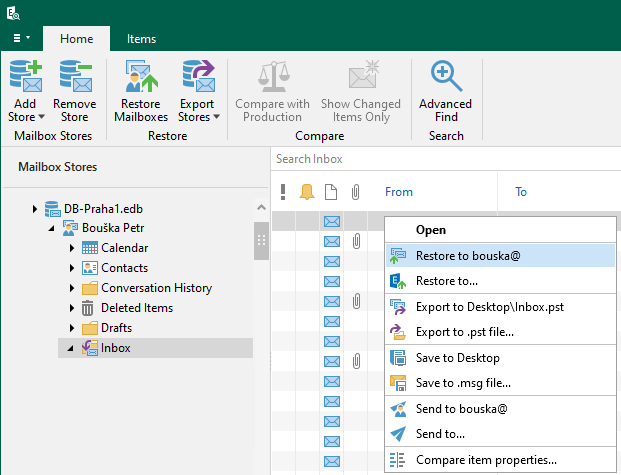
- Restore to - we can restore a mailbox, folder, and items to a specific mailbox, we enter the account under which we will connect for recovery on CAS, we select whether changed and missing items will be restored
- Restore mailboxes - we can restore multiple mailboxes at once
- Restore to <email> - quick restore to the original mailbox and location, items are marked as unread
- Export to .pst file - we can export a mailbox, folder, and items to a PST file
- Send to - sends the selected item via email (an SMTP server must be set in Menu - General Options)
- Save to .msg file - saves the item as an MSG file
Veeam Explorer for Microsoft Active Directory
- on the mounted (backed up) disks, Active Directory Database files (DIT) are found, to work with them, a corresponding version of the
esent.dlllibrary is needed - Add Database - we can directly add (open) a DIT file and work with it
- the explorer displays the directory tree of the domain, which we can browse and search and view object attributes, as well as Group Policy Objects
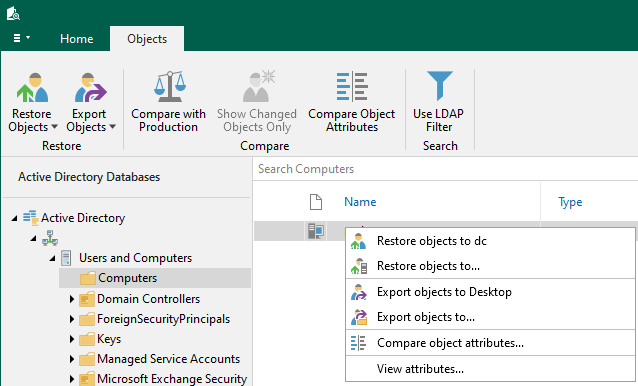
- we can restore individual objects or containers to the original or new location, we specify the server for connection and account, we can restore the password or enter a new one, we can restore the object as disabled, we can restore only selected attributes
- we can export objects or containers to an LDIF file (LDF)
- Compare with Production - detects changes since the last backup, we can display only changed objects
Veeam Explorer for Microsoft SQL Server
- Add Database - we can directly add (open) an MDF file and work with it
- the explorer displays a list of instances and databases, it doesn't display system databases (master, model, msdb)
- Staging SQL Server - is necessary for certain operations, connecting a standalone database, certain data exports and Fine-Tune Restore (within Data Restore and Data Publishing)
- we can restore to the time when the backup was performed, or to a specific point in time if we have transaction logs (requires Staging SQL Server)
Recovery Options
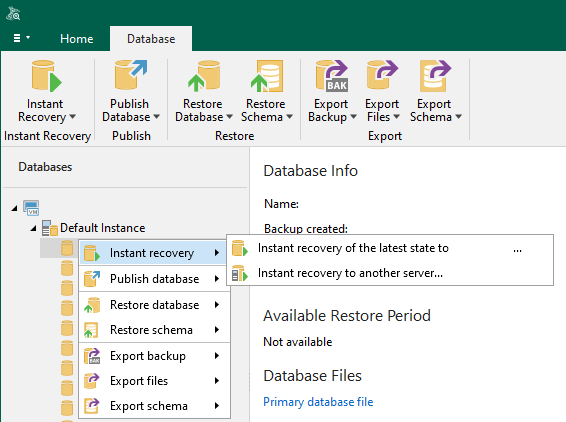
- Restore database - we can restore one or more databases to the same or different server
- Restore Schema - restoring the database schema and data allows restoring specific tables (requires Staging SQL Server)
- Publish Database - allows temporarily connecting large databases to the target SQL server without having to restore them, to work with the published DB we use Microsoft SQL Management Studio
- Instant Recovery - combines data recovery and publishing options, if we need the DB to be available as soon as possible, it's published to the target SQL server and recovery is performed in the background, after completion and synchronization of changes, a switchover is performed
- Export Files - performs export to MDF
- Export Backup - performs export to BAK (requires Staging SQL Server)
- Export Schema - export of selected items (tables) to DAT, the SQL tool
bcp.execan be used (requires Staging SQL Server)
History and Recovery Reports
Recovery Job History
In the History view under Restore, there is a history of all recoveries (according to the set retention period) including statistics and logs. Divided by recovery type.
Notification (email) upon Recovery Completion
A significant drawback, in my opinion, is that Veeam Backup & Replication cannot send any email upon completion of a restore. The official solution is likely to use Veeam ONE, which has a restore report.
We have the option to use the PowerShell cmdlet Get-VBRRestoreSession and create a script that we schedule for regular execution. If a restore occurred during the given period, it will send the information via email. A brief outline of the script:
$filterTime = (Get-Date).AddHours(-1)
$restoreJobs = Get-VBRRestoreSession | Sort-Object Creationtime -Descending | where {$_.EndTime -ge $filterTime} |
 Select JobName, @{n='BackupName';e={([xml]$_.Options).FlrInfo.BackupName}}, JobType, JobTypeString, RestoreType,
 Result, IsCompleted, CreationTime, EndTime

if ($restoreJobs.count -gt 0) {
 $body = $restoreJobs | Out-String
 $Sender = "SENDER"
 $Recipients = "RECIPIENT"
 $Subject = "Veeam Restore Sessions"
 $smtpServer = "IP"
 Send-MailMessage -From $Sender -Subject $Subject -To $Recipients -Body $body -SmtpServer $smtpServer
}
Note: This cmdlet does not display all types of restores. For common ones, such as VM restore, file (FLR), application item, it works well. However, I found that it does not display Volume Restore and Export content as virtual disks. I did not find a cmdlet for these restores.
Disaster Recovery - Recovery after a Disaster
In exceptional cases, a major disaster may occur, causing us to lose the operational environment along with the backup server and primary backups. More generally, we lose the entire primary site. In such a case, we hope that all critical backups are also stored in a backup/remote location. Of course, we also need resources to which we can restore the backups. We may have available infrastructure in another location, use the cloud, or acquire new hardware and install virtualization.
We will not discuss disaster plans and other processes regarding Disaster Recovery here. Only the options for performing a restore of backed-up data if we lose the backup server. Such a procedure should be included in the DR plan.
Installing Veeam Backup & Replication
We have several options for performing a restore. The most comfortable is to install the latest version of Veeam Backup & Replication downloaded from Veeam.com. Without a license, it works as Community Edition, which is sufficient for a restore. We can download our license from my.veeam.com - License management. The latest version is backward compatible and can work with backups from older versions.
Restoring Configuration Backup
If we have a Veeam Configuration Backup available, we perform a Configuration Restore after installation. We must run the Veeam Backup & Replication Console directly on the backup server (not remotely). In the main menu, select Configuration Backup - choose Restore. The backup is likely encrypted, so we need to have the encryption password available. Documentation Configuration Backup and Restore.
Manual Configuration without Backup
If we do not have a configuration backup, we need to perform basic setup. Add the virtual infrastructure (this must be done even if we installed a new one). Add the Veeam Backup Repository where the backups are stored. Perform a Rescan, which imports the found backups. Then we can start performing the restore.
Veeam Extract Utility
Alternatively, we do not need to use Veeam Backup & Replication, but a standalone tool Veeam Extract Utility. It allows extracting VM files directly from VBK, VIB, and VBR backup files, which we can manually add (register) to the virtualization. The tool can also extract data from agent backups, but we get files without an extension (I did not find out what format).
We can use the GUI application for Windows Veeam.Backup.Extractor.exe, which uses the command-line utility extract.exe in the background (we can also use it separately). Or the tool for Linux extract. We can find the applications on the Backup server in the folder %PROGRAMFILES%\\Veeam\\Backup and Replication\\Backup. We can extract them from the installation ISO. Or download from the web Veeam Backup & Replication: Download - Extensions and Other.
Veeam Recovery Media
If we back up a server (or workstation) using Veeam Agent, we can create recovery media - Creating Veeam Recovery Media, Creating Veeam Recovery Media from Backup. An ISO file (Veeam Recovery Media) is created, which we can use to boot a physical server or VM and then perform a full machine restore.
There are no comments yet.