
Note: This article is based on the Beta version of Veeam Backup & Replication 13. This is not the final release and some features may still change in the official version. Thanks to my involvement in the Veeam Vanguard program, I have access to beta versions of products. I was curious about the changes in the managed Veeam Hardened Repository.
Veeam JeOS ISO
Along with Veeam Backup & Replication 13 comes a new Just Enough OS (JeOS) ISO, which we can use for simple deployment of selected infrastructure roles. One of them is Linux Hardened Repository.
Main JeOS Features
- based on Rocky Linux 9.2
- centralized and automatic updates - managed by Veeam
- web management interface (Web UI) - simple system management through browser
- full support - JeOS will be an officially supported part of the Veeam platform
- certificate-based authentication - certificate and pairing code are used to connect to VBR
Version 13 Management Tools
- Veeam Backup & Replication Console - traditional thick client for managing VBR from Windows, version 13 comes with updated interface and extended support for new features
- Veeam Backup & Replication Web UI - newly available web interface for managing VBR, which initially offers limited functionality
- Veeam Host Management (Cockpit) - web interface designed for managing the Appliance itself (Veeam Software Appliance / JeOS), provides tools for monitoring and basic system management (without Linux knowledge)
Veeam Hardened Repository Installation
Requirements
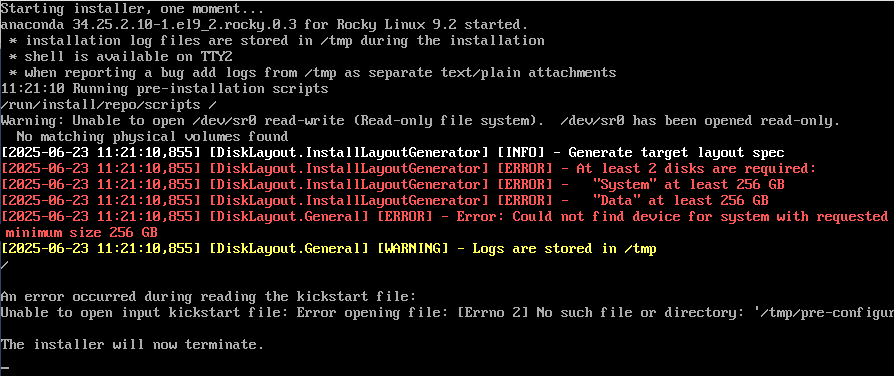
For the Beta version, the system requirements specify two disks with minimum capacity of 256 GB (for system and data) and 16 GB RAM. During installation, available disks are checked and if they don't meet the requirements, installation cannot continue.
During testing, I successfully deployed VBR and VHR as virtual machines on the VMware platform. I managed to get VBR running with 2 vCPU and 8 GB vRAM and VHR with 2 vCPU and 4 GB vRAM.
Deployment
Veeam Software Appliance and Veeam JeOS are each installed from different ISOs, but the installation process and basic features are very similar.
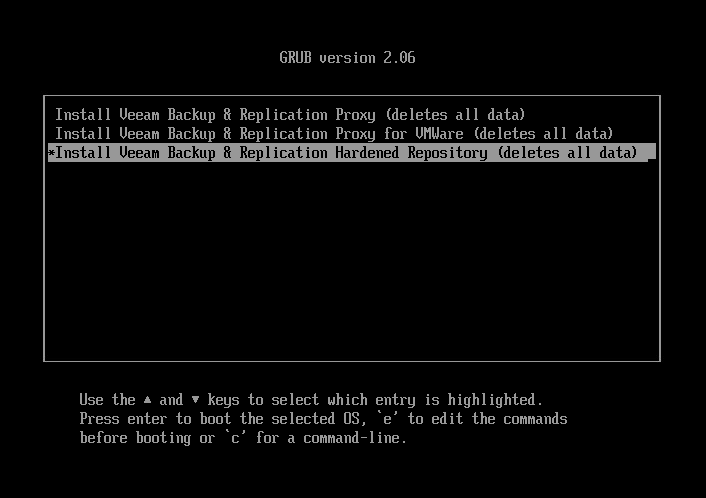
We boot the installation ISO (VeeamJeOS_13.0.0.12026.BETA.iso) and choose the installation type Hardened Repository. At this point we see information that all data will be deleted. In the future, it should be possible to upgrade VHR installed from the currently available VHR ISO 2.0.
The installer checks available disks to see if they meet the requirements.
If everything is in order, installation starts automatically, which took about 7 minutes for me.
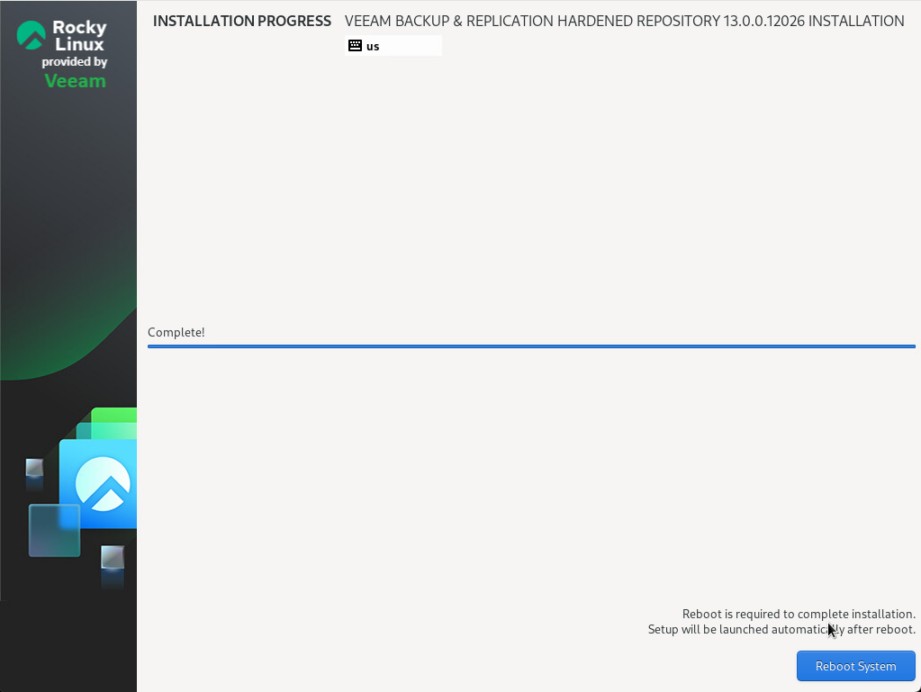
After completion, we perform a restart and the configuration wizard starts. In the first step, we must agree to the license terms.
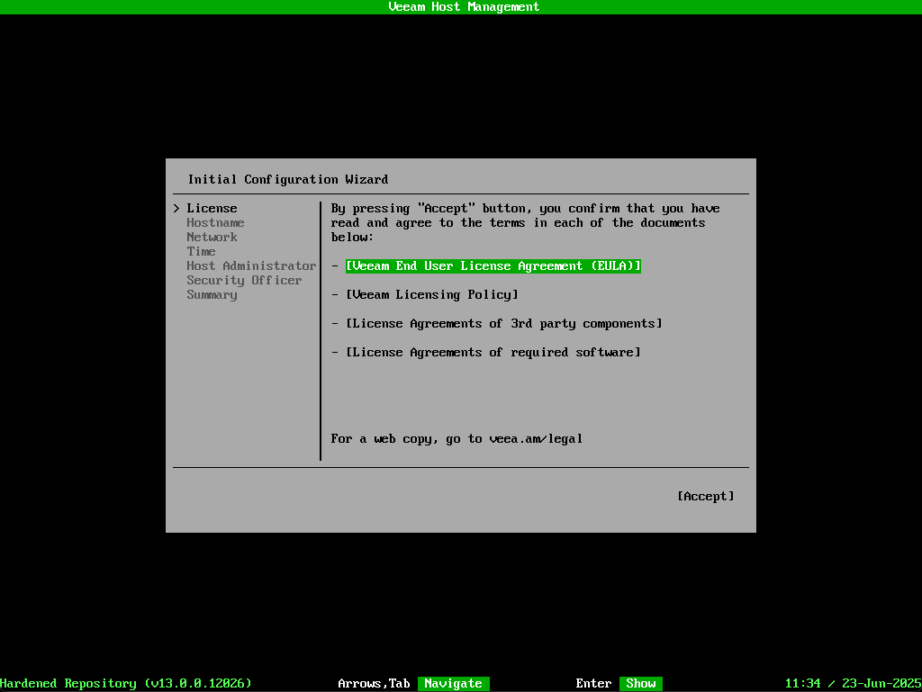
- Hostname - enter the server name
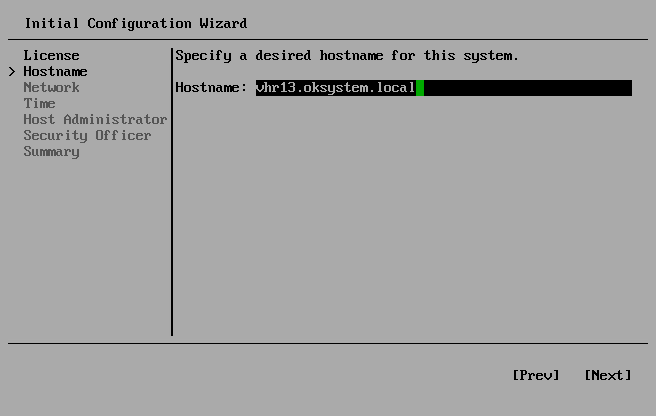
- Network - network parameters, enter static address or DHCP (during several installations I got errors when setting the address and only repeated entry worked)
- Time - proper time setting is important (zone and NTP)
- Host Administrator - set password for the administrator account
veeamadminwith mandatory MFA setup. The password must meet DISA STIG requirements, so no more than 4 consecutive characters of the same category (must alternate uppercase, lowercase letters and other characters) and have at least 15 characters.
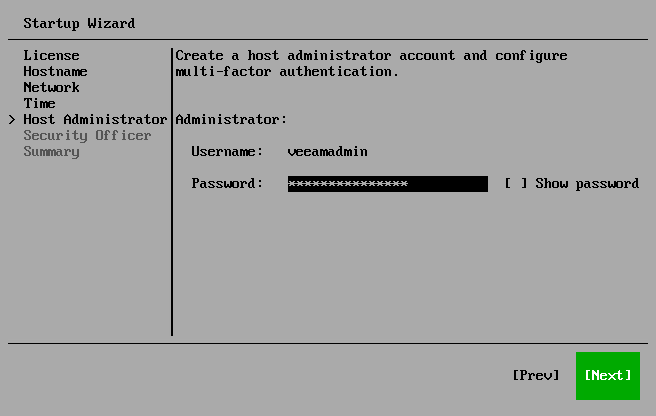
- After entering the password, we must set up MFA using some application with OATH token, such as Microsoft / Google Authenticator (we can scan the QR code). TOTP (Time-based One Time Password) is used.
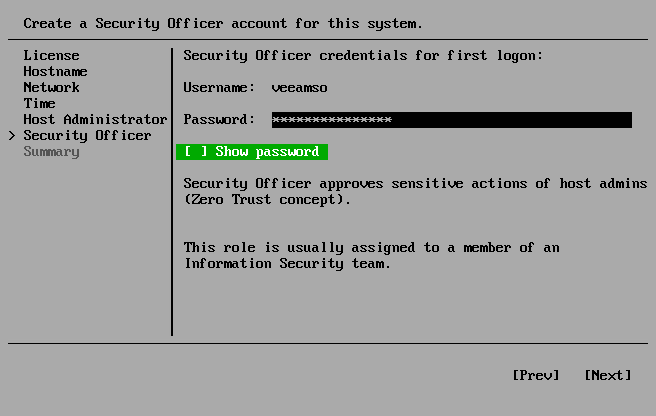
- Security Officer - for VHR we must set up the Security Officer account
veeamso. For VBR this account is optional. It serves to approve sensitive (destructive) operations. The password must meet DISA STIG requirements. We don't set up MFA now, but on first login we must change the password and set up MFA (and get a Recovery Token). Approval is done through Veeam Host Management.
After completing the setup (Finish), product information is displayed and we can log into Veeam Host Management through the console (terminal access).
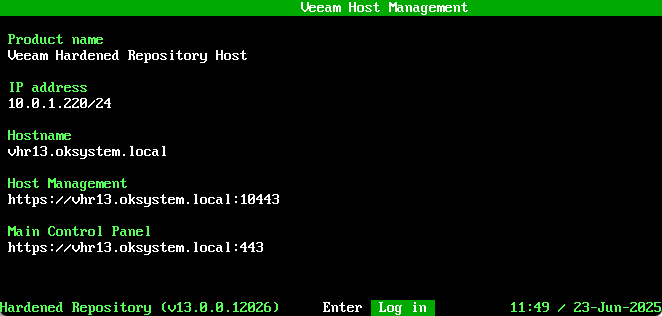
Veeam Host Management
Web access to Veeam Host Management runs by default on port 10443. We can log in as veeamadmin or veeamso (or another account we add). After entering the password, I must use MFA (TOTP).
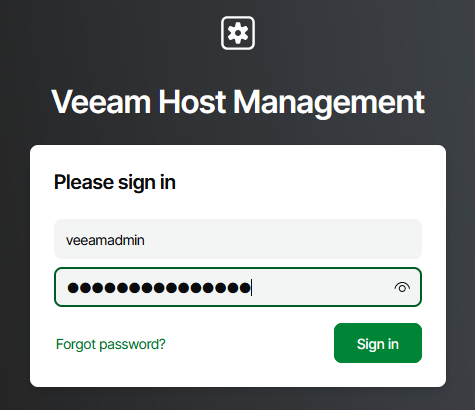
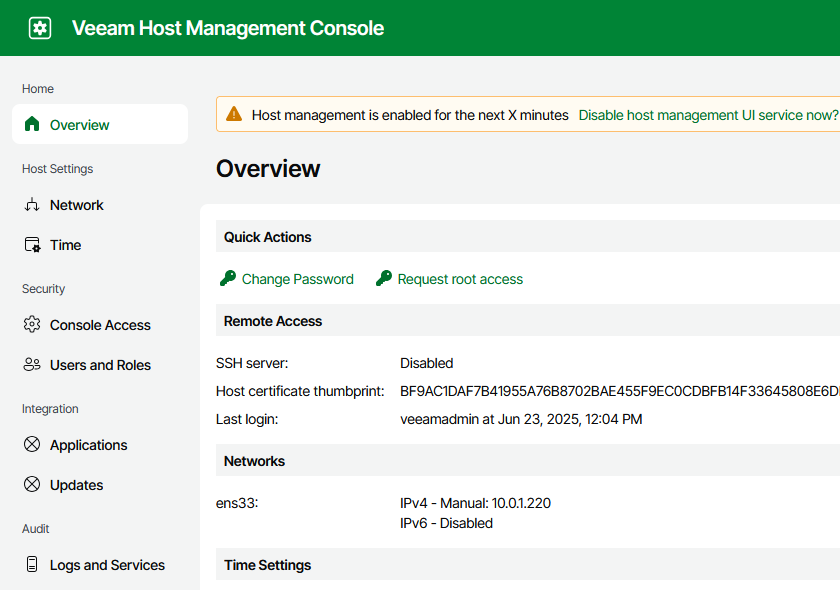
We have several areas that we can configure, such as network settings, time, SSH enablement, user management, or server updates.
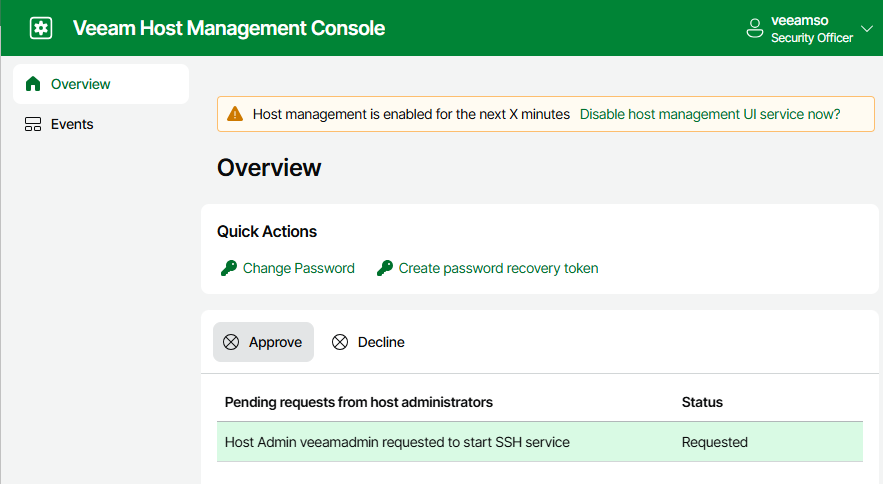
If we log in as Security Officer, we can only approve requests.
Adding Hardened Repository to VBR 13
To Veeam Backup & Replication we add a new Backup Repository of type Linux Hardened Repository.
- first we must add a managed server (Managed Server) to the backup infrastructure (Backup Infrastructure)
- then create a Repository from a specific folder on the server
Note: Both steps can be performed together within Add Backup Repository
Here we use the classic Veeam Backup & Replication Console, but we could perform the addition using the new Veeam Backup & Replication Web UI.
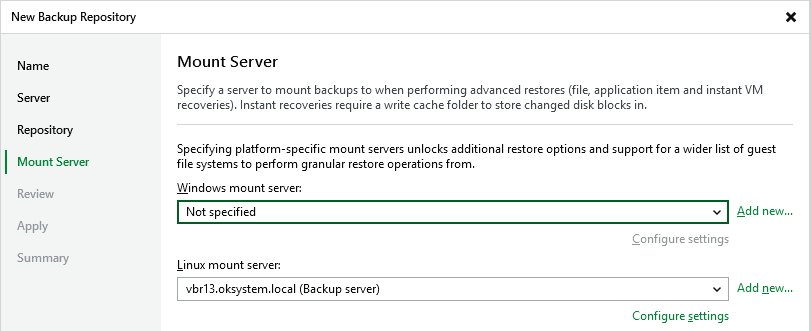
Everything is almost the same as with current VBR 12.3 and VHR ISO. The change is that we use Certificate-based authentication to connect the server. So we don't enable SSH and don't use single-use credentials for the veeamsvc account. The second new feature is the ability to separately select Mount server for Windows and Linux on the repository.
Adding Managed Server
- Veeam Backup & Replication Console
- Backup Infrastructure - Managed Servers - Add Server
- choose Linux
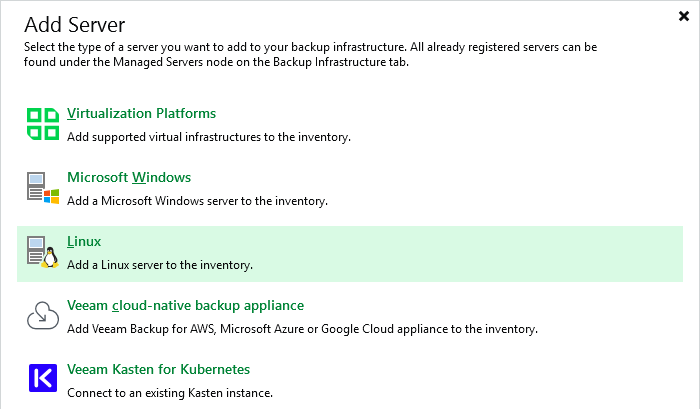
- Name - enter either full DNS name (FQDN) or server IP address
- SSH Connection - choose Connect using certificate-based authentication, connection is made to pre-installed Veeam components, certificate fingerprint is displayed, we must confirm server trust
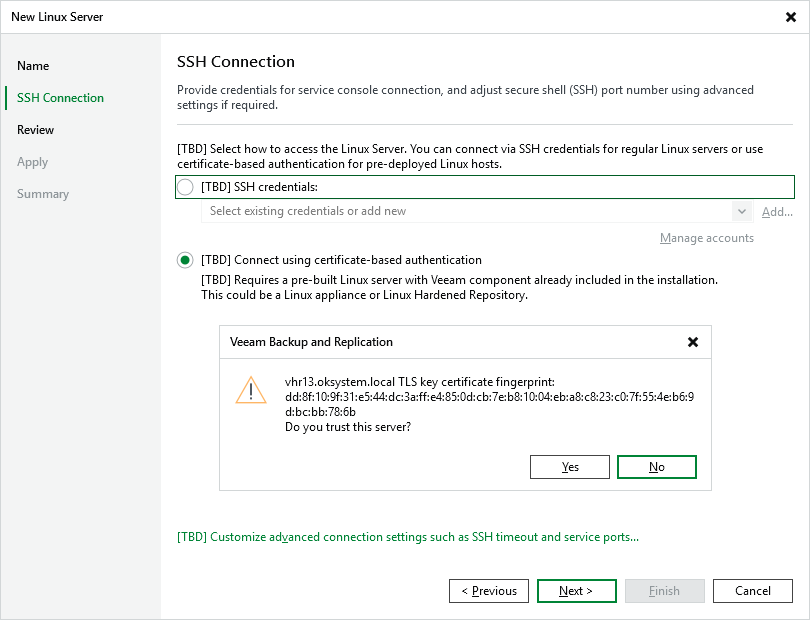
- Review - clicking the Apply button starts installing components and configuring the server
Note: Newly installed VHR can be directly registered with the Backup Server (pairing code 000000 is used). For additional pairing, we must create a new pairing code in Veeam Host Management Console - Applications and use it when adding the server.
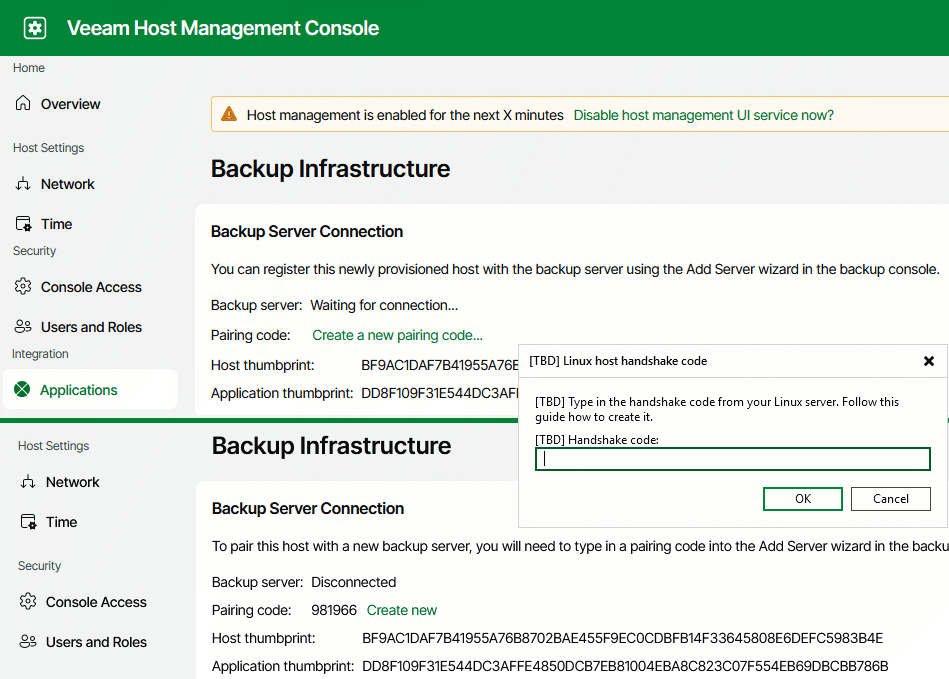
Adding Repository
- Veeam Backup & Replication Console
- Backup Infrastructure - Backup Repositories - Add Repository
- choose Direct Attached Storage - Linux (Hardened Repository)
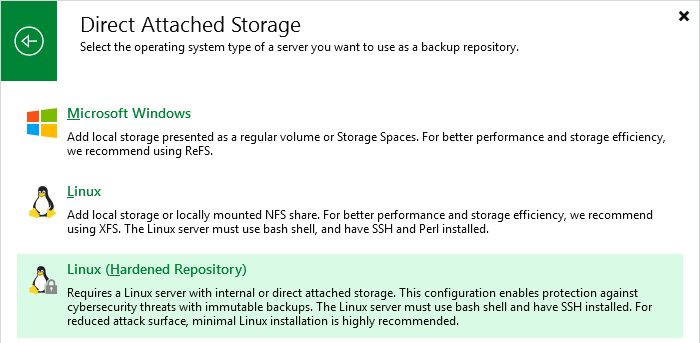
- Name - unique name and description of the repository
- Server - select the just added Repository server, click Populate, the folder (Mount Point) is detected by default
/var/lib/veeam, which we select
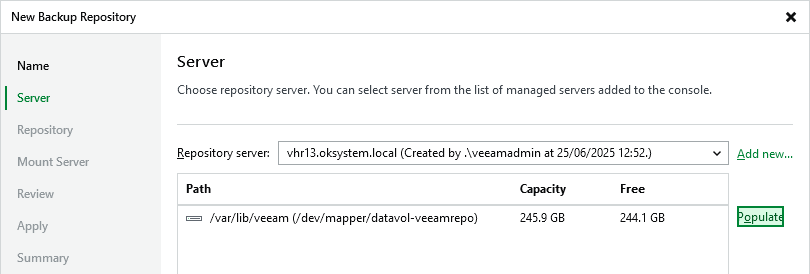
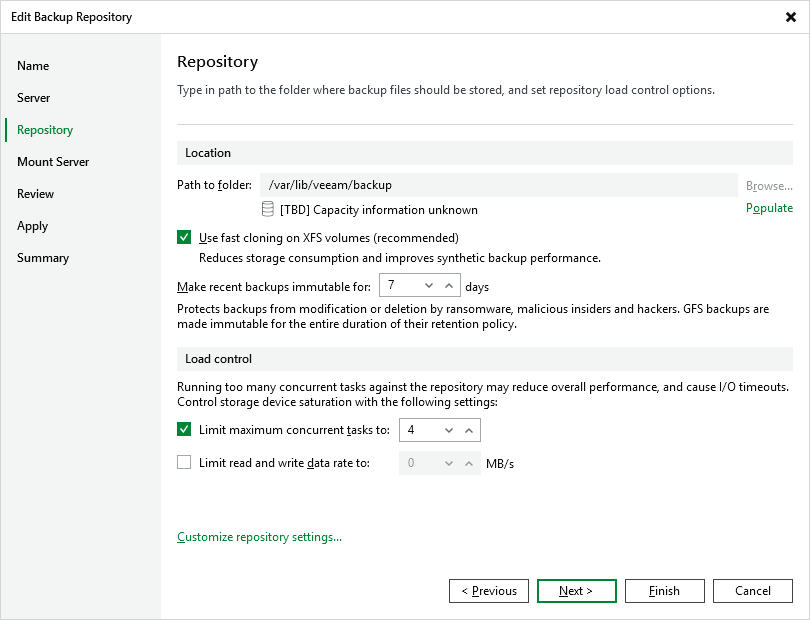
- Repository - Populate button discovers disk space information, check Use fast cloning on XFS volumes, enter number of days for immutability period, we can modify other settings including special parameters under Customize repository settings
- Mount Server - select mount server (we can select separately for Windows and Linux platforms) and its parameters for file recovery, application items and VM instant recovery
- Review - click Apply and installation and configuration of all required components proceeds
There are no comments yet.