
Note: The description in the article is based on Veeam Backup & Replication 12.3.1, licensed using Veeam Universal License (VUL), which is equivalent to Enterprise Plus. And Veeam Hardened Repository ISO 2.0.0.8 for v12.
Deleting Immutable Files
Attempt to Delete a Backup
When we try to delete a backup in Veeam Backup & Replication, the deletion does not occur and we receive information that Immutability is set until a certain date.
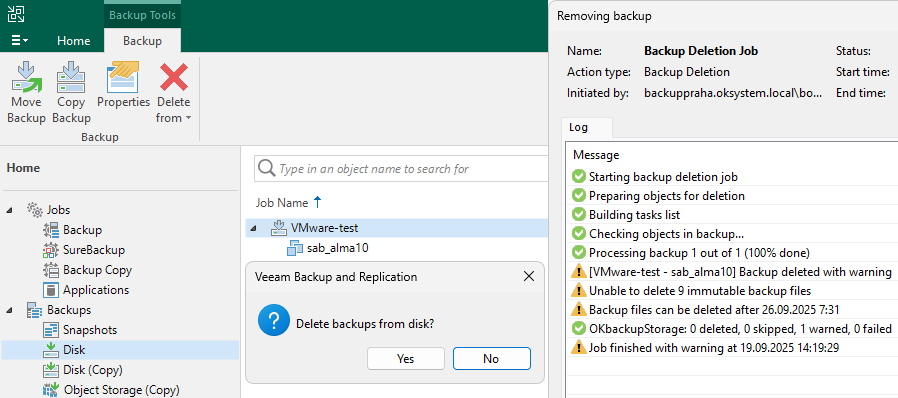
Attempt to Delete Files
If we try to directly delete files on the server, for example here using WinSCP, only the VBM file will be deleted. For all others, we get an error that deletion is not allowed.
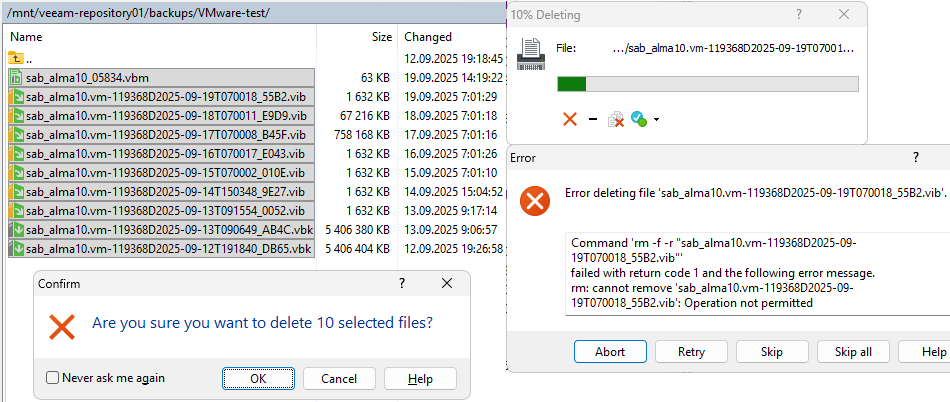
Working with Files on the Server
If we enable SSH, we can use the veeamsvc account and connect to the console or via SSH to the server. This will take us to the command line, where Bash shell runs. We have permission to use only a limited group of Linux commands. Several examples are below.
Navigate to the backup directory
cd /mnt/veeam-repository01/backups/VMware-test/
List files
ls -l -a
Display file attributes (shows Immutability attribute i)
lsattr -a
List files with all set extended attributes
getfattr * -d
Display process tree
pstree -u
List running processes
ps -ef
Example Output of Some Commands
[veeamsvc@backupstorage ~]$ cd /mnt/veeam-repository01/backups/VMware-test/

[veeamsvc@backupstorage VMware-test]$ ls -l -a
total 17131352
drwxr-xr-x. 2 veeamsvc veeamsvc       4096 Sep 20 07:01 .
drwx------. 3 veeamsvc veeamsvc         25 Sep 12 19:18 ..
-rw-r--r--. 1 veeamsvc veeamsvc      70555 Sep 20 07:01 sab_alma10_05834.vbm
-rw-r--r--. 1 veeamsvc veeamsvc 5536157696 Sep 12 19:26 sab_alma10.vm-119368D2025-09-12T191840_DB65.vbk
-rw-r--r--. 1 veeamsvc veeamsvc 5536133120 Sep 13 09:06 sab_alma10.vm-119368D2025-09-13T090649_AB4C.vbk
-rw-r--r--. 1 veeamsvc veeamsvc    1671168 Sep 14 15:04 sab_alma10.vm-119368D2025-09-14T150348_9E27.vib
-rw-r--r--. 1 veeamsvc veeamsvc    1671168 Sep 15 07:01 sab_alma10.vm-119368D2025-09-15T070002_010E.vib
-rw-r--r--. 1 veeamsvc veeamsvc    1671168 Sep 16 07:01 sab_alma10.vm-119368D2025-09-16T070017_E043.vib
-rw-r--r--. 1 veeamsvc veeamsvc  776364032 Sep 17 07:01 sab_alma10.vm-119368D2025-09-17T070008_B45F.vib
-rw-r--r--. 1 veeamsvc veeamsvc   68829184 Sep 18 07:01 sab_alma10.vm-119368D2025-09-18T070011_E9D9.vib
-rw-r--r--. 1 veeamsvc veeamsvc    1671168 Sep 19 07:01 sab_alma10.vm-119368D2025-09-19T070018_55B2.vib
-rw-r--r--. 1 veeamsvc veeamsvc 5615243264 Sep 20 07:01 sab_alma10.vm-119368D2025-09-20T070127_0034.vbk
-rw-r--r--. 1 root     root           1272 Sep 20 07:01 .veeam.20.lock

[veeamsvc@backupstorage VMware-test]$ lsattr -a
---------------------- ./.
---------------------- ./..
---------------------- ./sab_alma10.vm-119368D2025-09-12T191840_DB65.vbk
----i----------------- ./sab_alma10.vm-119368D2025-09-19T070018_55B2.vib
----i----------------- ./.veeam.20.lock
----i----------------- ./sab_alma10.vm-119368D2025-09-13T090649_AB4C.vbk
----i----------------- ./sab_alma10.vm-119368D2025-09-14T150348_9E27.vib
----i----------------- ./sab_alma10.vm-119368D2025-09-15T070002_010E.vib
----i----------------- ./sab_alma10.vm-119368D2025-09-16T070017_E043.vib
----i----------------- ./sab_alma10.vm-119368D2025-09-17T070008_B45F.vib
----i----------------- ./sab_alma10.vm-119368D2025-09-18T070011_E9D9.vib
----i----------------- ./sab_alma10.vm-119368D2025-09-20T070127_0034.vbk
---------------------- ./sab_alma10_05834.vbm

[veeamsvc@backupstorage VMware-test]$ getfattr * -d
# file: sab_alma10.vm-119368D2025-09-12T191840_DB65.vbk
user.immutable.until="2025-09-19 17:27:04"

# file: sab_alma10.vm-119368D2025-09-13T090649_AB4C.vbk
user.immutable.until="2025-09-20 07:07:01"

# file: sab_alma10.vm-119368D2025-09-14T150348_9E27.vib
user.immutable.until="2025-09-21 13:04:58"

# file: sab_alma10.vm-119368D2025-09-15T070002_010E.vib
user.immutable.until="2025-09-22 05:01:16"

# file: sab_alma10.vm-119368D2025-09-16T070017_E043.vib
user.immutable.until="2025-09-23 05:01:32"

# file: sab_alma10.vm-119368D2025-09-17T070008_B45F.vib
user.immutable.until="2025-09-24 05:01:23"

# file: sab_alma10.vm-119368D2025-09-18T070011_E9D9.vib
user.immutable.until="2025-09-25 05:01:24"

# file: sab_alma10.vm-119368D2025-09-19T070018_55B2.vib
user.immutable.until="2025-09-26 05:01:36"

# file: sab_alma10.vm-119368D2025-09-20T070127_0034.vbk
user.immutable.until="2025-09-27 05:01:40"
Example of Unauthorized Operations
[veeamsvc@backupstorage VMware-test]$ chattr  -i *
chattr: Operation not permitted while setting flags on sab_alma10.vm-119368D2025-09-13T090649_AB4C.vbk
chattr: Operation not permitted while setting flags on sab_alma10.vm-119368D2025-09-14T150348_9E27.vib
chattr: Operation not permitted while setting flags on sab_alma10.vm-119368D2025-09-15T070002_010E.vib
chattr: Operation not permitted while setting flags on sab_alma10.vm-119368D2025-09-16T070017_E043.vib
chattr: Operation not permitted while setting flags on sab_alma10.vm-119368D2025-09-17T070008_B45F.vib
chattr: Operation not permitted while setting flags on sab_alma10.vm-119368D2025-09-18T070011_E9D9.vib
chattr: Operation not permitted while setting flags on sab_alma10.vm-119368D2025-09-19T070018_55B2.vib
chattr: Operation not permitted while setting flags on sab_alma10.vm-119368D2025-09-20T070127_0034.vbk

[veeamsvc@backupstorage VMware-test]$ rm *.vbk
rm: cannot remove 'sab_alma10.vm-119368D2025-09-13T090649_AB4C.vbk': Operation not permitted
rm: cannot remove 'sab_alma10.vm-119368D2025-09-20T070127_0034.vbk': Operation not permitted
Testing Storage and Network Performance
For troubleshooting and performance testing, we can use Live System. We boot our VHR server from VHR ISO and select Live System.
Only brief steps for preparation
- log in with the default username
vhradminand passwordvhradmin - we must change the password (there are no requirements for complexity or length)
- we use the
nmtuitool, where we create a new network interface (connection) of Bond type and set the IP address - we start the SSH Daemon
sudo systemctl start sshd - we connect via SSH using the
vhradminaccount - mount the data volume to
/mnt/veeam-repository01usingsudo ./mount_datavol.sh
Note: I have no experience with the tools mentioned below, so I only used examples from the internet. I would expect different network speed results, but it could be affected by a number of things.
Testing Data Volume Performance
For testing write and read speed on storage, we can use the fio tool. Usage examples can be found in the Veeam article or in many places on the internet.
A test that simulates sequential I/O (write) generated when creating a full backup or increment (Forward Incremental).
[vhradmin@localhost /]$ sudo fio --name=full-write-test --filename=/mnt/veeam-repository01/backups/testfile.dat --size=25G --bs=512k --rw=write --ioengine=libaio --direct=1 --time_based --runtime=60s
[sudo] password for vhradmin:
full-write-test: (g=0): rw=write, bs=(R) 512KiB-512KiB, (W) 512KiB-512KiB, (T) 512KiB-512KiB, ioengine=libaio, iodepth=1
fio-3.27
Starting 1 process
full-write-test: Laying out IO file (1 file / 25600MiB)
Jobs: 1 (f=1): [W(1)][100.0%][w=3035MiB/s][w=6070 IOPS][eta 00m:00s]
full-write-test: (groupid=0, jobs=1): err= 0: pid=2760: Mon Sep 22 11:15:08 2025
  write: IOPS=6172, BW=3086MiB/s (3236MB/s)(181GiB/60001msec); 0 zone resets
    slat (usec): min=10, max=182, avg=23.25, stdev= 8.44
    clat (usec): min=60, max=3288, avg=137.33, stdev=50.34
     lat (usec): min=76, max=3306, avg=160.75, stdev=51.90
    clat percentiles (usec):
     |  1.00th=[   68],  5.00th=[   72], 10.00th=[   78], 20.00th=[   93],
     | 30.00th=[  110], 40.00th=[  121], 50.00th=[  135], 60.00th=[  141],
     | 70.00th=[  157], 80.00th=[  178], 90.00th=[  198], 95.00th=[  227],
     | 99.00th=[  273], 99.50th=[  293], 99.90th=[  326], 99.95th=[  343],
     | 99.99th=[  570]
   bw (  MiB/s): min= 2800, max= 3304, per=100.00%, avg=3087.78, stdev=140.05, samples=119
   iops        : min= 5600, max= 6608, avg=6175.56, stdev=280.11, samples=119
  lat (usec)   : 100=23.73%, 250=73.74%, 500=2.52%, 750=0.01%, 1000=0.01%
  lat (msec)   : 2=0.01%, 4=0.01%
  cpu          : usr=8.88%, sys=7.68%, ctx=370342, majf=0, minf=12
  IO depths    : 1=100.0%, 2=0.0%, 4=0.0%, 8=0.0%, 16=0.0%, 32=0.0%, >=64=0.0%
     submit    : 0=0.0%, 4=100.0%, 8=0.0%, 16=0.0%, 32=0.0%, 64=0.0%, >=64=0.0%
     complete  : 0=0.0%, 4=100.0%, 8=0.0%, 16=0.0%, 32=0.0%, 64=0.0%, >=64=0.0%
     issued rwts: total=0,370331,0,0 short=0,0,0,0 dropped=0,0,0,0
     latency   : target=0, window=0, percentile=100.00%, depth=1

Run status group 0 (all jobs):
 WRITE: bw=3086MiB/s (3236MB/s), 3086MiB/s-3086MiB/s (3236MB/s-3236MB/s), io=181GiB (194GB), run=60001-60001msec

Disk stats (read/write):
  dm-8: ios=0/369740, merge=0/0, ticks=0/49164, in_queue=49164, util=99.87%, aggrios=0/370362, aggrmerge=0/0, aggrticks=0/49798, aggrin_queue=49798, aggrutil=99.83%
   sda: ios=0/370362, merge=0/0, ticks=0/49798, in_queue=49798, util=99.83%
Part of the sequential read test output.
[vhradmin@localhost /]$ sudo fio --name=seq-read-test --filename=/dev/sda1 --size=16Gb --rw=read --bs=1M --direct=1 --numjobs=8 --ioengine=libaio --iodepth=8 --group_reporting --runtime=60
...
Run status group 0 (all jobs):
  READ: bw=13.8GiB/s (14.8GB/s), 13.8GiB/s-13.8GiB/s (14.8GB/s-14.8GB/s), io=128GiB (137GB), run=9271-9271msec

Disk stats (read/write):
  sda: ios=257290/0, merge=0/0, ticks=677834/0, in_queue=677835, util=98.94%
Network Performance Testing
For testing network speed, we can use the iperf3 tool.
On one server, we run iPerf in server mode. I used the VBR Server (it is necessary to allow communication on the used port on the firewall, default 5201), although iPerf is not highly recommended on Windows. Both physical servers are connected to a network with a speed of 25 Gbps.
d:\iperf>iperf3.exe -s
On the second one, we use iPerf in client mode. We can use a number of different switches.
[vhradmin@localhost /]$ iperf3 -c 10.0.0.89 -n 1G
Connecting to host 10.0.0.89, port 5201
[  5] local 10.0.0.110 port 55558 connected to 10.0.0.89 port 5201
[ ID] Interval           Transfer     Bitrate         Retr  Cwnd
[  5]   0.00-0.82   sec  1.00 GBytes  10.5 Gbits/sec  107   1.27 MBytes
- - - - - - - - - - - - - - - - - - - - - - - - -
[ ID] Interval           Transfer     Bitrate         Retr
[  5]   0.00-0.82   sec  1.00 GBytes  10.5 Gbits/sec  107             sender
[  5]   0.00-0.82   sec  1016 MBytes  10.4 Gbits/sec                  receiver

iperf Done.
In some tests, the results were better.
[  5]   0.00-1.00    sec  1.26 GBytes  10.8 Gbits/sec  189    1022 KBytes
[  5]   7.00-8.00    sec  2.19 GBytes  18.8 Gbits/sec    0    2.04 MBytes
[  5]   8.00-9.00    sec  2.31 GBytes  19.9 Gbits/sec   45    1.99 MBytes
[  5]   9.00-10.00   sec  2.08 GBytes  17.9 Gbits/sec  118    1.68 MBytes
[  5]  10.00-11.00   sec  2.28 GBytes  19.6 Gbits/sec  308    1.70 MBytes
[  5]  47.00-48.00   sec  2.14 GBytes  18.4 Gbits/sec    7    1.96 MBytes
[  5]  48.00-49.00   sec  2.44 GBytes  21.0 Gbits/sec  180    1.92 MBytes
[  5]  49.00-50.00   sec  1.82 GBytes  15.6 Gbits/sec   21    1.11 MBytes
Statistics from Practice
We can see the real storage performance in practical use. When we move backups to storage or when the backup process itself is running. In my case, both the VHR and VBR server are connected to the network at 25 Gbps, but the larger part of the infrastructure uses 10 Gbps.
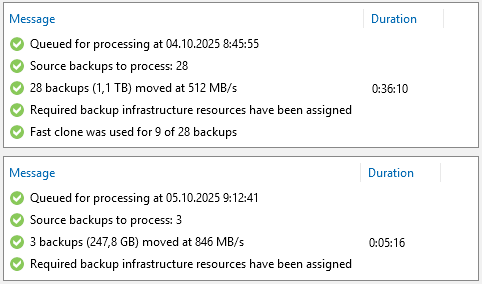
When moving backups to the VHR server, several objects (workloads) are moved in parallel and gradually their individual backups (Restore Points). I achieved variable results. Veeam showed an average of 500 MB/s to 900 MB/s, the network was loaded up to 8 Gbps. Performance was definitely limited by the old storage from which the backups were being moved.
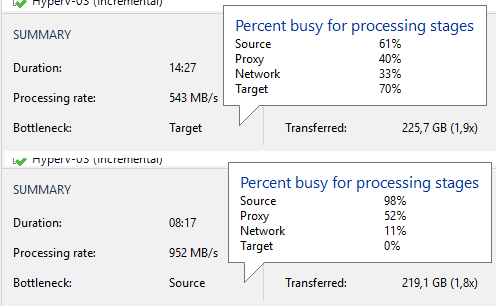
When comparing backup job statistics (this was about Hyper-V) on the original storage and after moving to the Hardened Repository, we can see an increase in speed. However, it should be kept in mind that incremental backup is affected by a number of factors. It may be interesting to look at the component utilization, where significant changes occurred.
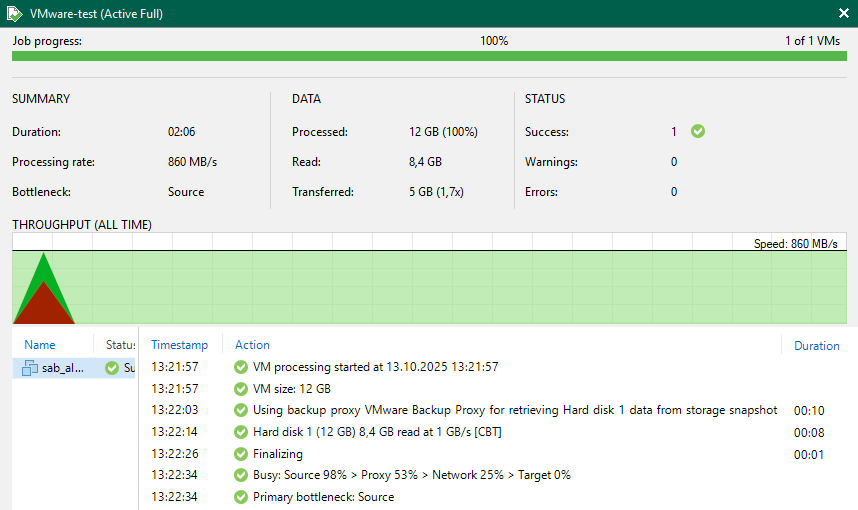
As a transport mode for backing up VMware vSphere, I use Direct Storage Access, which is Backup from Storage Snapshot. On the new storage, I performed brief tests of all three modes. I performed a Full Backup of a test VM (size only 12 GB, backup 5 GB). These are not clearly conclusive results, rather indicative (when I ran the test the next day, I achieved higher speeds, but in the same proportion).
- Direct Storage Access
[san]- Processing rate 493 MB/s, Duration 2:24, Load: Source 99%, Proxy 26%, Network 8%, Target 0% - Virtual Appliance (Hot Add)
[hotadd]- Processing rate 339 MB/s, Duration 2:10, Load: Source 67%, Proxy 93%, Network 17%, Target 0% - Network
[nbd/nbdssl]- Processing rate 349 MB/s, Duration 1:44, Load: Source 99%, Proxy 19%, Network 4%, Target 0%
Final Summary
As a great advantage of Veeam Hardened Repository, I see that everything works naturally, as I would expect and am used to. Backups are stored as files, which we can work with normally if needed. Immutability behaves the same as retention (and according to settings can be the same). We can simply move backups from the current storage to VHR and everything works seamlessly.
The entire VHR and backups on it can be managed directly from Veeam Backup & Replication. We only need to solve monitoring of server and disk health and server firmware updates.
Backup Infrastructure Topology
If we were using a simple deployment all-in-one, we had one Veeam Backup Server, which also contained the Veeam Backup Proxy (for VMware) and usually a local Veeam Backup Repository (for example, disks connected via iSCSI from a disk array).
Now we have the Backup Repository as a separate server connected to the LAN, so backups must always be transferred to it over the network. Depending on the type of backup source, a specific network path and infrastructure components are used. For example, Microsoft Hyper-V can use On-Host Proxy, then data reduction occurs directly on the server and backups are sent to VHR. It is similar in the case of Veeam Agent.
But for VMware vSphere, we need a Proxy installed somewhere, now we have it on the VBR server. We can consider whether the ESXi - VBR - VHR path is an optimal solution or is it better to place the Proxy elsewhere. In many cases, it may be more efficient to use Backup from Storage Snapshot (Direct SAN).
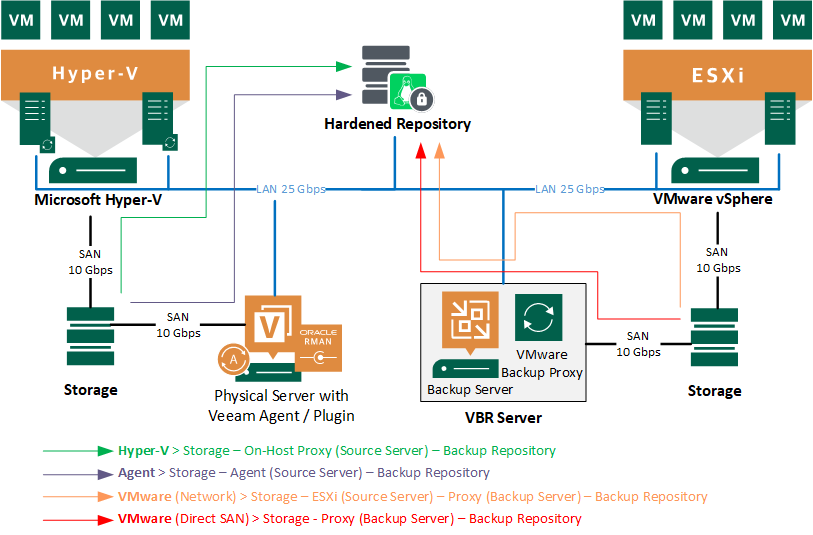
In an older article, I described related things Veeam Backup & Replication - data transfer and backup or restore speed.
Security Settings
Finally, it is important to verify that we have implemented the best possible security and have not missed anything. The foundation is to secure the VHR server. In the second part of the series, we mentioned various recommended security settings for the HPE server and iLO. We could not perform some of them immediately so that our implementation would go through. Now is the time to complete everything.
There are no comments yet.