
Note: The description in the article is based on Veeam Backup & Replication 12.3, licensed using Veeam Universal License (VUL), which is similar to Enterprise Plus.
Introduction
We have already covered Object Storage, including in connection with Veeam Backup & Replication, in several articles. Here, I try to analyze and summarize in more detail how Veeam stores backups (Restore Points), works with them, sets up Immutability, deletes backups with expired retention, etc. Some things have been mentioned before. Older articles also contain a number of related information and practical configuration examples.
File Storage versus Object Storage
When we decide to use object storage for storing backups, we must consider that this solution has both advantages and disadvantages. Working with stored data is significantly different from regular file operations. In most Backup Repositories, we store backups as files. We can easily copy them, work with them, and have an overview of existing Restore Points on the storage. On object storage, there is an enormous amount of objects, and it's almost impossible to determine which Restore Point they belong to.
Object Storage
A general description of object storage (and basic comparison with other types) is contained in the article What is Object Storage?. Veeam supports many types and providers of object storage. It can be a cloud service or local storage, most commonly S3 compatible.
Immutability
One of the important features why to choose object storage is the support for Immutability (most often using the S3 Object Lock feature). We can achieve immutability in other ways too, but with object storage, it works simply and reliably (it's a native feature).
The principle of Immutability, and various ways to achieve it in Veeam Backup & Replication, is described in the article Veeam Backup & Replication - Immutable Repositories and Secure Backups.
Practical Use of Object Storage Repository
We can use object storage as a Backup Repository for Backup Job or Backup Copy Job. We can also use it within Scale-Out Backup Repository (SOBR), but we're not covering that here. We can store backups directly to object storage (Direct-to-Object Storage), thus creating a primary copy (in SOBR Performance Tier). Or Backup Copy and create a secondary copy (in SOBR Capacity Tier).
The use of S3 Compatible Object Storage Repository (NetApp ONTAP) and Microsoft Azure Blob Storage Repository was practically described in the article Veeam Backup & Replication - Object Storage Repository and Immutability. Wasabi Cloud Storage Repository is covered in the article Veeam Backup & Replication - Wasabi as an Object Backup Repository.
Retention Policy and Deleting Restore Points
Each successful run of a backup job (performing backup) creates a Restore Point. We want to keep only a limited number of them, therefore we set up Retention Policy (Short-Term Retention Policy). We specify the number of days or restore points to be retained. The oldest restore points that exceed retention are automatically removed. Retention Policy determines the number of Restore Points in the Backup Chain.
General characteristics (primarily for retention in days):
- A minimum of 3 Restore Points are always retained. When we have retention for several days, stop the job for a longer period and turn it on again, after performing the backup, one new and two old backups remain (so retention doesn't delete all old backups).
- Retention Policy is applied after a successful run of the backup job. If the job isn't running or didn't end correctly, backups aren't deleted.
- A restore point has a date based on when the job was started. Retention Policy counts the number of days only when the job ends. If it runs into the next day, one additional backup might be deleted.
- In reality, Veeam often keeps restore points for N + 1 days.
- If we remove a VM from the backup job, it still remains in the backups. Until we perform an active full backup or the job has Remove deleted items data after set. This is because a minimum of 3 restore points are always kept (when new ones aren't created, old ones remain).
How the processing of restore points occurs (removing the oldest or merging with the nearest) depends on the type (like Forever Forward Incremental) and format (like Per-Machine Backups with Separate Metadata Files) of the backup chain.
Forever Forward Incremental
Forever Forward Incremental Backup Retention Policy
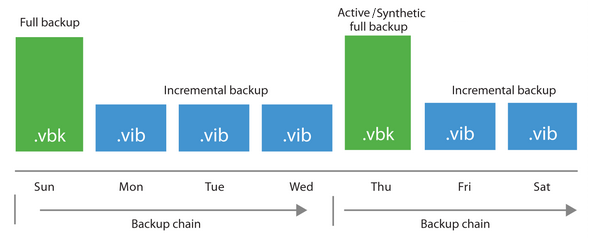
- first, an active full backup (VBK) is performed
- then only incremental backups (VIB) are performed
- after creating a new restore point, the job's Retention Policy is checked, if retention is exceeded (N + 1 days), the oldest VIB merges into VBK (VIB data blocks are inserted into VBK, VIB is removed), thus the (synthetic) full backup moves forward (by one day)

Forward Incremental
Forward Incremental Backup Retention Policy, Removal of Restore Points from Forward Incremental Chains
- first, an active full backup (VBK) is performed
- then incremental backups (VIB) are performed
- regularly, a synthetic or active full backup (VBK) is scheduled, which divides the Backup Chain into shorter series
- after adding a new restore point, the job's Retention Policy is checked, if the entire Backup Chain exceeds retention, it is completely removed (at least the current chain must remain)
So it depends on how often we perform full backup and what the retention is. If, for example, we do Full Backup once a week and want to maintain 7 days, it will be kept for 7 to 14 days.
Background Retention
Besides applying Retention Policy within the job session, there is also Background Retention and for object storage Background Checkpoint Removal Job. For these jobs, we can find the log in History - System - Background retention.
Full Backup
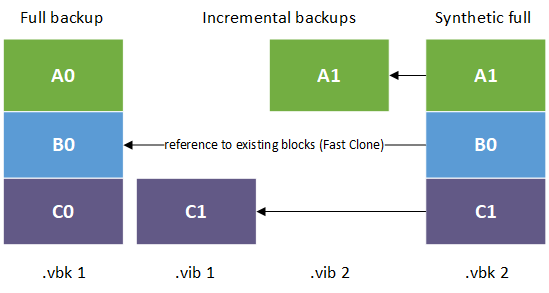
Active Full Backup performs a complete backup of data (reads all data) from the backed-up source. It is stored in a VBK file (typically deduplicated and compressed).
Synthetic Full Backup is created by combining the previous full backup with subsequent incrementals. The backup is synthesized from data that is already on the backup storage. A new file is created that occupies the given disk space. If we use a file system with Fast Clone (ReFS or XFS), we can save space (and copying time) because links to data blocks in previous files are used.
Immutability period
We set up immutability in the Backup Repository configuration. The period during which stored data cannot be modified or deleted. If a backup is immutable, it cannot be removed when retention is exceeded. It waits until both the Immutability period and Retention period end, then these files are removed.

Block Generation
Veeam applies Block Generation to the specified immutability period. This is a time period during which all blocks in backups (full and incremental backups) have the same immutability period. For most object storage systems, it's 10 days. We can change this value through registry modifications (though it's not highly recommended).
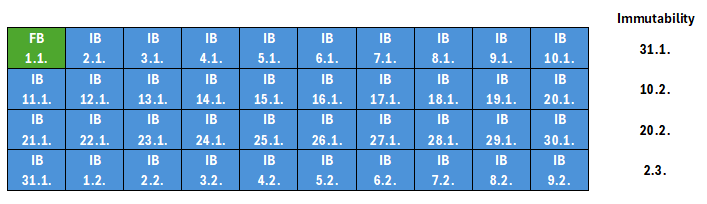
Here's an example of how the immutability date is set. We have an Immutability period of 20 days on repository, Block Generation period is 10 days. Backup runs daily, starting January 1st. In this example, we don't consider Retention Policy (detailed description follows later in the article).
- the first full backup (FB) is created, immutability of 30 days is set (until January 31st)
- nine incremental backups (IB) are performed, immutability of 29, 28 ... 21 days is set (all until January 31st)
- ten incremental backups (IB) are performed, immutability of 30, 29 ... 21 days is set (all until February 10th)
- ten incremental backups (IB) are performed, immutability of 30, 29 ... 21 days is set (all until February 20th)
- and so on, always 10 Restore Points fall into the same generation
How saving backups to object storage works
If we have object storage as the destination in a Backup Job, it typically creates Forever Forward Incremental and uses the Per-Machine Backup with Separate Metadata Files format. The same generally applies to Backup Copy Job on other repository types.
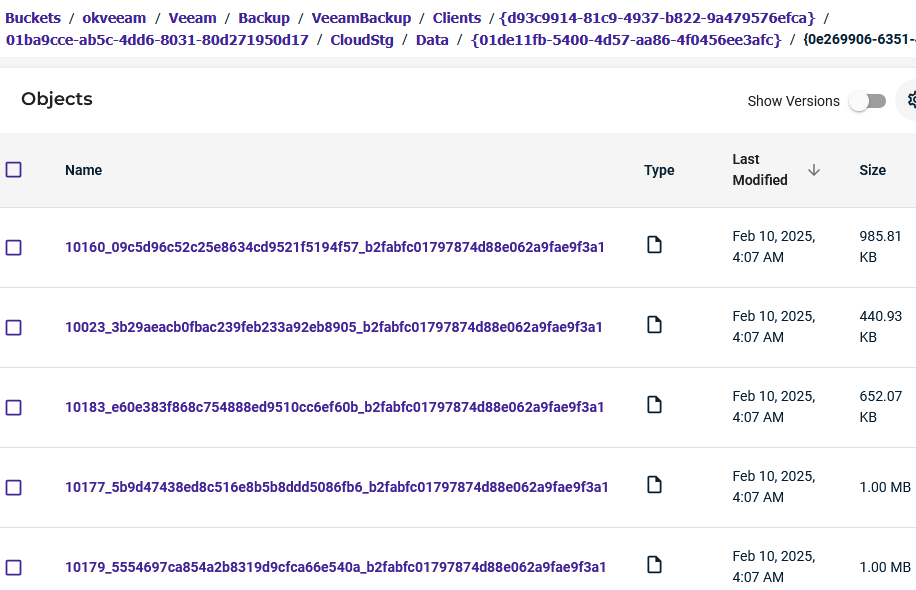
Object storage doesn't work with files, but with objects. Veeam divides backup files (Restore Points) into blocks of a certain size (typically 1 MB), compresses them, and transfers them as objects to object storage. Checkpoints are used, which contain references to objects of individual Restore Points in the Backup Chain.
Checkpoints
Note: Official documentation doesn't describe Checkpoints in much detail. The only mentions are in Checkpoints, Extension of Effective Immutability Period and Background Checkpoint Removal Job. It's often discussed on Veeam R&D Forums.
A Checkpoint is a logical entity that contains the current state of the entire backup chain at a specific point in time (at the metadata level). It contains details about which restore points are currently part of the backup chain and which blocks (objects) they consist of. The Checkpoint file uses XML format.
With each data transfer to the Object Storage Repository, a new Checkpoint metadata file is created that describes the latest backup state in storage. When an incremental backup occurs, objects with new (changed) data are transferred. Information about this restore point, along with previous ones, is stored in the new Checkpoint.
Checkpoint Versions
In most cases, only one Checkpoint is maintained. Previous backup chain states are overwritten. But when we use Immutability, several Checkpoints start being maintained. This allows returning to an older state of the backup chain.
Retention Policy
The Forever Forward Incremental principle is used. When the oldest Restore Point (say VBK) exceeds retention, it is merged with the previous one (say VIB). However, this only means updating the Checkpoint (metadata update), which specifies which objects make up the full backup (VBK).
The duplicate Restore Point (merged VIB) is removed. Objects referenced by this restore point but not referenced by any newer ones are deleted (only after their immutability expires). Block removal is performed as part of the Background Checkpoint Removal Job.
The whole principle is similar to file storage, where we have a VBK file and several VIBs. These form a Backup Chain and enable full recovery. The same information is found in the current Checkpoint. On object storage, there's no physical creation of synthetic full backup (file modifications), because no files exist. Only metadata is worked with. From a disk space usage perspective, it's similar to a file system with Fast Clone. Data blocks aren't copied, but references to existing blocks are updated.
In the job log, there are actions (same as on file storage, without [fast clone] information, takes similar time):
Full backup file merge completed successfully
When the action is in progress
Merging oldest incremental backup into full backup file (58% done)
Setting and Extending Immutability
Immutability is set on each object and protects the entire Backup Chain with all its Restore Points. When Veeam stores objects of a given Restore Point, it sets Immutability on them. The value is according to the set Immutability Period on the given Backup Repository with Block Generation application.
We need to protect the entire backup chain (incremental backups are useless if we don't have the initial full backup). So on existing Restore Points, we must extend the immutability period to be the same for the entire Backup Chain (and prevent an attacker from deleting the oldest full backup). Official description in Extension of Effective Immutability Period.
With each backup (data transfer to object storage), Veeam creates a new Checkpoint. It includes Restore Points (belonging to the Backup Chain) from the previous Checkpoint (old blocks) plus the newly created Restore Point (just transferred data, new blocks). If objects from previous Restore Points don't have the same Immutability as new data blocks, it gets extended. Veeam keeps repeatedly used data blocks locked by assigning them to a new generation and extending their immutability period.
Thanks to using Block Generation, new blocks have the same Immutability date for 10 days (within one generation). Therefore, extension is done once every 10 days and blocks from previous Restore Points are moved forward by 10 days. For the next 9 days, the current generation has the same Immutability date as the previous generation (where it was extended).
Retention Policy also applies, maintaining the length of the Backup Chain. The oldest Restore Points are merged (which blocks make up the Full Backup). Data blocks that are no longer used in Full Backup (overwritten or deleted) don't have their Immutability extended (and are deleted after it expires).
Brief process is:
- a Restore Point is created, Immutability is set (Immutability Period + Block Generation Period) on its objects
- once per Block Generation Period, Immutability is extended on previous Restore Points
- if retention is exceeded, merging of Full Backup with previous Incremental Backup occurs (within Checkpoint)
Example of Setting and Extending Immutability
- Immutability Period 10 days
- Block Generation Period 10 days
- Retention Policy 20 days
The following image schematically shows existing Restore Points (Backup Chain) for a specific day (last blue with black text).
- green FB represents Full Backup, initially active, later created by merging with adjacent IB
- blue IB represents Incremental Backup
- each row shows one generation and on the right is the immutability date that gets progressively updated
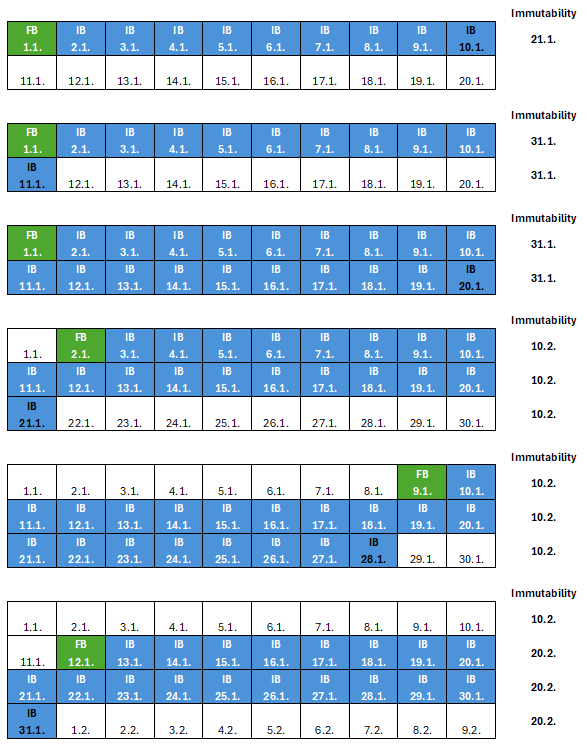
From the progress, we can see that the backup chain has 20 days (which corresponds to the requirements). In Veeam Backup & Replication, we will see 20 Restore Points. But another 20 older Restore Points have active Immutability. So they cannot be deleted, even though they no longer belong to the active backup chain. Veeam will delete them after immutability expires. Therefore, up to 40 Restore Points can exist on the object storage (and we can restore from them). We'll discuss this more in the next chapter.
This corresponds to the Actual Retention described in the documentation.
Actual Retention = Job Retention Policy + Immutability Period + Block Generation Period
Relationship between Retention period and Immutability period
We should (it is recommended) set the retention at least equal to Immutability + Block Generation. For example, if we have Immutability of 10 days, Block Generation also 10 days, which means maximum immutability of 20 days. The retention should be 20 days or more.
What happens when we set retention shorter than Immutability?
By default, the Retention Policy applies. Restore Points outside retention will be removed from backup metadata and configuration (new Checkpoint doesn't include them). But data with set immutability will still remain on the object storage. Veeam only displays and allows working with known Restore Points. In other words, in Veeam we'll only see backups falling within retention.
Loading backups from object storage (Rescan)
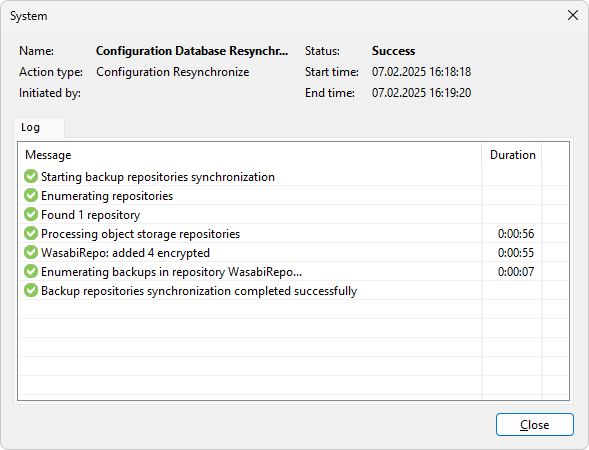
If we're performing Disaster Recovery and connect storage to another Veeam Backup & Replication server. Or just remove backups from Veeam configuration (Home - Backups, Ctrl + right-click on the job, Remove from configuration). Then we can perform Rescan Backup Repository (in Backup Infrastructure - Backup Repositories).
Veeam will gather information about backups currently available in repository and update the backup list in the configuration database. Information is obtained from stored metadata (VBM). If these are not available, the backup cannot be imported. In our case, only Restore Points that fall within retention (and we saw them before) will appear again. Even though older immutable backups exist on the storage.
Returning to previous backups (older Backup Chain state)
If we need to access data that was removed by Retention Policy but still exists on storage, we must go back in time and synchronize the state from object storage (from a certain older Checkpoint). Official description Rolling Back Immutable Data.
We can only perform this operation using PowerShell. We'll use cmdlets Get-VBRObjectStorageRepositorySyncInterval, Sync-VBRObjectStorageRepositoryEntityState. During synchronization, the current backup chain state is removed from the configuration database and a specific state is loaded from object storage.
First, we can determine the time period in which we can roll back the backup chain (available Checkpoints).
$repository = Get-VBRObjectStorageRepository -Name WasabiRepo
Get-VBRObjectStorageRepositorySyncInterval -Repository $repository

StartDateUtc       EndDateUtc
------------       ----------
02.02.2025 1:06:24 16.02.2025 8:41:35
Then we can restore the Backup Chain state to any period within the available interval. We can do this for the entire Backup Repository.
Sync-VBRObjectStorageRepositoryEntityState -Repository $repository -PointInTime "15.02.2025 10:00:00"

Name         : Backup Synchronization
CreationTime : 16.02.2025 9:50:20
EndTime      : 16.02.2025 9:53:38
JobId        : 3d30b5bd-84e9-4f46-94bf-19ff34b9556c
Result       : Warning
State        : Stopped
Id           : 7bd391d8-662a-408b-8539-209e8ccdf3b6
I performed the test on a test storage where one backup job runs (and its parameters vary). The storage contained 8 Restore Points visible to Veeam. I shortened the Retention Policy to 2 days and ran the job. Veeam showed 3 Restore Points. I restored the state to one day back and the backup list showed (correctly) 7 Restore Points.
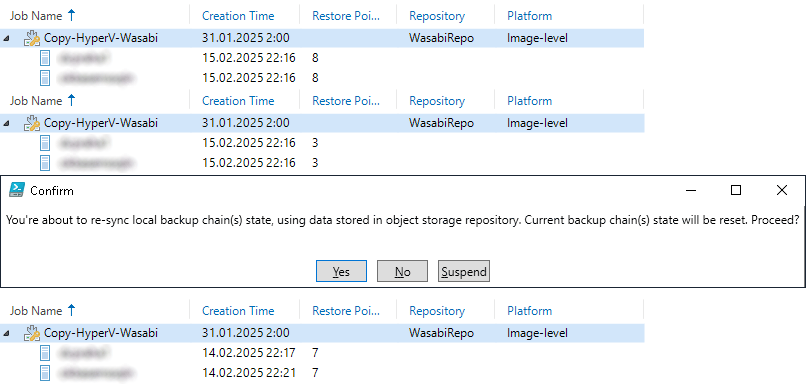
The cmdlet ended with a warning. Information can be found in the log (default path) C:\ProgramData\Veeam\Backup\DirectBackupSync\DirectBackupSync.log. Interestingly, according to the log, it also tried to work with backups stored in another bucket, and thus another Backup Repository. These resulted in warnings that nothing was processed.
It might be safer to specify not only the repository but also the backup job.
$repository = Get-VBRObjectStorageRepository -Name WasabiRepo
$job = Get-VBRJob -Name Copy-HyperV-Wasabi
Get-VBRObjectStorageRepositorySyncInterval -Repository $repository -Job $job

StartDateUtc       EndDateUtc
------------       ----------
02.02.2025 1:06:24 16.02.2025 8:41:35

Sync-VBRObjectStorageRepositoryEntityState -Job $job -PointInTime "16.02.2025 9:00:00"

Name         : Backup Synchronization
CreationTime : 16.02.2025 10:20:56
EndTime      : 16.02.2025 10:21:59
JobId        : e0ea5740-e76c-42bc-8465-ef5b10aba6bf
Result       : Warning
State        : Stopped
Id           : 0962c9f7-321b-40ab-a177-42420a89275d
I tried using a date that is after the time period. The task ran with a warning, information is in the log.
Warning (3)    [CDirectBackupSyncPerformer] All checkpoints are older then sync date for backup ... Skipping checkpoint recreation
Warning (3)    Failed synchronize data stored on the object storage repository: the data has been already synchronized.
In the next attempt, I went back to the very beginning of the chain.
Sync-VBRObjectStorageRepositoryEntityState -Job $job -PointInTime "02.02.2025 1:06:24"

Name         : Backup Synchronization
CreationTime : 16.02.2025 11:19:19
EndTime      : 16.02.2025 11:22:49
JobId        : aed428c0-b0de-4dac-a69e-229400ea5041
Result       : Success
State        : Stopped
Id           : c33d0c71-6865-4cb1-bbf3-11600d9d4bcc
We must take into account that when rolling back Veeam configuration only knows the old Restore Points. If a backup is subsequently performed, we will see the old backups plus one new one.
Object Storage Structure
Veeam creates and maintains a directory structure on object storage. Some description is in the documentation Object Storage Repository Structure.
Note: By the way, Anton Gostev keeps emphasizing on the forum that files and folders (or file system) don't exist on object storage, but objects do. It's just a virtual representation of directories. In practice, it's common that tools for accessing object storage work as if directories and files existed here.
Backups
According to documentation, the path to individual backup data in Wasabi corresponds to:
Buckets/[bucket name]/Veeam/Backup/[Veeam repository folder name]/Clients/[Client ID]/[Backup ID]/CloudStg/Data
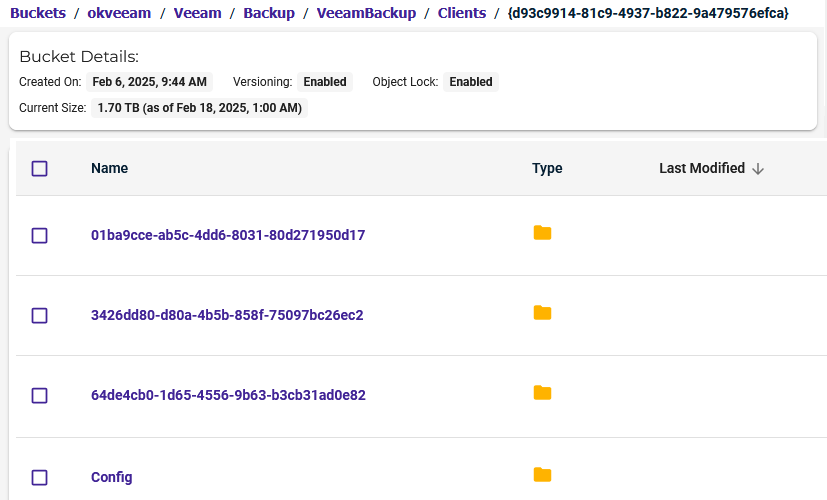
The number of folders with Backup ID corresponds to the number of backed up objects (VMs) stored on the repository. Below them are other folders where individual Restore Points are apparently stored. I would like to find out which backed up object corresponds to this ID (documentation states it's Backup catalogue - Contains backup ID).
We can use Veeam PowerShell to find various IDs. But the IDs I display don't match those that are folder names. For example, under Clients are presumably folders for individual backup servers and should be identified by their ID. When we look into Clients/[Client ID]/Config/ClientInfo.xml, we find our server name and ID same as the folder. But displaying server information Get-VBRServer -Name backuppraha doesn't contain the same ID.
Similarly, when we display IDs of individual backups, they don't match the names of backup folders.
$backup = Get-VBRBackup -Name Copy-HyperV-Wasabi
Get-VBRBackupObject -Backup $backup
On the forum, I got a response that it's cloud_backup_id which is in the backup.model.backups.directbackupinfos table. So apparently we can't find it out easily.
Metadata - Checkpoints
Most information can be found in Checkpoint files. These are located under individual backups in the path:
Buckets/[bucket name]/Veeam/Backup/[Veeam repository folder name]/Clients/[Client ID]/[Backup ID]/Metadata/Checkpoint
There are various Checkpoint IDs here. These are XML files with information about the Backup Chain. For individual Restore Points, there is a StgTag element that has in its Tag attribute the name of the VKB or VIB file. At the beginning of the file, there is general information about the backup chain, such as ExpectedImmutableTillUtc.
Super sepsane
Thanks for this explanation and the graphics. Didn't know it worked like that.