
Introduction
If we have Veeam Hardened Repository (VHR) installed from the ISO provided by Veeam, namely Veeam Hardened Repository ISO for v12 or VHR ISO 2.0.0.8, which is the file VeeamHardenedRepository_2.0.0.8_20250117.iso, we can perform an upgrade to the current version for Veeam Backup & Replication 13 using the Veeam Infrastructure Appliance (VIA) ISO.
Warning: the upgraded VHR can only be connected to VBR v13 (not to version 12)
The upgrade works by reinstalling the OS partition, while the data partition remains preserved. We must perform a completely new configuration of VHR (initial configuration after installation). It is advisable to prepare current information in advance, such as the name, IP parameters, and network settings.
Veeam Appliance uses Veeam JeOS (Just Enough Operating System). It is a minimalist Linux distribution that is managed by Veeam and automatically updated. It is delivered as a bootable ISO and is pre-secured according to security best practices. It is based on Rocky Linux. It is an evolution of VHR ISO.
Installation Files
We can download from the portal My Veeam - Products (or elsewhere where we download VBR installation). In the Additional downloads section, Additional downloads tab, there is Veeam Infrastructure Appliance, currently version 13.0.1.1071 from January 6, 2026, file VeeamInfrastructureAppliance_13.0.1.1071_20251217.iso with a size of 1.76 GB.
Main New Features of Veeam Infrastructure Appliance
To add a managed server to the Veeam backup infrastructure (VBR), Certificate-based authentication is used. The Appliance has pre-installed Veeam components (Veeam Deployment Kit), which are used for connection from the VBR server. We don't need to enable SSH access or create single-use credentials. Authentication is performed using certificates.
Certificate-based authentication is not supported on VBR 12, so we first need to upgrade Veeam Backup & Replication to version 13.
Some Other New Features
- Veeam Host Management web interface, which allows Appliance management through a browser
- Security Officer for approving sensitive (destructive) operations
- Multi-Factor Authentication (MFA) is used for user login to the Appliance
System Requirements
- System Requirements - Veeam Infrastructure Appliance
- Veeam Backup & Replication 13 or newer
- CPU 2 core (vCPU), RAM 8 GB, server compliant with Veeam Ready or Red Hat compatibility list
- local disks and HW RAID
- at least 2 disks, each with a size of at least 120 GB (for VHR ISO 2.0 the requirement was 100 GB)
- UEFI Secure Boot enabled
- HTTPS communication to the internet to selected addresses
Management Interface
Veeam Host Management Console accessible as
- Web UI - web interface, runs on port
10443

- Text-based UI (TUI) - text interface accessible through the server's physical console or remote virtual console

Upgrade Veeam Hardened Repository (VHR)
Before the upgrade, we disable all jobs that store data to this repository (we need to ensure that VBR does not attempt to use VHR).
For the upgrade, we will use iLO Remote Console and remote ISO file connection. We boot the server from the Veeam Infrastructure Appliance (VIA) installation ISO.
Installation / Upgrade from VIA ISO
- connect to the server's iLO using a web browser
- launch the HTML5 Integrated Remote Console
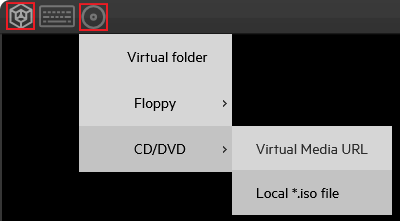
- click on the Virtual Media - CD/DVD - Local *.iso file icon at the top and attach the downloaded VIA ISO
- log in to the console (Veeam Hardened Repository Configurator) and select Reboot in the menu

- during server startup (POST), press F11 to invoke the Boot Menu
- select
iLO Virtual USB 3 : iLO Virtual CD-ROM - in GRUB, choose Veeam Hardened Repository, then Upgrade - upgrades Hardened Repository to latest version

- the installer will start (after basic checks) and display a dialog asking if you want to continue with the installation, where the current system and settings will be replaced with a new version, while local backups remain untouched, click Yes

- the installation will proceed followed by an automatic restart (iLO will automatically disconnect/eject the ISO)

Initial Configuration
- Veeam Host Management launches and displays the Initial Configuration Wizard, where we must go through several steps
- License - we accept the license terms

- Hostname - enter the server name (the original name was pre-filled, which did not happen to me during tests with 13.0.1.180)
Network Settings (Link Aggregation)
- Network - network parameters configuration, it can just be setting an IP address (or DHCP), but in my case, it is necessary to newly create Link Aggregation (Bond), which seems even more complicated than with VHR ISO 2.0
- first, we must note the names of the network adapters we want to use (in my case
ens1f0np0andens1f1np1), we can see the list on the screen - click on Advanced to get to the section where we can create link aggregation

- click on Add to add a connection, select Bond and confirm with Create

- enter the connection name (profile) and click Add to add a subordinate connection
- select Ethernet as the type, enter the name and device name (the network adapter we noted), save with OK

- select Add again and repeat for the second network interface
- go to Mode and in my case select 802.3ad (LACP)

- go to IPv4 configuration, switch to Manual and click Show, enter the IP address, GW, DNS servers, domains
- we can also set IPv6 configuration, scroll down and save with OK

- exit advanced settings with Quit
- at this moment, we can see on the switch that the connection has been established and the LACP protocol was used, the IP address responds to ping
- the window with network adapters should refresh, but this did not happen for me
Additional Settings
- Time - correct time settings (zone and NTP) are important

- Host Administrator - we set the password for the administrator account
veeamadmin(previouslyvhradmin) with mandatory MFA setup. The password must meet DISA STIG conditions, so it cannot have more than 4 consecutive characters of the same category (we must alternate uppercase and lowercase letters and other characters) and must have at least 15 characters.

- After entering the password, we must set up MFA using an application with OATH token, such as Microsoft / Google Authenticator (we can scan the QR code). TOTP (Time-based One Time Password) is used, which we must enter for confirmation.

- Security Officer - optionally we can set up the Security Officer account
veeamso(it can be skipped, but cannot be created later). It is used to approve sensitive (destructive) operations. The password must meet DISA STIG conditions. We do not set up MFA now, but on first login we must change the password and set up MFA (we also receive a Recovery Token). Approval is performed through the Veeam Host Management Web UI.

- after clicking Finish, we receive information that it is necessary to activate the Security Officer account in the web interface for everything to start working

- services restart and basic information is displayed (by pressing ENTER we can log in to Veeam Host Management TUI)

Post-Upgrade Server Operations
Security Officer Activation
First, we must log in to the Veeam Host Management Web UI with the Security Officer account and configure it. If we don't do this, we will not be able to connect the server to VBR and an error will be displayed:
Failed to connect to deployer service
Failed to check deployer service compatibility.
Failed to verify client connection token.

Activation Procedure
- connect to Veeam Host Management using a web browser, which runs on port
10433 - log in with the
veeamsoaccount

- then we must enter a new password and set up MFA

- the Recovery Token for MFA is displayed
Note: What is quite important is that web access to Veeam Host Management is automatically disabled afterwards. Although there is some information about this on the page, I did not understand it from that. If we still need it, we must enable it through Veeam Host Management TUI.

Making the Upgraded VHR Work in VBR
In Veeam Backup & Replication, our VHR server now reports as unavailable. We must update the authentication method for this Linux server.
- Veeam Backup & Replication Console
- Backup Infrastructure - Managed Servers - Linux (or Unavailable)

- edit our VHR server (for example, right-click and select Properties)
- in the Access step, switch to Connect using certificate-based authentication
- click Next, connection to the Veeam Installer service will be made, the certificate fingerprint will be displayed, confirm server trust by clicking Yes

- by clicking Apply, the installation will begin (Veeam Data Mover service and certificates), records in the Veeam DB will be updated, volume information will be retrieved
The Managed Linux server now works correctly, as well as the Backup Repository (VHR) and backup jobs that use it. We can now enable the jobs that we disabled at the beginning.
When we look at the Repository, we will see that it now shows the backup path as /var/lib/Veeam/backups instead of the original /mnt/veeam-repository01/backups.

Installing Updates on VIA
Updates can be installed automatically according to settings in Main Menu - Updates - Update Settings. Or we can perform them manually after their detection.
Missing updates can be seen either in Main Menu - Updates - Missing Updates or Backup Infrastructure - Managed Servers - Missing Updates.

- in the missing updates window, click Install (or Install All)

- confirm Yes that the updates will be installed and a server restart may occur
- a small update will complete in a few seconds (probably without a restart)
There are no comments yet.