
Object First lent me an Storage Appliance Ootbi, with a usable capacity of 64 TB, so I could practically test their solution for secure backup storage. Many thanks for lending me the demo unit. This (and some additional) article briefly summarizes my short experience.
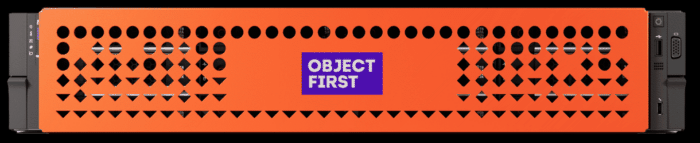
Object First Ootbi
What is Ootbi?
Object First Ootbi is an on-premises hardware appliance designed exclusively as a backup storage target for Veeam. It provides an S3-compatible object storage with native support for Immutability and a Zero Trust architecture. Since it supports the standard S3 API, it can theoretically be used for other purposes or accessed using various S3 tools. Officially, however, it is intended for use with Veeam.
The company Object First was founded by the same two people (Ratmir Timashev and Andrei Baronov) who founded (and later sold) Veeam Software. In early 2026, Veeam announced the acquisition of Object First.
Object First storage is built on simplicity. No knowledge of disk arrays, Linux, or security is required. Deployment can be completed in just a few minutes. Configuration requires 3 IP addresses, 2 names, and a password for the administrator account.
An interesting additional feature is the Object First Honeypot. A built-in cyber protection feature available on all appliances that acts as a decoy. It impersonates a Veeam Backup & Replication server and lures attackers who are scanning the network or attempting to log in. Unusual behavior triggers an alert.
Available Models and Configurations
Ootbi is standardly a rackmount appliance in a 2U form factor (the Ootbi Mini in a desktop format is also now available). Currently available models offer usable capacities of 18, 36, 72, 144, 216, or 432 TB in a single node. Up to four nodes can be grouped into a cluster. Multiple clusters can be combined using Veeam Scale-Out Backup Repository (SOBR).
Note: It is important that the usable capacity is stated, not the raw disk capacity.
Key Features
- SAS drives with RAID 6 or RAID 60
- 1 (or 2) hot spare disks
- NVMe drives for OS and cache
- redundant power supplies
- operates with a standard block size of 1 MB
- Veeam integration via S3 API, including S3 Object Lock and S3 Versioning
- supports Smart Object Storage API (SOSAPI)
Use with Veeam Backup & Replication
Object First Ootbi is verified and tested by Veeam. It has achieved Veeam Ready status in the Primary Target and Capacity Target categories with Object Storage, Immutability, IAM & STS, and Smart Object Storage API qualifications.

Since Veeam Backup & Replication 12, object storage can be used for direct backup storage. In version 11, it could be used within a Scale-Out Backup Repository as a Capacity Tier or Archive Tier. It can now be used for both primary and secondary data copies.

Documentation
Older articles contain a range of general information about object storage, how Immutability works and is used (mainly in VBR 12), and examples of usage with specific storage solutions.
- What is Object Storage?
- Veeam Backup & Replication - Immutable Repositories and Secure Backups
- Veeam Backup & Replication - Object Storage Repository and Immutability
- How Veeam works with Object Storage and leveraging Immutability
- Choosing a secure backup storage solution for Veeam
Deploying (Setting Up) Object First Ootbi
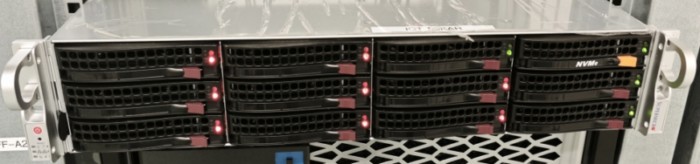
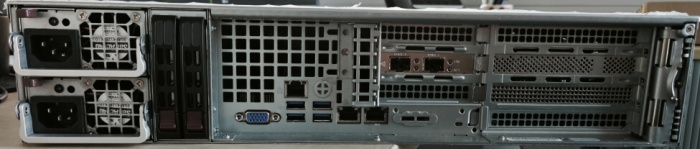
I tested the 2U rack appliance built on a SuperMicro server. Once unpacked, it can be mounted directly into a rack, as management can be handled conveniently via the IPMI (Intelligent Platform Management Interface) remote console. Alternatively, a keyboard and monitor can be connected for local management, though this is considerably less convenient.
Note: IPMI is a standardized interface for independent server management and monitoring (an autonomous computer subsystem separate from the server's CPU, OS, or firmware). It is analogous to proprietary HPE iLO or Dell DRAC.
The connections required are (optimally) power to two separate sources, a 1 Gbps management network (IPMI), and 2x 10 Gbps Ethernet LAN via either RJ45 or SFP+ ports.
Note: Object First prides itself on simplicity, but perhaps a bit too much. I was only able to find the installation guide on their website, which is very brief. Only after everything was installed did I find a link to more detailed documentation (help) within the web interface, which I reference above.
Web Connection to the IPMI Remote Console
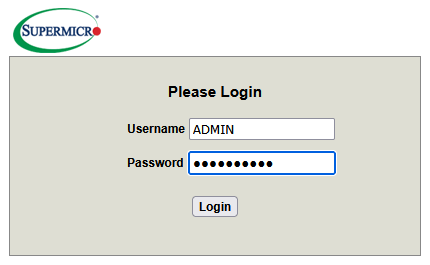
The default IPMI settings should have the IP address obtained via DHCP, the username is ADMIN (in capital letters) and the password can be found on the label that pulls out from the front-left side of the appliance.
Using a web browser, connect to the IPMI IP address at https://<IPMI-IP-or-name> (or create a DNS record) and log in with the username and password. From the dashboard, the Remote Console can be launched, which opens in a new window.
Management Interfaces
- Text User Interface (TUI) - text-based interface, accessible via the physical server console, remote virtual console, or SSH
- Web UI (Web Management Console) - web interface, running on port
8443
Setting Up a New Cluster
On the first screen, select the option to configure a new cluster. Then proceed through the setup wizard.
I don't have an Ootbi cluster. Configure a new cluster for the appliance
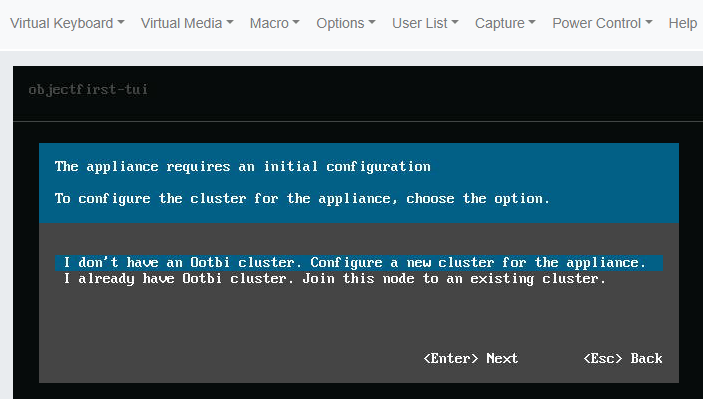
Note: If the Available options menu appears directly, select the first item: Setup New Cluster.
Configure network interface
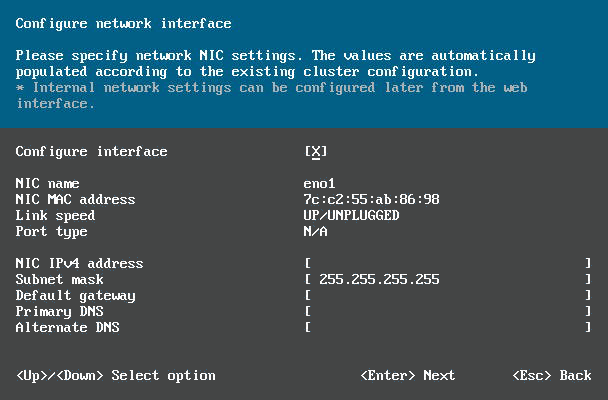
First, configure the network interfaces. You must choose whether to use the copper RJ45 ports or SFP+ modules (different interface types must not be mixed). Connect them to the same network (both interfaces must belong to the same subnet). Link Aggregation (PortChannel) is not used.
It is important to know the Linux interface names in order to correctly identify them during configuration. Only the interfaces in use need to be configured (enabled).
eno1,eno2– 10GBase-T, RJ45 interface integrated on the motherboardens2f0,ens2f1– 10G SFP+ card
Enter the IP address, subnet mask, default gateway, and one or two DNS servers.
Configure hostname
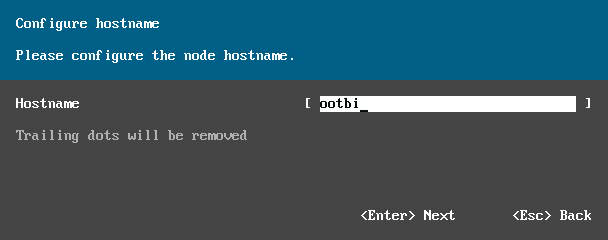
Enter the node name (of the appliance being configured). Proceeding (Next) will apply the network configuration.
Time synchronization settings
Either leave the pre-filled server 1.pool.ntp.org or enter a custom NTP server.
Note: By default, Use NTS protocol (NTS - Network Time Security) is checked, but I had to uncheck this option, as time synchronization would otherwise fail and it was not possible to proceed. It is important to note that if time synchronization fails, configuration cannot continue. Therefore, network communication configured in the previous step must be functioning.
Checking for updates
The next step checks for updates. If communication is not working, there is an option to configure a proxy. This step can be skipped and you can continue.
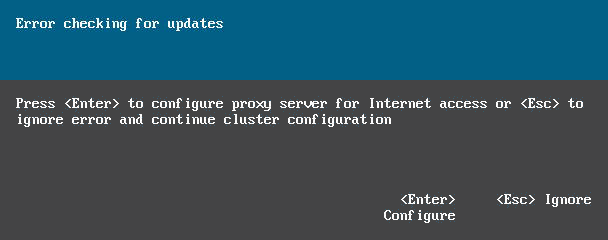
Note: Update communication did not work for me even later. I had to add an exception on the firewall to exclude repo.objectfirst.com from SSL inspection.
Configure cluster name and the IP address
Enter the name of the cluster being created and the cluster IP address, which is used for accessing the Cluster Web Console (on port 8443) for management and monitoring, as well as the S3 endpoint (port 443) for data. The IP address must be from the same subnet as the interface addresses (which can also be used to access cluster management).
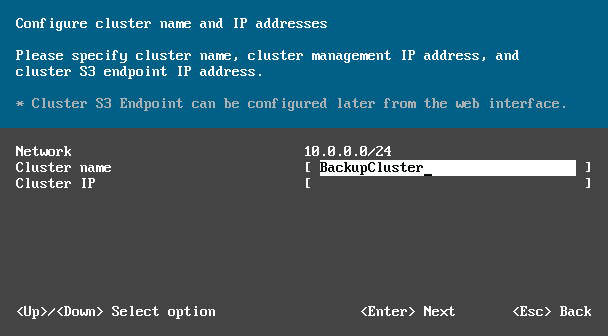
Note: I encountered a minor issue here. At the beginning, I configured all 4 interfaces (because it was not clear to me which was which). Even after subsequently disabling 2 of them, the address had to remain in the configuration and could not be used as the cluster IP address.
Set the administrator password
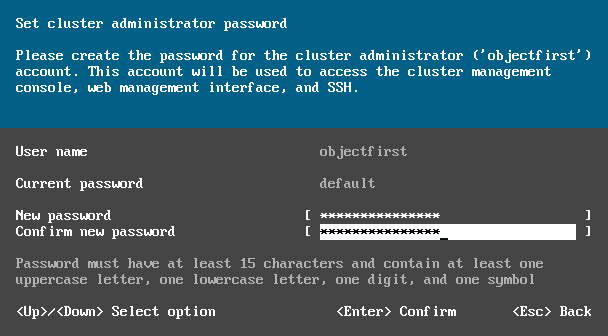
The default management account for both the server and cluster (via Web UI and TUI) is named objectfirst. A password must be set for it, which must be at least 15 characters long, be complex, and must not be a password from the dictionary of disallowed passwords (which I managed to hit during testing).
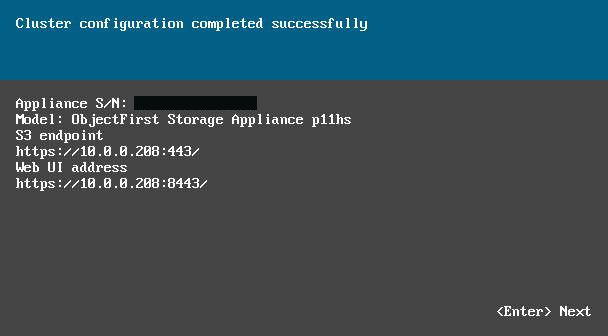
Cluster configuration completed
The cluster is created and basic information is displayed.
Telemetry service
The final step is choosing whether to send telemetry to Object First Support, which enables reporting of critical events.
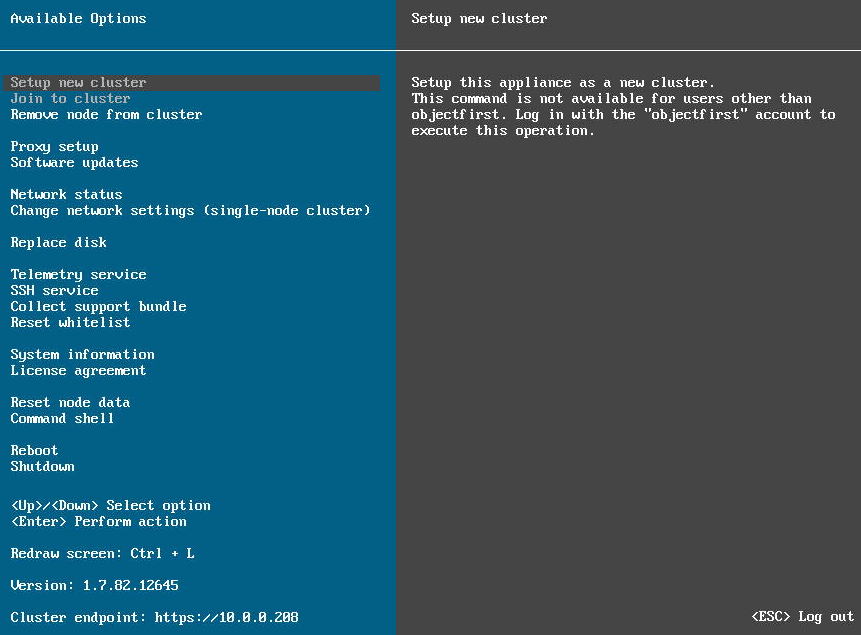
Text User Interface menu
The text interface configuration options are then displayed.
There are no comments yet.