
Note: This article describes the upgrade from VBR 13.0 to 13.1. If you are dealing with an upgrade from VBR 12.3, I recommend Veeam Backup & Replication - upgrade to version 13 - part 1. Moving from version 12.3 to 13 involves more important changes and is somewhat more complex.
Introduction
This article covers the upgrade of Veeam Backup & Replication running on Microsoft Windows. It supports an automatic in-place upgrade (on the same server) from version 12.3.1.1139 and newer versions. The upgrade preserves all data, product settings, and configuration.
If we have moved to the Linux appliance Veeam Software Appliance (VSA), updates are simpler. VSA includes a built-in module for automatic updates.
One of the new features in Veeam Backup & Replication 13.1 is Veeam Updater on Windows, which is meant to bring automatic updates to Windows as well, without needing to download an ISO and run the upgrade wizard.
Documentation
- Upgrading to Veeam Backup & Replication 13 on Windows - official description of the upgrade
- Build Numbers and Versions of Veeam Backup & Replication - list of versions and builds with links to Release Notes / Information
- Release Information for Veeam Backup & Replication 13 and Updates - information about the VBR 13 version and available updates (download links)
- Veeam Data Platform v13 Upgrade Center - information about the new version on the Community Hub
- Veeam Backup and Replication v13.1 What's New - description of what's new in version 13.1
Installation Files
We can download them from the portal My Veeam - Products, where the installation files are located according to our license. It is available as part of the Veeam Data Platform, where we can download the Veeam Backup & Replication ISO VeeamBackup&Replication_13.1.1.18_20260904.iso, which is 21.2 GB in size.
The first available version 13.1 was Veeam Backup & Replication 13.1.0.411. We are currently downloading the ISO with version 13.1.1.18, which fixes some bugs and the vulnerability CVE-2026-58070.
Other places to download the installation from:
- Veeam Latest Updates
- Release Information for Veeam Backup & Replication 13
- Veeam Data Platform - Trial Download
- Veeam Software Download
- DOWNLOAD latest VBR ISO
License
The license file has remained the same since version 10. Either VUL licenses (Veeam Universal License) or Socket-Based licenses are used (the latter are not available for the Veeam Software Appliance, where the Community Edition cannot be used either).
During the upgrade, the current license is used automatically. We can also upload an existing file or sign in with a Veeam account and the license will be downloaded automatically.
Some New Features in VBR Version 13.1
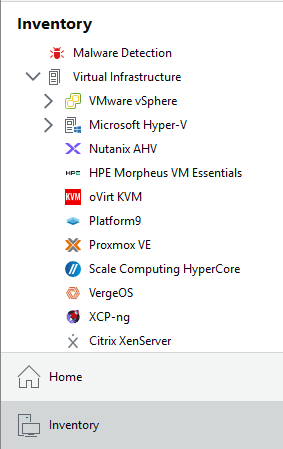
- newly supported hypervisors/platforms: Sangfor aSV, XCP-ng, Citrix XenServer, VergeOS, and Platform9 (the latter two use the Universal Hypervisor API)
- expanded capabilities for Proxmox VE (such as Instant VM Recovery, VirtIO driver injection), HPE Morpheus VM Essentials (for example Application-aware processing, VirtIO driver injection) and a number of other hypervisors
- identity protection - automated recovery of an entire AD forest, new capabilities for Microsoft Entra ID (such as exporting objects to JSON, backing up contacts and BitLocker keys)
- Application Backup Repository (ABR) - based on the Veeam Hardened Repository; the storage is split into virtual volumes, each exposed as a separate NFS export that external applications and devices can write their backups, exports, or dumps to directly, while Veeam creates snapshots, controls access, and manages immutability
- Veeam Software Appliance (VSA) and Veeam Infrastructure Appliance (VIA) - support for external storage (iSCSI and Fibre Channel), upgrade to Veeam Enterprise Linux JeOS 9.6, Enterprise Manager can act as an update mirror
- security enhancements - hybrid FIPS + post-quantum cryptography (PQC), single-port transport (one port instead of the 2500-3300 range), REST API on port 443, migration to .NET 10
- read-only mode for object storage - we can attach object storage to a second Backup Server in read-only mode (for data recovery) without it taking ownership
- Veeam Updater on Windows - automatic updates for the Backup Server on Windows
Preparation Before the Upgrade
My deployment, which was upgraded using the described method, is a Simple Deployment (all-in-one). It backs up VMware vSphere, Microsoft Hyper-V, Windows using an agent, Oracle DB using a plug-in, and creates snapshots on the array. Veeam Hardened Repository (VHR) and Cloud Object Storage are used for storing backups. Backup checks run via SureBackup. The Veeam Backup & Replication Console is installed on administrators' computers.
Requirements and Prerequisites
It's certainly a good idea to check the system requirements (System Requirements) and supported platforms (Supported Platforms, Applications and Workloads, Veeam Backup & Replication support for VMware vSphere). That is, that the Backup Server and all infrastructure components are running a supported operating system, and the whole architecture is fully 64-bit. And that the entire environment we want to protect (back up) meets the requirements for supported versions.
Between Veeam Backup & Replication 13.0 and 13.1, support for no platform, OS, or software was dropped. So the same thing still applies as of version 13.0 - for example, Windows Server 2012, SQL Server 2012 and 2014, VMware vSphere 6.x, and Windows Server Hyper-V 2012 are not supported. Veeam also has an article listing the Linux distributions and versions that are no longer supported in VBR 13: Veeam Backup & Replication 13: Changes to Supported Linux Platforms.
On the other hand, in 13.1, new versions are supported (such as Microsoft SQL Server 2025) and platforms (Sangfor aSV, XCP-ng, Citrix XenServer, and Universal Hypervisors).
A number of other points to check can be found in the Upgrade Checklist. For example, if we use integration with storage systems (Integration with Storage Systems), a certain minimum version of the storage system's operating system is required - see System Requirements (Storage Systems). There is still a warning for anyone running a ReFS Backup Repository on Windows Server 2019 to read the information on the forum.
Order of Product Upgrades
If we also use Veeam ONE and/or Veeam Backup Enterprise Manager, the upgrade order must be followed:
- Veeam ONE
- Veeam Backup Enterprise Manager
- if we also have Veeam Backup for Microsoft 365 on the VBR server, we upgrade that first
- Veeam Backup & Replication
- remote components, agents, and plug-ins
Preparatory Steps
- we check that the Backup server has enough free disk space (100 GB or more is advisable)
- we verify that the Veeam Agents we use are on the latest version (matching VBR); the version for VBR 13.0.2.29 is Veeam Agent for Microsoft Windows 13.0.3.1220 and Veeam Agent for Linux 13.0.2.2
- we check that all jobs completed without error and that none are currently running
- we disable jobs (Disable) that could start during the upgrade; we must stop all running jobs (that are not in the Stopped state), otherwise the upgrade process will halt right at the start
- we perform a Configuration Backup or verify that we have a current backup and the encryption password available
- (I also performed a Windows Server Backup of the Veeam server; if VBR were running as a VM, we could create a snapshot instead)
Upgrading Veeam Backup & Replication
Upgrading the Server
We start the upgrade using setup.exe from the mounted installation ISO directly on the Veeam Backup Server. During the upgrade, we mostly just click through the wizard and don't need to change anything (the server's current settings are used).
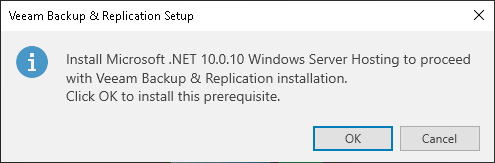
- we click Upgrade; I was informed that Microsoft .NET 10.0.10 Windows Server Hosting needed to be installed, which was done after confirming
- we choose Upgrade Veeam Backup & Replication

- the Setup Wizard starts
- we accept the license terms
- in the license settings, the current license is used automatically; we have the option to upload a new license file or sign in with a Veeam account; we can select Update license automatically and Receive proactive support - both options enable sharing of diagnostic data (usage reports)

- a System Configuration Check is performed; if any required components are missing, the wizard tries to install them automatically (it does not uninstall old versions)
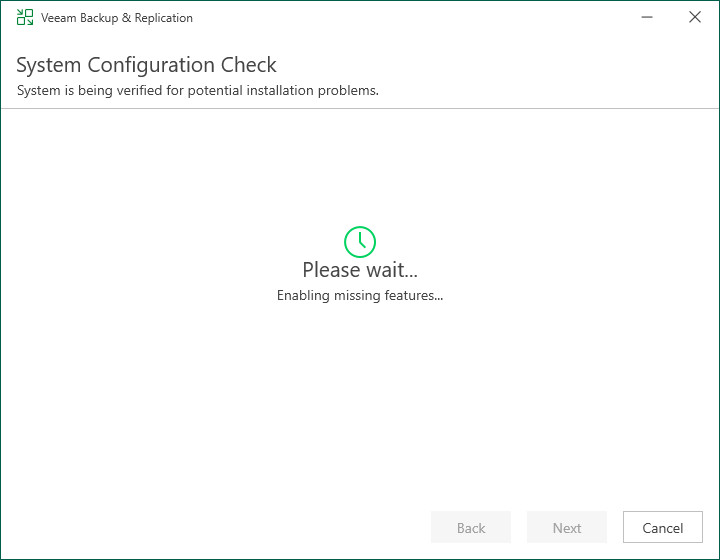
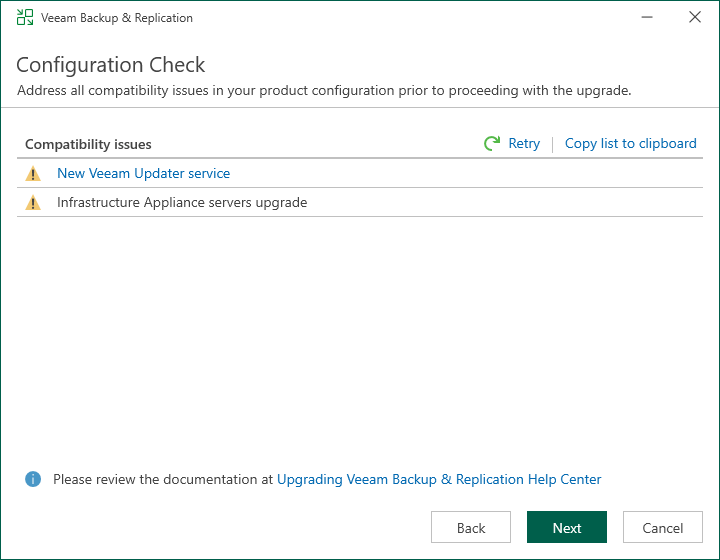
- a Configuration Check is performed for possible compatibility issues
- if an error is found, the upgrade cannot continue until it is resolved
- warnings and informational notes may be displayed that don't block the upgrade but are worth looking into (hovering over a row shows the details)
- some information is generic (such as deprecated features and unsupported versions), even if we're not currently using them; other items relate to our specific configuration
- I was informed about the New Veeam Updater service and the Infrastructure Appliance servers upgrade (the update also includes a significant OS upgrade for the VIA)
- information about the components to be upgraded and their versions is displayed; we can check Update remote components automatically
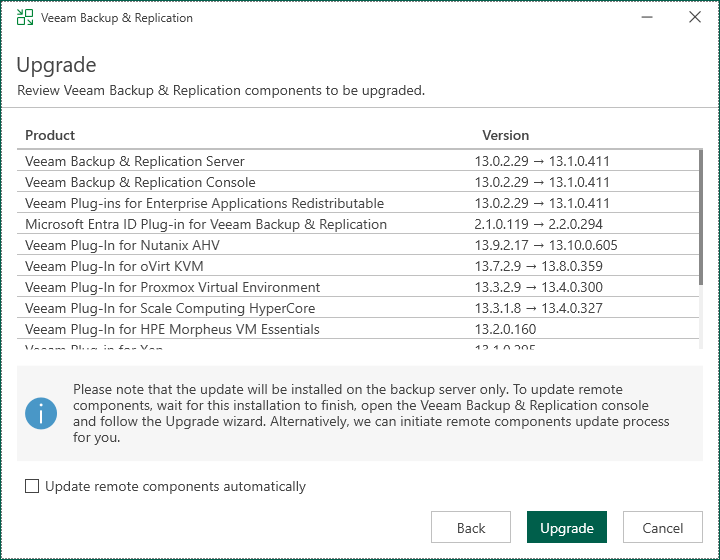
- we click the Upgrade button, which starts the update process
- it goes through 7 steps, which for me took 25 minutes
- Upgrading Veeam Backup & Replication Server (I got an error saying the VeeamBackupSvc service could not be stopped, but after clicking Retry everything went through)
- Upgrading Veeam Backup & Replication Console
- Upgrading Veeam Explorers
- Upgrading Veeam Agents Redistributables
- Upgrading Plug-ins for Veeam Backup & Replication
- Applying the latest update
- Finalizing installation and starting services
Post-Upgrade Operations on the Server
Updating Components on Servers
We launch the Veeam Backup & Replication Console on the server and connect to it. An update of the (remote) components is offered, which we perform. All Veeam components on remote servers that the Backup Server communicates with must be updated, otherwise they cannot be used in jobs.
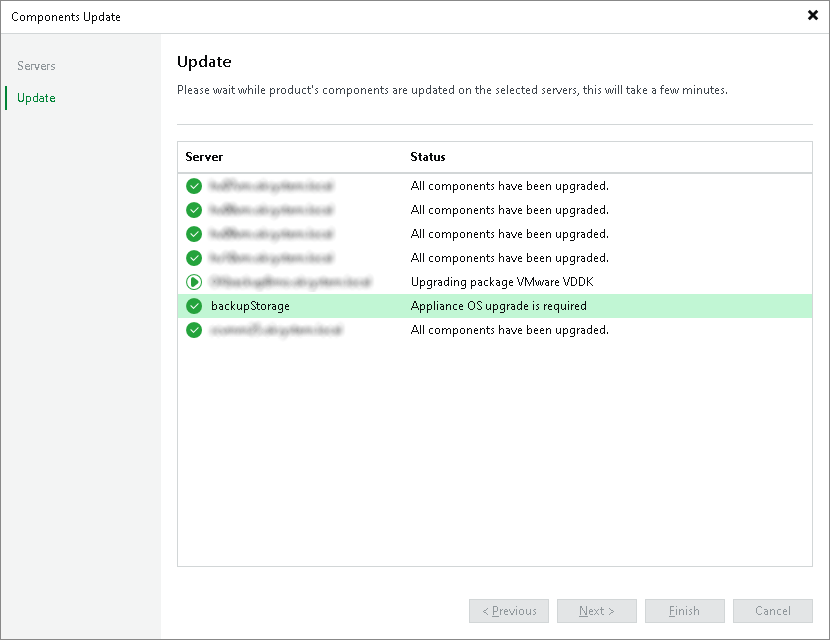
As we were warned in the configuration check, the Veeam Infrastructure Appliance is also upgraded. This takes a few minutes and then restarts the server. Once everything came back up, VBR showed the Hardened Repository as unavailable. I performed a Rescan on it and everything was fixed.
Upgrading the VBR Console
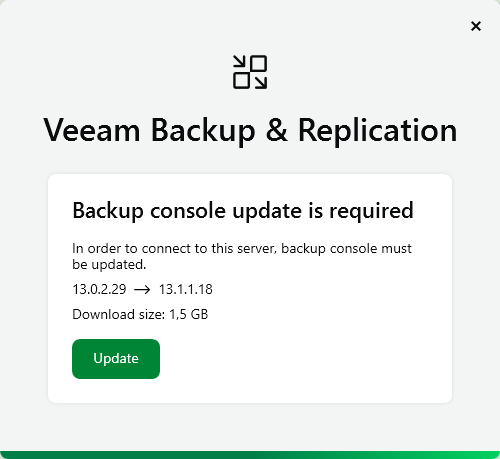
If we use remote consoles for management, we need to update them too. Starting with console version 12.3.2.4165, the upgrade happens automatically upon connecting to the server. The components are downloaded, the old ones are uninstalled and the new ones installed, and updates and plug-in updates are applied. The upgrade took me about 13 minutes.
Virtual Lab
The documentation states that if we use a Virtual Lab, we should open the settings for each lab and click through the wizard so that the new version of the application proxy is deployed.
Upgrading Agents
We can manually run a Rescan on the Protection Group or wait for the scheduled one to run. If we have automatic agent updates enabled, the upgrade will take place. Otherwise, we need to trigger it manually. In my case, this was an upgrade of Veeam Agent for Microsoft Windows from version 13.0.3.1220 to 13.1.1.700.
Upgrading Enterprise Plug-Ins
To update the Veeam Plug-in for Oracle RMAN, we run the installation of the new version on the target server. The current version is 13.1.0.411. The necessary files can be found on the Veeam Backup & Replication installation ISO.
When moving to VBR 13.1 with Oracle on Linux, we must first install the package openssl-fips-redistributable-3.1.2-3.1.2.2-1.x86_64.rpm, found in the \Packages folder. Then install the plug-in itself, VeeamPluginforOracleRMAN-13.1.0.411-1.x86_64.rpm, from \Plugins\Oracle RMAN.
If a Veeam Agent is also installed on the server, we can perform the upgrade remotely from the console. This should be possible via the Protection Group, or by right-clicking directly on the server and choosing Plug-in - Upgrade.
Re-enabling Jobs
Finally, we re-enable all scheduled jobs that we disabled before the upgrade.
There are no comments yet.